
MainWP connects only to the Staging version, which is the dynamic WordPress instance.
What You’ll Learn
- How to add a Strattic site to MainWP
- Current limitations when using MainWP with Strattic
Prerequisites
- Strattic account with access to site details
- MainWP Dashboard installed and configured
- MainWP Child plugin installed on the Strattic Staging site
Add a Strattic Site to MainWP
1
Access Strattic Dashboard
Go to your Strattic Dashboard, locate the site you want to add, and click Details.
2
Get HTTP credentials
From the site details page, copy the HTTP (Basic Auth) Credentials and the WordPress URL.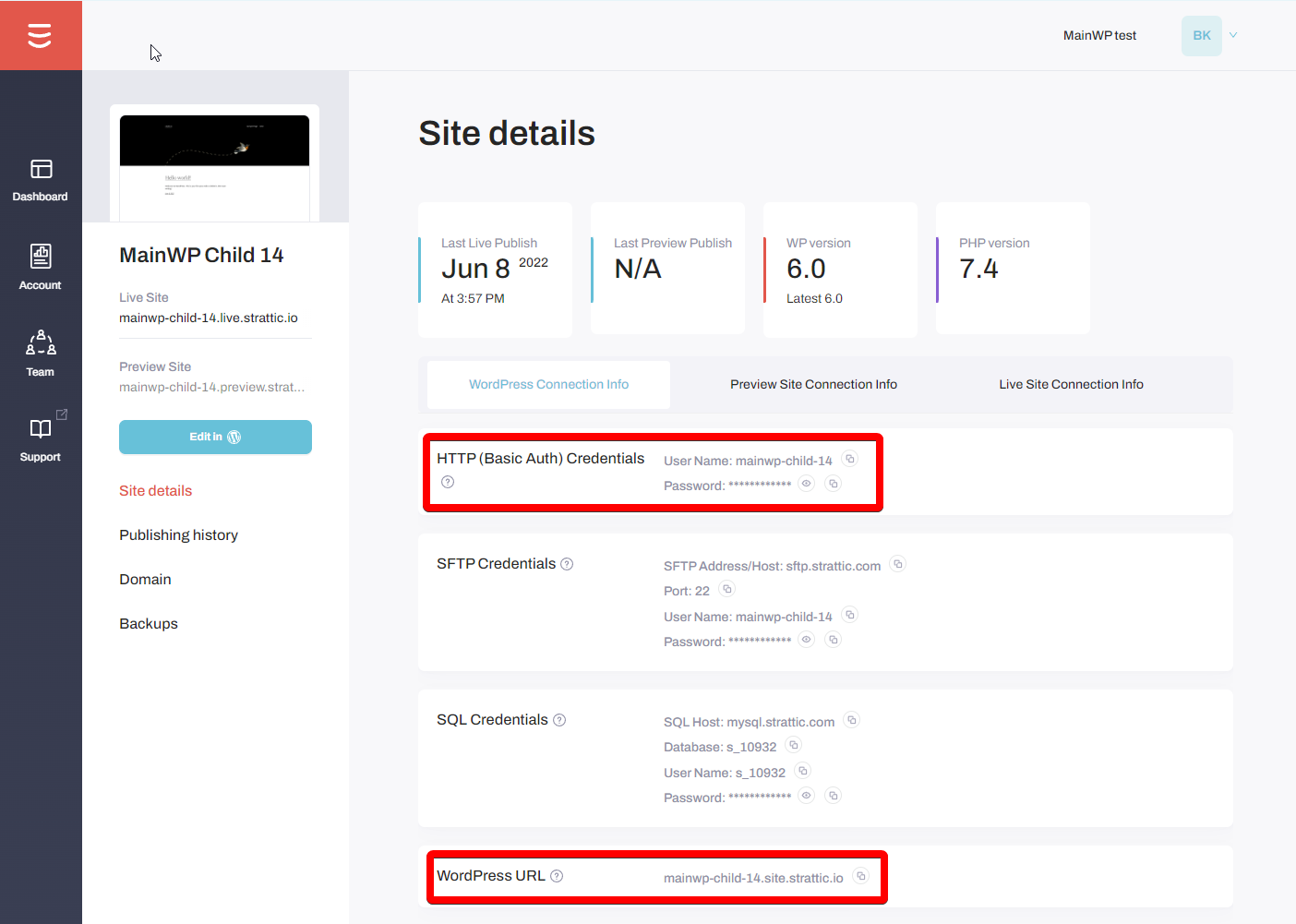
HTTP Basic Auth is mandatory for the Staging version of the site.
3
Open Add New Site in MainWP
Navigate to MainWP Dashboard > Sites > Add New.
4
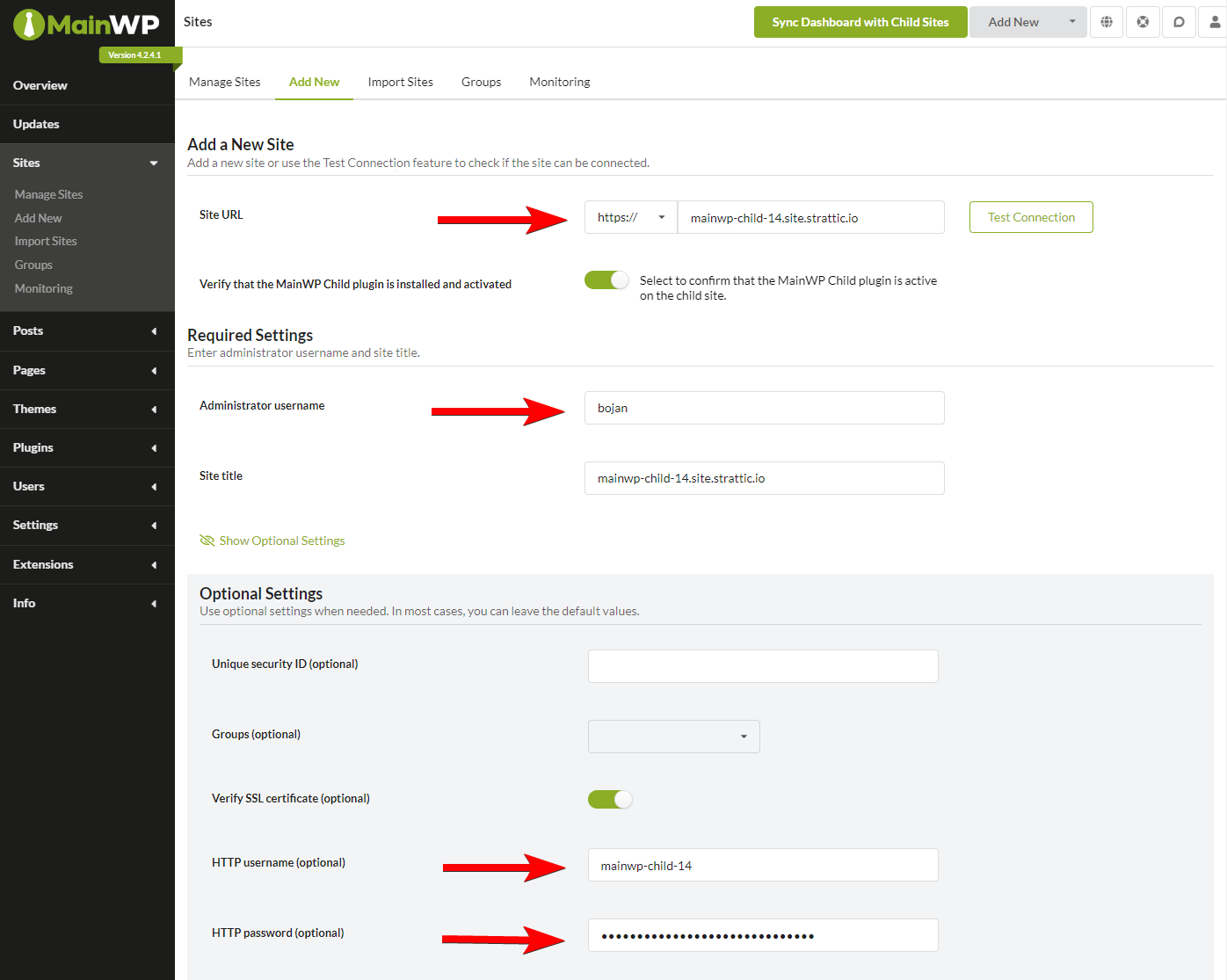
Enter site details
Fill in the required fields:
- Site URL: Use the Staging WordPress URL from Strattic
- Administrator username: Admin username for the child site
- HTTP username: From Strattic’s HTTP credentials
-
HTTP password: From Strattic’s HTTP credentials
5
Add the site
Click Add Site. MainWP connects to the Staging version of your Strattic site.
Current Limitations
Publishing Required After Changes
When you make changes through MainWP (updates, plugin installations, etc.), the Staging site is modified. These changes are not visible on your Live site until you publish. Publishing generates a fresh static version of your site. See Strattic’s publishing documentation for publishing options.Container Shutdown
After a period of inactivity on the Staging site, Strattic automatically shuts down the container for security and resource reasons.
Before performing MainWP operations, ensure the Strattic container is running by accessing the Staging site through the Strattic dashboard.
Self-Check Checklist
- Located Staging URL in Strattic Dashboard
- Copied HTTP Basic Auth credentials
- Entered HTTP credentials in MainWP Add Site form
- Site successfully added and syncing
- Published changes to Live after MainWP updates
Related Resources
- HTTP Basic Authentication - Using MainWP with HTTP auth
- Hosting Compatibility - General hosting information