> ## Documentation Index
> Fetch the complete documentation index at: https://docs.mainwp.com/llms.txt
> Use this file to discover all available pages before exploring further.
# Troubleshoot connection problems
> Comprehensive guide for troubleshooting MainWP connection issues including firewall blocks (ModSecurity, Imunify360, Cloudflare), SSL certificate problems, DNS issues, and server misconfigurations.
This guide covers the most common issues that prevent MainWP from connecting to child sites. Work through each relevant section based on the error message you're receiving.
## What You'll Learn
* Identify what's blocking your connection
* Resolve firewall and security layer blocks
* Fix SSL certificate verification issues
* Troubleshoot DNS and server configuration problems
* Resolve plugin conflicts
## Prerequisites
* MainWP Dashboard installed and activated
* MainWP Child plugin installed on the site you're trying to connect
* Admin access to both Dashboard and child sites
* Your Dashboard IP address (found at **MainWP > Status**)
***
## Connection Blocked by Firewall
When a firewall or security layer blocks requests from your MainWP Dashboard, you'll typically see one of these error messages:
* **"Connection timed out after 100000ms"** or **"Site can't be reached"**
* **"MainWP Child plugin can't be found"** (the request never reaches the website)
Find your MainWP Dashboard IP address at **MainWP > Status** under the Server IP check. You'll need this IP to create firewall exceptions.
The blocking firewall could be ModSecurity, Imunify360, Cloudflare, or another security layer on the child site server.
### General Troubleshooting Steps
Temporarily disable all security plugins on the child site.
Review the .htaccess file for leftover security rules from previously deactivated plugins or custom security rules.
If using Cloudflare, Sucuri, WebARX, or similar, temporarily disable it or whitelist your MainWP Dashboard IP.
If the above steps don't help, contact your host support and have them review firewall logs around the time you tried to connect. They can whitelist your Dashboard IP or adjust the triggered WAF rule.
***
## ModSecurity
ModSecurity is a web application firewall (WAF) that may block MainWP connections. If ModSecurity is blocking your connection, the Connection Test typically shows **HTTP status code 415 Unsupported Media Type**.
Go to **MainWP > Status** and note your Dashboard IP address.
Access your child site server's Nginx/Apache Error Log and find the ModSecurity error generated when your Dashboard tried to connect. Note the **Error ID** (bolded number in this example):
```text theme={null}
[Fri Jun 26 23:07:04.178701 2020 [:error] [pid 78007:tid 139308447686754] [client 125.54.65.125]
ModSecurity: Access denied with code 403 (phase 2). Pattern match
"Mozilla/(4|5)\\.0$" at REQUEST_HEADERS:User-Agent. [file
"/etc/apache2/conf.d/modsec2.conf"] [line "109"] [id "20000221"] [hostname "127.0.0.1"] [uri "/wp-admin/admin-ajax.php"] [unique_id "WwjPWChxvG3CO5kz-D55eQBBBCU"]
```
Find your ModSecurity configuration file:
| Platform | Location |
| ------------- | --------------------------------------------------------------------------- |
| Easy Apache 4 | `/etc/apache2/conf.d/modsec2/whitelist.conf` |
| Plesk | **Tools & Settings > ModSecurity > Settings > Configuration** |
| GridPane | `/etc/nginx/modsec/owasp/rules/REQUEST-900-EXCLUSION-RULES-BEFORE-CRS.conf` |
Add your exclusion rule at the bottom of the config file:
```text theme={null}
SecRule REMOTE_ADDR "^125\.54\.65\.125" "phase:1,nolog,allow,ctl:ruleEngine=off,id:20000221"
```
Replace the IP address and ID with your values.
Save the configuration file.
If the issue persists, contact your host support for log review.
***
## Imunify360
Imunify360 is a security suite for Linux web servers that can block MainWP Dashboard connections.
**Indicators:** Connection Test shows **HTTP status code 415 Unsupported Media Type**, or MainWP displays:
> Error detected: Connection Failed. We suspect that Imunify360, a security layer added by your host, is causing this problem.
Contact your host to whitelist your Dashboard IP, or follow these steps if you have WHM access:
Access your WHM control panel.
Go to **Plugins > Imunify360**.
Select the **Firewall** tab.
Click **Add** on the right side and enter:
* Your Dashboard IP address
* A descriptive comment
* TTL (time to live) value
* Select **Whitelist**
* Enable **Full access**
Click **ADD IP**.
Some support representatives may be unfamiliar with Imunify360's role in connection issues. If initial support doesn't resolve the problem, escalate your ticket and request they check firewall logs.
**Using Cloudflare with Imunify360:** If using Cloudflare's "Cache Everything" feature with Imunify360, see [Imunify360's Cloudflare documentation](https://blog.imunify360.com/using-cloudflare-cache-everything-with-imunify360) for disabling Edge Cache TTL.
***
## Cloudflare
Cloudflare's firewall can block MainWP Dashboard requests. Create a firewall rule to whitelist your Dashboard IP.
Go to **MainWP > Info > Server** and note your Dashboard IP address.
In your Cloudflare account, navigate to **Security > WAF**.
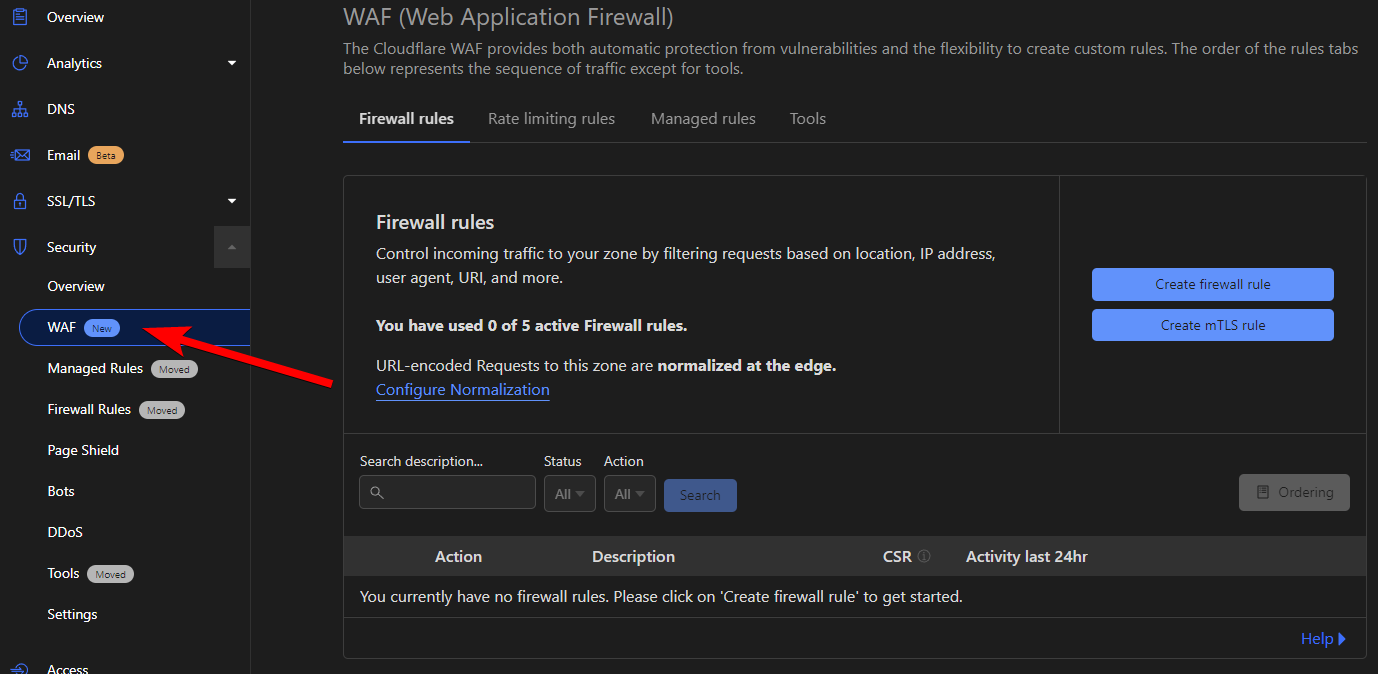 Click **Create firewall rule** and configure:
| Setting | Value |
| ---------------------- | ----------------- |
| Name | MainWP Dashboard |
| Field | IP Source Address |
| Operator | Equals |
| Value | Your Dashboard IP |
| Action | Skip |
| WAF components to skip | Security Level |
Click **Create firewall rule** and configure:
| Setting | Value |
| ---------------------- | ----------------- |
| Name | MainWP Dashboard |
| Field | IP Source Address |
| Operator | Equals |
| Value | Your Dashboard IP |
| Action | Skip |
| WAF components to skip | Security Level |
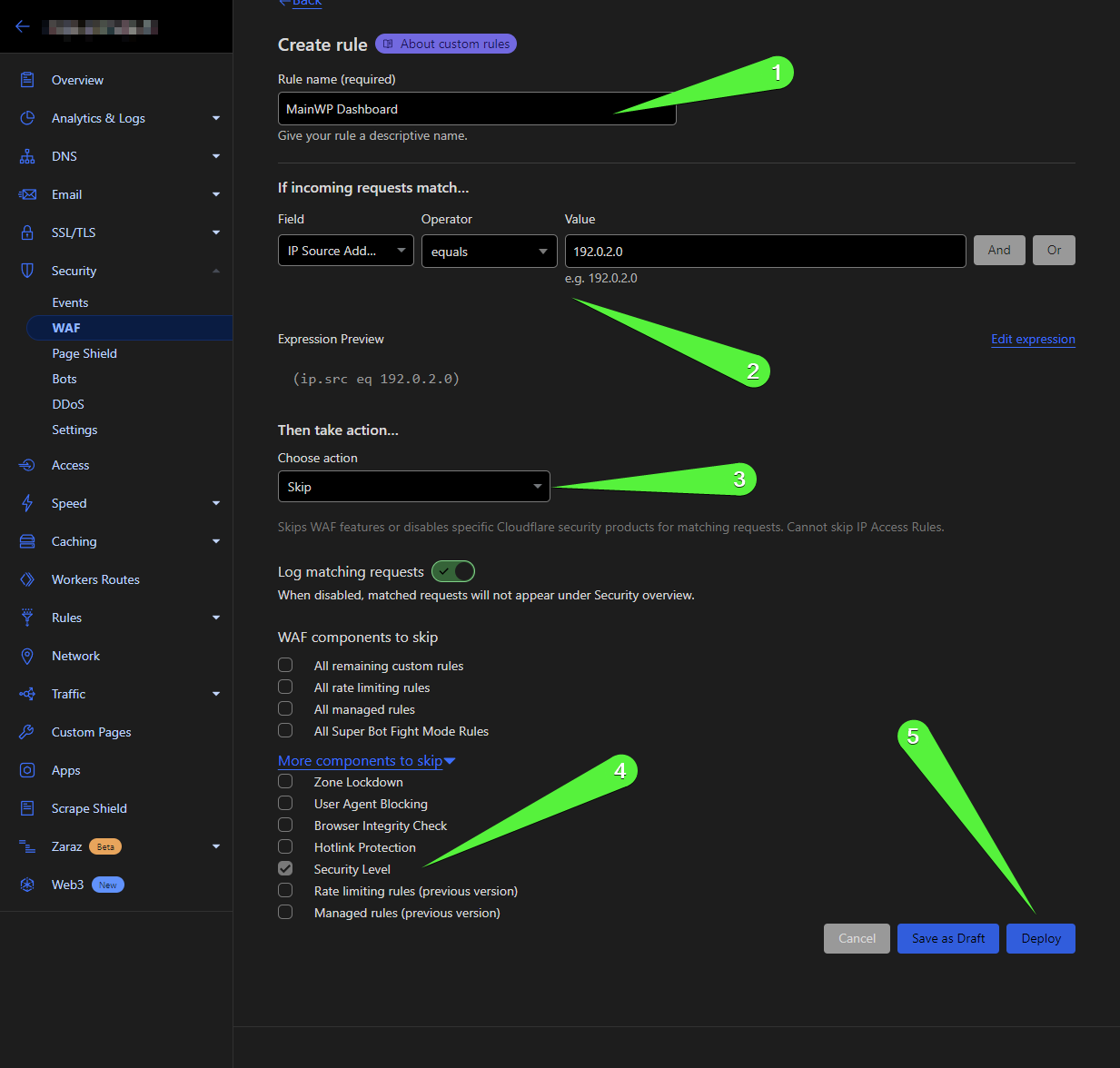 Click **Deploy** to save.
**Alternative: Use Referrer field**
If IP whitelisting doesn't work, create a rule using the Referrer field:
| Setting | Value |
| -------- | ------------------------- |
| Field | Referrer |
| Operator | Contains |
| Value | Your MainWP Dashboard URL |
Click **Deploy** to save.
**Alternative: Use Referrer field**
If IP whitelisting doesn't work, create a rule using the Referrer field:
| Setting | Value |
| -------- | ------------------------- |
| Field | Referrer |
| Operator | Contains |
| Value | Your MainWP Dashboard URL |
 If neither approach works, disable **Bot Fight Mode** at **Cloudflare Dashboard > Security > Bots**. This feature sometimes blocks legitimate MainWP requests.
***
## SiteGround Captcha
SiteGround's captcha security feature can prevent MainWP Dashboard connections.
**Indicator:** Connection Test shows **HTTP status code 202 Accepted**.
**Resolution:** Contact SiteGround support and request they whitelist your MainWP Dashboard's IP address. Find your IP at **MainWP > Server** under Server IP.
If the Server IP shows a local address like 127.0.0.1, contact your MainWP Dashboard host to get the actual external IP address.
***
## SSL Certificate Verification Issues
SSL certificate misconfiguration or expiration can prevent MainWP from connecting to child sites.
Go to [SSL Checker](https://www.sslshopper.com/ssl-checker.html) and enter your child site URL.
If warnings or errors appear, contact your host to resolve SSL configuration issues.
**Quick fix:** If your SSL is valid but MainWP still fails to connect, try disabling SSL verification for that specific site in **MainWP > Sites > Edit Site > Verify SSL Certificate**.
***
## DNS Issues
Recent server migrations may cause DNS cache inconsistencies.
Use the [Test Connection](/getting-started/get-started-with-mainwp#test-connection) feature.
Verify the IP matches what shows on your child site at **WP > Settings > MainWP Child > Server Information**.
If IPs don't match:
* Dashboard host: Request DNS cache flush
* Child site host: Request DNS settings verification
DNS issues typically resolve within 48 hours, though some hosts may take longer.
***
## Dashboard Server Misconfiguration
Verify your Dashboard server meets requirements.
Go to **MainWP > Server Information**.
Ensure these show **Pass**:
* cURL Extension Enabled
* cURL Version
* OpenSSL Extension Enabled
* OpenSSL Version
* PHP Version
* MySQL Version
### OpenSSL Library Error (Invalid Request)
If you receive an "Invalid request" error, check **MainWP > Server Information** for the SSL Warning row. These errors indicate OpenSSL misconfiguration:
```text theme={null}
error:02001003:system library:fopen:No such process
error:02001002:system library:fopen:No such file or directory
```
Go to **MainWP > Settings > Advanced Settings**.
The option to add the OpenSSL.cnf file will appear.
Click **Save Settings**.
Recheck Server Information to confirm the SSL Warning is gone.
***
## Child Site Server Misconfiguration
Verify your child site server meets requirements.
Go to **WP > Settings > MainWP Child > Server Information** on the child site.
Ensure these show **Pass**:
* MainWP Upload Directory
* cURL Extension Enabled
* cURL Version
* OpenSSL Extension Enabled
* OpenSSL Version
* PHP Version
* MySQL Version
***
## Plugin Conflict
Security and caching plugins frequently block MainWP connections.
Temporarily disable all plugins except MainWP Child.
Attempt to connect the site.
If successful, re-enable plugins one at a time to identify the conflict.
Focus first on security and caching plugins, as these are the most common culprits.
***
## MainWP Child Plugin Missing
The MainWP Child plugin must be **installed and activated** on any site you want to connect. Verify this before troubleshooting other issues.
***
## Self-Check Checklist
* [ ] Dashboard IP is noted for firewall rules
* [ ] Connection Test shows the specific error
* [ ] Security plugins are temporarily disabled
* [ ] .htaccess has no blocking rules
* [ ] SSL certificate is valid
* [ ] Server Information shows all checks passing
* [ ] MainWP Child is installed and activated
***
## Related Resources
* [How to Enable Error Logging](/troubleshooting/how-to-enable-error-logging) - Debug connection issues
* [Connection Test Status Codes](/troubleshooting/connection-test-results-status-codes) - Understand error codes
* [Resolve System Requirements](/troubleshooting/resolve-system-requirement-issues) - Fix server issues
If neither approach works, disable **Bot Fight Mode** at **Cloudflare Dashboard > Security > Bots**. This feature sometimes blocks legitimate MainWP requests.
***
## SiteGround Captcha
SiteGround's captcha security feature can prevent MainWP Dashboard connections.
**Indicator:** Connection Test shows **HTTP status code 202 Accepted**.
**Resolution:** Contact SiteGround support and request they whitelist your MainWP Dashboard's IP address. Find your IP at **MainWP > Server** under Server IP.
If the Server IP shows a local address like 127.0.0.1, contact your MainWP Dashboard host to get the actual external IP address.
***
## SSL Certificate Verification Issues
SSL certificate misconfiguration or expiration can prevent MainWP from connecting to child sites.
Go to [SSL Checker](https://www.sslshopper.com/ssl-checker.html) and enter your child site URL.
If warnings or errors appear, contact your host to resolve SSL configuration issues.
**Quick fix:** If your SSL is valid but MainWP still fails to connect, try disabling SSL verification for that specific site in **MainWP > Sites > Edit Site > Verify SSL Certificate**.
***
## DNS Issues
Recent server migrations may cause DNS cache inconsistencies.
Use the [Test Connection](/getting-started/get-started-with-mainwp#test-connection) feature.
Verify the IP matches what shows on your child site at **WP > Settings > MainWP Child > Server Information**.
If IPs don't match:
* Dashboard host: Request DNS cache flush
* Child site host: Request DNS settings verification
DNS issues typically resolve within 48 hours, though some hosts may take longer.
***
## Dashboard Server Misconfiguration
Verify your Dashboard server meets requirements.
Go to **MainWP > Server Information**.
Ensure these show **Pass**:
* cURL Extension Enabled
* cURL Version
* OpenSSL Extension Enabled
* OpenSSL Version
* PHP Version
* MySQL Version
### OpenSSL Library Error (Invalid Request)
If you receive an "Invalid request" error, check **MainWP > Server Information** for the SSL Warning row. These errors indicate OpenSSL misconfiguration:
```text theme={null}
error:02001003:system library:fopen:No such process
error:02001002:system library:fopen:No such file or directory
```
Go to **MainWP > Settings > Advanced Settings**.
The option to add the OpenSSL.cnf file will appear.
Click **Save Settings**.
Recheck Server Information to confirm the SSL Warning is gone.
***
## Child Site Server Misconfiguration
Verify your child site server meets requirements.
Go to **WP > Settings > MainWP Child > Server Information** on the child site.
Ensure these show **Pass**:
* MainWP Upload Directory
* cURL Extension Enabled
* cURL Version
* OpenSSL Extension Enabled
* OpenSSL Version
* PHP Version
* MySQL Version
***
## Plugin Conflict
Security and caching plugins frequently block MainWP connections.
Temporarily disable all plugins except MainWP Child.
Attempt to connect the site.
If successful, re-enable plugins one at a time to identify the conflict.
Focus first on security and caching plugins, as these are the most common culprits.
***
## MainWP Child Plugin Missing
The MainWP Child plugin must be **installed and activated** on any site you want to connect. Verify this before troubleshooting other issues.
***
## Self-Check Checklist
* [ ] Dashboard IP is noted for firewall rules
* [ ] Connection Test shows the specific error
* [ ] Security plugins are temporarily disabled
* [ ] .htaccess has no blocking rules
* [ ] SSL certificate is valid
* [ ] Server Information shows all checks passing
* [ ] MainWP Child is installed and activated
***
## Related Resources
* [How to Enable Error Logging](/troubleshooting/how-to-enable-error-logging) - Debug connection issues
* [Connection Test Status Codes](/troubleshooting/connection-test-results-status-codes) - Understand error codes
* [Resolve System Requirements](/troubleshooting/resolve-system-requirement-issues) - Fix server issues