> ## Documentation Index
> Fetch the complete documentation index at: https://docs.mainwp.com/llms.txt
> Use this file to discover all available pages before exploring further.
# All child sites disappeared from my MainWP Dashboard
> Missing child sites usually indicates database corruption. Check if ANSI_QUOTES MySQL mode is enabled, then repair the database using WP_ALLOW_REPAIR or phpMyAdmin, or restore from a recent backup.
When all child sites disappear from the Manage Sites table, the most common cause is database corruption. This guide covers how to diagnose the issue and repair your database to restore your sites.
## What You'll Learn
* Check for MySQL configuration issues
* Repair the database using WordPress built-in tools
* Repair the database using phpMyAdmin
* Restore from backup as a last resort
## Prerequisites
* FTP or file manager access to your Dashboard site
* Ability to edit wp-config.php
* cPanel or phpMyAdmin access (for database repair method)
* Recent backup (optional, for restore method)
***
## Check MySQL Configuration
Before repairing the database, verify that the **ANSI\_QUOTES** MySQL mode is not causing the issue.
Go to **MainWP > Info > Server Information** and locate the **MySQL Modes** row.
 Confirm that **ANSI\_QUOTES** is not listed in the MySQL modes. If it is enabled, contact your hosting provider to disable it.
***
## Repair Database Using WP\_ALLOW\_REPAIR
WordPress includes a built-in database repair feature that requires minimal technical knowledge.
Connect to your Dashboard site via FTP and download `wp-config.php` from the WordPress root folder.
Open wp-config.php in a text editor and add this line before the `if ( !defined('ABSPATH') )` line:
```php theme={null}
define( 'WP_ALLOW_REPAIR', true );
```
Confirm that **ANSI\_QUOTES** is not listed in the MySQL modes. If it is enabled, contact your hosting provider to disable it.
***
## Repair Database Using WP\_ALLOW\_REPAIR
WordPress includes a built-in database repair feature that requires minimal technical knowledge.
Connect to your Dashboard site via FTP and download `wp-config.php` from the WordPress root folder.
Open wp-config.php in a text editor and add this line before the `if ( !defined('ABSPATH') )` line:
```php theme={null}
define( 'WP_ALLOW_REPAIR', true );
```
 Save the file and upload it back to your server, overwriting the existing copy.
In your browser, go to:
```text theme={null}
https://yourdashboard.com/wp-admin/maint/repair.php
```
Replace `yourdashboard.com` with your actual Dashboard URL.
Save the file and upload it back to your server, overwriting the existing copy.
In your browser, go to:
```text theme={null}
https://yourdashboard.com/wp-admin/maint/repair.php
```
Replace `yourdashboard.com` with your actual Dashboard URL.
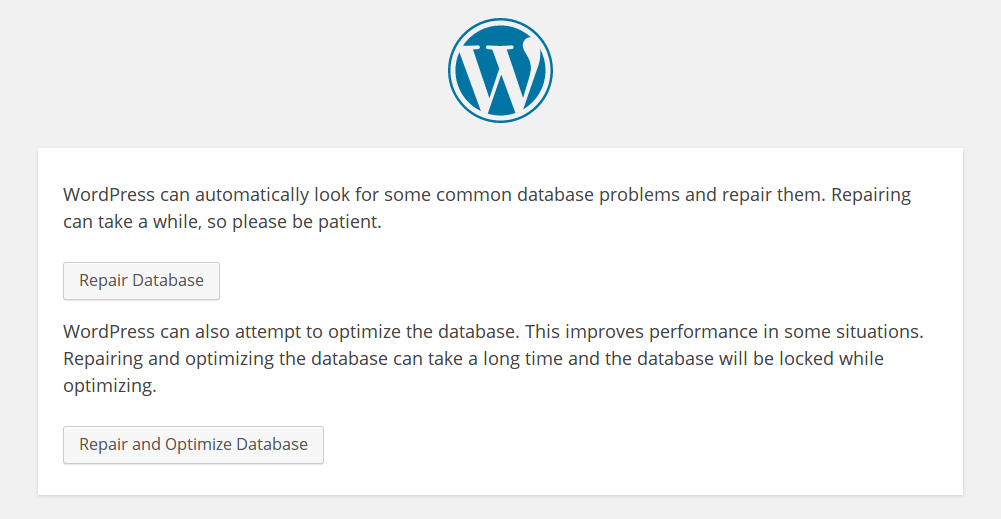 Click **Repair and Optimize Database**. This option repairs corrupted tables and optimizes performance.
Scroll to the bottom of the results page. You should see the message: "Repairs complete. Please remove the following line from wp-config.php to prevent this page from being used by unauthorized users."
Edit wp-config.php again and remove the `WP_ALLOW_REPAIR` line you added. Upload the file to your server.
Go to **MainWP > Sites > Manage Sites** and confirm your child sites are visible again.
Always remove the WP\_ALLOW\_REPAIR line after repairing. Leaving it enabled allows anyone to access the repair page without authentication.
***
## Repair Database Using phpMyAdmin
If the WordPress repair method doesn't work, try repairing directly through phpMyAdmin.
Log in to your hosting cPanel and open the phpMyAdmin module.
In the left sidebar, click your WordPress database name. If you're unsure which database to select, check the `DB_NAME` value in your wp-config.php file.
If you know which table is corrupted, select only that table. Otherwise, click **Check all** to select all tables.
Click **Repair and Optimize Database**. This option repairs corrupted tables and optimizes performance.
Scroll to the bottom of the results page. You should see the message: "Repairs complete. Please remove the following line from wp-config.php to prevent this page from being used by unauthorized users."
Edit wp-config.php again and remove the `WP_ALLOW_REPAIR` line you added. Upload the file to your server.
Go to **MainWP > Sites > Manage Sites** and confirm your child sites are visible again.
Always remove the WP\_ALLOW\_REPAIR line after repairing. Leaving it enabled allows anyone to access the repair page without authentication.
***
## Repair Database Using phpMyAdmin
If the WordPress repair method doesn't work, try repairing directly through phpMyAdmin.
Log in to your hosting cPanel and open the phpMyAdmin module.
In the left sidebar, click your WordPress database name. If you're unsure which database to select, check the `DB_NAME` value in your wp-config.php file.
If you know which table is corrupted, select only that table. Otherwise, click **Check all** to select all tables.
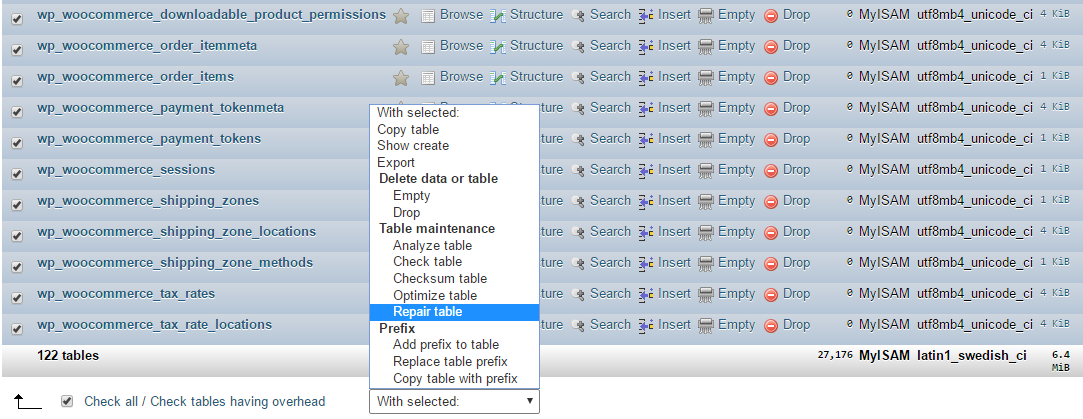 From the dropdown menu at the bottom, select **Repair table** and click **Go**.
phpMyAdmin displays the repair results. Once complete, go to your Dashboard and verify your sites are restored.
***
## Restore from Backup
If database repair doesn't resolve the issue, restore your Dashboard database from a recent backup.
Locate your most recent Dashboard database backup. This may be in your hosting account, a backup plugin, or an offsite backup service.
Use phpMyAdmin, your hosting control panel, or your backup plugin to restore the database.
After restoring, log in to your Dashboard and verify your child sites are visible.
Restoring a backup may result in some data loss if changes were made after the backup date. Re-sync all sites after restoration to ensure current data.
***
## If Nothing Works
If you've tried all methods and your sites are still missing, [contact MainWP Support](https://mainwp.com/mainwp-support/) for assistance.
***
## Self-Check Checklist
* [ ] Verified ANSI\_QUOTES MySQL mode is disabled
* [ ] Attempted WordPress built-in repair
* [ ] Attempted phpMyAdmin repair (if needed)
* [ ] Restored from backup (if needed)
* [ ] Removed WP\_ALLOW\_REPAIR from wp-config.php
* [ ] Child sites visible in Manage Sites table
***
## Related Resources
* [Troubleshoot Connection Problems](/troubleshooting/potential-issues) - Other connection issues
* [Resolve System Requirements](/troubleshooting/resolve-system-requirement-issues) - Server configuration issues
* [Manage Backups](/sites/backups/manage-backups) - Backup your Dashboard site
From the dropdown menu at the bottom, select **Repair table** and click **Go**.
phpMyAdmin displays the repair results. Once complete, go to your Dashboard and verify your sites are restored.
***
## Restore from Backup
If database repair doesn't resolve the issue, restore your Dashboard database from a recent backup.
Locate your most recent Dashboard database backup. This may be in your hosting account, a backup plugin, or an offsite backup service.
Use phpMyAdmin, your hosting control panel, or your backup plugin to restore the database.
After restoring, log in to your Dashboard and verify your child sites are visible.
Restoring a backup may result in some data loss if changes were made after the backup date. Re-sync all sites after restoration to ensure current data.
***
## If Nothing Works
If you've tried all methods and your sites are still missing, [contact MainWP Support](https://mainwp.com/mainwp-support/) for assistance.
***
## Self-Check Checklist
* [ ] Verified ANSI\_QUOTES MySQL mode is disabled
* [ ] Attempted WordPress built-in repair
* [ ] Attempted phpMyAdmin repair (if needed)
* [ ] Restored from backup (if needed)
* [ ] Removed WP\_ALLOW\_REPAIR from wp-config.php
* [ ] Child sites visible in Manage Sites table
***
## Related Resources
* [Troubleshoot Connection Problems](/troubleshooting/potential-issues) - Other connection issues
* [Resolve System Requirements](/troubleshooting/resolve-system-requirement-issues) - Server configuration issues
* [Manage Backups](/sites/backups/manage-backups) - Backup your Dashboard site