> ## Documentation Index
> Fetch the complete documentation index at: https://docs.mainwp.com/llms.txt
> Use this file to discover all available pages before exploring further.
# Manage Updates
> Remotely update WordPress Core, plugins, themes, and translations on all Child Sites. Enable auto-updates for trusted items, ignore specific updates, and use the built-in rollback feature for failed updates.
The Manage Updates feature lets you run WordPress core, plugin, theme, and translation updates across all your child sites from your Dashboard. Configure automatic updates for trusted items, ignore updates you want to skip, and take advantage of the built-in rollback feature to recover from failed updates.
## What You'll Accomplish
* Update WordPress core, plugins, themes, and translations individually or in bulk
* Configure automatic updates for trusted plugins, themes, and translations
* Ignore specific updates globally or per site, including WordPress core and translation updates
* Use the rollback feature to recover from failed updates
## Prerequisites
* MainWP Dashboard installed and activated
* At least one child site connected to your Dashboard
* Sites synced recently to have current update data
Before running updates, synchronize your child sites to ensure all available updates are displayed.
***
***
## WordPress Core Updates
### Update All WordPress Installations
Go to **MainWP > Updates > WordPress Updates**.
Click **Update All Sites** in the table header.
Confirm when prompted.
### Update a Single WordPress Installation
Go to **MainWP > Updates > WordPress Updates**.
Find the WordPress installation in the table.
Click **Update Now** in its row.
### Auto Update WordPress Core
Enable automatic WordPress core updates in two steps: enable the feature, then enable it for individual sites.
#### Enable Auto Updates Feature
Go to **MainWP > Settings**.
Locate the **Update Settings** section.
Set **WP Core auto-updates** to **Install updates**.
Click **Save Settings**.
#### Enable Auto Update for a Site
Go to **MainWP > Sites > Manage Sites**.
Find the site and click **Edit** from the actions menu.
Set **Auto Update Core** to **YES**.
Click **Save Settings**.
MainWP Auto Update is independent from WordPress native auto-updates. It uses WP Cron and may take up to 24 hours after detecting an update. Use Uptime Robot to ping your Dashboard for reliable cron execution.
### Ignore WordPress Core Updates
You can ignore WordPress core updates for individual child sites, or ignore a specific WordPress core version from the WordPress Updates table.
| Ignore Type | Scope |
| ---------------------------- | ------------------------------------------ |
| Ignore Core Update | All WordPress core updates, this site only |
| Ignore this version | This version, this site only |
| Ignore this version globally | This version, all sites |
| Ignore all versions | All versions, this site only |
#### Ignore Core Update for a Site
Go to **MainWP > Sites > Manage Sites**.
Find the site and click **Edit** from the actions menu.
Set **Ignore Core Update** to **YES**.
Click **Save Settings**.
#### Ignore a Specific Core Version
Go to **MainWP > Updates > WordPress Updates**.
Find the child site with the WordPress core update you want to ignore.
Use the row action to select **Ignore this version**, **Ignore this version globally**, or **Ignore all versions**.
#### Un-ignore Core Update
Use the same child site settings steps and set **Ignore Core Update** to **NO**.
To review ignored WordPress core versions, go to **MainWP > Updates > WordPress Updates** and click **View Ignored Updates**. This button appears only when ignored WordPress core updates exist.
The ignored WordPress core updates page uses `wp-admin/admin.php?page=UpdatesManage&tab=updates-ignore`, but it is not shown as a separate Updates menu item. MainWP opens it from the **View Ignored Updates** button on the WordPress Updates tab.
If WordPress core is up to date but ignored WordPress core updates still exist, the action bar remains visible. **View Ignored Updates** stays clickable, while **Update Selected WP Cores** and **Update All WP Cores** are disabled because there are no actionable WordPress core updates on the current tab.
***
## Plugin Updates
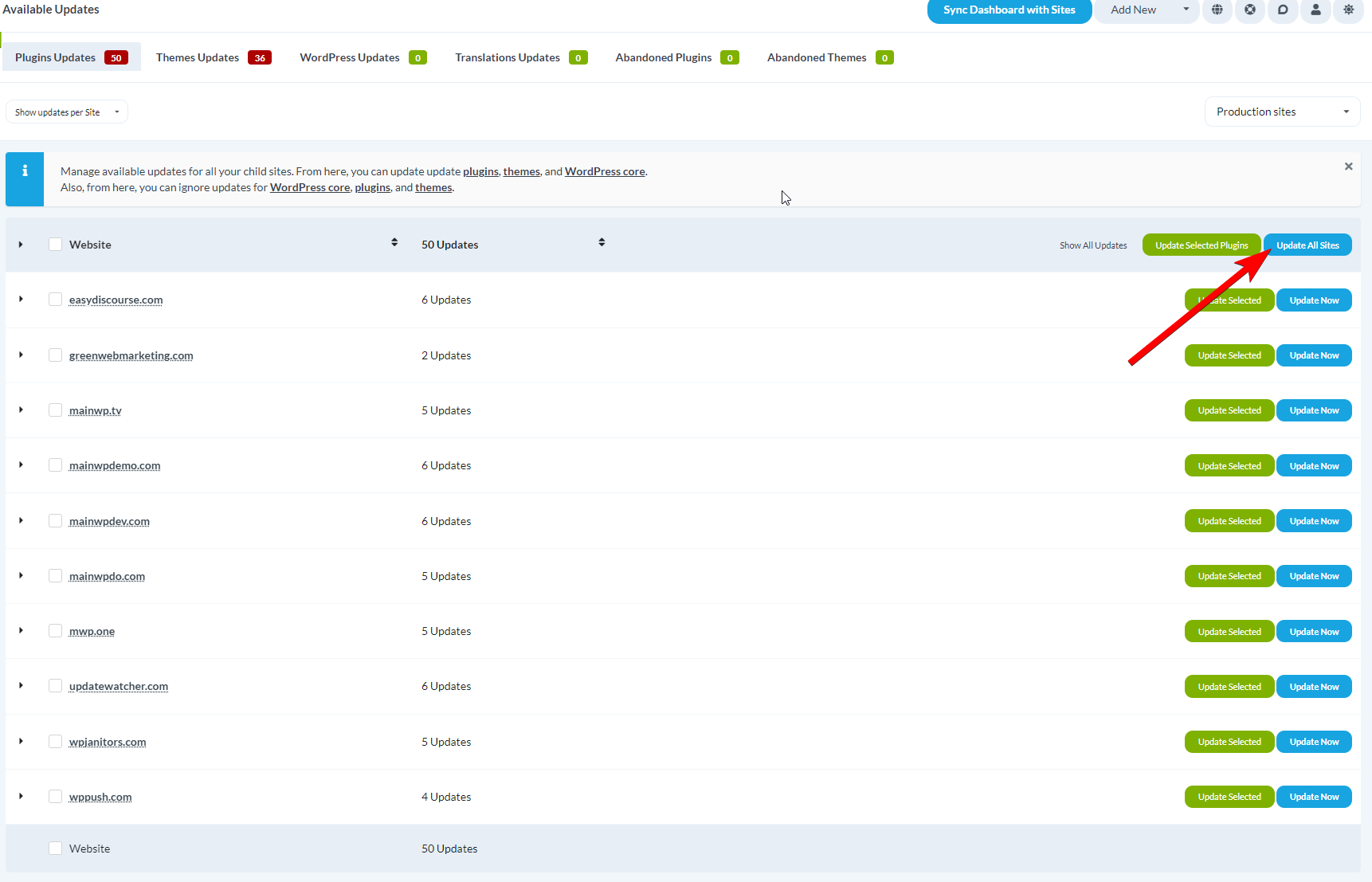
### Update All Plugins on All Sites
Go to **MainWP > Updates > Plugins**.
Click **Update All Plugins (Update All Sites)**.
Confirm when prompted.
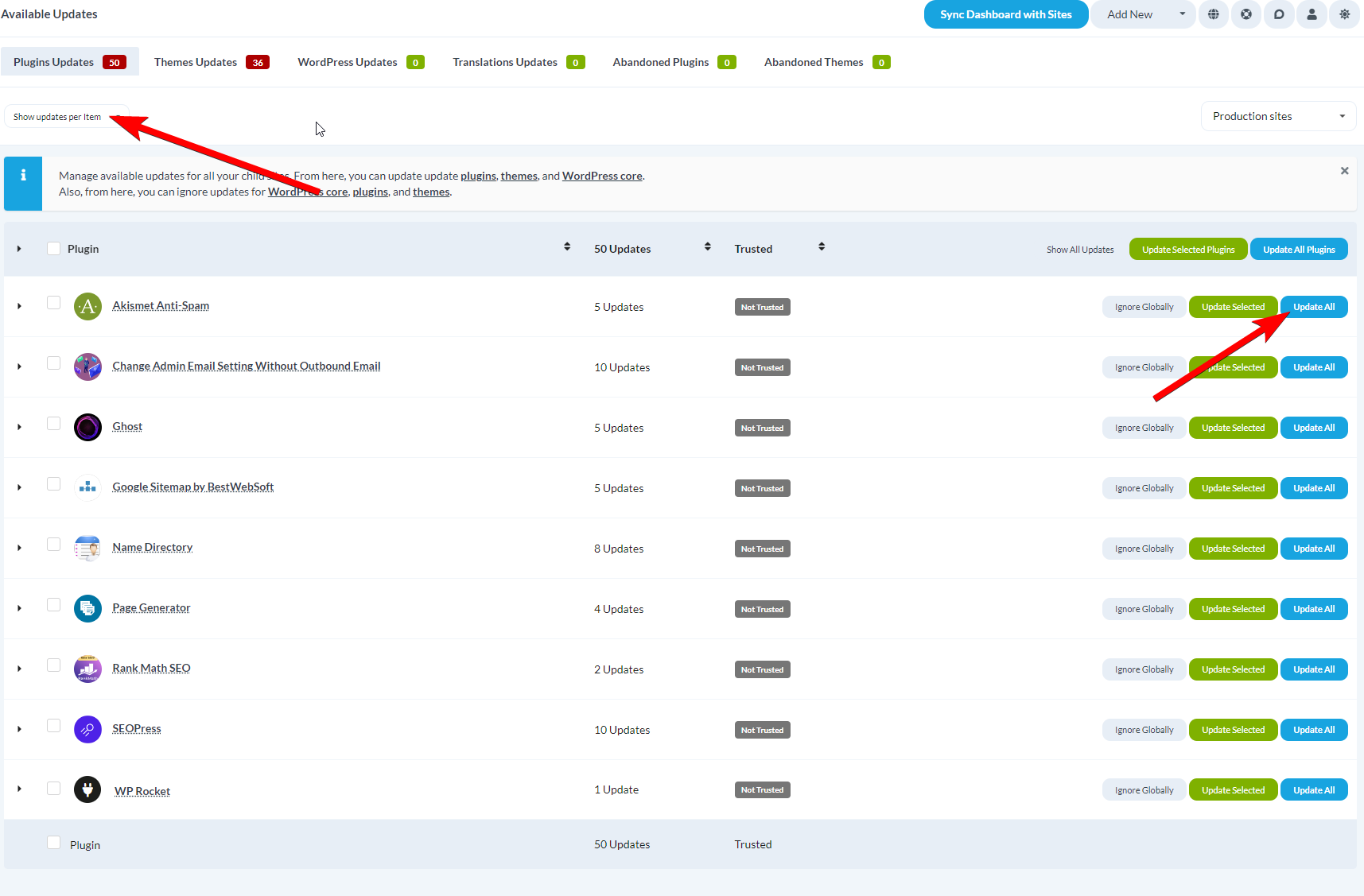
### Update a Single Plugin on All Sites
Go to **MainWP > Updates > Plugins Updates**.
Set **Show updates per** to **Item**.
Find the plugin you want to update.
Click **Update All** in the plugin row.
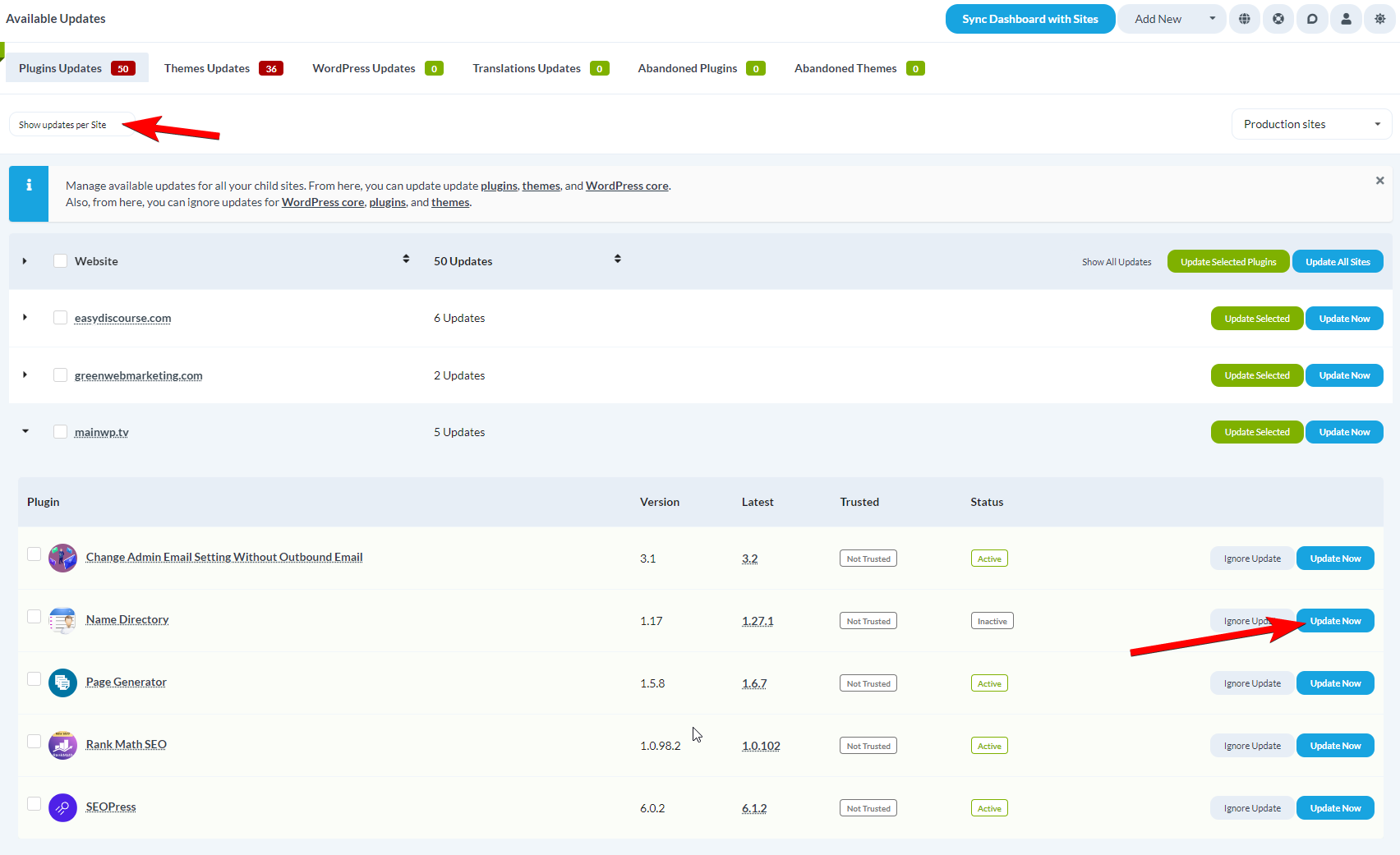
### Update All Plugins on a Single Site
Go to **MainWP > Updates > Plugins Updates**.
Set **Show updates per** to **Site**.
Find the child site.
Click **Update All** in the site row.
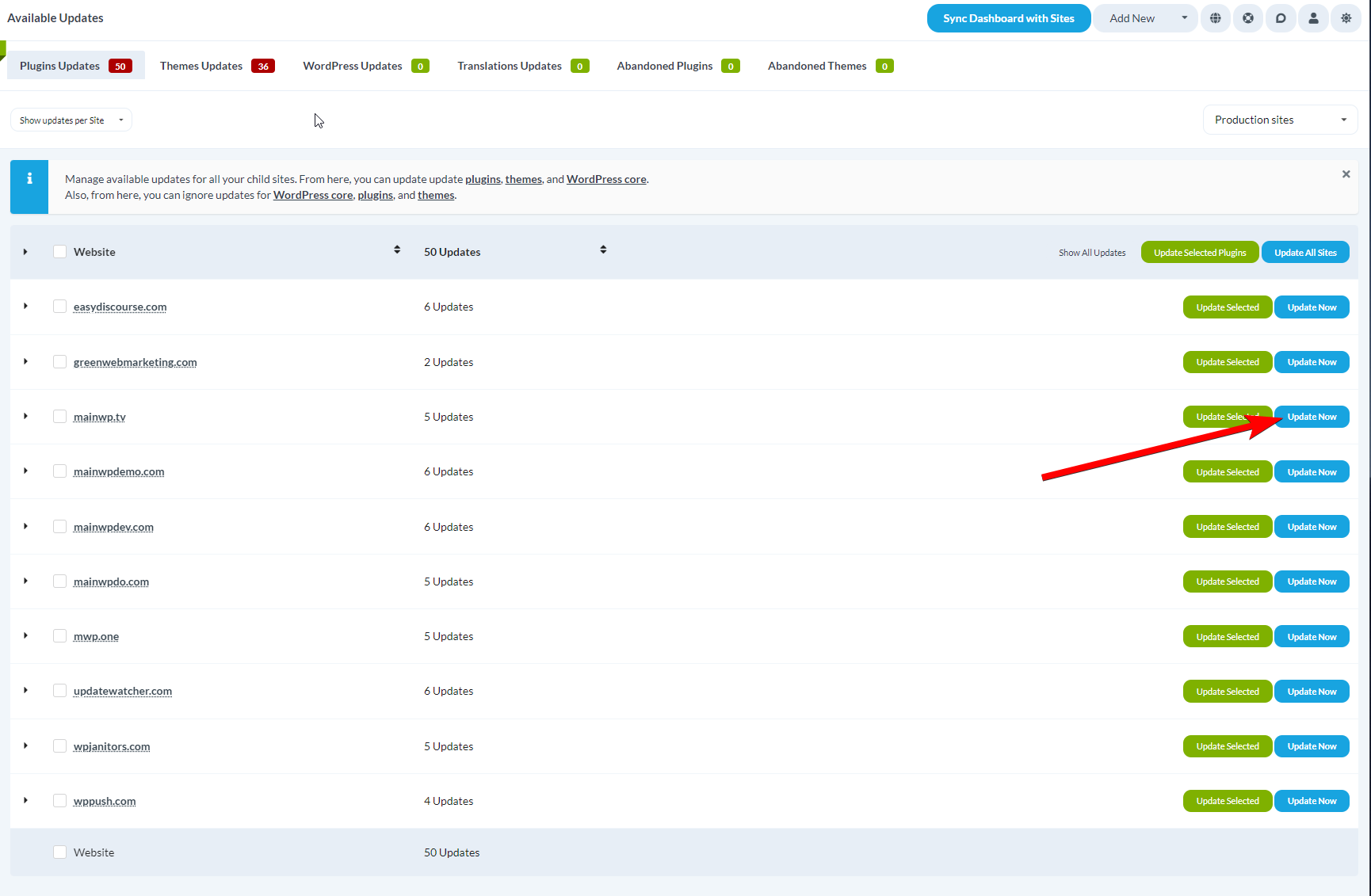
### Update a Single Plugin on a Single Site
Go to **MainWP > Updates > Plugins Updates**.
Set **View updates per** to **Site**.
Find the child site and expand its row.
Find the plugin and click **Update Now**.
### View Plugin History
The plugin update rows include a **History** action so you can review recent change activity before or after updates.
Go to **MainWP > Updates > Plugins Updates** and use the **Site**, **Item**, or **Tag** view. You can also use **History** in plugin rows in individual site update tables.
Click **History** in the plugin row.
Review the action timeline with actor, source (**Dashboard** or **WP Admin**), timestamp, and version change when available.
Use **Day History** to group actions by date, then use **Plugin History** to switch to plugin-grouped actions for that day.
Click **Load More** in the modal to display earlier activity.
If you see "This plugin has no recorded activity in Dashboard Insights," check [Network Activity](/sites/network-activity) and [Dashboard Insights](/dashboard/overview/dashboard-insights) settings to confirm logging and retention are configured.
### Plugin Auto Updates
#### Enable Auto Updates
Go to **MainWP > Settings**.
Locate the **Updates Settings** section.
Set **Plugin automatic updates** to **Install Updates**.
Click **Save Settings**.
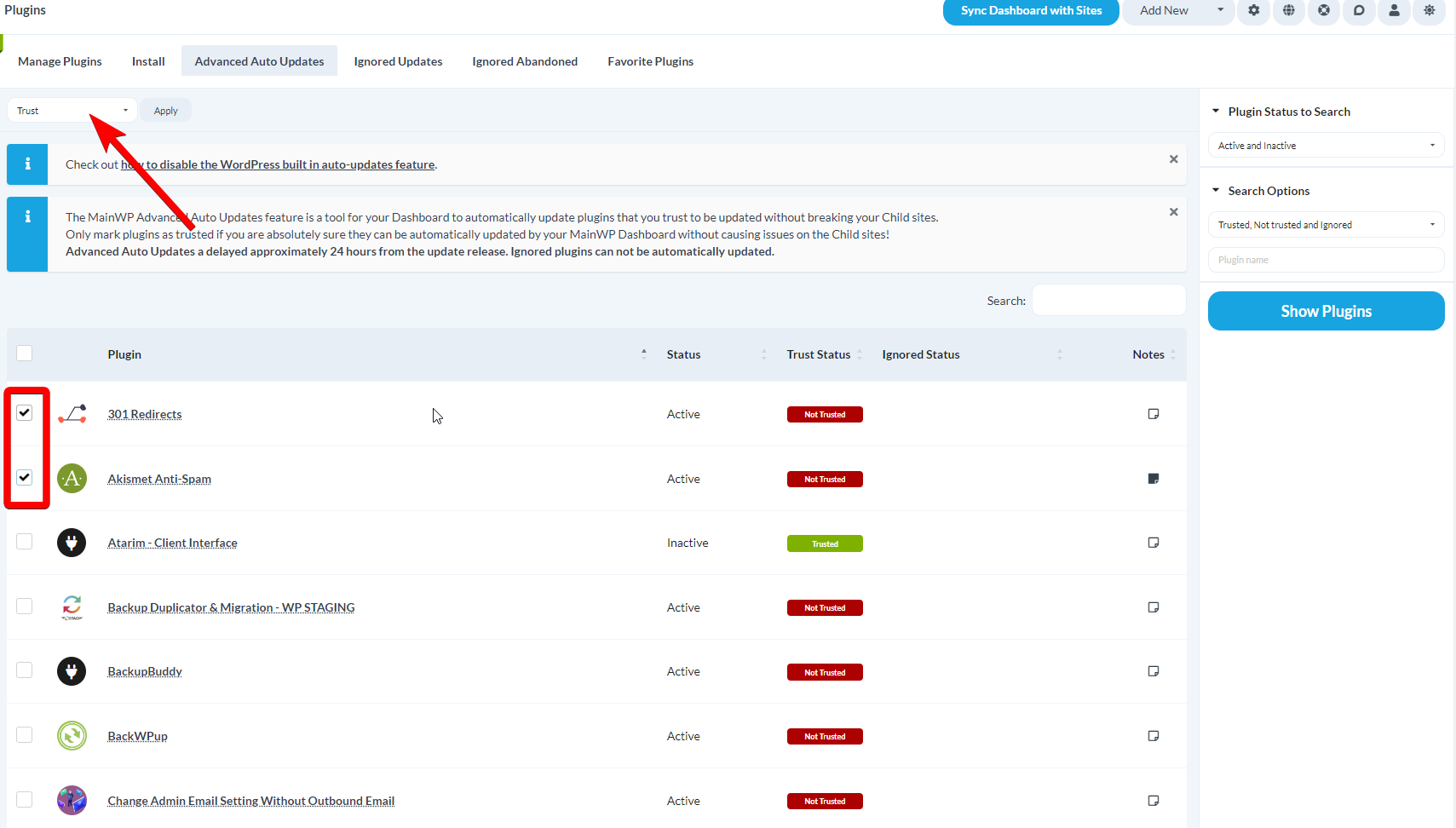
#### Mark Plugins as Trusted
Go to **MainWP > Plugins > Auto Updates**.
Use **Status**, **Trust Status**, and **Keyword** filters to find plugins.
Click **Show Plugins**.
Check the plugins to trust, select **Trust** from **Bulk Actions**, and click **Apply**.
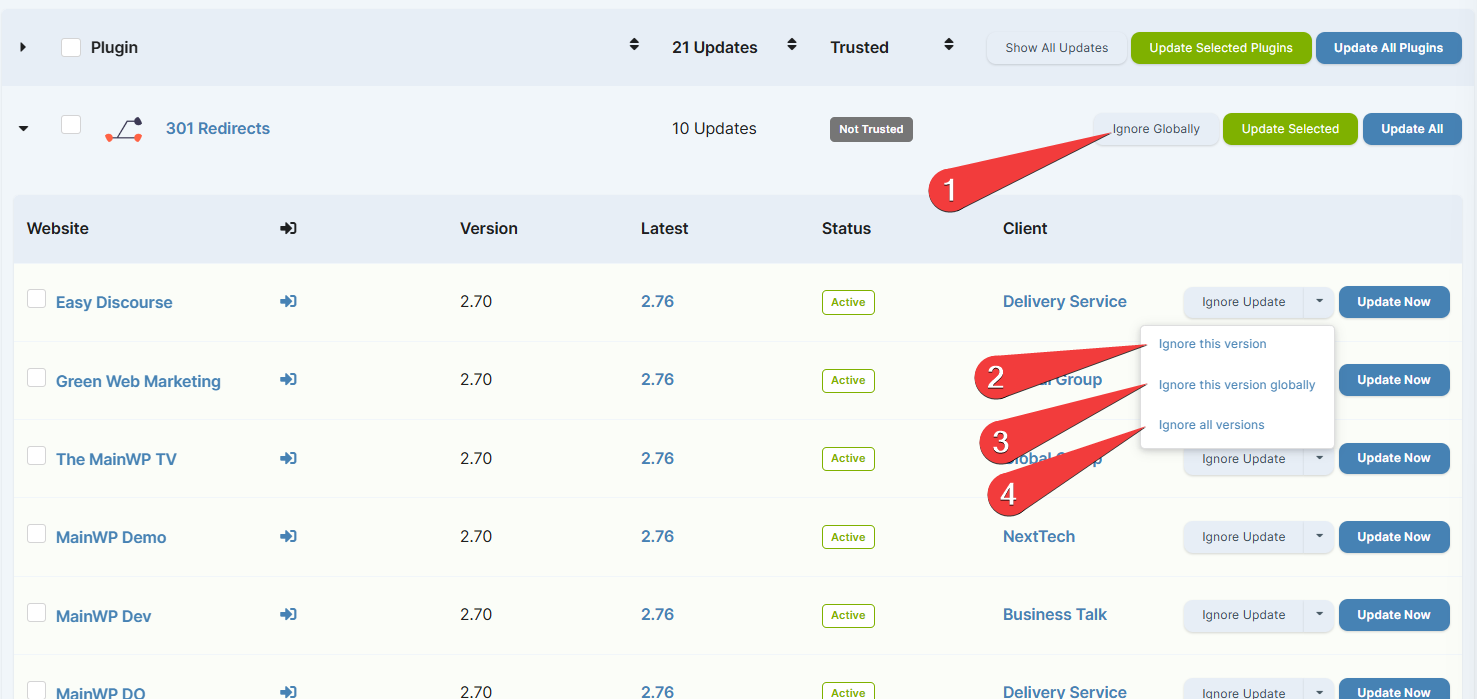
### Ignore Plugin Updates
| Ignore Type | Scope |
| ---------------------------- | ---------------------------- |
| Ignore Globally | All versions, all sites |
| Ignore this version | This version, this site only |
| Ignore this version globally | This version, all sites |
| Ignore all versions | All versions, this site only |
Go to **MainWP > Updates > Plugins Updates**.
Set **Show updates per** to **Item**.
Find the plugin and select your ignore option.
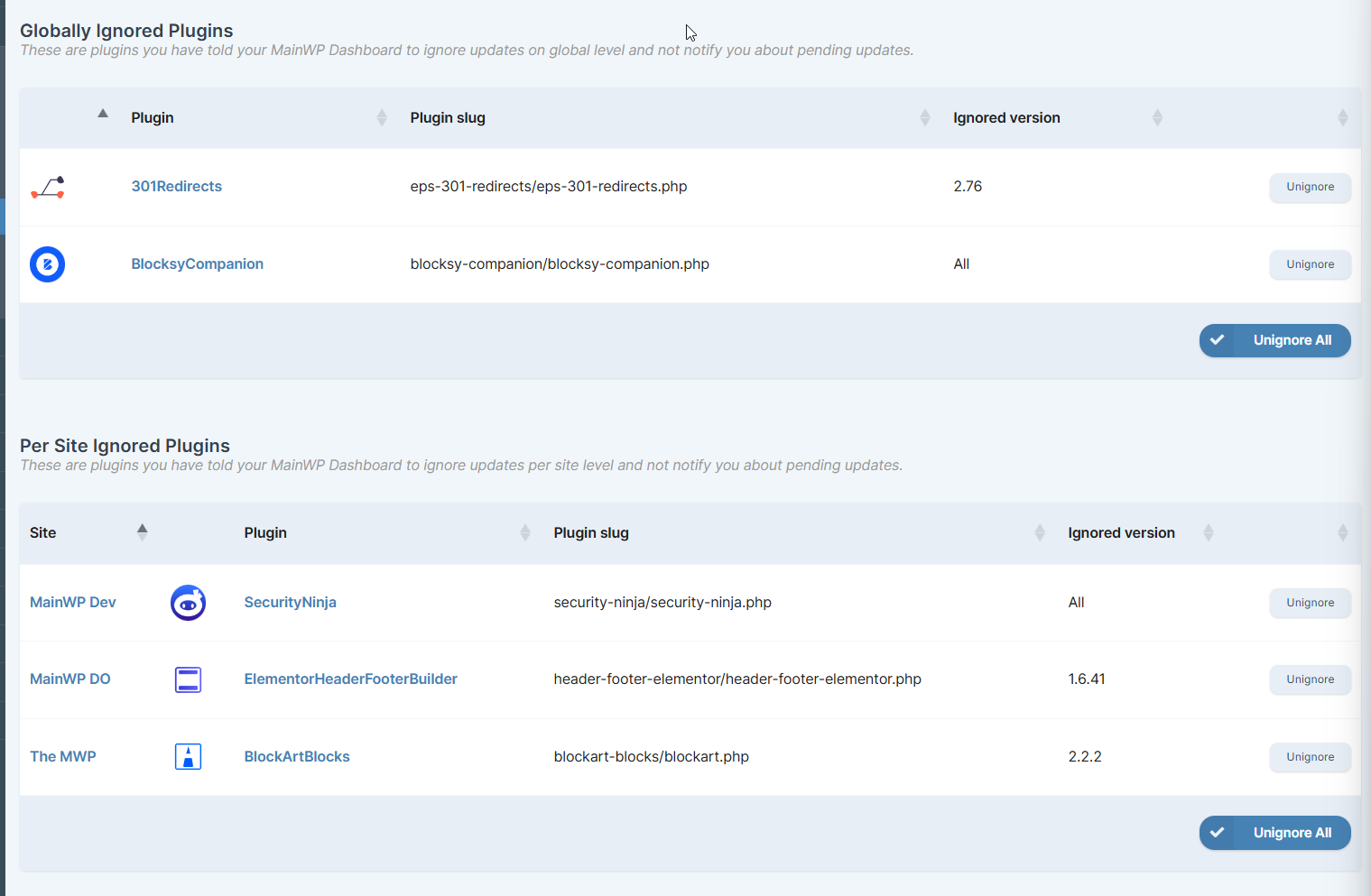
#### Un-ignore a Plugin
When ignored plugin updates exist, you can click **View Ignored Updates** on **MainWP > Updates > Plugins Updates**. You can also use the Plugins menu path below.
Go to **MainWP > Plugins > Ignored Updates**.
Find the plugin and click **Unignore**.
If there are no available plugin updates but ignored plugin updates exist, the Plugin Updates action bar remains visible. **View Ignored Updates** stays clickable, while plugin update buttons such as **Update Selected Plugins** and **Update All Sites** are disabled.
***
## Theme Updates
### Update All Themes on All Sites
Go to **MainWP > Updates > Themes Updates**.
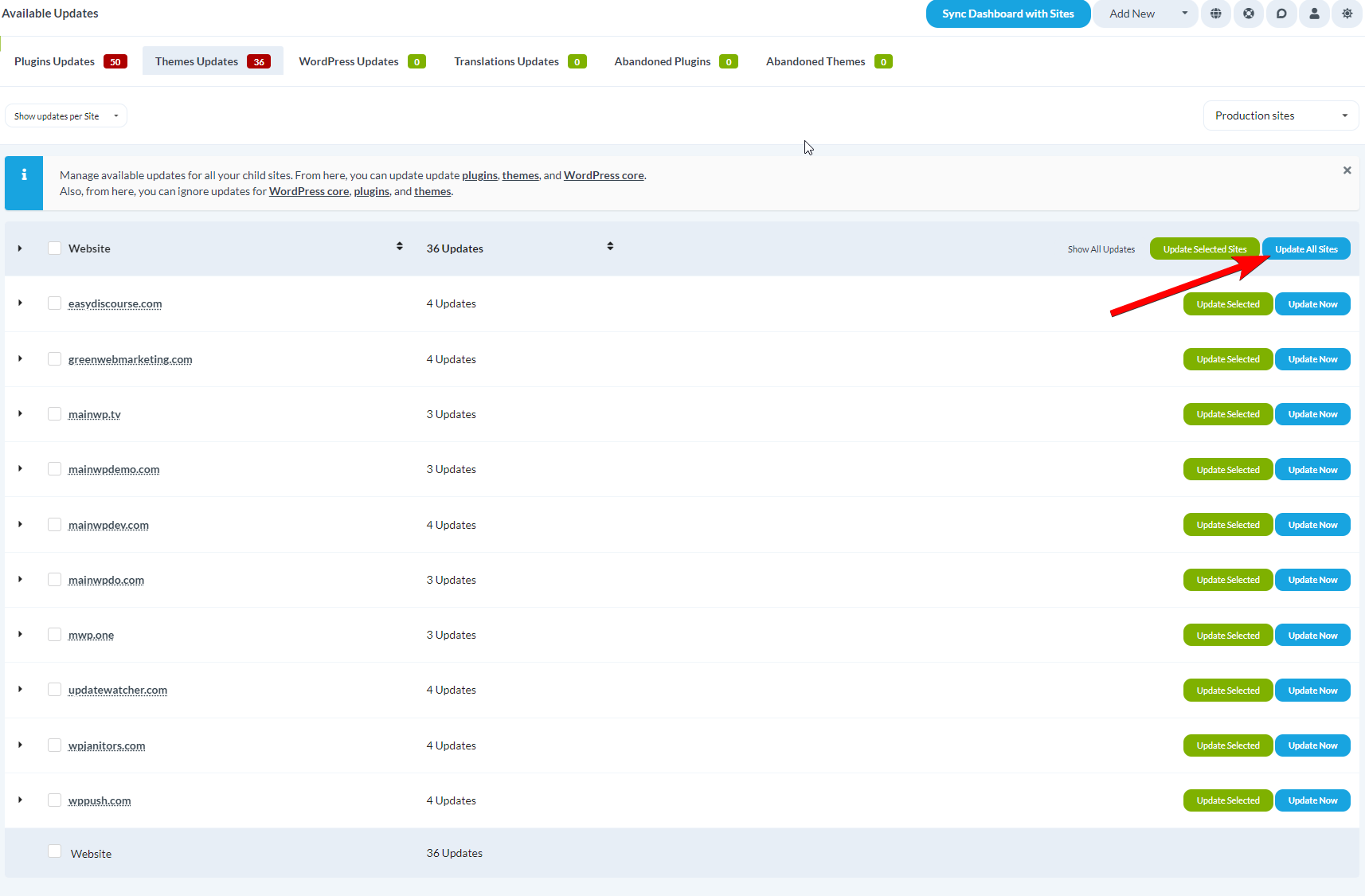
Click **Update All Sites (Update All Themes)**.
Confirm when prompted.
### Update a Single Theme on All Sites
Go to **MainWP > Updates > Themes Updates**.
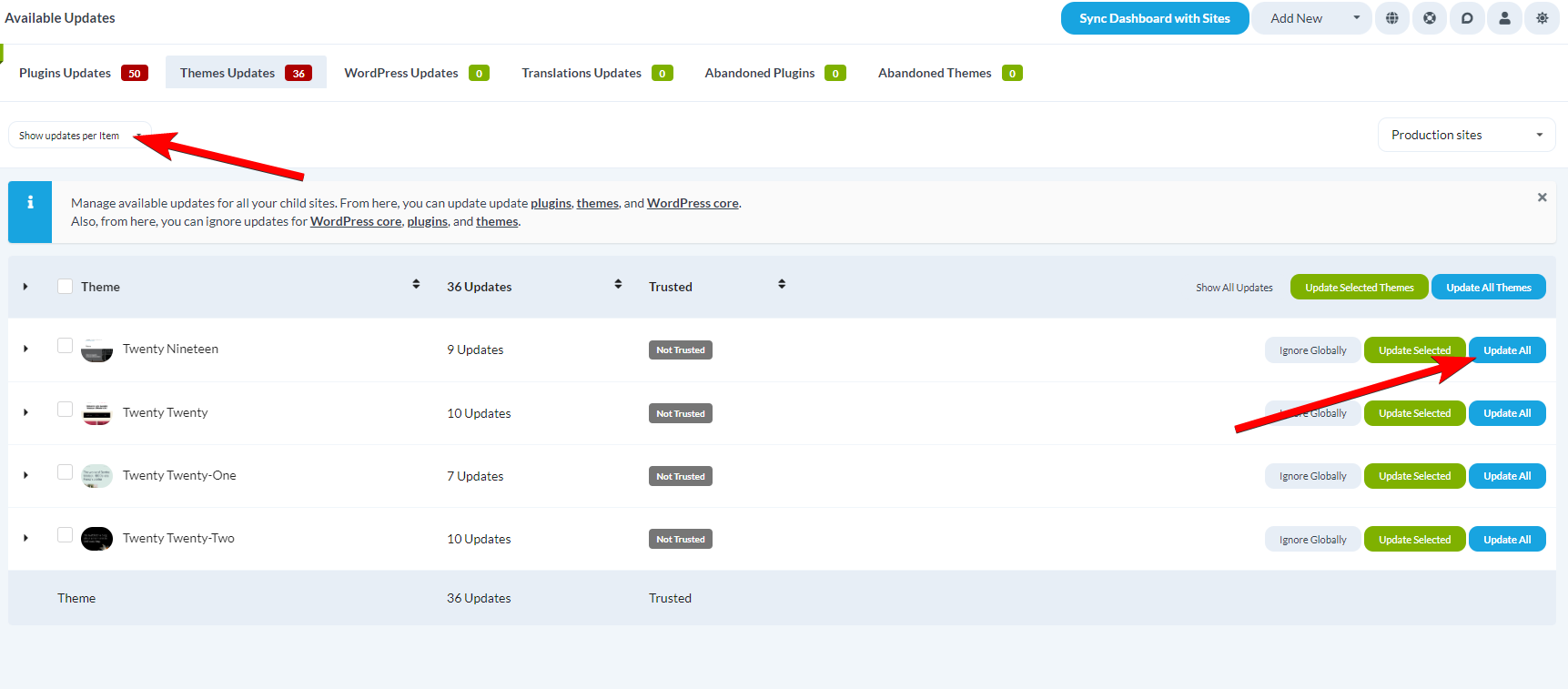
Set **Show updates per** to **Plugin/Theme**.
Find the theme you want to update.
Click **Update All** in the theme row.
### Update All Themes on a Single Site
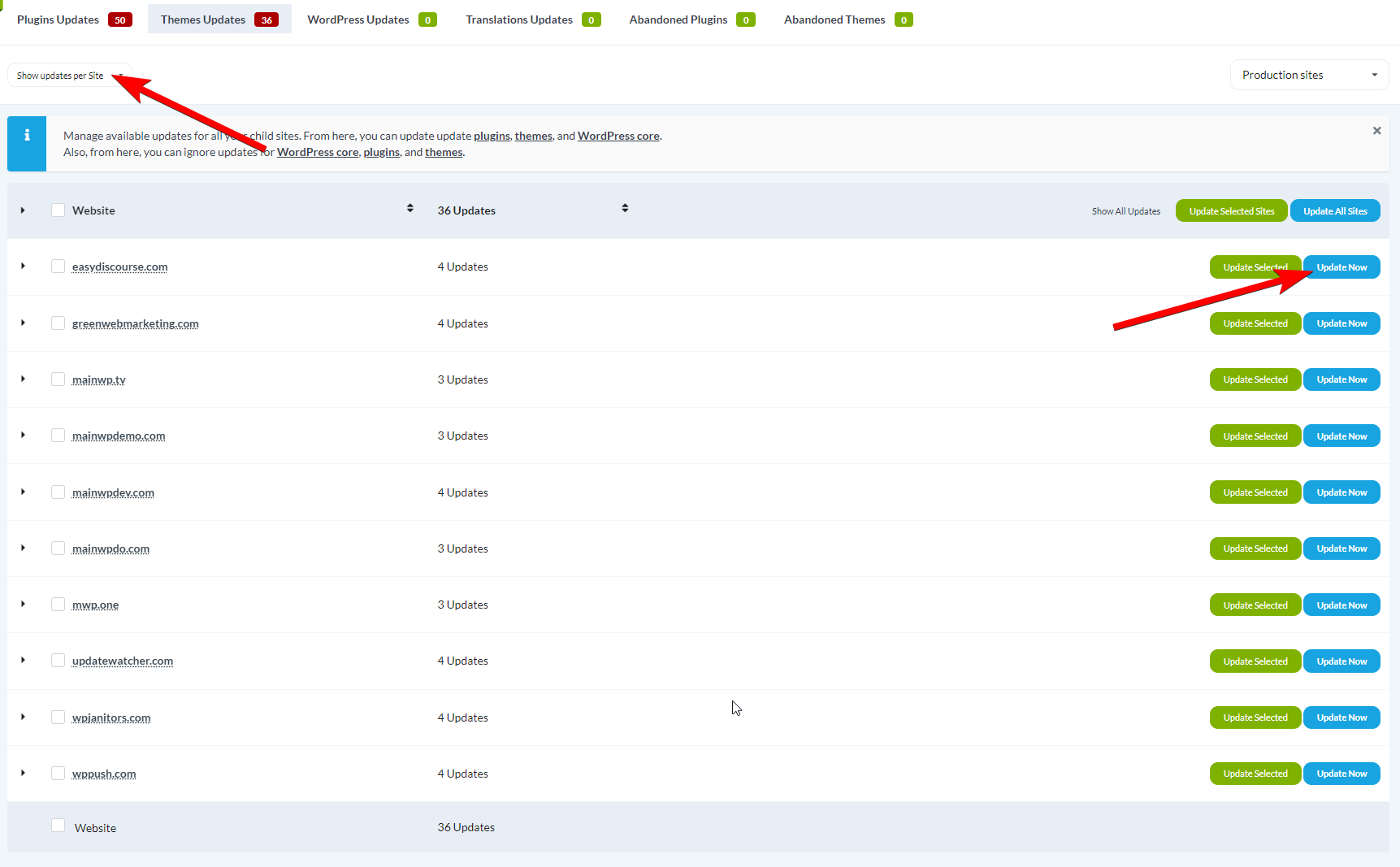
Go to **MainWP > Updates > Themes Updates**.
Set **Show updates per** to **Site**.
Find the child site.
Click **Update All** in the site row.
### Update a Single Theme on a Single Site
Go to **MainWP > Updates > Themes Updates**.
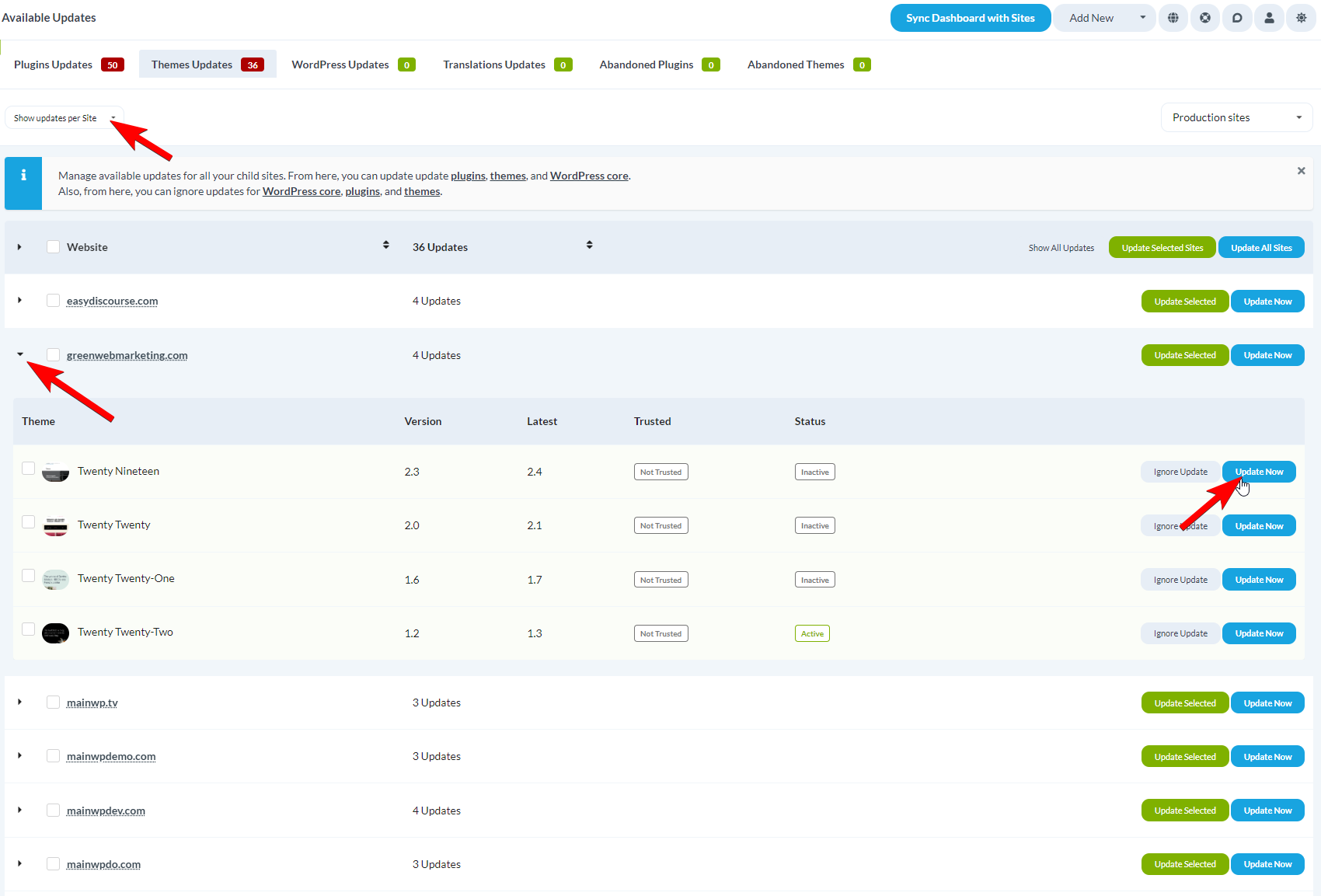
Set **Show updates per** to **Site**.
Find the child site and expand its row.
Find the theme and click **Update Now**.
### View Theme History
The theme update rows include a **History** action so you can review recent change activity before or after updates.
Go to **MainWP > Updates > Themes Updates** and use the **Site**, **Item**, or **Tag** view. You can also use **History** in theme rows in individual site update tables.
Click **History** in the theme row.
Review the action timeline with actor, source (**Dashboard** or **WP Admin**), timestamp, and version change when available.
Use **Day History** to group actions by date, then use **Theme History** to switch to theme-grouped actions for that day.
Click **Load More** in the modal to display earlier activity.
If you see "This theme has no recorded activity in Dashboard Insights," check [Network Activity](/sites/network-activity) and [Dashboard Insights](/dashboard/overview/dashboard-insights) settings to confirm logging and retention are configured.
### Theme Auto Updates
#### Enable Auto Updates
Go to **MainWP > Settings**.
Locate the **Update Settings** section.
Enable **Theme Automatic Updates**.
Click **Save Settings**.
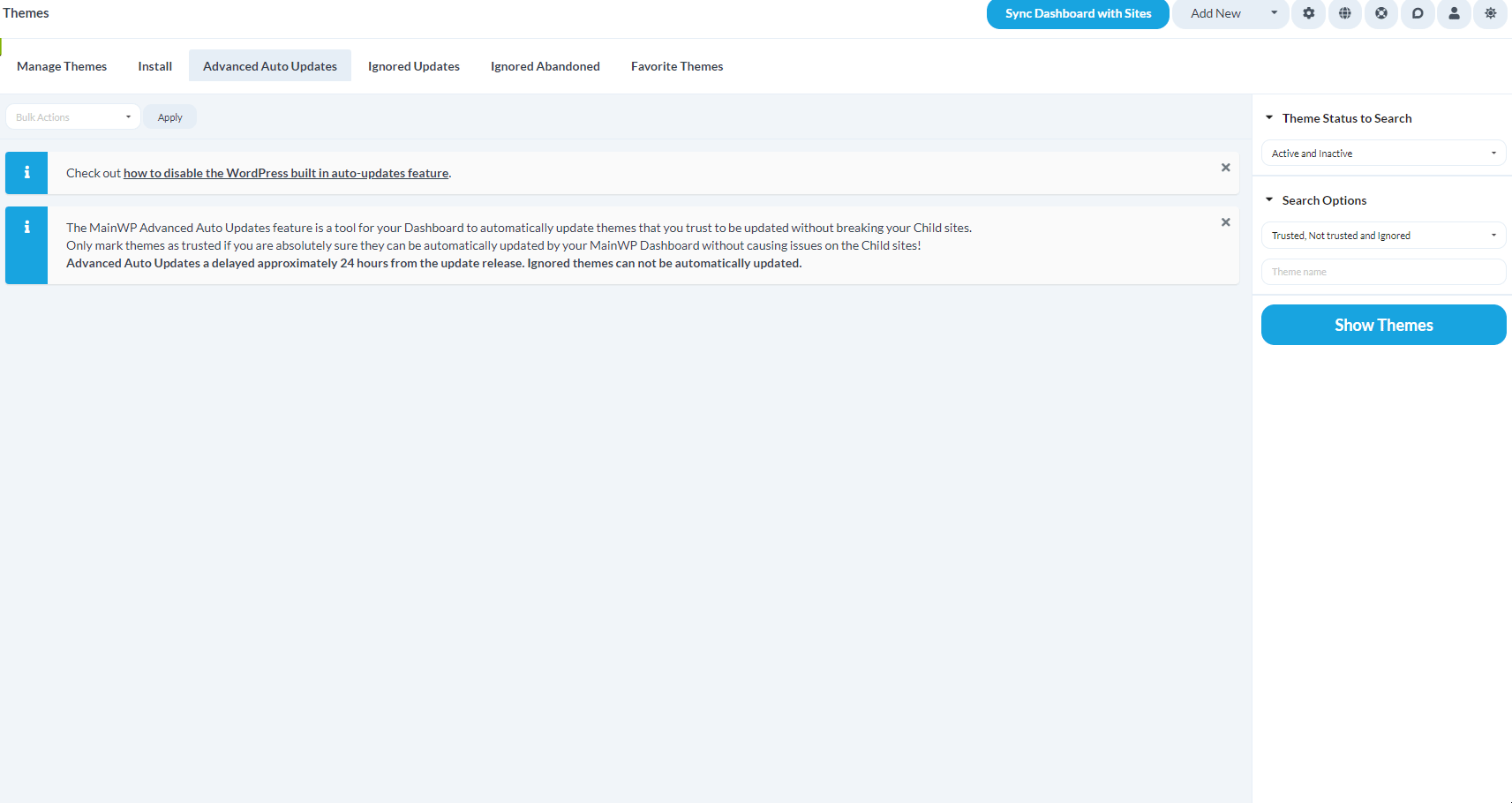
#### Mark Themes as Trusted
Go to **MainWP > Themes > Auto Updates**.
Use **Status**, **Trust Status**, and **Keyword** filters to find themes.
Click **Show Themes**.
Check the themes to trust, select **Trust** from **Bulk Actions**, and click **Confirm**.
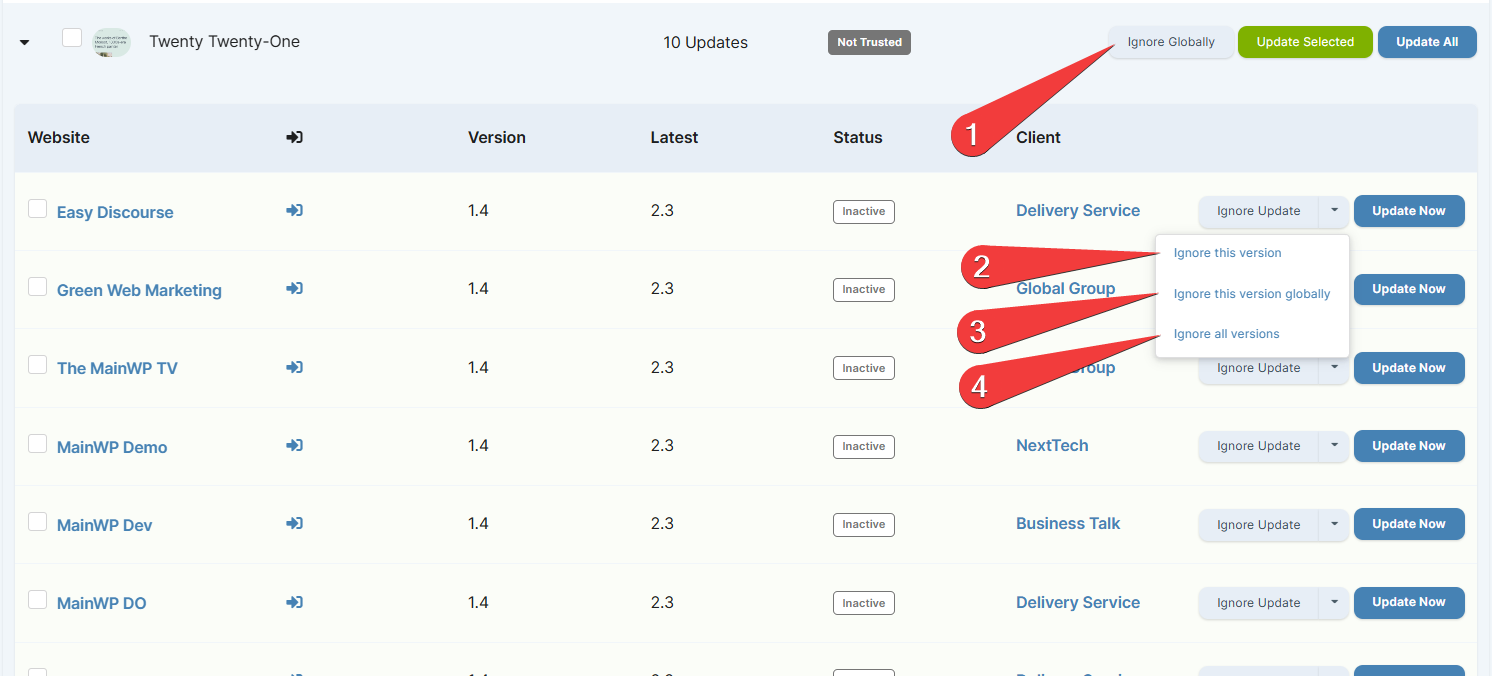
### Ignore Theme Updates
| Ignore Type | Scope |
| ---------------------------- | ---------------------------- |
| Ignore Globally | All versions, all sites |
| Ignore this version | This version, this site only |
| Ignore this version globally | This version, all sites |
| Ignore all versions | All versions, this site only |
Go to **MainWP > Updates > Themes Updates**.
Set **Show updates per** to **Item**.
Find the theme and select your ignore option.
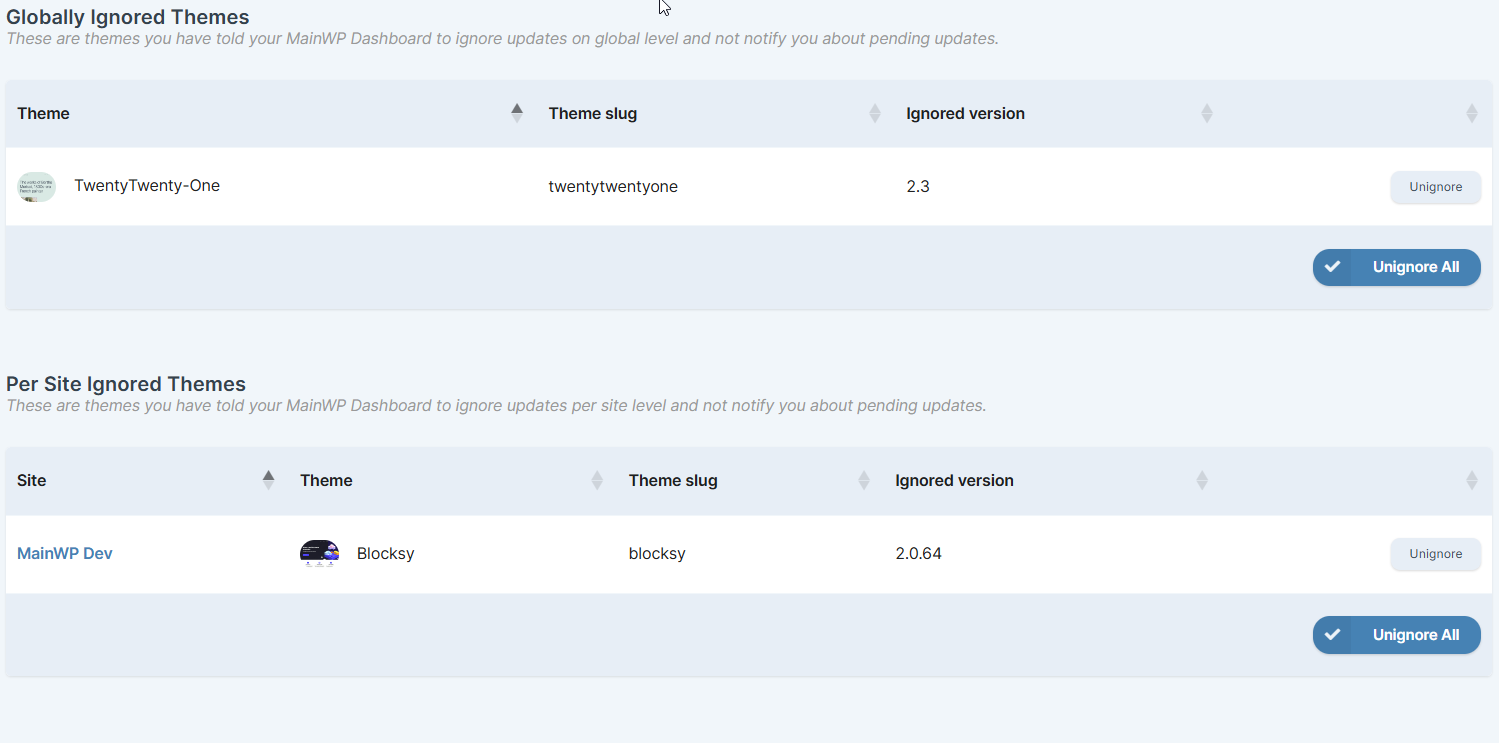
#### Un-ignore a Theme
When ignored theme updates exist, you can click **View Ignored Updates** on **MainWP > Updates > Themes Updates**. You can also use the Themes menu path below.
Go to **MainWP > Themes > Ignored Updates**.
Find the theme and click **Unignore**.
If there are no available theme updates but ignored theme updates exist, the Theme Updates action bar remains visible. **View Ignored Updates** stays clickable, while theme update buttons such as **Update Selected Themes** and **Update All Themes** are disabled.
***
## Translation Updates
### Update All Translations on All Sites
Go to **MainWP > Updates > Translation Updates**.
Click **Update All** to run all available translation updates.
### Update Translations on a Single Site
Go to **MainWP > Updates > Translation Updates**.
Set **Show updates per** to **Site**.
Find the child site and run the available translation updates for that site.
### Translation Auto Updates
Configure translation auto-updates globally in **MainWP > Settings**, under the **Updates Settings** section.
Go to **MainWP > Settings**.
Locate the **Updates Settings** section.
Set **Translation advanced automatic updates** to **Install Trusted Updates**.
Click **Save Settings**.
Translation auto-updates use trusted plugin and theme context.
Per-site translation control is available through **Ignore translation updates** in **MainWP > Sites > Manage Sites > Settings**.
***
## Safe Updates / Rollback
MainWP 5.1 introduced a rollback feature that integrates with the WordPress core rollback feature from WordPress 6.3.
Child sites must run WordPress 6.3 or above for the rollback feature to work.
### How Rollback Works
The rollback feature is active on all MainWP Dashboard pages where updates can be triggered, including the Updates page, Manage Plugins, Manage Themes, and extension pages. It works for both individual and bulk updates.
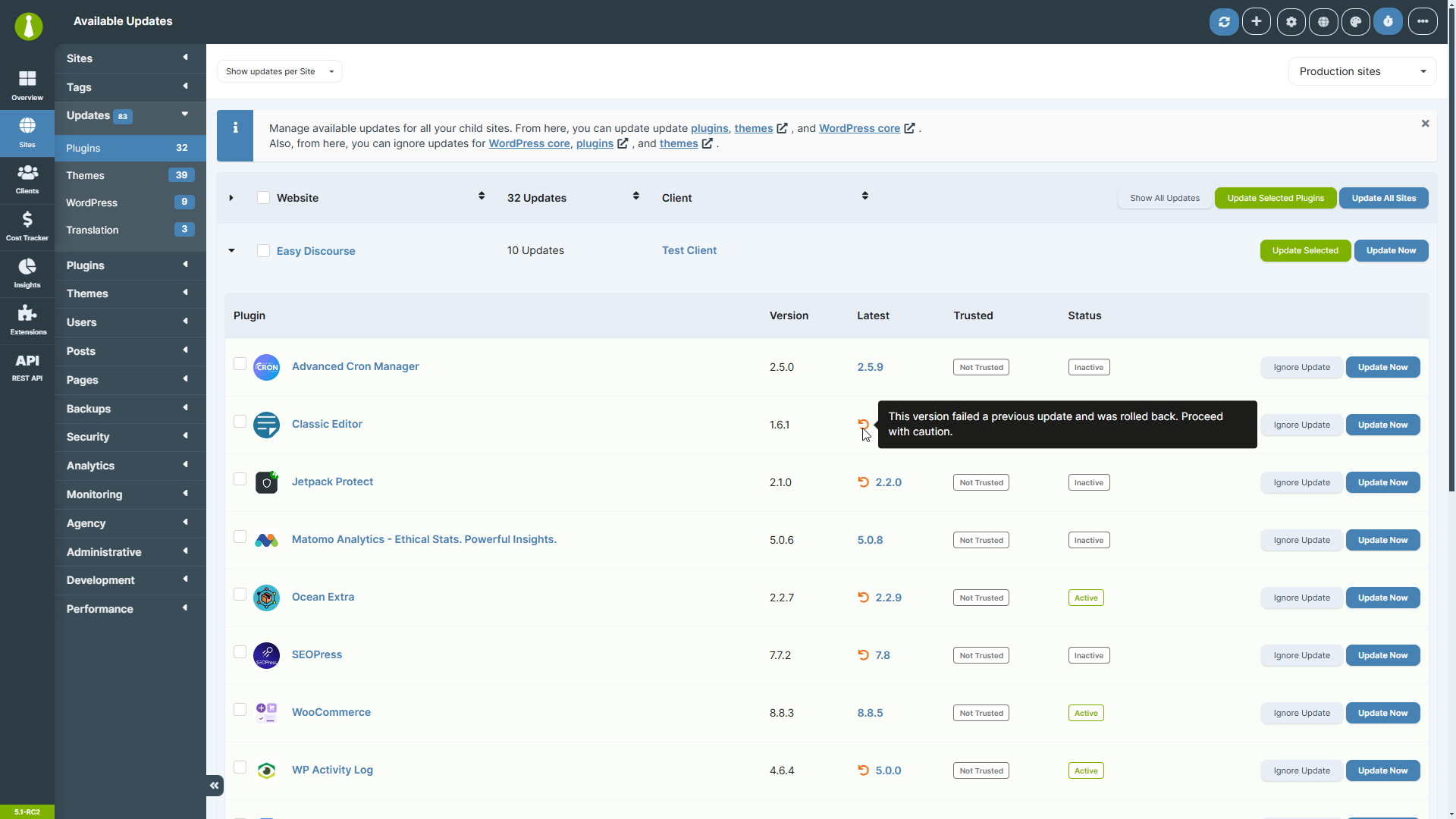
### Rollback Notices
When a rollback occurs, an orange icon with a tooltip appears. This notice persists on relevant Dashboard pages until the plugin or theme is successfully updated.
### Manual Rollback
During updates, WordPress stores the current version temporarily. If the update fails, that version is restored. There is no permanent storage for manual rollback to previous versions.
To install a previous version of a WordPress.org plugin:
Navigate to the plugin page on wordpress.org (e.g., [https://wordpress.org/plugins/mainwp/](https://wordpress.org/plugins/mainwp/)).
Click **Advanced** in the sidebar.
Select the desired version from the dropdown and click **Download**.
Upload and install the plugin via [Install by Upload](/sites/plugins/managing-plugins-with-mainwp#install-by-upload).
For premium plugins and themes not on wordpress.org, use the [Favorites Extension](https://mainwp.com/extension/favorites/) to store versions for rollback.
***
## Self-Check Checklist
* [ ] WordPress core updates complete successfully
* [ ] Plugin updates work for individual and bulk operations
* [ ] Theme updates work for individual and bulk operations
* [ ] Auto updates are configured for trusted items
* [ ] Ignored updates no longer appear in update lists
* [ ] Rollback feature functions on WordPress 6.3+ sites
***
## Related Resources
* [Does MainWP Have Safe Updates](/sites/updates/does-mainwp-have-safe-updates) - Learn about update safety features
* [Change Update Frequency](/sites/updates/how-to-change-daily-update-and-sync-frequency) - Adjust sync and update timing
* [Manage Plugins](/sites/plugins/managing-plugins-with-mainwp) - Full plugin management
* [Manage Themes](/sites/themes/managing-themes-with-mainwp) - Full theme management




 ### Rollback Notices
When a rollback occurs, an orange icon with a tooltip appears. This notice persists on relevant Dashboard pages until the plugin or theme is successfully updated.
### Rollback Notices
When a rollback occurs, an orange icon with a tooltip appears. This notice persists on relevant Dashboard pages until the plugin or theme is successfully updated.
 ### Manual Rollback
During updates, WordPress stores the current version temporarily. If the update fails, that version is restored. There is no permanent storage for manual rollback to previous versions.
To install a previous version of a WordPress.org plugin:
### Manual Rollback
During updates, WordPress stores the current version temporarily. If the update fails, that version is restored. There is no permanent storage for manual rollback to previous versions.
To install a previous version of a WordPress.org plugin: