> ## Documentation Index
> Fetch the complete documentation index at: https://docs.mainwp.com/llms.txt
> Use this file to discover all available pages before exploring further.
# Negative Search
> The Negative Search feature lets you search for Plugins or Themes while excluding specific keywords from results. Useful for bulk actions when you need to exclude certain items like all WooCommerce-related plugins.
Negative Search inverts the normal search behavior, showing results that do not contain your search term. This helps when you need to perform bulk actions on most items while excluding a specific subset.
## What You'll Learn
* How Negative Search filtering works
* Where to find Negative Search in the Dashboard
* Practical scenarios for using exclusion-based filtering
## Prerequisites
* MainWP Dashboard with connected child sites
* Plugins or themes installed on child sites to search
***
## How Negative Search Works
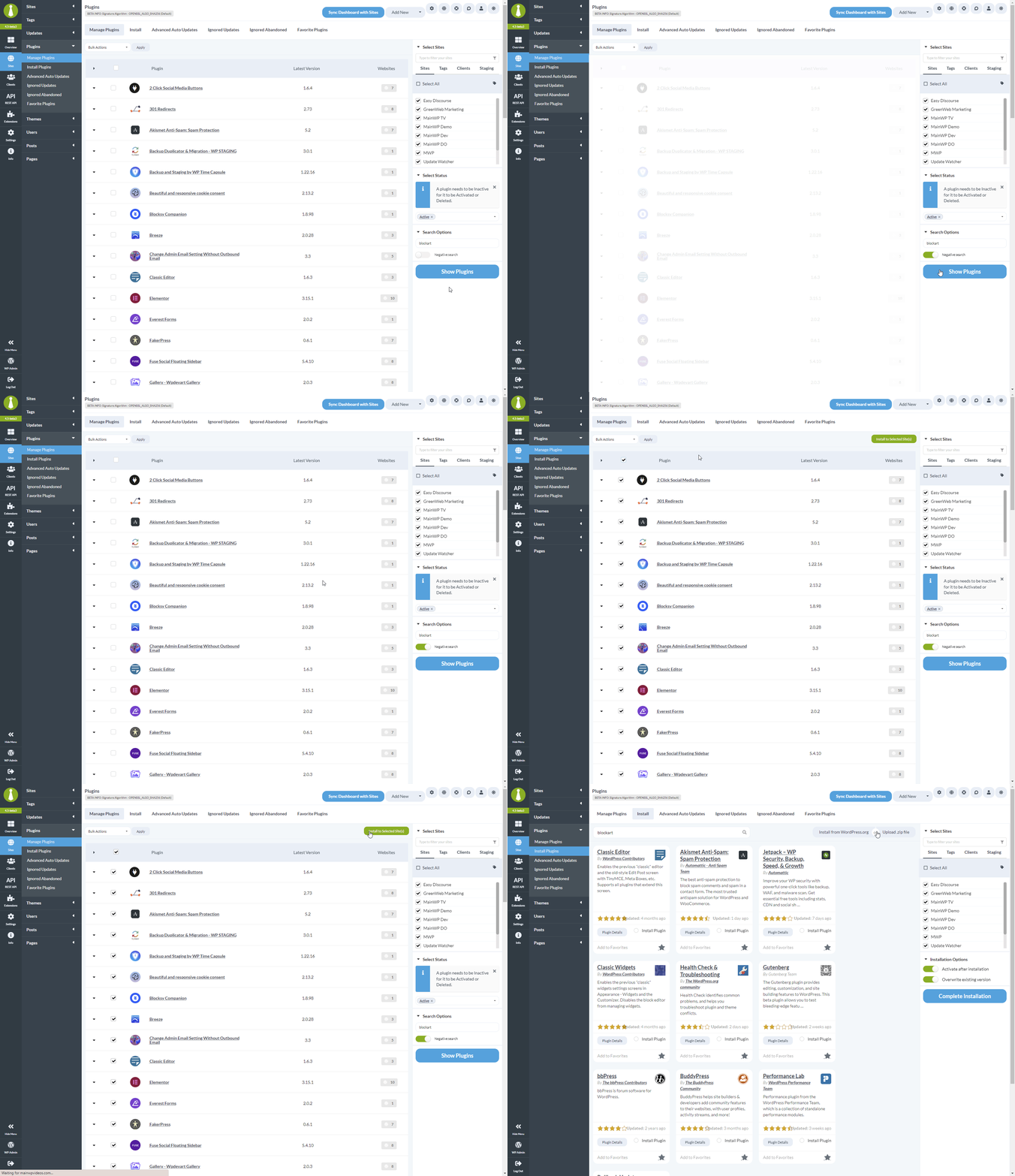 When you enable the **Negative Search** toggle in the search options:
| Mode | Behavior |
| --------------- | ------------------------------------------ |
| Normal search | Shows items matching your keyword |
| Negative search | Shows items that do not match your keyword |
The feature filters the visible list, making it easy to select and act on the filtered results.
***
## Where to Find Negative Search
Negative Search is available in two locations:
| Page | Navigation |
| ------- | ------------------------------------- |
| Plugins | **MainWP > Plugins > Manage Plugins** |
| Themes | **MainWP > Themes > Manage Themes** |
Look for the **Search Options** dropdown, then toggle **Negative Search** before entering your search term.
***
## Use Negative Search
Go to **MainWP > Plugins > Manage Plugins** or **MainWP > Themes > Manage Themes**.
Click **Search Options** to expand the search panel.
Toggle on **Negative Search**.
Type the keyword you want to exclude in the search field.
The list now shows only items without your keyword in their names.
Select the filtered items and apply your desired bulk action.
***
## Common Use Cases
### Exclude WooCommerce Plugins During Updates
When updating plugins across your network, you might want to update everything except WooCommerce-related plugins to avoid disrupting active stores.
1. Enable Negative Search
2. Search for "WooCommerce"
3. Select all non-WooCommerce plugins
4. Apply the Update action
### Skip Development Plugins During Cleanup
To deactivate all plugins except your development tools:
1. Enable Negative Search
2. Search for "debug" or "developer"
3. Select all non-development plugins
4. Apply the Deactivate action
### Filter Out Vendor-Specific Themes
When cleaning up unused themes, exclude your primary theme vendor's products:
1. Enable Negative Search
2. Search for the vendor name (e.g., "Starter")
3. Select remaining themes for deletion
4. Apply the Delete action
***
## Self-Check Checklist
* [ ] You can locate the Negative Search toggle
* [ ] Enabling Negative Search inverts your search results
* [ ] You can perform bulk actions on filtered results
***
## Related Resources
* [Manage Plugins](/sites/plugins/managing-plugins-with-mainwp) - Full plugin management guide
* [Manage Themes](/sites/themes/managing-themes-with-mainwp) - Full theme management guide
When you enable the **Negative Search** toggle in the search options:
| Mode | Behavior |
| --------------- | ------------------------------------------ |
| Normal search | Shows items matching your keyword |
| Negative search | Shows items that do not match your keyword |
The feature filters the visible list, making it easy to select and act on the filtered results.
***
## Where to Find Negative Search
Negative Search is available in two locations:
| Page | Navigation |
| ------- | ------------------------------------- |
| Plugins | **MainWP > Plugins > Manage Plugins** |
| Themes | **MainWP > Themes > Manage Themes** |
Look for the **Search Options** dropdown, then toggle **Negative Search** before entering your search term.
***
## Use Negative Search
Go to **MainWP > Plugins > Manage Plugins** or **MainWP > Themes > Manage Themes**.
Click **Search Options** to expand the search panel.
Toggle on **Negative Search**.
Type the keyword you want to exclude in the search field.
The list now shows only items without your keyword in their names.
Select the filtered items and apply your desired bulk action.
***
## Common Use Cases
### Exclude WooCommerce Plugins During Updates
When updating plugins across your network, you might want to update everything except WooCommerce-related plugins to avoid disrupting active stores.
1. Enable Negative Search
2. Search for "WooCommerce"
3. Select all non-WooCommerce plugins
4. Apply the Update action
### Skip Development Plugins During Cleanup
To deactivate all plugins except your development tools:
1. Enable Negative Search
2. Search for "debug" or "developer"
3. Select all non-development plugins
4. Apply the Deactivate action
### Filter Out Vendor-Specific Themes
When cleaning up unused themes, exclude your primary theme vendor's products:
1. Enable Negative Search
2. Search for the vendor name (e.g., "Starter")
3. Select remaining themes for deletion
4. Apply the Delete action
***
## Self-Check Checklist
* [ ] You can locate the Negative Search toggle
* [ ] Enabling Negative Search inverts your search results
* [ ] You can perform bulk actions on filtered results
***
## Related Resources
* [Manage Plugins](/sites/plugins/managing-plugins-with-mainwp) - Full plugin management guide
* [Manage Themes](/sites/themes/managing-themes-with-mainwp) - Full theme management guide