> ## Documentation Index
> Fetch the complete documentation index at: https://docs.mainwp.com/llms.txt
> Use this file to discover all available pages before exploring further.
# Manage Themes
> Manage WordPress themes across all Child Sites from one place. Install themes from WordPress.org or upload ZIP files, activate, delete, update, ignore updates, and set automatic updates for trusted themes.
The Manage Themes feature provides centralized control over WordPress themes across all your child sites. Install themes on multiple sites at once, activate themes in bulk, run updates, ignore specific updates, and configure automatic updates for themes you trust.
## What You'll Accomplish
* Install themes from WordPress.org or ZIP files on multiple sites
* Activate themes across selected sites
* Delete unused themes from child sites
* Update themes individually or in bulk
* Ignore theme updates globally or per site
* Configure automatic updates for trusted themes
## Prerequisites
* MainWP Dashboard installed and activated
* At least one child site connected to your Dashboard
* Administrator access to your Dashboard site
***
***
## Install Themes
MainWP provides three methods for installing themes:
| Method | Best For |
| ------------- | -------------------------------------------------------------------------------------------------------------------- |
| WordPress.org | Free themes from the official directory |
| Upload ZIP | Premium themes or custom themes |
| Favorites | Quick installation of commonly used themes (requires [Favorites Extension](https://mainwp.com/extension/favorites/)) |
### Install from WordPress.org
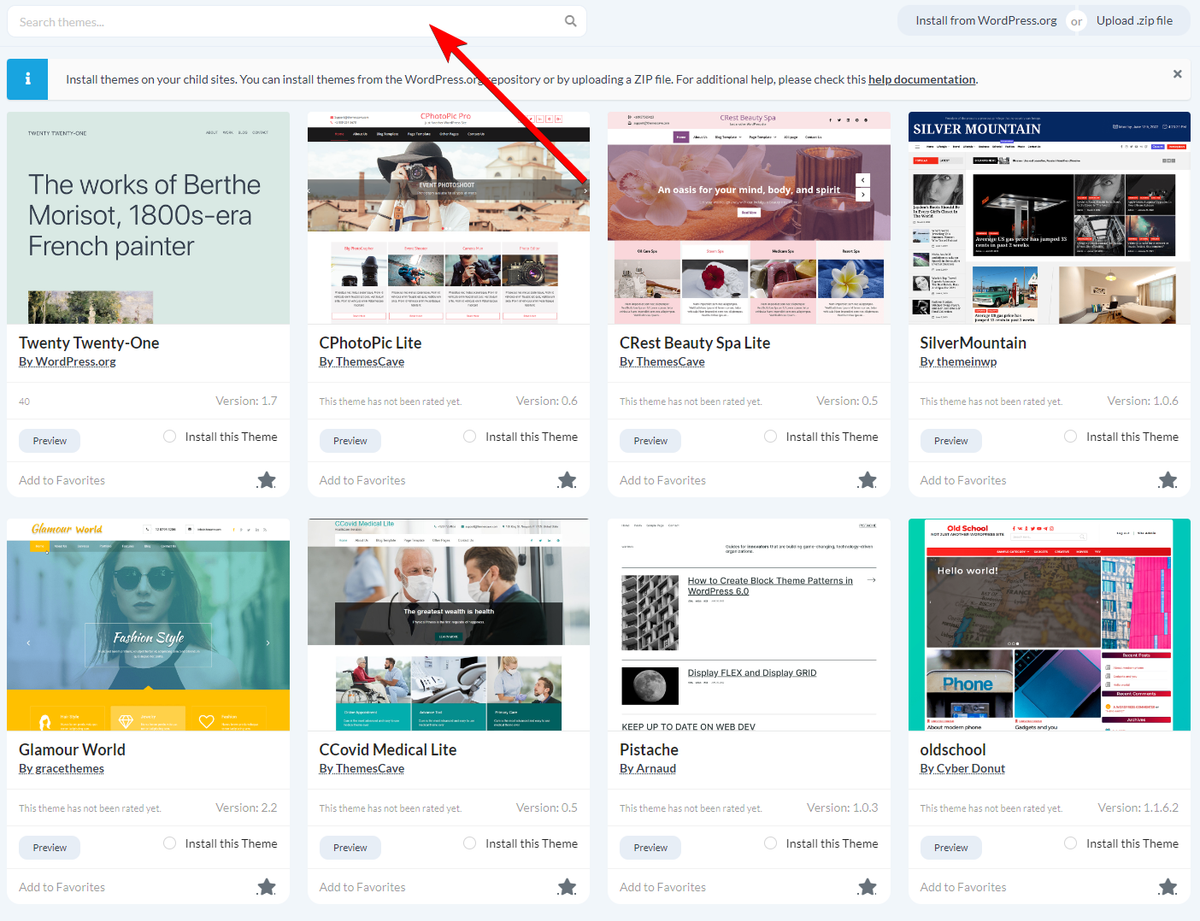
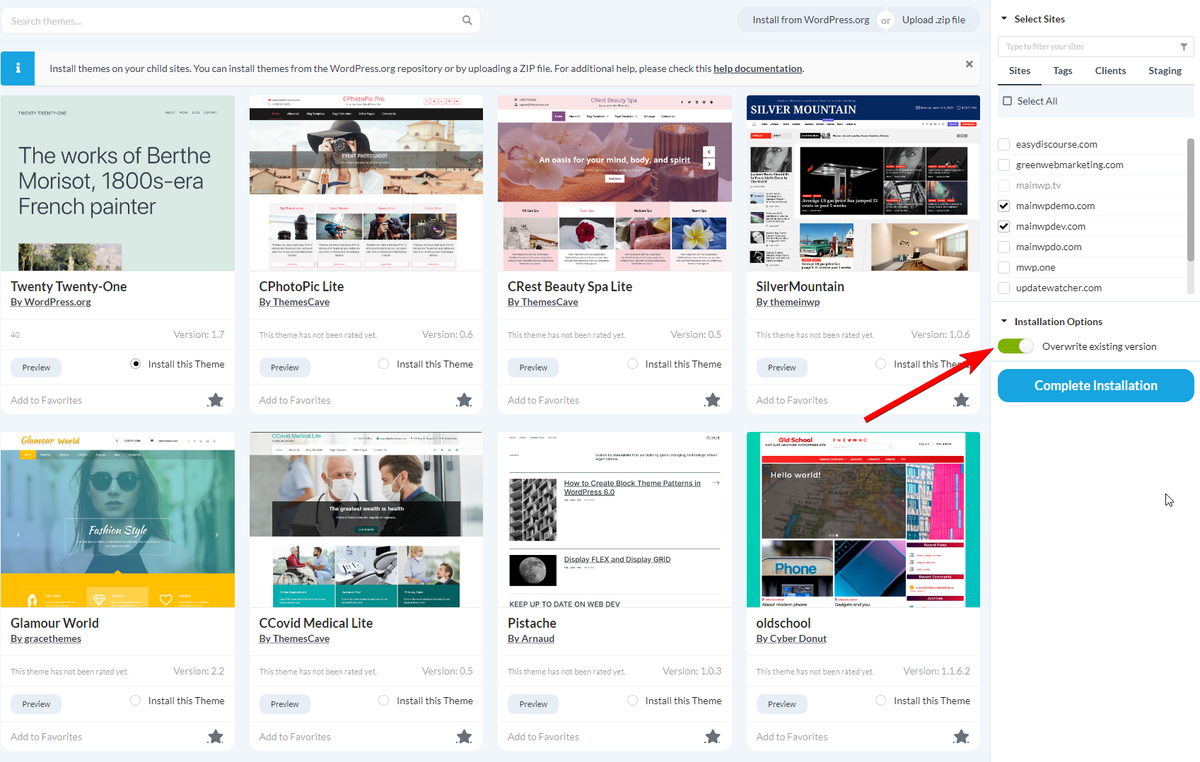
Go to **MainWP > Sites > Themes > Install**.
Under the **Install from WordPress.org** tab, use the **Search Themes** field to find the theme.
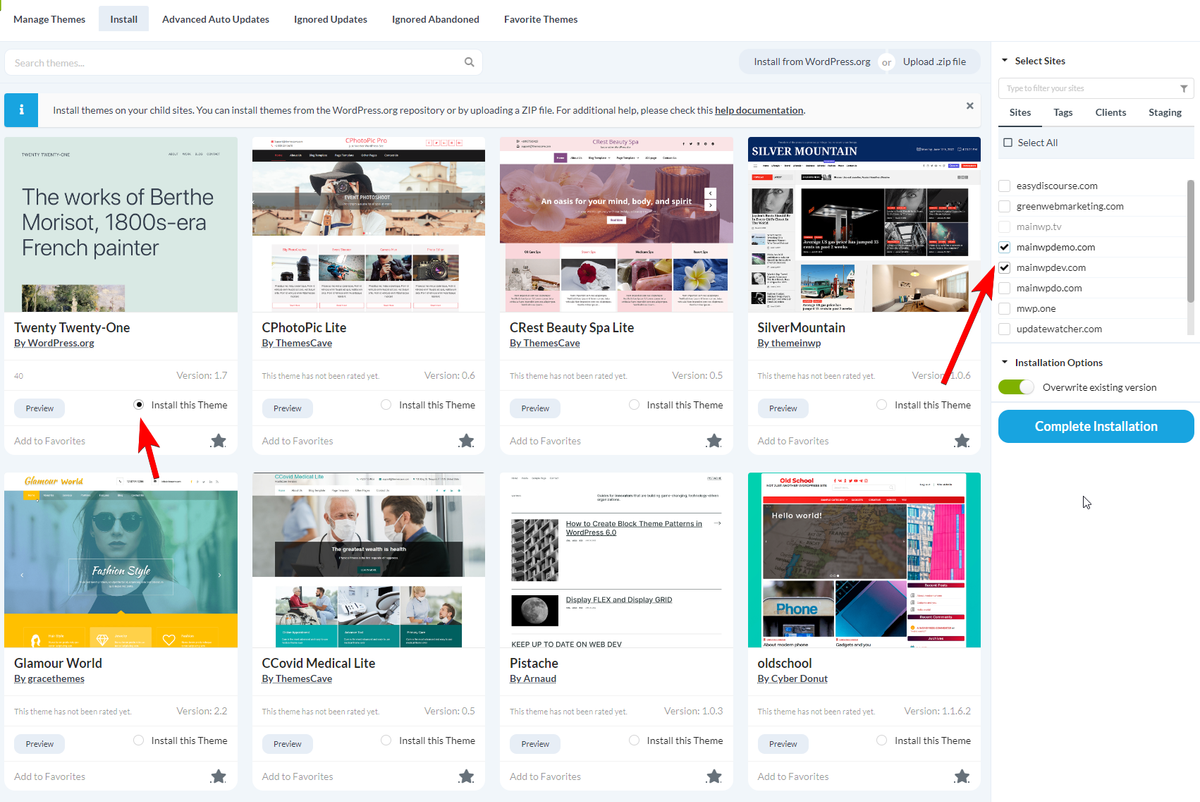
Locate the theme in the search results and select **Install this Theme**.
In the [Select Sites](/getting-started/mainwp-user-interface) box, choose the sites where you want to install the theme.
Configure the installation options:
| Option | Description |
| --------------------------------------- | -------------------------------------------------- |
| Overwrite existing if already installed | Replace the theme if already installed on the site |
Click **Complete Installation**.
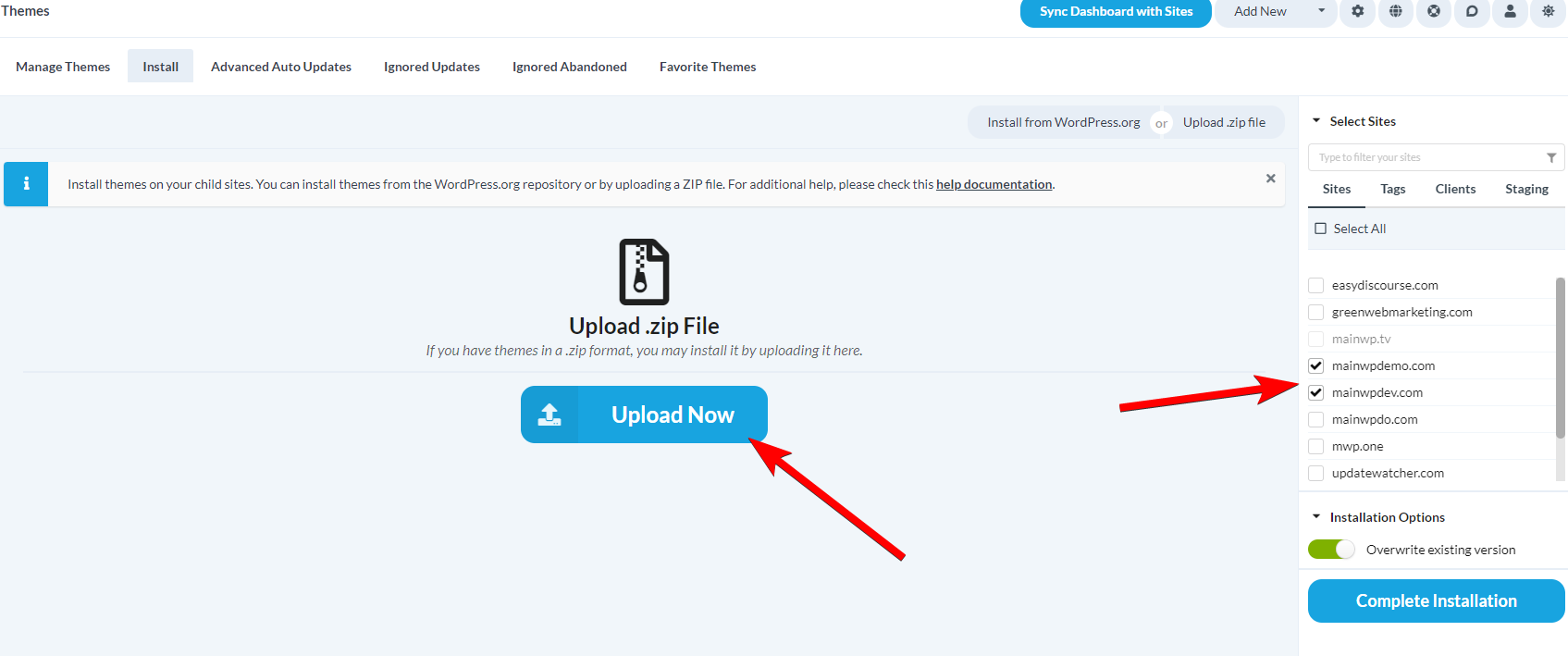
### Install by Upload
Go to **MainWP > Sites > Themes > Install**.
Click the **Upload .zip file** tab.
Click **Upload** and select the theme ZIP file from your computer.
In the [Select Sites](/getting-started/mainwp-user-interface) box, choose the sites where you want to install the theme.
Configure the installation options:
| Option | Description |
| --------------------------------------- | -------------------------------------------------- |
| Overwrite existing if already installed | Replace the theme if already installed on the site |
Click **Complete Installation**.
Your server must allow uploads of the theme's file size. Check **Maximum File Size** on your [Server Information](/troubleshooting/resolve-system-requirement-issues) page.
### Install from Favorites
Select and install themes from your saved favorites using the [MainWP Favorites Extension](https://mainwp.com/extension/favorites/). Once you have a list of favorite themes, this provides the quickest way to set up new sites.
***
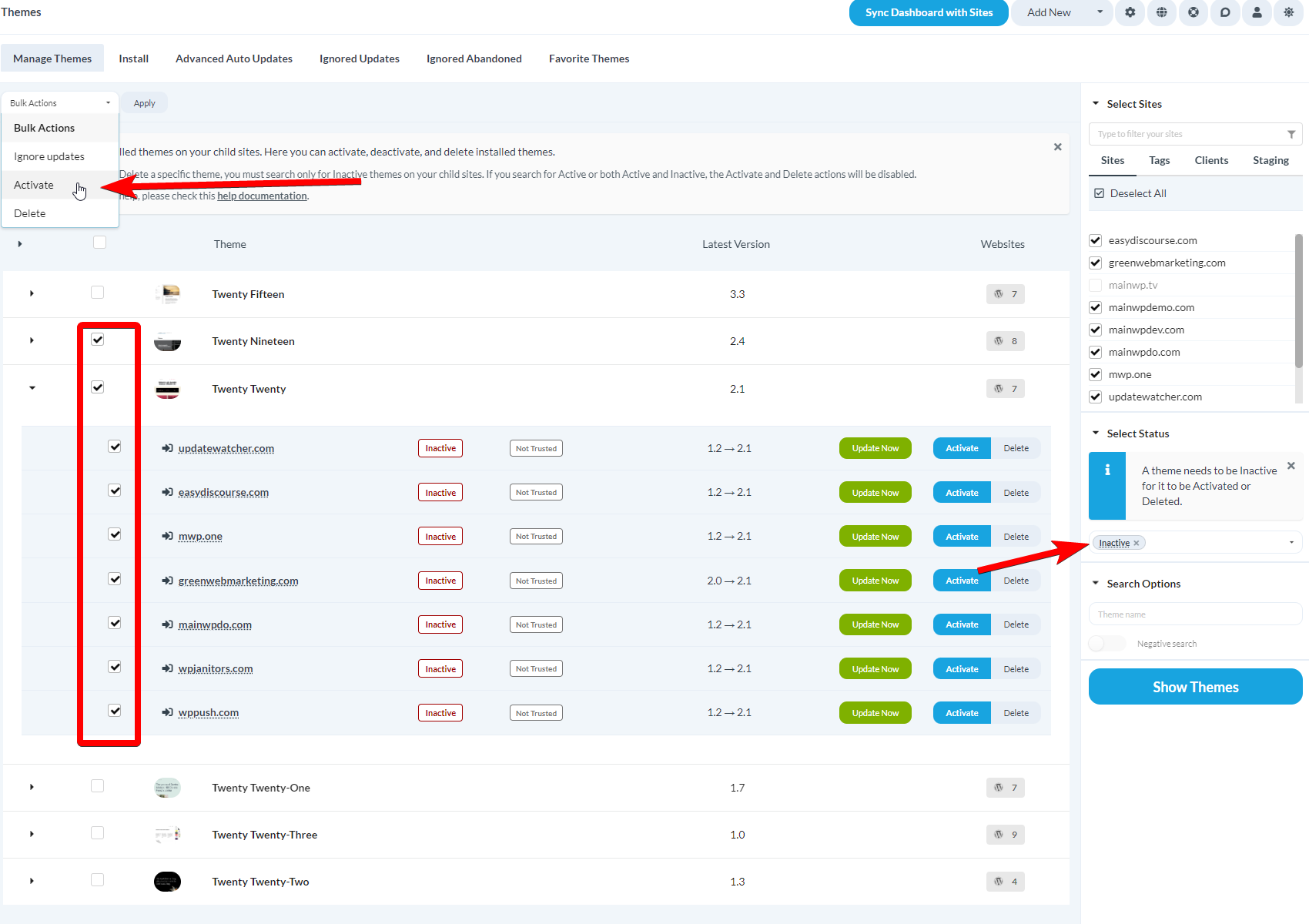
## Activate Themes
Go to **MainWP > Sites > Themes > Manage**.
From the dropdown menu, select **Per Site** or **Per Item** view.
In the [Select Sites](/getting-started/mainwp-user-interface) section, choose the sites to search.
In the **Search Themes** section, set **Status** to **Inactive**. Optionally enter a theme name.
Click **Show Themes**.
Check the boxes next to the themes you want to activate.
In the **Bulk Actions** menu, select **Activate** and click **Confirm**.
***
## Update Themes
Synchronize your child sites before running updates to ensure all available updates are displayed.
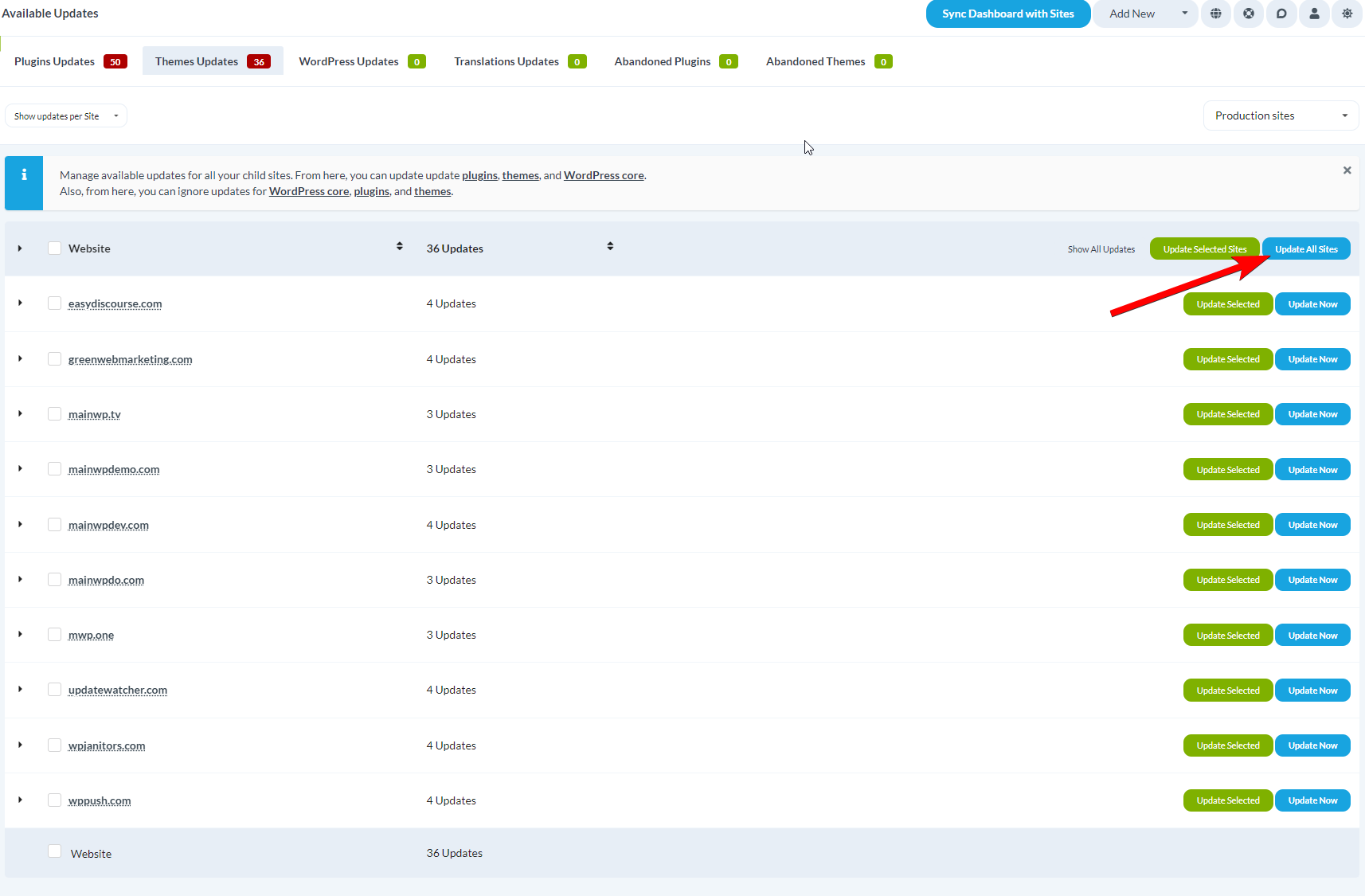
### Update All Themes on All Sites
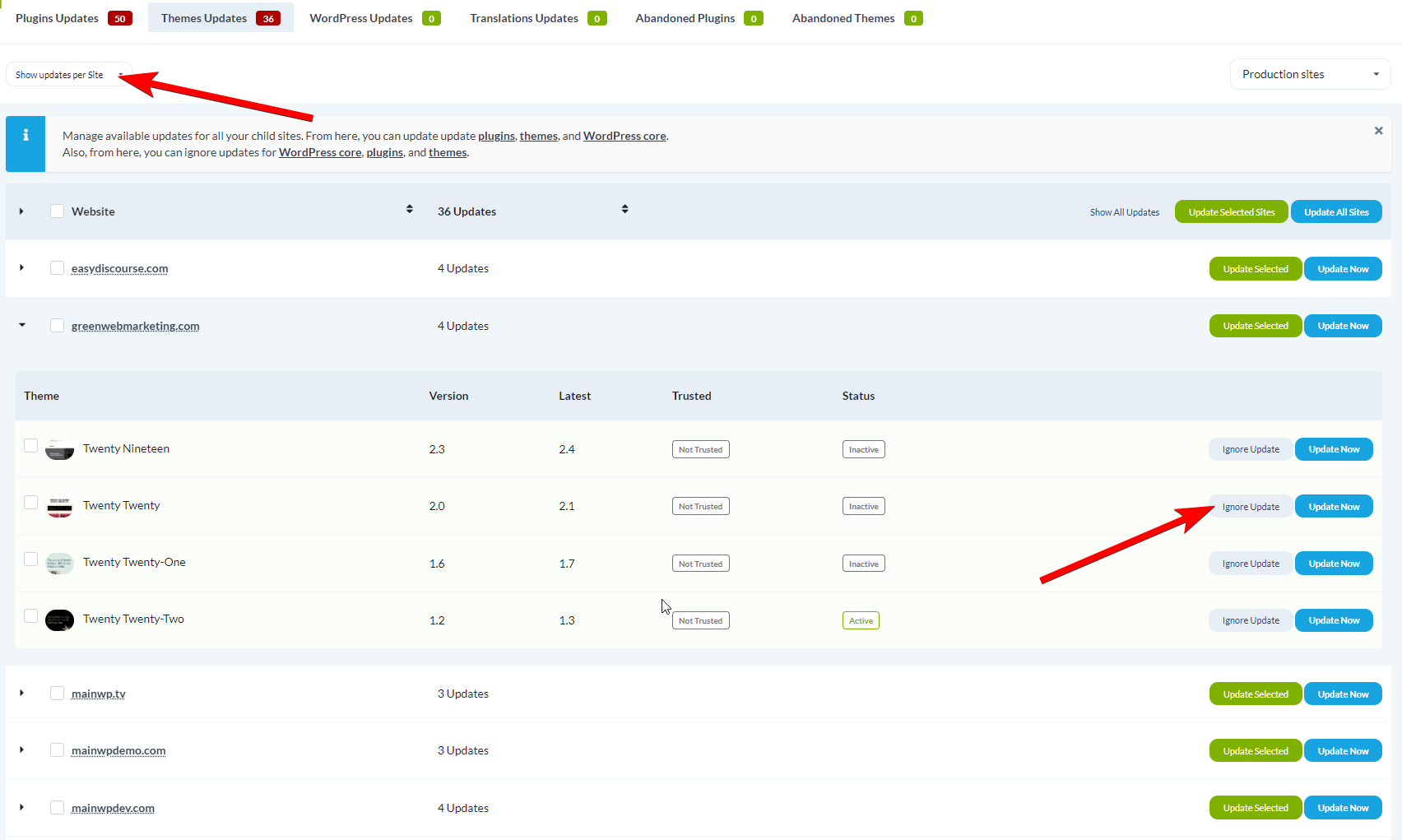
Go to **MainWP > Sites > Updates > Themes Updates**.
Click **Update All Sites (Update All Themes)**.
Confirm the update when prompted.
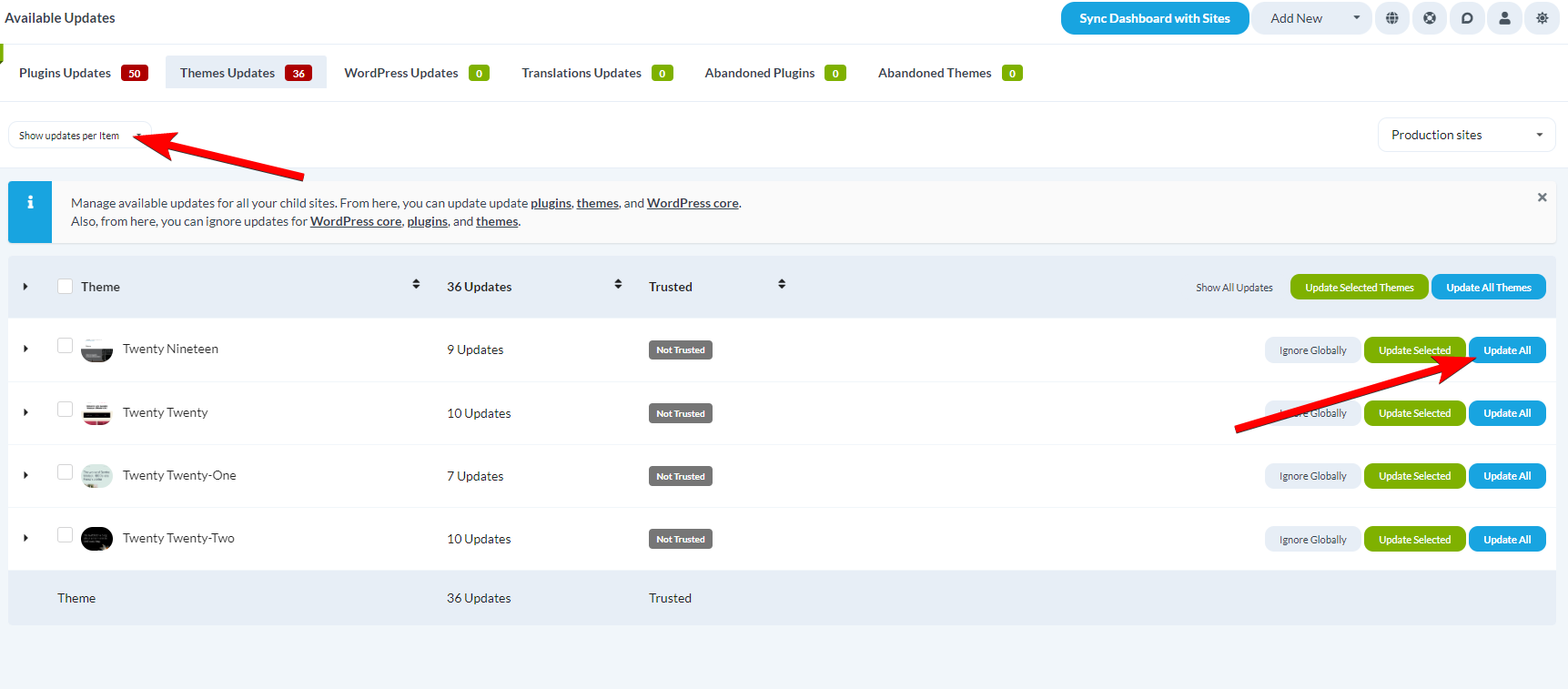
### Update a Single Theme on All Sites
Go to **MainWP > Sites > Updates > Themes Updates**.
Set **Show updates per** to **Item**.
Find the theme you want to update.
Click **Update All** in the theme row.
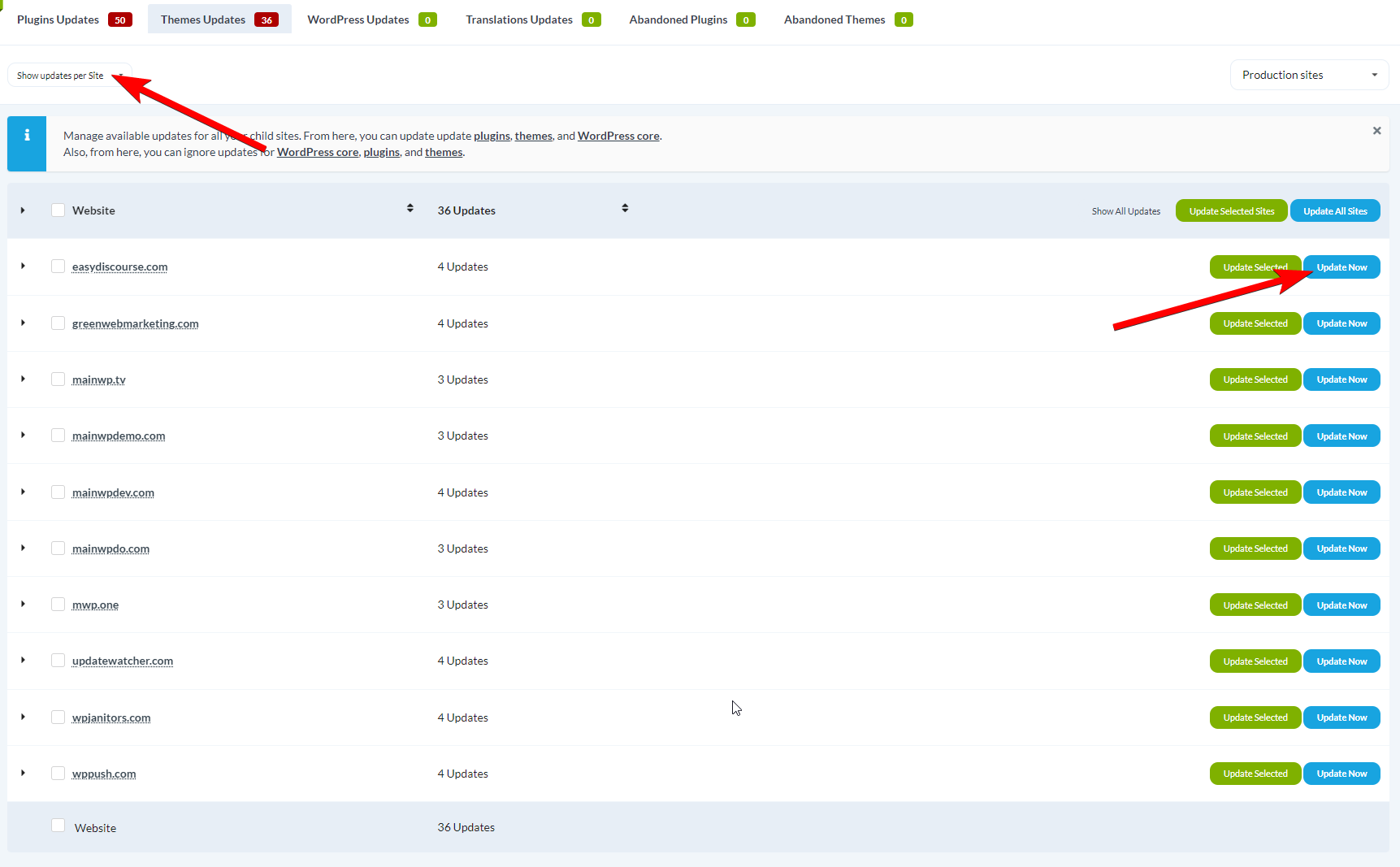
### Update All Themes on a Single Site
Go to **MainWP > Sites > Updates > Themes Updates**.
Set **Show updates per** to **Site**.
Find the child site you want to update.
Click **Update All** in the site row.
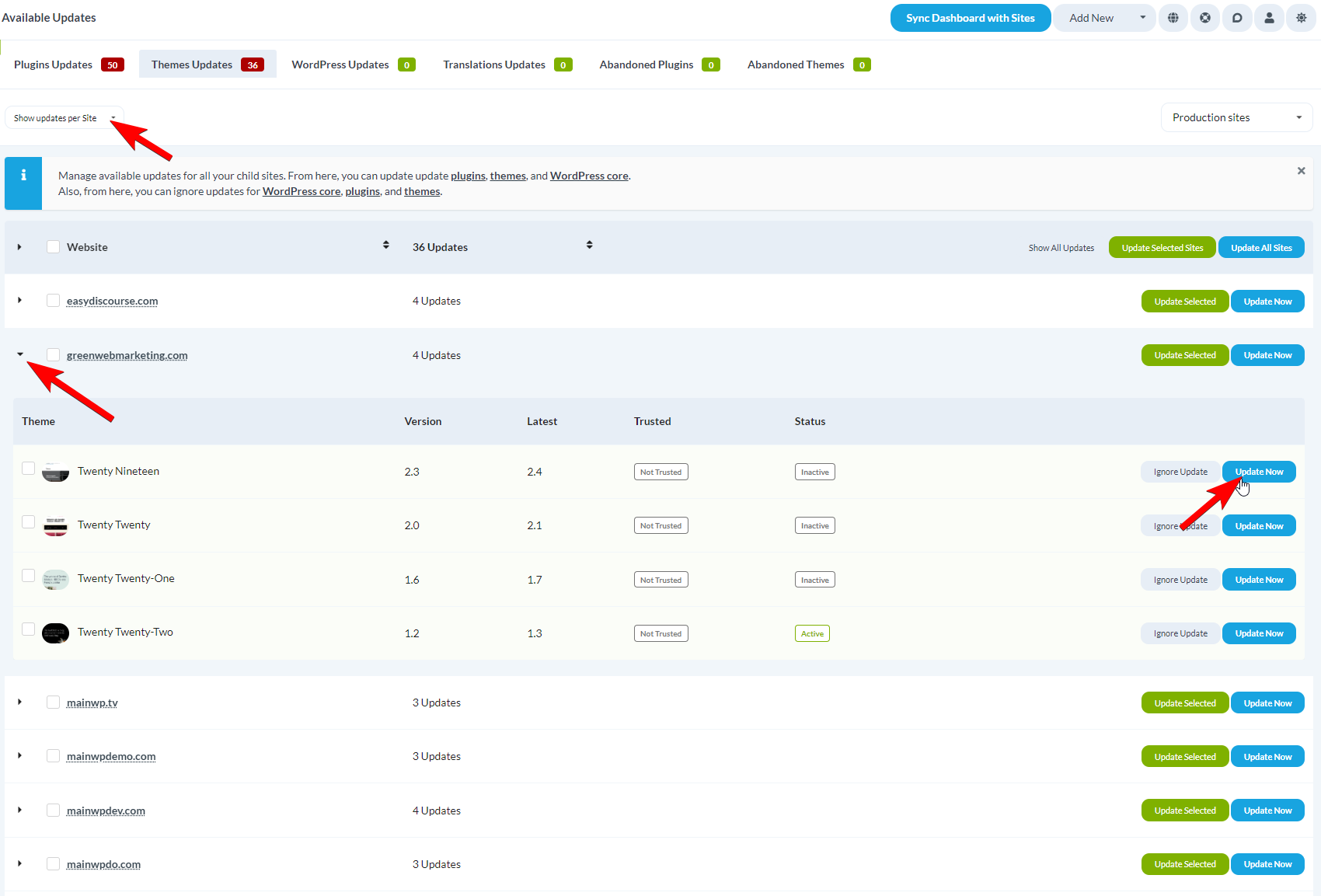
### Update a Single Theme on a Single Site
Go to **MainWP > Sites > Updates > Themes Updates**.
Set **Show updates per** to **Site**.
Find the child site and expand its row.
Find the theme and click **Update Now**.
## View Theme History
Use the **History** action to review theme change activity by site and by day.
Open theme rows in **MainWP > Themes > Manage Themes**, **MainWP > Updates > Themes Updates**, or theme rows on an individual site Operations page.
Click **History** in the theme row.
Review actions in chronological order. Each record shows the action, user, source (**Dashboard** or **WP Admin**), timestamp, and version change when available.
Use **Day History** to group actions by date, then use **Theme History** to switch to theme-grouped actions for that day.
Click **Load More** in the modal to display earlier activity.
If no logs are available, you may see "This theme has no recorded activity in Dashboard Insights." Check [Network Activity](/sites/network-activity) and [Dashboard Insights](/dashboard/overview/dashboard-insights) settings to confirm logging and retention are configured.
***
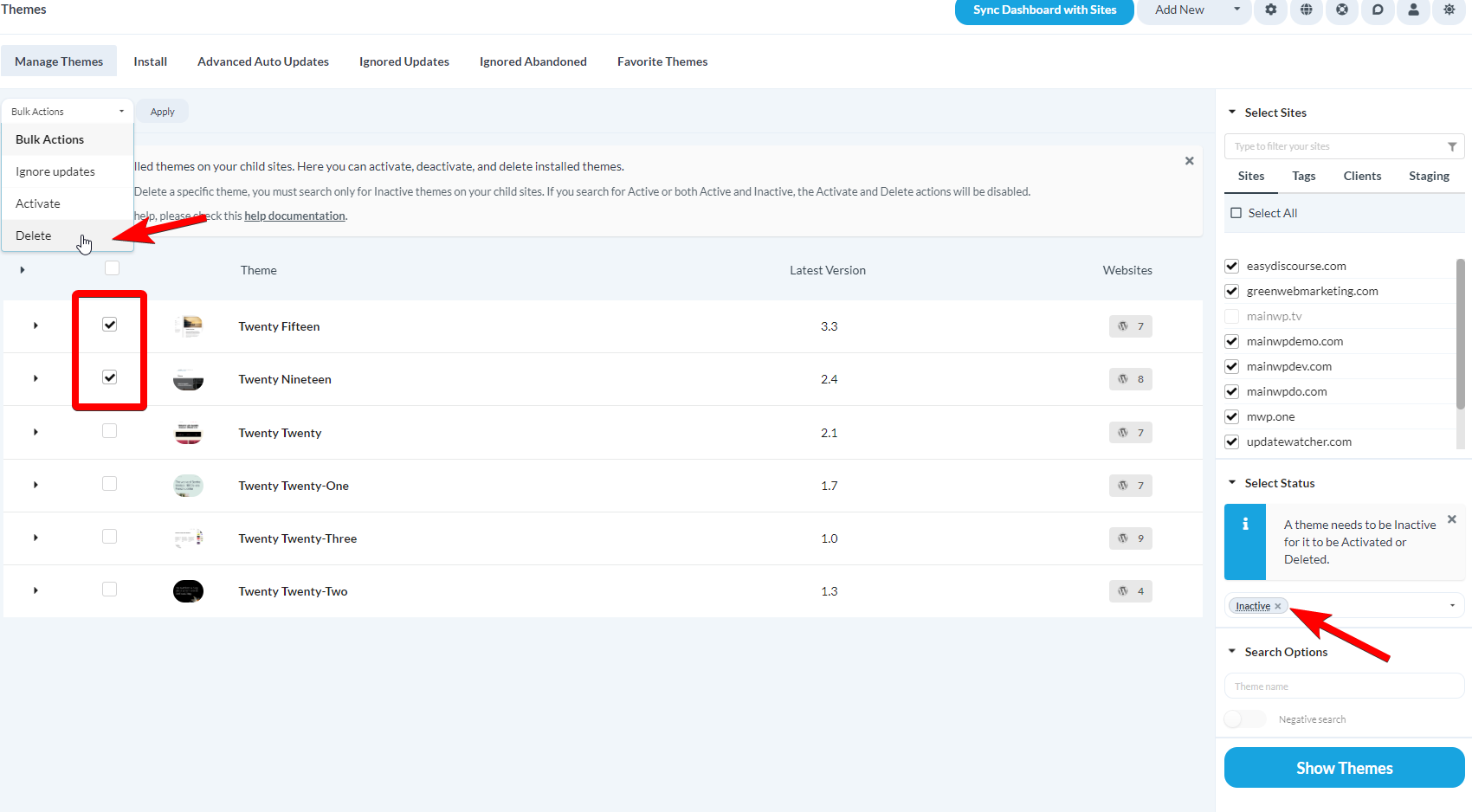
## Delete Themes
Active themes cannot be deleted. The active theme must be changed before deletion.
Go to **MainWP > Sites > Themes > Manage**.
From the dropdown menu, select **Per Site** or **Per Item** view.
In the [Select Sites](/getting-started/mainwp-user-interface) section, choose the sites where you want to delete themes.
In the **Search Themes** section, set **Status** to **Inactive**. Optionally enter a theme name.
Click **Show Themes**.
Check the boxes next to the themes you want to delete.
In the **Bulk Actions** menu, select **Delete** and click **Confirm**.
***
## Ignore Theme Updates
Ignoring a theme update removes it from the available updates list and the Update Overview widget. This is useful for themes you intentionally keep at a specific version.
### Ignore Methods
| Method | Scope |
| -------- | ------------------------------------ |
| Globally | Theme ignored on all child sites |
| Per Site | Theme ignored on specific sites only |
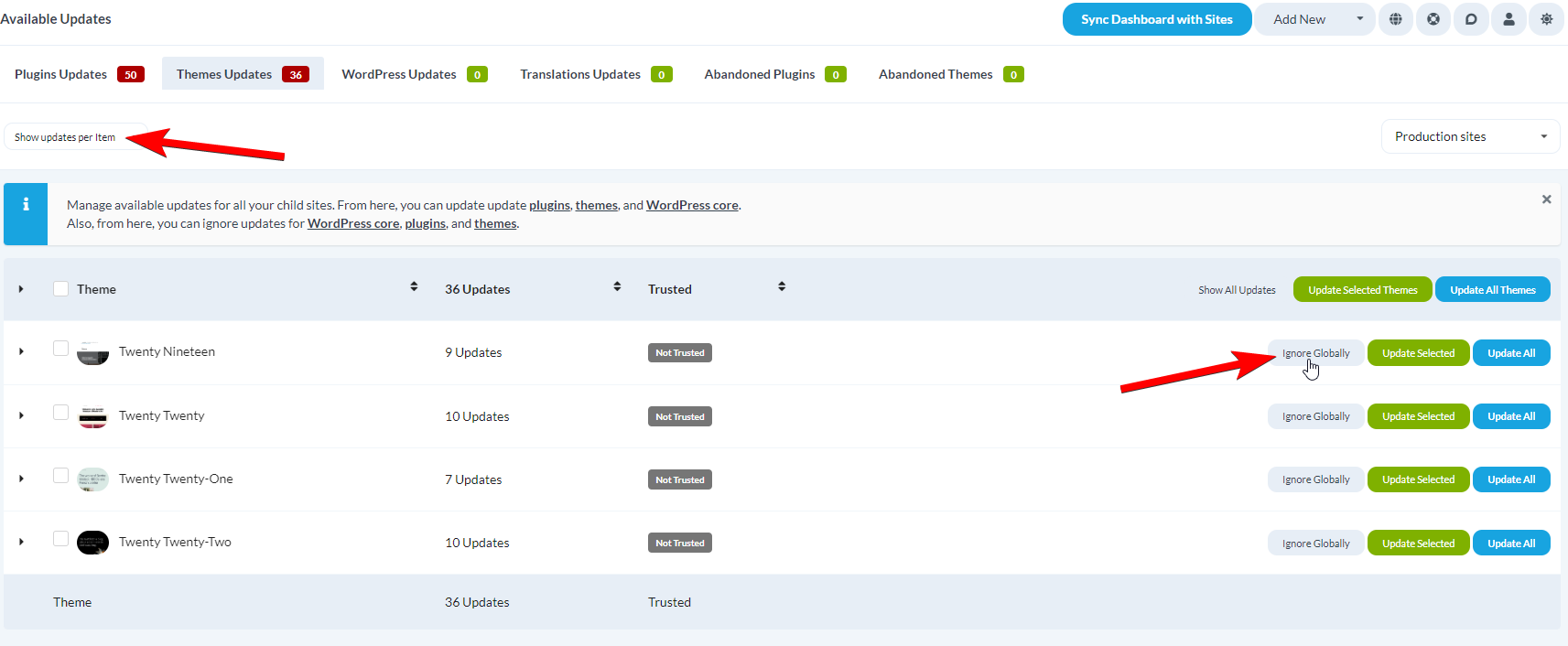
### Ignore a Theme on All Sites
Go to **MainWP > Sites > Updates > Themes Updates**.
Set **View updates per** to **Plugin/Theme**.
Locate the theme and click **Ignore Globally** in its row.
### Un-ignore a Globally Ignored Theme
Go to **MainWP > Sites > Themes > Ignored Updates**.
In the **Globally Ignored Themes** table, locate the theme and click **Allow**.
### Ignore a Theme on a Single Site
Go to **MainWP > Sites > Updates > Themes Updates**.
Set **View updates per** to **Site**.
Find the child site and expand its row.
Find the theme and click **Ignore**.
### Un-ignore a Per-Site Ignored Theme
Go to **MainWP > Sites > Themes > Ignored Updates**.
In the **Per Site Ignored Themes** table, locate the theme and click **Allow**.
***
## Abandoned Themes
MainWP identifies themes that may be abandoned based on how long since their last update.
### Set Abandoned Tolerance
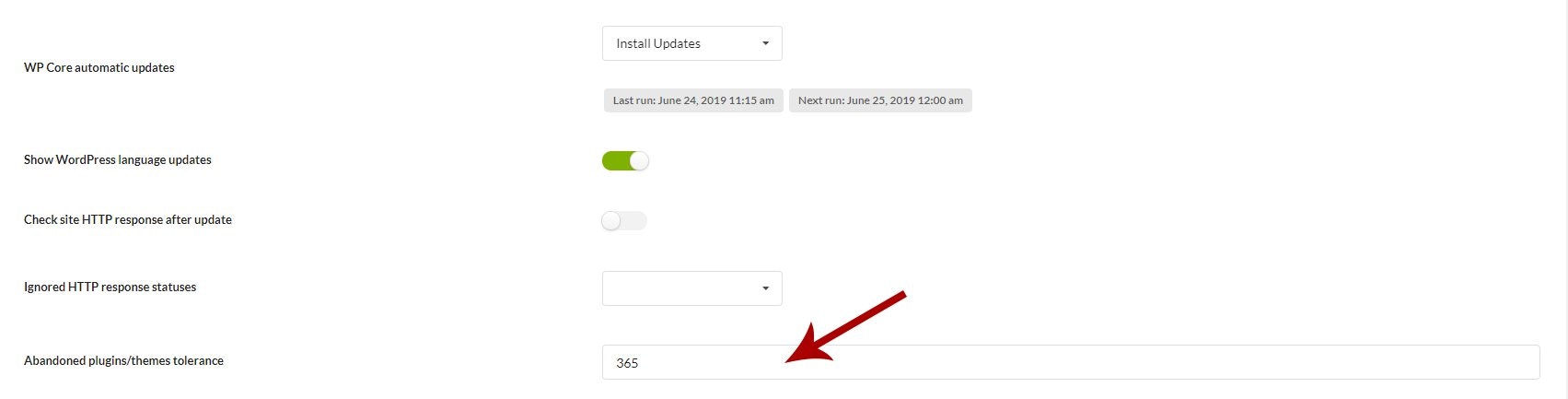
Go to **MainWP > Settings**.
Locate the **Update Settings** section.
Find **Abandoned plugins/themes tolerance** and enter the number of days.
Click **Save Settings**.
Themes without updates for the specified period appear in the Abandoned Themes section.
***
## Self-Check Checklist
* [ ] Themes install successfully on selected sites
* [ ] Theme activation works across sites
* [ ] Theme updates complete without errors
* [ ] Ignored themes no longer appear in update lists
* [ ] Deleted themes are removed from child sites
***
## Related Resources
* [Parent Theme Lock](/sites/themes/parent-theme-lock) - Prevent accidental parent theme activation
* [Negative Search](/sites/themes/negative-search) - Find sites missing specific themes
* [Favorites Extension](https://mainwp.com/extension/favorites/) - Quick theme installation from saved lists
 | Option | Description |
| --------------------------------------- | -------------------------------------------------- |
| Overwrite existing if already installed | Replace the theme if already installed on the site |
| Option | Description |
| --------------------------------------- | -------------------------------------------------- |
| Overwrite existing if already installed | Replace the theme if already installed on the site |