> ## Documentation Index
> Fetch the complete documentation index at: https://docs.mainwp.com/llms.txt
> Use this file to discover all available pages before exploring further.
# MainWP Support Modal
> Learn how to open the MainWP Support modal, use each support option, and manage support-related permissions from the modal or MainWP Tools.
The MainWP Dashboard Support modal gives you quick access to help resources directly inside the Dashboard. You can launch the AI Support Assistant, start guided tours, open page video tutorials, and jump to MainWP Support contact options.
## What You'll Learn
* How to open the Support modal from the Dashboard sidebar
* What each Support modal option does
* How to enable or disable Support Assistant, guided tours, and video tutorials
* How permissions in the modal map to MainWP Tools settings
## Prerequisites
* MainWP Dashboard installed and active
* Administrator access to your MainWP Dashboard
***
## How to Open the Support Modal
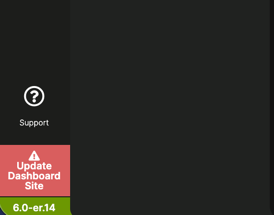
Click **Support** in the left navigation panel (question-mark icon near the bottom).
 The **Get Help** item in the top-right user menu opens the Help sidebar. It is separate from the Support modal opened by the **Support** button.
***
## Support Modal Options
The modal includes the following cards:
The **Get Help** item in the top-right user menu opens the Help sidebar. It is separate from the Support modal opened by the **Support** button.
***
## Support Modal Options
The modal includes the following cards:
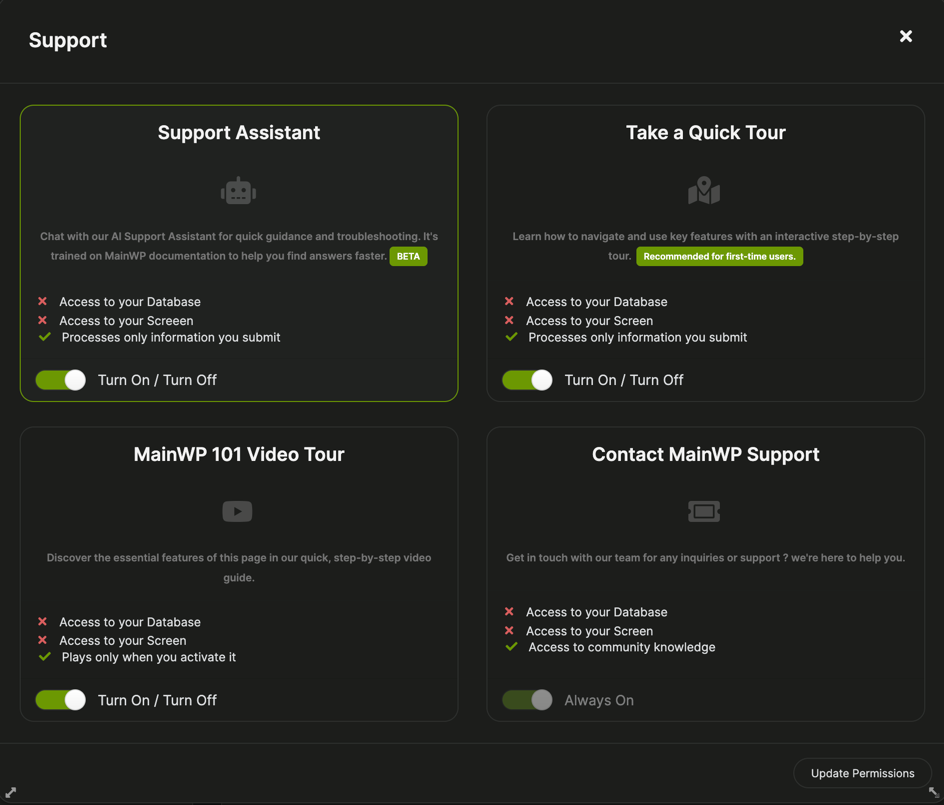 | Option | What it does | Availability |
| ---------------------- | ----------------------------------------------------- | ------------------------------------------------------------------------------------------------- |
| Support Assistant | Opens the AI support chat inside the modal | Available when **Chatbase (AI-Powered Chat Support)** is enabled |
| Take a Quick Tour | Starts the guided tour for the current page | Available when **Usetiful (Interactive Guides & Tips)** is enabled |
| MainWP 101 Video Tour | Opens an embedded tutorial video for the current page | Available when **Youtube Embeds (Video Tutorials)** is enabled and a video is mapped to that page |
| Contact MainWP Support | Opens the MainWP community support page in a new tab | Always available |
The contact option opens: [https://community.mainwp.com/](https://community.mainwp.com/)
***
## Update Permissions in the Modal
Each modal card has a **Turn On / Turn Off** permission toggle (except the support contact card). Use the **Update Permissions** button to save changes.
Open **Support**.
Enable or disable the cards you want to use.
Click **Update Permissions**.
Permission toggles in the modal map to:
* **Usetiful (Interactive Guides & Tips)**: Guided tours, tooltips, and onboarding
* **Chatbase (AI-Powered Chat Support)**: AI Support Assistant
* **Youtube Embeds (Video Tutorials)**: Embedded page video guides
You can also manage the same permission toggles in **MainWP > Settings > MainWP Tools**.
***
## Privacy and Third-Party Services
The Support modal options above use third-party services that you control via permissions.
* Review privacy details: [Privacy & Data Handling](/getting-started/are-you-guys-watching-what-i-am-doing)
* Manage settings in Dashboard: **MainWP > Settings > MainWP Tools**
* MainWP Tools reference: [MainWP Dashboard Settings](/sites/management/mainwp-dashboard-settings)
***
## Troubleshooting
* **A card is disabled:** Enable its toggle in the modal and click **Update Permissions**.
* **Video tour is missing on a page:** Not all pages have a mapped **MainWP 101 Video Tour**.
* **Tours did not start after enabling:** Reload the page, then launch the tour again.
* **Looking for the old Need Help flow:** Use **Support** in the left navigation to open the Support modal.
***
## Related Topics
* [MainWP User Interface](/getting-started/mainwp-user-interface)
* [How can I turn off guided tours?](/customization/how-to-turn-off-guided-tours)
* [MainWP Dashboard Settings](/sites/management/mainwp-dashboard-settings)
| Option | What it does | Availability |
| ---------------------- | ----------------------------------------------------- | ------------------------------------------------------------------------------------------------- |
| Support Assistant | Opens the AI support chat inside the modal | Available when **Chatbase (AI-Powered Chat Support)** is enabled |
| Take a Quick Tour | Starts the guided tour for the current page | Available when **Usetiful (Interactive Guides & Tips)** is enabled |
| MainWP 101 Video Tour | Opens an embedded tutorial video for the current page | Available when **Youtube Embeds (Video Tutorials)** is enabled and a video is mapped to that page |
| Contact MainWP Support | Opens the MainWP community support page in a new tab | Always available |
The contact option opens: [https://community.mainwp.com/](https://community.mainwp.com/)
***
## Update Permissions in the Modal
Each modal card has a **Turn On / Turn Off** permission toggle (except the support contact card). Use the **Update Permissions** button to save changes.
Open **Support**.
Enable or disable the cards you want to use.
Click **Update Permissions**.
Permission toggles in the modal map to:
* **Usetiful (Interactive Guides & Tips)**: Guided tours, tooltips, and onboarding
* **Chatbase (AI-Powered Chat Support)**: AI Support Assistant
* **Youtube Embeds (Video Tutorials)**: Embedded page video guides
You can also manage the same permission toggles in **MainWP > Settings > MainWP Tools**.
***
## Privacy and Third-Party Services
The Support modal options above use third-party services that you control via permissions.
* Review privacy details: [Privacy & Data Handling](/getting-started/are-you-guys-watching-what-i-am-doing)
* Manage settings in Dashboard: **MainWP > Settings > MainWP Tools**
* MainWP Tools reference: [MainWP Dashboard Settings](/sites/management/mainwp-dashboard-settings)
***
## Troubleshooting
* **A card is disabled:** Enable its toggle in the modal and click **Update Permissions**.
* **Video tour is missing on a page:** Not all pages have a mapped **MainWP 101 Video Tour**.
* **Tours did not start after enabling:** Reload the page, then launch the tour again.
* **Looking for the old Need Help flow:** Use **Support** in the left navigation to open the Support modal.
***
## Related Topics
* [MainWP User Interface](/getting-started/mainwp-user-interface)
* [How can I turn off guided tours?](/customization/how-to-turn-off-guided-tours)
* [MainWP Dashboard Settings](/sites/management/mainwp-dashboard-settings)