> ## Documentation Index
> Fetch the complete documentation index at: https://docs.mainwp.com/llms.txt
> Use this file to discover all available pages before exploring further.
# Manage Add-ons
> Learn how to order, install, activate, update, and remove MainWP Add-ons across MainWP.com and your MainWP Dashboard.
## What You'll Learn
* How to order Add-ons and access downloads in your MainWP.com account
* How to connect your MainWP Dashboard to your MainWP account
* How to install and activate Add-ons in MainWP Dashboard
* How to update and remove Add-ons safely
* How to change or cancel your MainWP Pro plan
## Prerequisites
* MainWP Dashboard installed and active
* Administrator access to your MainWP Dashboard site
* A MainWP account
***
## What Are the MainWP Add-ons
MainWP Add-ons extend your MainWP Dashboard with additional functionality.
On **MainWP > Add-ons > Manage Add-ons**, the installer includes:
* `Extensions`: Add-ons that add Dashboard features without third-party dependencies
* `Integrations`: Add-ons that connect your Dashboard to third-party tools
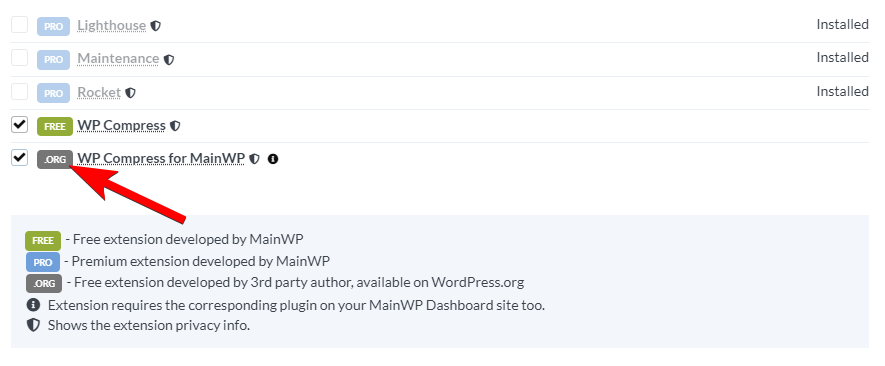
The installer also uses source badges:
* `FREE`: Free add-on by MainWP
* `PRO`: Premium add-on by MainWP
* `.ORG`: Free add-on by a third party (WordPress.org)
MainWP Add-ons are different from core MainWP plugins on WordPress.org (such as MainWP Dashboard and MainWP Child).
***
## Order Add-ons
**Where:** MainWP.com account
Go to [MainWP.com](https://mainwp.com/) and click [Account](https://mainwp.com/my-account/).
Log in with your existing MainWP account, or create one if you do not already have it.
Go to [MainWP Pro](https://mainwp.com/signup/) and choose your plan.
Review the order details, then continue checkout.
After payment is complete, your API key and download access are available in your MainWP account.
**Important notes**
* If you need purchase help, contact [MainWP Support](https://mainwp.com/my-account/get-support/).
* MainWP Add-ons do not have a trial period. See the [Refund Policy](https://mainwp.com/refund-policy/).
### Download Your Invoice
**Where:** MainWP.com account
Go to [My Orders](https://mainwp.com/my-account/orders/).
Locate the order you need an invoice for.
Click **Invoice** to download the invoice.
### Download Add-ons
**Where:** MainWP.com account
Go to [My Downloads](https://mainwp.com/my-account/my-api-downloads/).
Download the Add-ons you want to install.
### Get Your API Key
**Where:** MainWP.com account
Go to [My API Keys](https://mainwp.com/my-account/my-api-keys/).
Copy your Main API key for use in MainWP Dashboard.
***
## Connect Your MainWP Account
**Where:** MainWP Dashboard
Go to **MainWP > Add-ons > Manage Add-ons**.
Click **Add License Key** (or **Manage License** if a key is already saved).
Paste your key into **Enter your MainWP Main API Key** and enable **Remember Key** if needed.
Click **Validate License**.
On new Dashboards with no installed Add-ons, you may see **Validate License & Install Add-ons**.
***
## Install Add-ons
**Where:** MainWP Dashboard
### Install from Manage Add-ons (recommended)
Go to **MainWP > Add-ons > Manage Add-ons** and click **Install Add-ons**.
Use category tabs, **Show Extensions**, **Show Integrations**, or the **Search Add-ons** tab with the **Find add-on...** field.
Choose the Add-ons you want to install.
Click **Install Selected Add-ons**.
### Install with WordPress Plugin Installer
Go to **WP Admin > Plugins > Add New**.
Click **Upload Plugin**, choose the Add-on zip, and click **Install Now**.
If installation succeeds, click **Activate Plugin**.
### Manual Installation (FTP)
Download the Add-on zip from your MainWP.com account and extract it if needed.
Upload the Add-on folder to `wp-content/plugins` on your MainWP Dashboard site.
Go to **WP Admin > Plugins** and activate the uploaded Add-on.
Install MainWP Add-ons only on your MainWP Dashboard site. Do not install them on MainWP Child sites.
***
## Activate Add-ons
**Where:** MainWP Dashboard
Add-ons can work without activation, but automatic updates require a valid API key and license activation.
### Activate all installed Add-ons
Go to **MainWP > Add-ons > Manage Add-ons**.
If your key is not validated yet, add it and click **Validate License**.
Click **Activate Add-ons**.
### Activate a single Add-on manually
Go to **MainWP > Add-ons > Manage Add-ons**.
Find the installed Add-on you want to activate.
Click **Activate License** on the Add-on card.
If activation fails, see [Troubleshoot extension licensing issues](/troubleshooting/troubleshoot-extension-licensing-issues).
***
## Update Add-ons
**Where:** MainWP Dashboard
### Automatic Add-on Updates
Automatic updates require active license validation.
Go to **WP Admin > Plugins**.
Locate the Add-on with an available update.
Click **Update now**.
### Manual Add-on Updates
Reinstalling an Add-on does not remove its data, so settings remain intact in normal cases.
Download the latest Add-on zip from your MainWP.com account.
In **WP Admin > Plugins**, deactivate and delete the existing version.
Upload and activate the new Add-on version.
***
## Remove Add-ons
**Where:** MainWP Dashboard
Go to **MainWP > Add-ons > Manage Add-ons**.
Click **Disable** on the Add-on card.
After the page reloads, click **Delete**.
You can also remove Add-ons from **WP Admin > Plugins** like any other plugin.
***
## Change Membership Plan
**Where:** MainWP.com account
Changing your [MainWP Pro plan](https://mainwp.com/signup/) is manual. Contact [MainWP Support](https://mainwp.com/my-account/get-support/) if you want help with an upgrade.
For monthly or yearly plans, cancellation is available from [Subscriptions](https://mainwp.com/my-account/my-subscriptions/).
## Update Payment Method
**Where:** MainWP.com account
Go to [My Account](https://mainwp.com/my-account/).
Open the **Subscriptions** tab.
Click **View** for the subscription you want to update.
On the subscription details page, click **Update Payment Method**.
Follow the checkout prompts to save the updated payment method for that subscription.
Saved payment methods are handled by our third-party payment processor. MainWP does not store saved card or PayPal payment details in our systems.
MainWP support cannot change, remove, or swap a saved payment method or PayPal account for you from our side.
If you want to use a different PayPal account and the current one keeps being reused, switch the subscription from PayPal to card first, then update it from card back to PayPal. This prompts you to choose the PayPal account again.
## Cancel Subscription
**Where:** MainWP.com account
Go to [My Account](https://mainwp.com/my-account/).
Open the **Subscriptions** tab.
Click **View** for the subscription you want to cancel.
On the subscription details page, click **Cancel**.
***
## Related Resources
* [Add-ons Overview](/add-ons/overview) - Browse all add-on categories
* [Troubleshoot extension licensing issues](/troubleshooting/troubleshoot-extension-licensing-issues) - Fix activation and update issues
* [Why Is My Add-ons Page Empty?](/troubleshooting/why-is-my-extensions-page-empty) - Resolve hidden list/filter issues
* [MainWP Pro Plans](https://mainwp.com/signup/) - Compare current plan options

 ### Install from Manage Add-ons (recommended)