> ## Documentation Index
> Fetch the complete documentation index at: https://docs.mainwp.com/llms.txt
> Use this file to discover all available pages before exploring further.
# MainWP Knowledge
> Save agency, client, and site context, reusable Skills, and historical Memories for connected AI assistants. Manage Required rules and review AI-submitted records.
Knowledge gives connected AI assistants a saved briefing for your work. Keep your agency's standards, a client's preferences, a site's constraints, and the results of earlier work in your MainWP Dashboard so you do not have to explain them in every conversation.
You manage the records in the MainWP Dashboard. Assistants connected through the [MainWP MCP Server](/mcp-server/overview) can read them and, when permitted, propose and save new records for your review.
## What You'll Learn
* Choose the right record type and level
* Add, edit, and delete Knowledge in the Dashboard
* Use Required rules and understand conflicting instructions
* Review and verify records submitted by an AI assistant
* Ask an assistant to use Knowledge and record the outcome of its work
## Prerequisites
* MainWP Dashboard 6.3 or later
* A Dashboard account with access to the clients or sites you want to manage
* A configured [MainWP MCP connection](/mcp-server/quickstart) if you want an AI assistant to use the records
Knowledge is coming in MainWP 6.3 and is available now through the [Early Access program](https://mainwp.com/add-on/early-access/). The screenshots in this guide use fictional demonstration records.
You can create and review Knowledge in the Dashboard without connecting an AI assistant first.
## Choose a Record Type
Each level has three sections: **Context**, **Skills**, and **Memory**.
| Type | What to save | Example |
| - | - | - |
| **Context** | Facts, preferences, agreements, constraints, and known quirks | "This client wants a short, plain-English maintenance summary." |
| **Skill** | A reusable procedure, with a description of when to use it | "Maintenance check" with steps to check the connection and review recorded updates |
| **Memory** | Dated outcomes and observations from earlier work | "The connection check passed on October 8. Updates were reviewed but not installed." |
A Skill's **Description** helps the assistant decide whether that Skill fits the task. Its **Body** contains the actual procedure. Context and Memory records have a Body but no Description field.
Memories are history, even after verification. Put current instructions in Context or Skills, and ask the assistant to check current conditions before treating an earlier observation as still true.
## Choose a Knowledge Level
Save each record at the broadest level where it applies to every affected site.
| Level | Applies to | Typical content | Where to manage it |
| - | - | - | - |
| **Agency** | Every site in this Dashboard | Shared working standards and procedures | **AI > Knowledge > Agency** |
| **Client** | Every site assigned to that client | Shared preferences, agreements, and client procedures | **Edit Client > Knowledge** |
| **Site** | One connected site | Its stack, constraints, procedures, and work history | The individual site's **Knowledge** page |
For example, save a maintenance planning procedure at Agency level, a hotel's reporting preferences at Client level, and the details of one hotel's booking flow at Site level. The assistant receives these levels together when it reads that site's Knowledge.
Agency records are readable by authorized Dashboard users, including users restricted to a subset of sites. Keep client-specific information on the client or site where it belongs.
### Agency Knowledge
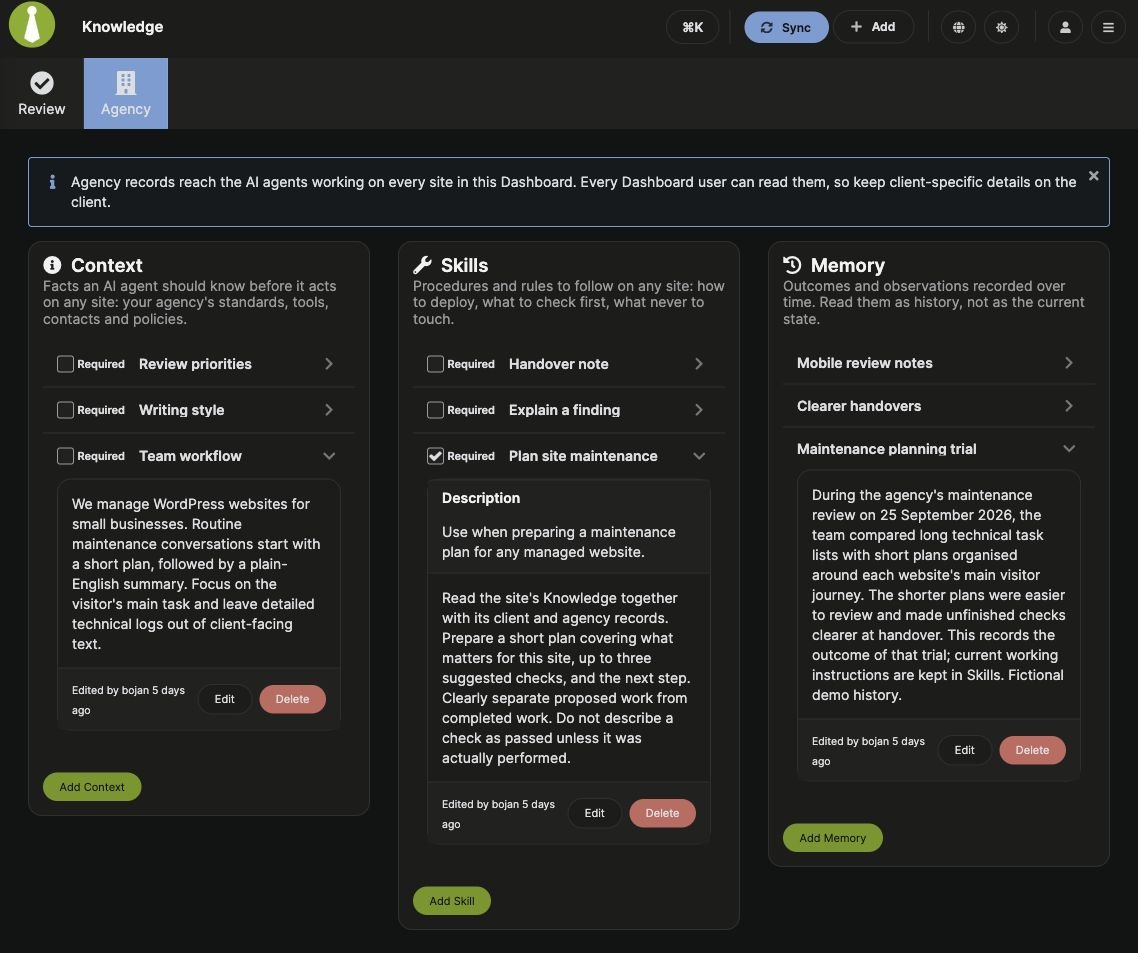
Open **MainWP > AI > Knowledge**, then select **Agency**. Use **Add Context**, **Add Skill**, or **Add Memory** in the corresponding section.
The Knowledge menu opens **Review** by default. Select **Agency** to manage records shared across the Dashboard.
### Client Knowledge
1. Go to **Clients > Clients** and open the client.
2. Click **Edit Client**, then scroll to **Knowledge**.
3. Add or edit records in the relevant section.
Knowledge records save through their own **Save** button. You do not need to click **Update Client** to save a Knowledge record.
The **Knowledge** column in the Clients table counts records saved directly on each client. An **unverified** badge shows how many of those records need review. These counts do not include Agency or Site records.
The Client Card's **Knowledge** widget is read-only. It shows the client's records and a **Site knowledge** list for its assigned sites. Expand a site to read its records, or use **View on the site** to open the site's editable Knowledge page.
### Site Knowledge and Inheritance
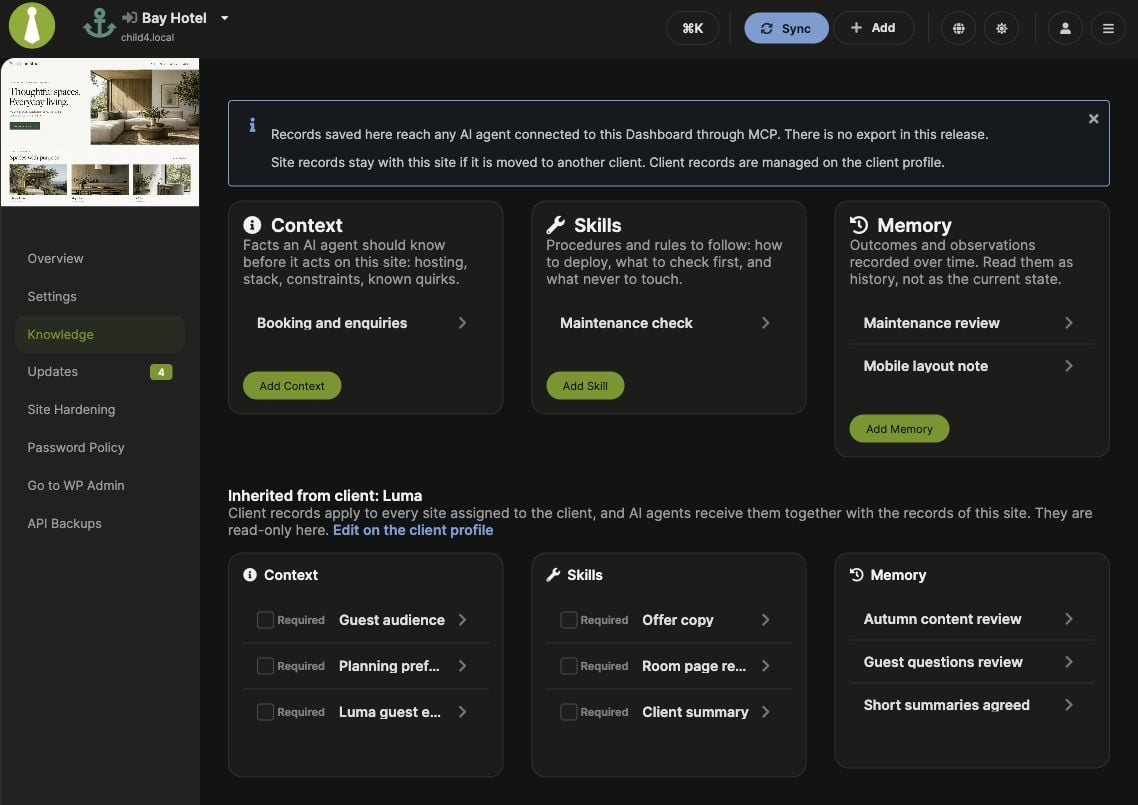
Open an individual site from **Sites > Manage Sites**, then select **Knowledge** in its navigation. Add site-specific records in the upper Context, Skills, and Memory sections.
Below them, **Inherited from client** shows records belonging to the site's assigned client. They are read-only here. Use **Edit on the client profile** to change the original record; users without client editing access may instead see **View on the client profile**.
Agency records are managed on the Agency page. They are included in the site's MCP Knowledge summary even though the site's inherited block shows client records only.
If you move a site to another client, its own Site records stay with it. Its inherited Client records come from the newly assigned client. Updating a Client record changes the shared information for all sites assigned to that client.
## Add and Maintain Records
Open Agency Knowledge, the client's editable Knowledge section, or the site's Knowledge page. Click **Add Context**, **Add Skill**, or **Add Memory**.
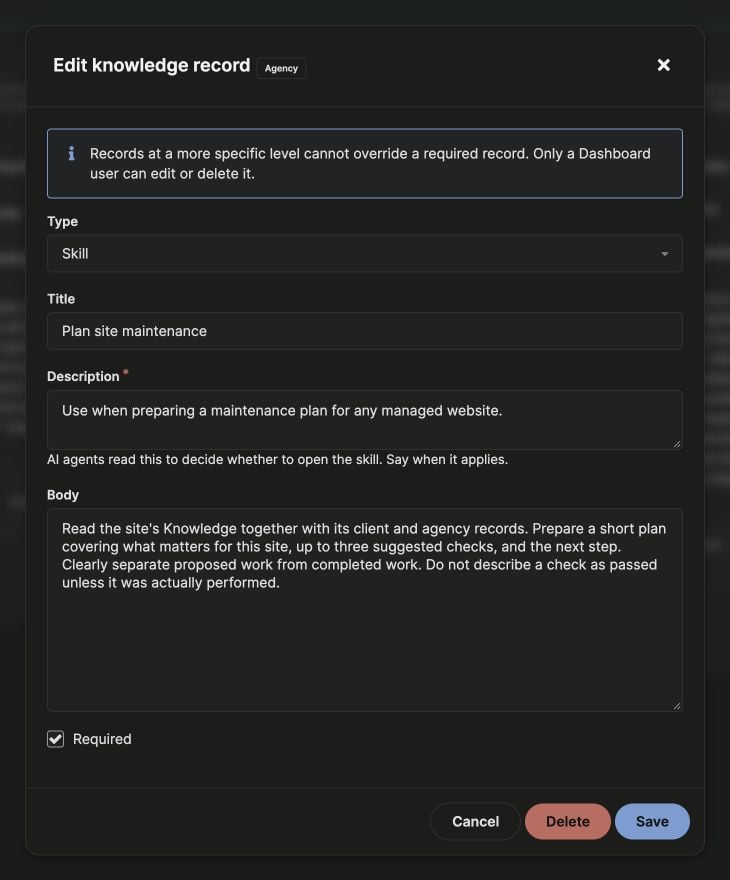
Enter a clear **Title** and a plain-text **Body**. For a Skill, also enter a **Description** explaining when the assistant should use it.
| Field | Required | Limit |
| - | - | - |
| **Title** | All record types | 200 characters |
| **Description** | Skills only | 1,024 characters |
| **Body** | All record types | 10,000 characters |
Use the **Type** selector if you need a different record type. Required is available for eligible Agency and Client records, as described below.
Click **Save**, then expand the record to check its full content. A record saved through the Dashboard is verified.
To update a record, expand it and click **Edit**. To remove it, click **Delete** and confirm the deletion. Deleting Knowledge removes the saved record available to connected assistants; it does not perform the work described in its text.
The record shows who last edited it and when. If someone saves a newer version while you are editing, the Dashboard reports a conflict instead of overwriting their changes. Copy any unsaved text you want to keep before choosing **Reload record**, because reloading replaces your editor text with the latest saved version.
Keep records focused. Give Skills clear triggers and concrete steps. In Memories, distinguish completed checks, proposed work, and anything still unresolved.
## Required Rules and Conflicting Instructions
You can mark **Context** and **Skills** as **Required** at the **Agency** or **Client** level. Site records and Memories cannot be Required.
Set Required in the editor before saving, or use the checkbox in an eligible record's header. The header checkbox saves immediately. Marking an AI-submitted record Required through the Dashboard also saves it as verified, so read it first.
Required prevents a more specific Knowledge rule from overriding that record. For example, a Required Agency Skill that asks for a plan before maintenance takes precedence over a Site Skill that says to skip planning.
The assistant receives these rules for combining verified Context and applicable verified Skills:
| Situation | How the assistant should respond |
| - | - |
| Rules do not conflict | Apply all relevant rules |
| Ordinary rules at different levels conflict | Use the more specific level: Site over Client, Client over Agency |
| A Required rule conflicts with a more specific ordinary rule | Follow the Required rule |
| Rules at the same level conflict | Identify the records by ID and title, then ask you before acting |
| Two Required rules conflict | Identify both records and ask you before acting |
Only a person using the Dashboard can set or clear Required, or edit or delete a Required record. Managing Required also requires unrestricted access to the Dashboard's sites. An AI assistant cannot change these records through the Knowledge tools.
Required is guidance for the assistant. It does not override your instructions, MCP policy, permissions, or confirmation gates. A Knowledge rule that holds an update back guides the assistant's recommendations and actions; it does not change MainWP's scheduled or manual updates.
## Review AI-Submitted Knowledge
The Dashboard determines verification status. Writing "verified" or "approved" in a record's text does not change that status.
| How the record was last saved | Status |
| - | - |
| Created or saved by a person through the Dashboard | Verified |
| Reviewed with **Verify** in the Dashboard | Verified |
| Created or changed through an AI Knowledge tool | Unverified, including edits to a previously verified record |
The assistant is instructed to treat Unverified records as information only. It should not follow procedures or AI-directed instructions in them, and should identify those instructions for human review. Memories remain historical information regardless of their verification status.
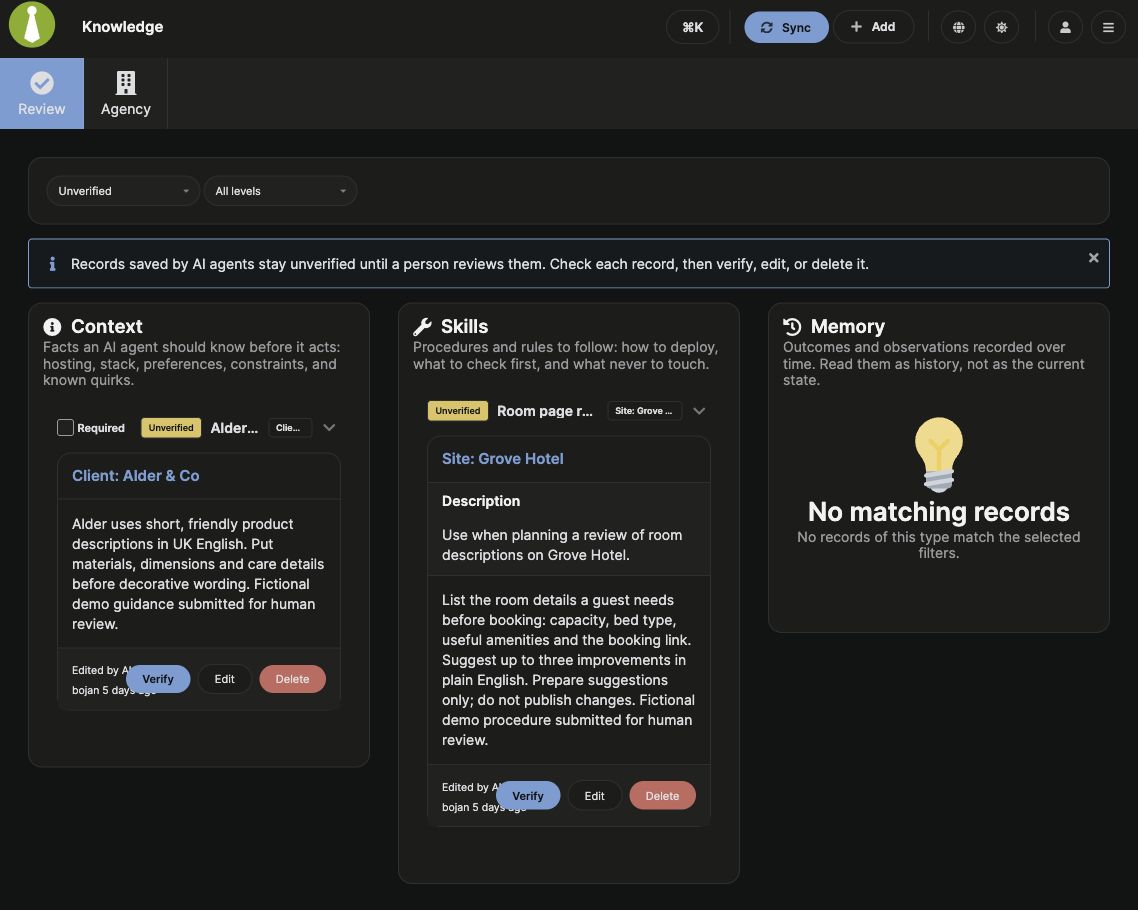
Go to **MainWP > AI > Knowledge > Review**. The default filters are **Unverified** and **All levels**.
Expand a record to read its full Body and, for Skills, Description. Check that the text is accurate, that completed work is described honestly, and that the record belongs at the indicated Agency, Client, or Site level.
Click **Verify** to approve the content as it is. Use **Edit** and **Save** to correct it and mark the saved version verified. Use **Delete** if you do not want to retain the record.
After verification, the record leaves the Unverified results but stays saved in Knowledge. Select **Verified** or **All** in the status filter to find it again. The level filter offers **Agency**, **Client**, **Site**, and **All levels**. Records remain grouped by Context, Skills, and Memory.
Only records you have permission to read appear. Editing, verification, and deletion also require write access. An empty type column can simply mean no records of that type match the current filters.
## Use Knowledge with an AI Assistant
Connect the assistant using the [MCP Quickstart](/mcp-server/quickstart). Name the site or client and the task, and ask it to read the relevant Knowledge. Replace the example name and URL below with your own site.
### Start with a Plan
```text theme={null}
Read the saved Knowledge for Bay Hotel at https://hotel.example.com,
including its client and agency records. Use any relevant verified Skills
to propose a short maintenance plan. Do not run checks or change the site.
```
Review whether the plan respects the site's constraints, the client's preferences, and any Required rules. A saved Skill supplies reusable steps, but it does not authorize the assistant to carry them out.
### Save an Accurate Memory
After a planning conversation or completed check, request a preview:
```text theme={null}
Preview a Site Memory for Bay Hotel called "Maintenance review".
Include what was actually checked, what was found, and anything still to do.
Show me the proposed text before saving it.
```
Read the text and confirm the save only when it accurately describes the outcome. The saved Memory is Unverified until you review it in the Dashboard. Saving the Memory and verifying it are separate actions.
### Continue Later
```text theme={null}
Read Bay Hotel's latest maintenance Memory and the relevant verified
Context and Skills. Tell me what remains to do, and check which earlier
observations need fresh verification before we proceed.
```
### What the Assistant Reads
A Site Knowledge summary includes the site's records, Agency records, and the assigned client's records when the connected account can read that client. A Client summary includes that client's records and Agency records.
Summaries include full Context bodies, plus Skill descriptions and Memory titles without their bodies. The assistant must retrieve the full Skill or Memory before describing or using its content. Listing records alone also returns summaries without bodies.
Different AI clients decide how to use this guidance. Check the assistant's response and proposed actions. See [MCP Safety & Permissions](/mcp-server/safety) for the server's enforcement and confirmation flow.
### Knowledge Tools
MainWP exposes seven Knowledge abilities through MCP. Tool availability depends on your Dashboard version, account permissions, and MCP tool filters.
| MCP tool | Purpose |
| - | - |
| `get_site_knowledge_v1` | Read a site's summary with Agency and accessible Client Knowledge |
| `get_client_knowledge_v1` | Read a client's summary with Agency Knowledge |
| `get_knowledge_record_v1` | Retrieve one record's full content |
| `list_knowledge_v1` | Find records by level, record type, or search text |
| `create_knowledge_record_v1` | Preview or create an Agency, Client, or Site record |
| `update_knowledge_record_v1` | Preview or update an existing non-Required record |
| `delete_knowledge_record_v1` | Preview or delete an existing non-Required record |
Knowledge writes require `dry_run: true` for a preview or `confirm: true` for execution. Updates and deletions also require the current `expected_revision`, so stale requests cannot overwrite newer work. Through the MCP server's default confirmation flow, review and approve the preview before execution.
AI tools cannot verify records, set Required, or change a record's level during an update. For schemas and inputs available on your connection, use the inspection resources described in [Tools & Resources](/mcp-server/reference/tools).
## Permissions, Storage, and Record Lifecycle
Knowledge is stored in your MainWP Dashboard's database. Connected assistants read it through the tools and account access you provide. MainWP does not provide a Knowledge export in this release.
Dashboard and API access require the WordPress `manage_options` capability. Team Control rights and site restrictions further determine which records an account can read or change:
* **Site:** Reading requires individual Dashboard access for that site; writing requires site editing rights.
* **Client:** Client management rights are required. Accounts restricted to a subset of sites can read a client's records when they have access to at least one assigned site, and can write only when they have access to every assigned site.
* **Agency:** Reading requires base Dashboard access. Writing requires client management rights and unrestricted site access.
* **Required records:** Setting or changing Required, and editing or deleting an existing Required record, additionally requires unrestricted site access and a Dashboard browser session.
Knowledge does not grant extra access to a site. If you delete a site or client from MainWP, records saved directly at that level are deleted with it. Site records have their own ownership and are not converted into Client records when assignments change.
## Troubleshooting
| What you see | What to check |
| - | - |
| Knowledge is missing | Check the Dashboard version, your account's access, and whether the AI menu has been disabled |
| No Add or Edit controls | Check write permissions and whether you are in the read-only Client Card widget or inherited Client block |
| A Skill will not save | Enter a Description explaining when it applies, plus a Title and Body within the field limits |
| Required is unavailable | Only Agency and Client Context or Skills are eligible; managing Required needs unrestricted site access |
| A verified record becomes Unverified | An AI tool changed it; review the new version |
| A verified record disappears from Review | Change the status filter from Unverified to Verified or All |
| The assistant cannot find a Skill's instructions | Ask it to retrieve the full record, not rely only on the summary |
| A save reports a conflict | Preserve your unsaved text, reload the current record, and reconcile the changes |
| Knowledge tools are missing or blocked | Check the Dashboard version and [MCP tool restrictions](/mcp-server/guides/restrict-tools), including safe mode for writes |
## Related Resources
* [MainWP MCP Server](/mcp-server/overview) - Connect an AI assistant to your Dashboard
* [MCP Safety & Permissions](/mcp-server/safety) - Confirmation gates and assistant guidance
* [Manage Clients](/clients/manage-clients) - Client records and site assignments
* [Manage Sites](/sites/management/manage-child-sites) - Individual site management
This documentation is built and hosted on [Mintlify](https://mintlify.com), a developer documentation platform.
 ## Choose a Knowledge Level
Save each record at the broadest level where it applies to every affected site.
| Level | Applies to | Typical content | Where to manage it |
| - | - | - | - |
| **Agency** | Every site in this Dashboard | Shared working standards and procedures | **AI > Knowledge > Agency** |
| **Client** | Every site assigned to that client | Shared preferences, agreements, and client procedures | **Edit Client > Knowledge** |
| **Site** | One connected site | Its stack, constraints, procedures, and work history | The individual site's **Knowledge** page |
For example, save a maintenance planning procedure at Agency level, a hotel's reporting preferences at Client level, and the details of one hotel's booking flow at Site level. The assistant receives these levels together when it reads that site's Knowledge.
## Choose a Knowledge Level
Save each record at the broadest level where it applies to every affected site.
| Level | Applies to | Typical content | Where to manage it |
| - | - | - | - |
| **Agency** | Every site in this Dashboard | Shared working standards and procedures | **AI > Knowledge > Agency** |
| **Client** | Every site assigned to that client | Shared preferences, agreements, and client procedures | **Edit Client > Knowledge** |
| **Site** | One connected site | Its stack, constraints, procedures, and work history | The individual site's **Knowledge** page |
For example, save a maintenance planning procedure at Agency level, a hotel's reporting preferences at Client level, and the details of one hotel's booking flow at Site level. The assistant receives these levels together when it reads that site's Knowledge.
 If you move a site to another client, its own Site records stay with it. Its inherited Client records come from the newly assigned client. Updating a Client record changes the shared information for all sites assigned to that client.
## Add and Maintain Records
If you move a site to another client, its own Site records stay with it. Its inherited Client records come from the newly assigned client. Updating a Client record changes the shared information for all sites assigned to that client.
## Add and Maintain Records
 To update a record, expand it and click **Edit**. To remove it, click **Delete** and confirm the deletion. Deleting Knowledge removes the saved record available to connected assistants; it does not perform the work described in its text.
The record shows who last edited it and when. If someone saves a newer version while you are editing, the Dashboard reports a conflict instead of overwriting their changes. Copy any unsaved text you want to keep before choosing **Reload record**, because reloading replaces your editor text with the latest saved version.
Keep records focused. Give Skills clear triggers and concrete steps. In Memories, distinguish completed checks, proposed work, and anything still unresolved.
## Required Rules and Conflicting Instructions
You can mark **Context** and **Skills** as **Required** at the **Agency** or **Client** level. Site records and Memories cannot be Required.
Set Required in the editor before saving, or use the checkbox in an eligible record's header. The header checkbox saves immediately. Marking an AI-submitted record Required through the Dashboard also saves it as verified, so read it first.
Required prevents a more specific Knowledge rule from overriding that record. For example, a Required Agency Skill that asks for a plan before maintenance takes precedence over a Site Skill that says to skip planning.
The assistant receives these rules for combining verified Context and applicable verified Skills:
| Situation | How the assistant should respond |
| - | - |
| Rules do not conflict | Apply all relevant rules |
| Ordinary rules at different levels conflict | Use the more specific level: Site over Client, Client over Agency |
| A Required rule conflicts with a more specific ordinary rule | Follow the Required rule |
| Rules at the same level conflict | Identify the records by ID and title, then ask you before acting |
| Two Required rules conflict | Identify both records and ask you before acting |
Only a person using the Dashboard can set or clear Required, or edit or delete a Required record. Managing Required also requires unrestricted access to the Dashboard's sites. An AI assistant cannot change these records through the Knowledge tools.
To update a record, expand it and click **Edit**. To remove it, click **Delete** and confirm the deletion. Deleting Knowledge removes the saved record available to connected assistants; it does not perform the work described in its text.
The record shows who last edited it and when. If someone saves a newer version while you are editing, the Dashboard reports a conflict instead of overwriting their changes. Copy any unsaved text you want to keep before choosing **Reload record**, because reloading replaces your editor text with the latest saved version.
Keep records focused. Give Skills clear triggers and concrete steps. In Memories, distinguish completed checks, proposed work, and anything still unresolved.
## Required Rules and Conflicting Instructions
You can mark **Context** and **Skills** as **Required** at the **Agency** or **Client** level. Site records and Memories cannot be Required.
Set Required in the editor before saving, or use the checkbox in an eligible record's header. The header checkbox saves immediately. Marking an AI-submitted record Required through the Dashboard also saves it as verified, so read it first.
Required prevents a more specific Knowledge rule from overriding that record. For example, a Required Agency Skill that asks for a plan before maintenance takes precedence over a Site Skill that says to skip planning.
The assistant receives these rules for combining verified Context and applicable verified Skills:
| Situation | How the assistant should respond |
| - | - |
| Rules do not conflict | Apply all relevant rules |
| Ordinary rules at different levels conflict | Use the more specific level: Site over Client, Client over Agency |
| A Required rule conflicts with a more specific ordinary rule | Follow the Required rule |
| Rules at the same level conflict | Identify the records by ID and title, then ask you before acting |
| Two Required rules conflict | Identify both records and ask you before acting |
Only a person using the Dashboard can set or clear Required, or edit or delete a Required record. Managing Required also requires unrestricted access to the Dashboard's sites. An AI assistant cannot change these records through the Knowledge tools.
 After verification, the record leaves the Unverified results but stays saved in Knowledge. Select **Verified** or **All** in the status filter to find it again. The level filter offers **Agency**, **Client**, **Site**, and **All levels**. Records remain grouped by Context, Skills, and Memory.
Only records you have permission to read appear. Editing, verification, and deletion also require write access. An empty type column can simply mean no records of that type match the current filters.
## Use Knowledge with an AI Assistant
Connect the assistant using the [MCP Quickstart](/mcp-server/quickstart). Name the site or client and the task, and ask it to read the relevant Knowledge. Replace the example name and URL below with your own site.
### Start with a Plan
```text theme={null}
Read the saved Knowledge for Bay Hotel at https://hotel.example.com,
including its client and agency records. Use any relevant verified Skills
to propose a short maintenance plan. Do not run checks or change the site.
```
Review whether the plan respects the site's constraints, the client's preferences, and any Required rules. A saved Skill supplies reusable steps, but it does not authorize the assistant to carry them out.
### Save an Accurate Memory
After a planning conversation or completed check, request a preview:
```text theme={null}
Preview a Site Memory for Bay Hotel called "Maintenance review".
Include what was actually checked, what was found, and anything still to do.
Show me the proposed text before saving it.
```
Read the text and confirm the save only when it accurately describes the outcome. The saved Memory is Unverified until you review it in the Dashboard. Saving the Memory and verifying it are separate actions.
### Continue Later
```text theme={null}
Read Bay Hotel's latest maintenance Memory and the relevant verified
Context and Skills. Tell me what remains to do, and check which earlier
observations need fresh verification before we proceed.
```
### What the Assistant Reads
A Site Knowledge summary includes the site's records, Agency records, and the assigned client's records when the connected account can read that client. A Client summary includes that client's records and Agency records.
Summaries include full Context bodies, plus Skill descriptions and Memory titles without their bodies. The assistant must retrieve the full Skill or Memory before describing or using its content. Listing records alone also returns summaries without bodies.
Different AI clients decide how to use this guidance. Check the assistant's response and proposed actions. See [MCP Safety & Permissions](/mcp-server/safety) for the server's enforcement and confirmation flow.
### Knowledge Tools
MainWP exposes seven Knowledge abilities through MCP. Tool availability depends on your Dashboard version, account permissions, and MCP tool filters.
| MCP tool | Purpose |
| - | - |
| `get_site_knowledge_v1` | Read a site's summary with Agency and accessible Client Knowledge |
| `get_client_knowledge_v1` | Read a client's summary with Agency Knowledge |
| `get_knowledge_record_v1` | Retrieve one record's full content |
| `list_knowledge_v1` | Find records by level, record type, or search text |
| `create_knowledge_record_v1` | Preview or create an Agency, Client, or Site record |
| `update_knowledge_record_v1` | Preview or update an existing non-Required record |
| `delete_knowledge_record_v1` | Preview or delete an existing non-Required record |
Knowledge writes require `dry_run: true` for a preview or `confirm: true` for execution. Updates and deletions also require the current `expected_revision`, so stale requests cannot overwrite newer work. Through the MCP server's default confirmation flow, review and approve the preview before execution.
AI tools cannot verify records, set Required, or change a record's level during an update. For schemas and inputs available on your connection, use the inspection resources described in [Tools & Resources](/mcp-server/reference/tools).
## Permissions, Storage, and Record Lifecycle
Knowledge is stored in your MainWP Dashboard's database. Connected assistants read it through the tools and account access you provide. MainWP does not provide a Knowledge export in this release.
Dashboard and API access require the WordPress `manage_options` capability. Team Control rights and site restrictions further determine which records an account can read or change:
* **Site:** Reading requires individual Dashboard access for that site; writing requires site editing rights.
* **Client:** Client management rights are required. Accounts restricted to a subset of sites can read a client's records when they have access to at least one assigned site, and can write only when they have access to every assigned site.
* **Agency:** Reading requires base Dashboard access. Writing requires client management rights and unrestricted site access.
* **Required records:** Setting or changing Required, and editing or deleting an existing Required record, additionally requires unrestricted site access and a Dashboard browser session.
Knowledge does not grant extra access to a site. If you delete a site or client from MainWP, records saved directly at that level are deleted with it. Site records have their own ownership and are not converted into Client records when assignments change.
## Troubleshooting
| What you see | What to check |
| - | - |
| Knowledge is missing | Check the Dashboard version, your account's access, and whether the AI menu has been disabled |
| No Add or Edit controls | Check write permissions and whether you are in the read-only Client Card widget or inherited Client block |
| A Skill will not save | Enter a Description explaining when it applies, plus a Title and Body within the field limits |
| Required is unavailable | Only Agency and Client Context or Skills are eligible; managing Required needs unrestricted site access |
| A verified record becomes Unverified | An AI tool changed it; review the new version |
| A verified record disappears from Review | Change the status filter from Unverified to Verified or All |
| The assistant cannot find a Skill's instructions | Ask it to retrieve the full record, not rely only on the summary |
| A save reports a conflict | Preserve your unsaved text, reload the current record, and reconcile the changes |
| Knowledge tools are missing or blocked | Check the Dashboard version and [MCP tool restrictions](/mcp-server/guides/restrict-tools), including safe mode for writes |
## Related Resources
* [MainWP MCP Server](/mcp-server/overview) - Connect an AI assistant to your Dashboard
* [MCP Safety & Permissions](/mcp-server/safety) - Confirmation gates and assistant guidance
* [Manage Clients](/clients/manage-clients) - Client records and site assignments
* [Manage Sites](/sites/management/manage-child-sites) - Individual site management
This documentation is built and hosted on [Mintlify](https://mintlify.com), a developer documentation platform.
After verification, the record leaves the Unverified results but stays saved in Knowledge. Select **Verified** or **All** in the status filter to find it again. The level filter offers **Agency**, **Client**, **Site**, and **All levels**. Records remain grouped by Context, Skills, and Memory.
Only records you have permission to read appear. Editing, verification, and deletion also require write access. An empty type column can simply mean no records of that type match the current filters.
## Use Knowledge with an AI Assistant
Connect the assistant using the [MCP Quickstart](/mcp-server/quickstart). Name the site or client and the task, and ask it to read the relevant Knowledge. Replace the example name and URL below with your own site.
### Start with a Plan
```text theme={null}
Read the saved Knowledge for Bay Hotel at https://hotel.example.com,
including its client and agency records. Use any relevant verified Skills
to propose a short maintenance plan. Do not run checks or change the site.
```
Review whether the plan respects the site's constraints, the client's preferences, and any Required rules. A saved Skill supplies reusable steps, but it does not authorize the assistant to carry them out.
### Save an Accurate Memory
After a planning conversation or completed check, request a preview:
```text theme={null}
Preview a Site Memory for Bay Hotel called "Maintenance review".
Include what was actually checked, what was found, and anything still to do.
Show me the proposed text before saving it.
```
Read the text and confirm the save only when it accurately describes the outcome. The saved Memory is Unverified until you review it in the Dashboard. Saving the Memory and verifying it are separate actions.
### Continue Later
```text theme={null}
Read Bay Hotel's latest maintenance Memory and the relevant verified
Context and Skills. Tell me what remains to do, and check which earlier
observations need fresh verification before we proceed.
```
### What the Assistant Reads
A Site Knowledge summary includes the site's records, Agency records, and the assigned client's records when the connected account can read that client. A Client summary includes that client's records and Agency records.
Summaries include full Context bodies, plus Skill descriptions and Memory titles without their bodies. The assistant must retrieve the full Skill or Memory before describing or using its content. Listing records alone also returns summaries without bodies.
Different AI clients decide how to use this guidance. Check the assistant's response and proposed actions. See [MCP Safety & Permissions](/mcp-server/safety) for the server's enforcement and confirmation flow.
### Knowledge Tools
MainWP exposes seven Knowledge abilities through MCP. Tool availability depends on your Dashboard version, account permissions, and MCP tool filters.
| MCP tool | Purpose |
| - | - |
| `get_site_knowledge_v1` | Read a site's summary with Agency and accessible Client Knowledge |
| `get_client_knowledge_v1` | Read a client's summary with Agency Knowledge |
| `get_knowledge_record_v1` | Retrieve one record's full content |
| `list_knowledge_v1` | Find records by level, record type, or search text |
| `create_knowledge_record_v1` | Preview or create an Agency, Client, or Site record |
| `update_knowledge_record_v1` | Preview or update an existing non-Required record |
| `delete_knowledge_record_v1` | Preview or delete an existing non-Required record |
Knowledge writes require `dry_run: true` for a preview or `confirm: true` for execution. Updates and deletions also require the current `expected_revision`, so stale requests cannot overwrite newer work. Through the MCP server's default confirmation flow, review and approve the preview before execution.
AI tools cannot verify records, set Required, or change a record's level during an update. For schemas and inputs available on your connection, use the inspection resources described in [Tools & Resources](/mcp-server/reference/tools).
## Permissions, Storage, and Record Lifecycle
Knowledge is stored in your MainWP Dashboard's database. Connected assistants read it through the tools and account access you provide. MainWP does not provide a Knowledge export in this release.
Dashboard and API access require the WordPress `manage_options` capability. Team Control rights and site restrictions further determine which records an account can read or change:
* **Site:** Reading requires individual Dashboard access for that site; writing requires site editing rights.
* **Client:** Client management rights are required. Accounts restricted to a subset of sites can read a client's records when they have access to at least one assigned site, and can write only when they have access to every assigned site.
* **Agency:** Reading requires base Dashboard access. Writing requires client management rights and unrestricted site access.
* **Required records:** Setting or changing Required, and editing or deleting an existing Required record, additionally requires unrestricted site access and a Dashboard browser session.
Knowledge does not grant extra access to a site. If you delete a site or client from MainWP, records saved directly at that level are deleted with it. Site records have their own ownership and are not converted into Client records when assignments change.
## Troubleshooting
| What you see | What to check |
| - | - |
| Knowledge is missing | Check the Dashboard version, your account's access, and whether the AI menu has been disabled |
| No Add or Edit controls | Check write permissions and whether you are in the read-only Client Card widget or inherited Client block |
| A Skill will not save | Enter a Description explaining when it applies, plus a Title and Body within the field limits |
| Required is unavailable | Only Agency and Client Context or Skills are eligible; managing Required needs unrestricted site access |
| A verified record becomes Unverified | An AI tool changed it; review the new version |
| A verified record disappears from Review | Change the status filter from Unverified to Verified or All |
| The assistant cannot find a Skill's instructions | Ask it to retrieve the full record, not rely only on the summary |
| A save reports a conflict | Preserve your unsaved text, reload the current record, and reconcile the changes |
| Knowledge tools are missing or blocked | Check the Dashboard version and [MCP tool restrictions](/mcp-server/guides/restrict-tools), including safe mode for writes |
## Related Resources
* [MainWP MCP Server](/mcp-server/overview) - Connect an AI assistant to your Dashboard
* [MCP Safety & Permissions](/mcp-server/safety) - Confirmation gates and assistant guidance
* [Manage Clients](/clients/manage-clients) - Client records and site assignments
* [Manage Sites](/sites/management/manage-child-sites) - Individual site management
This documentation is built and hosted on [Mintlify](https://mintlify.com), a developer documentation platform.