> ## Documentation Index
> Fetch the complete documentation index at: https://docs.mainwp.com/llms.txt
> Use this file to discover all available pages before exploring further.
# How to Install MainWP Dashboard App on Cloudways Hosting
> Deploy WordPress with pre-installed MainWP Dashboard on Cloudways managed hosting using their one-click application option.
Cloudways offers a WordPress application with MainWP Dashboard pre-installed for quick deployment. This option is enabled by default for users who sign up through the MainWP Hosting page. Existing Cloudways users may need to contact Cloudways support to enable this option.
## What You Will Accomplish
* Deploy a new Cloudways server with WordPress and MainWP Dashboard pre-installed
* Access your MainWP Dashboard and complete the Quick Setup Wizard
* Have a working MainWP Dashboard ready to connect child sites
## Prerequisites
* A Cloudways account (new or existing)
* Payment method for Cloudways hosting
* No domain name required (Cloudways provides a temporary URL)
Existing Cloudways users: If you don't see the **WordPress (with MainWP)** option in your Applications menu, contact Cloudways support to have it enabled.
## Deploy MainWP Dashboard on Cloudways
Visit the [MainWP Hosting](https://mainwp.com/hosting/) page and click **Get Started Here**.
 Sign up through this page to have the WordPress (with MainWP) option enabled by default.
Complete the Cloudways registration process.
After registration, log in to your Cloudways dashboard.
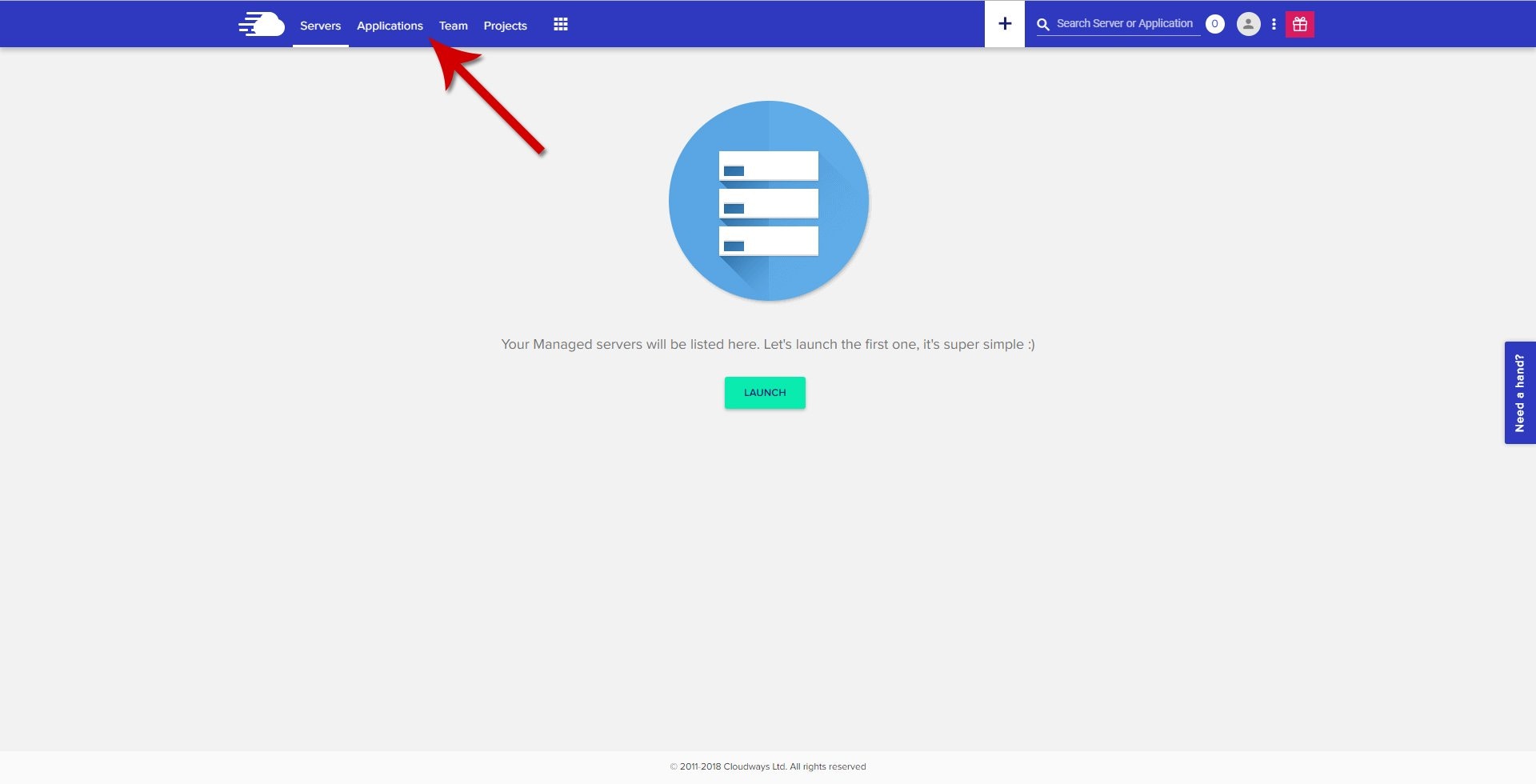
Navigate to the **Applications** section.
Sign up through this page to have the WordPress (with MainWP) option enabled by default.
Complete the Cloudways registration process.
After registration, log in to your Cloudways dashboard.
Navigate to the **Applications** section.
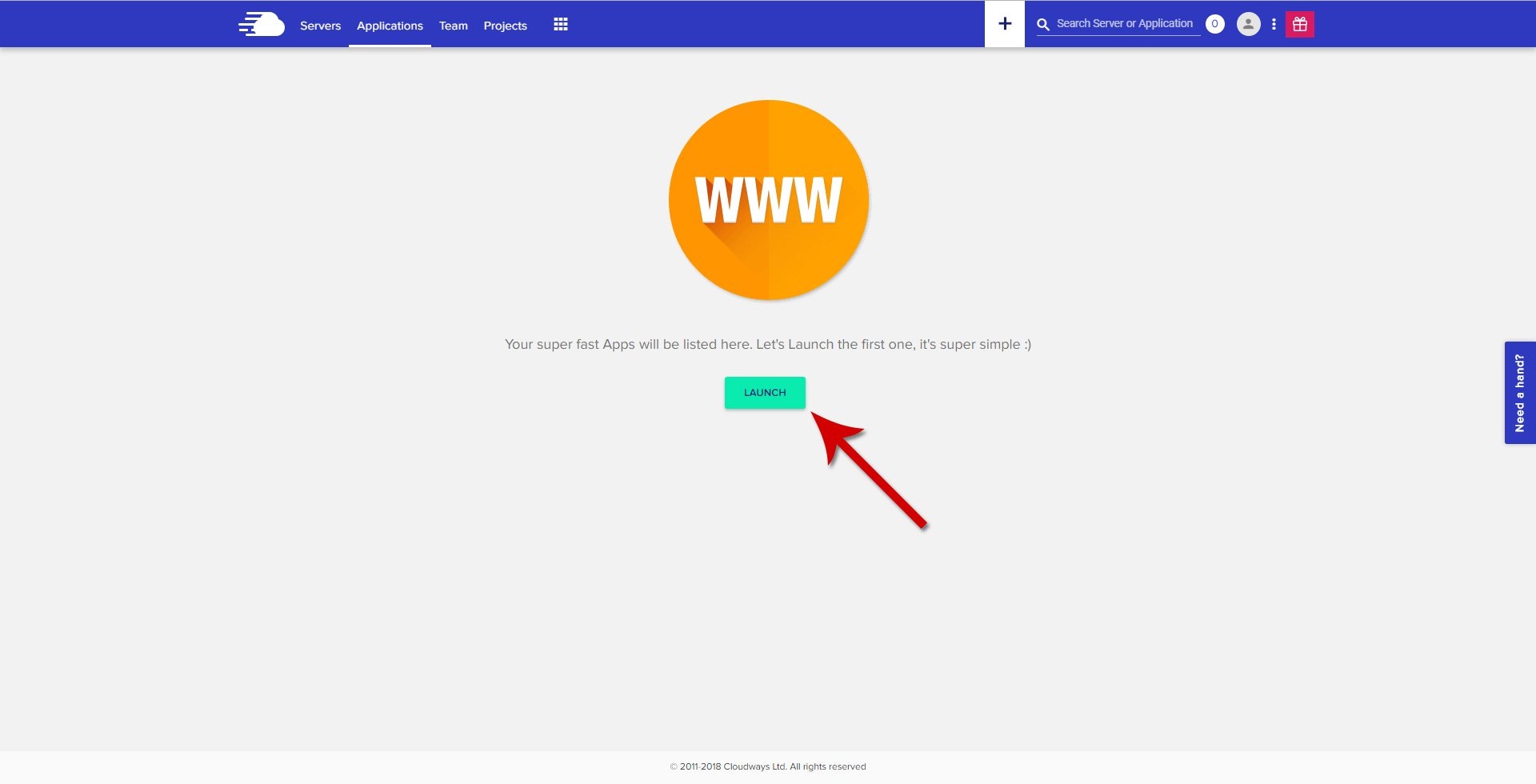
 Click the **Launch** button.
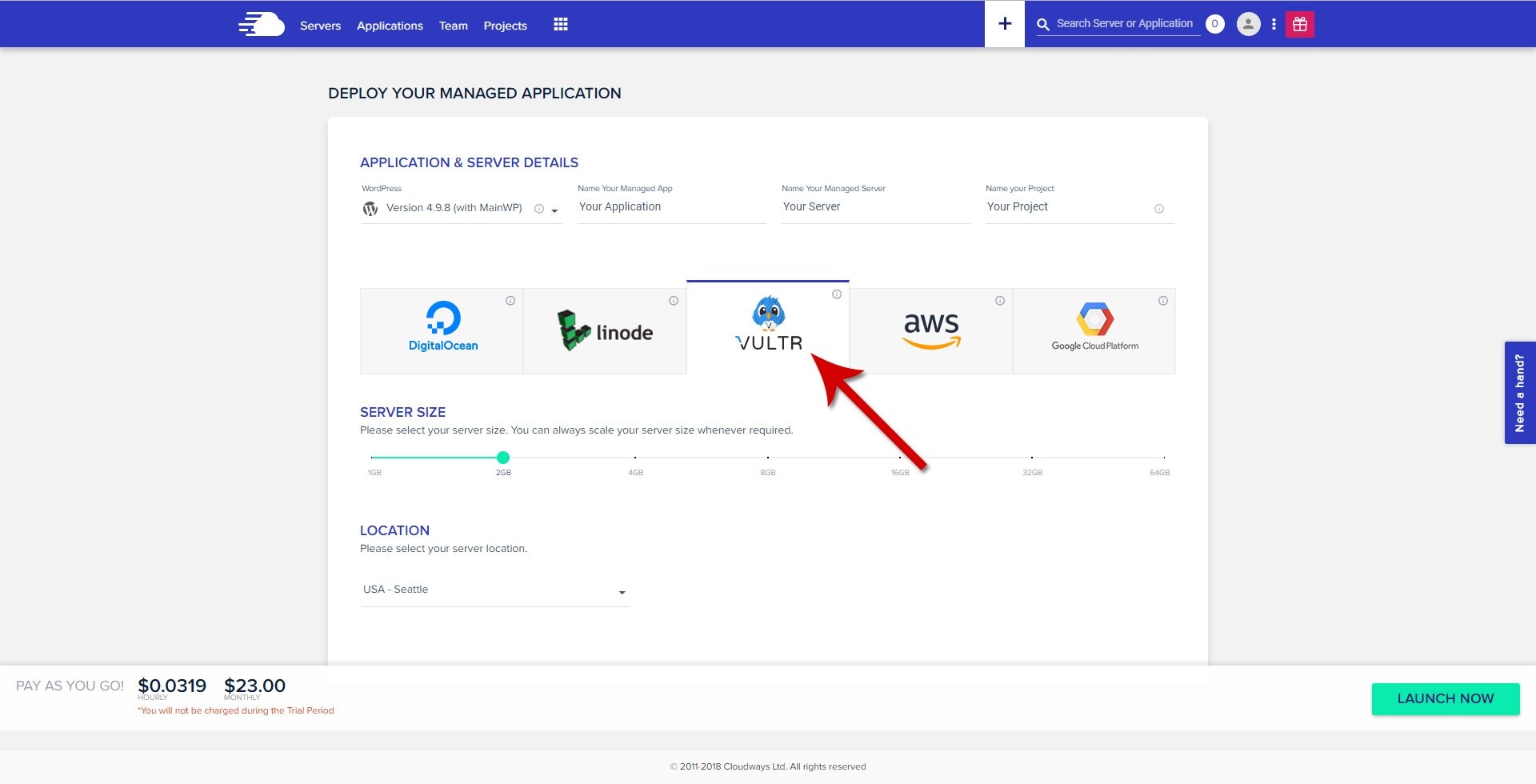
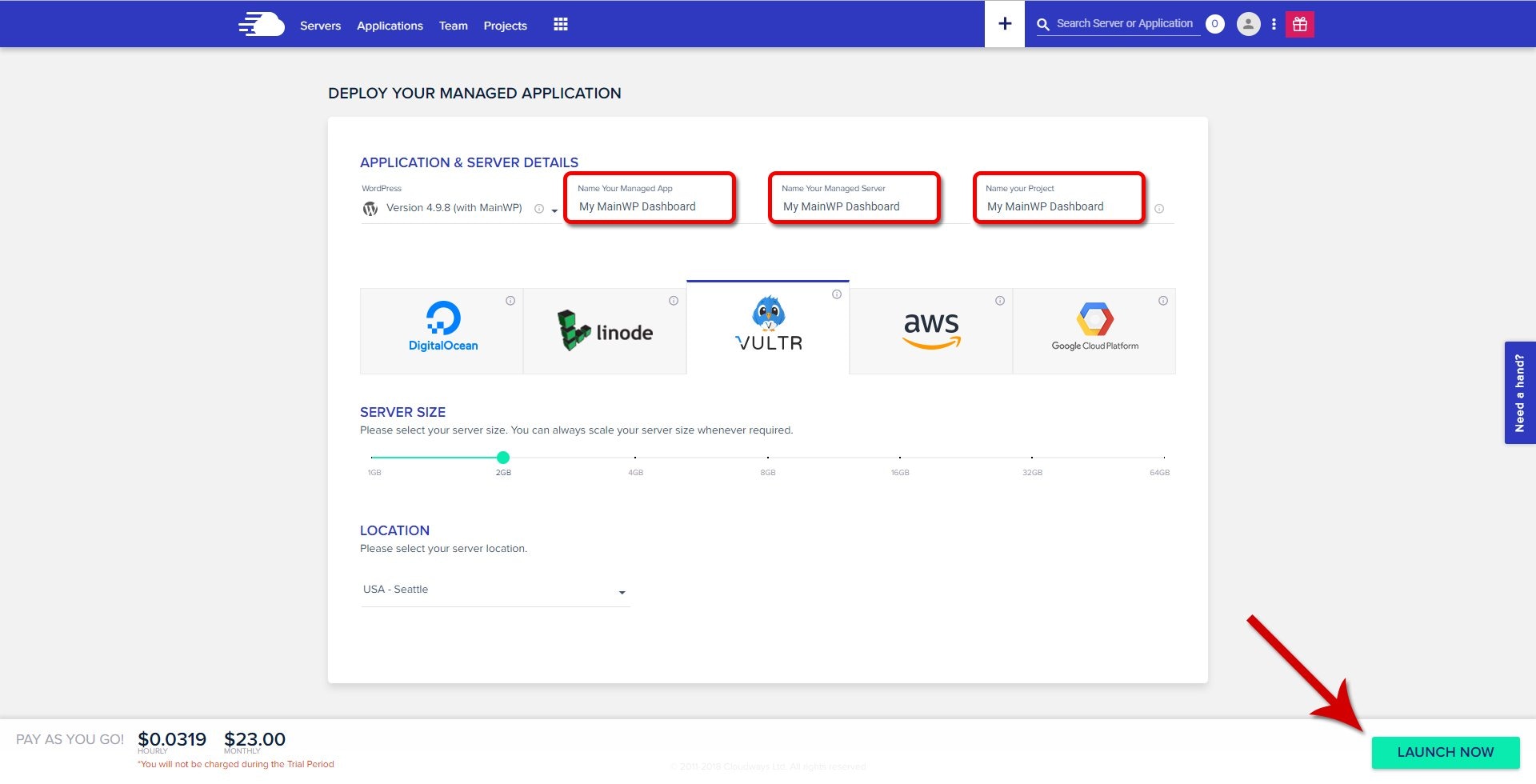
 On the **Application & Server Details** page, choose your preferred server provider (e.g., Vultr, DigitalOcean, AWS).
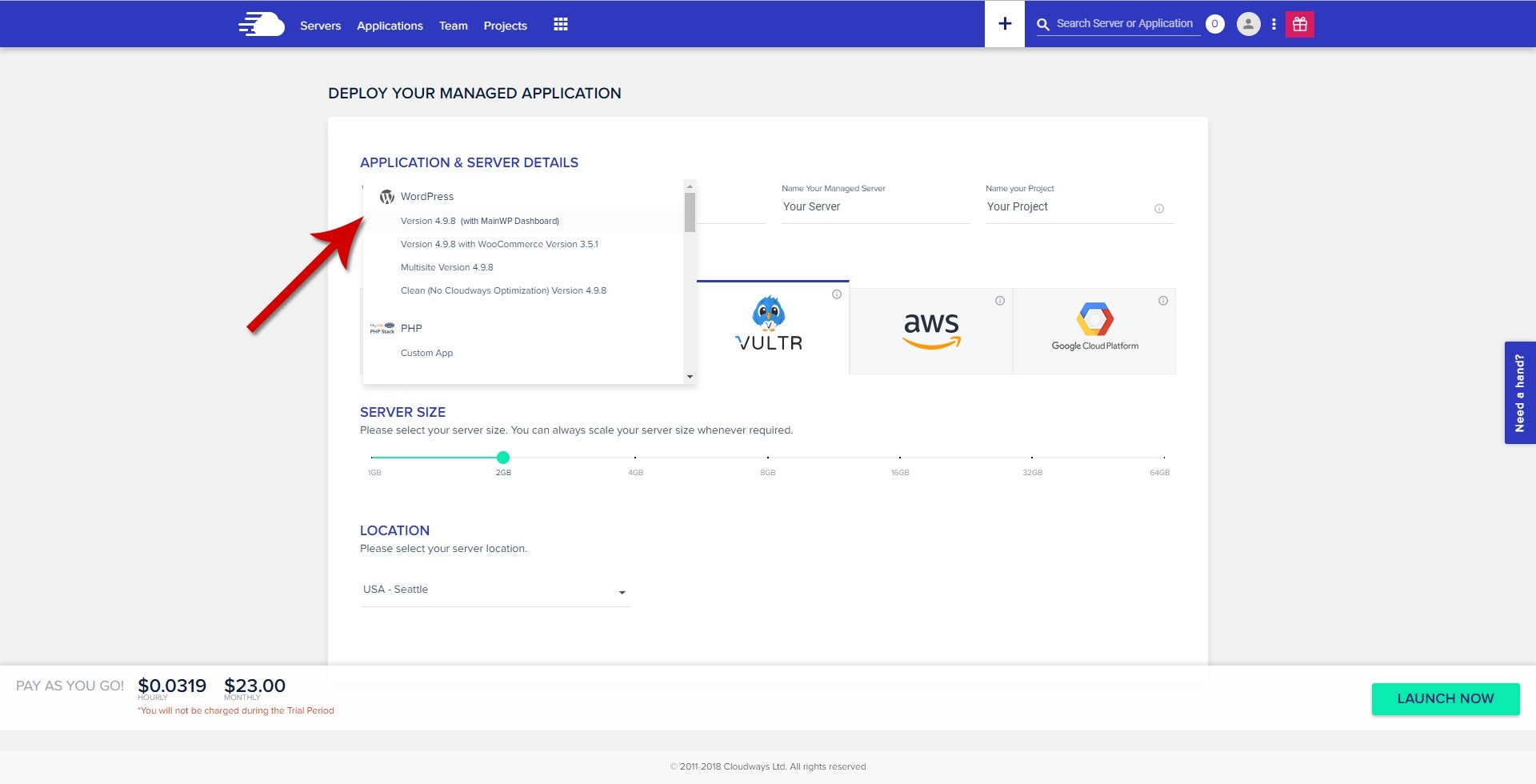
 From the **Application** dropdown menu, choose **WordPress (with MainWP)**.
 Name your Application, Server, and Project, then click **Launch Now**.
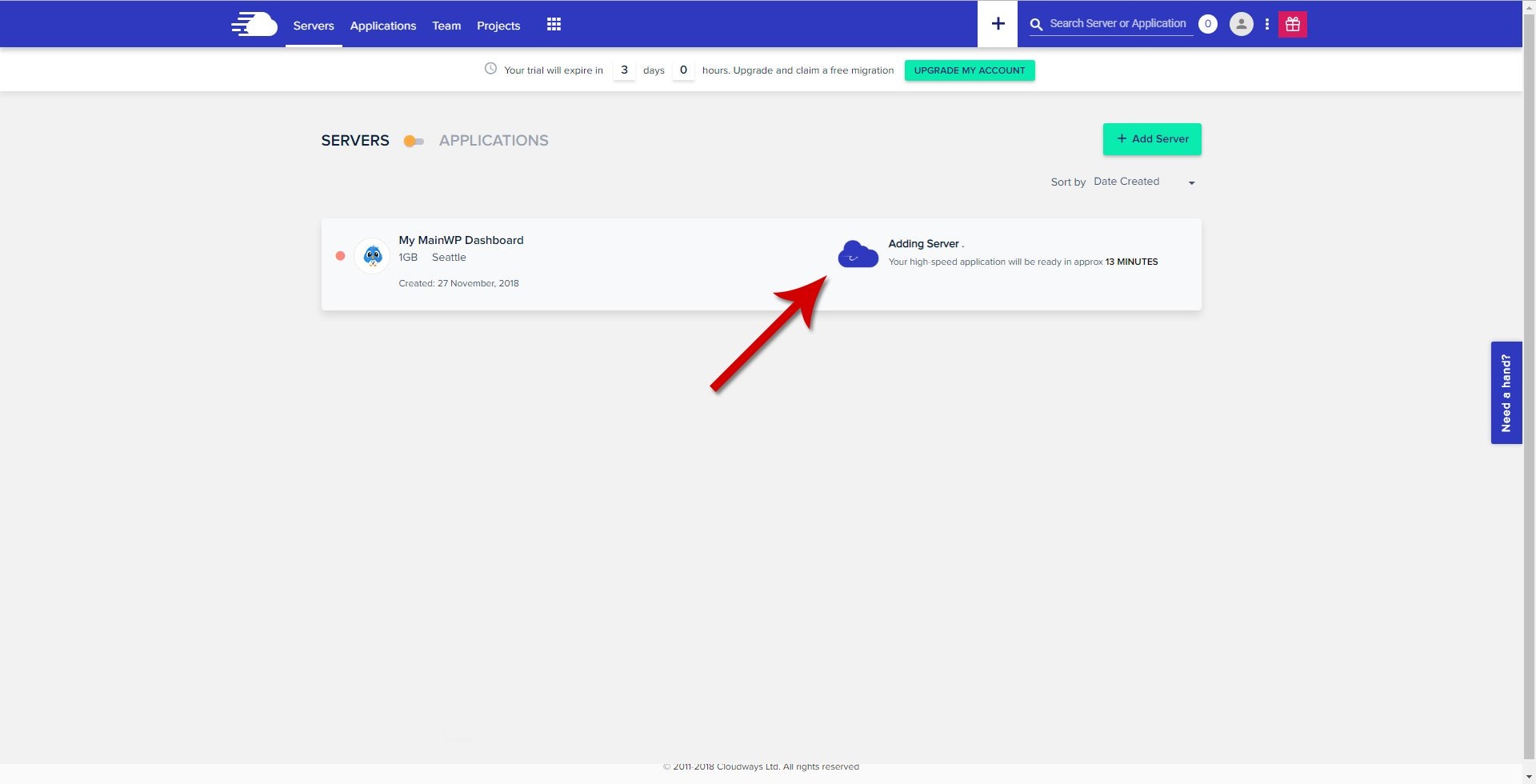
 The server creation process takes a few minutes to complete.
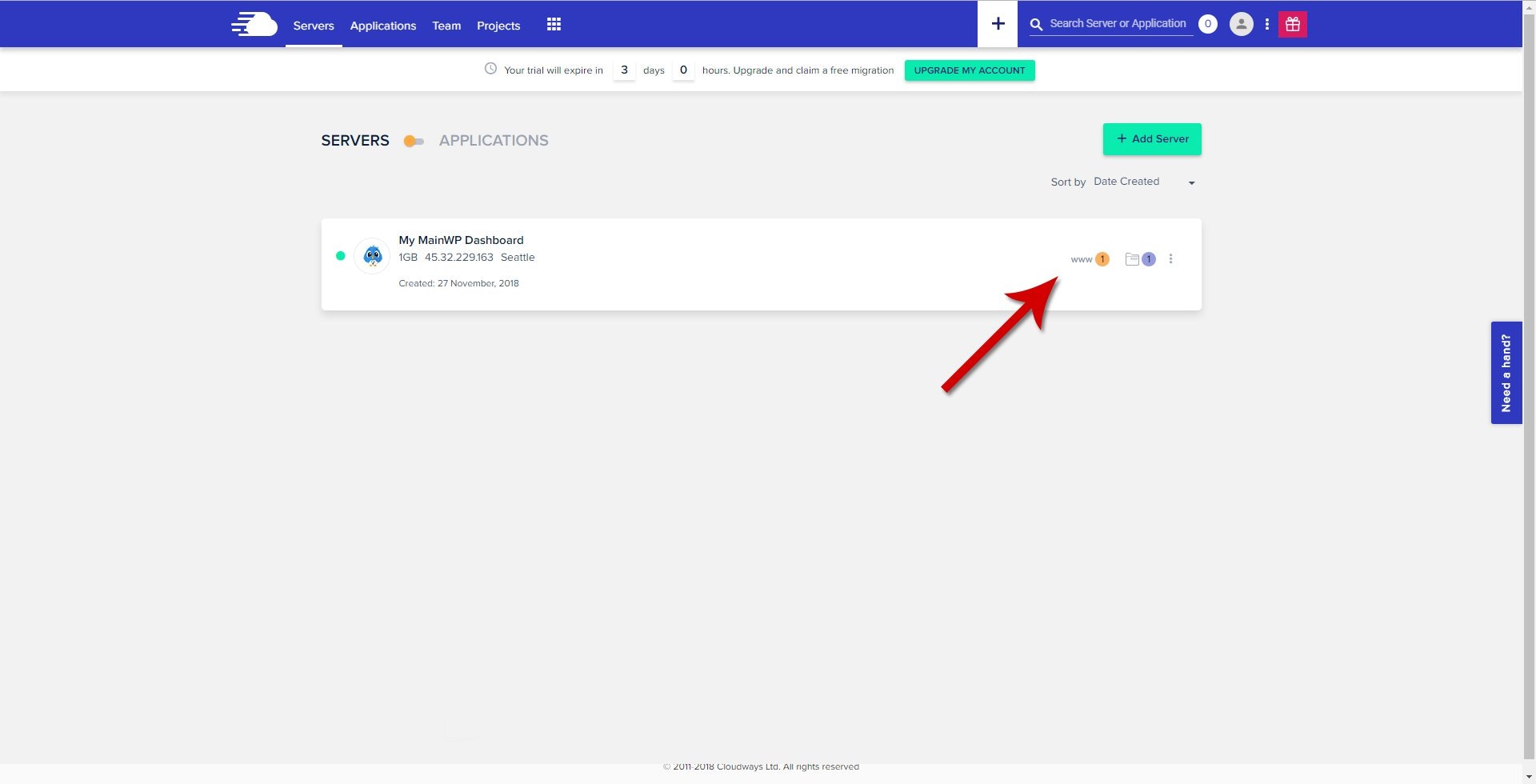
 Click **Applications** (www) in the top menu.
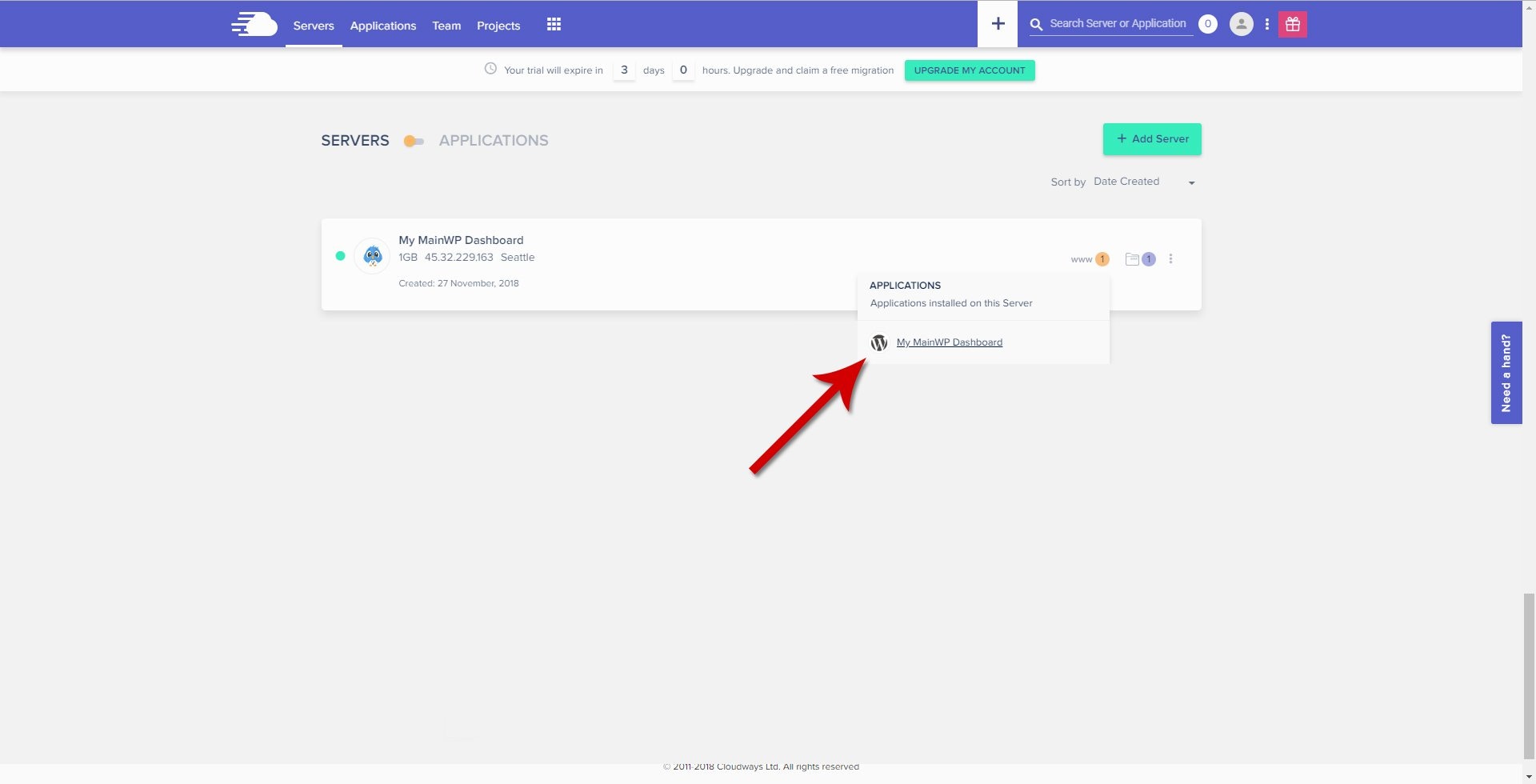
 Click your MainWP Dashboard application from the popup list.
 Locate the **Admin Panel** section to find your application URL, username, and password.
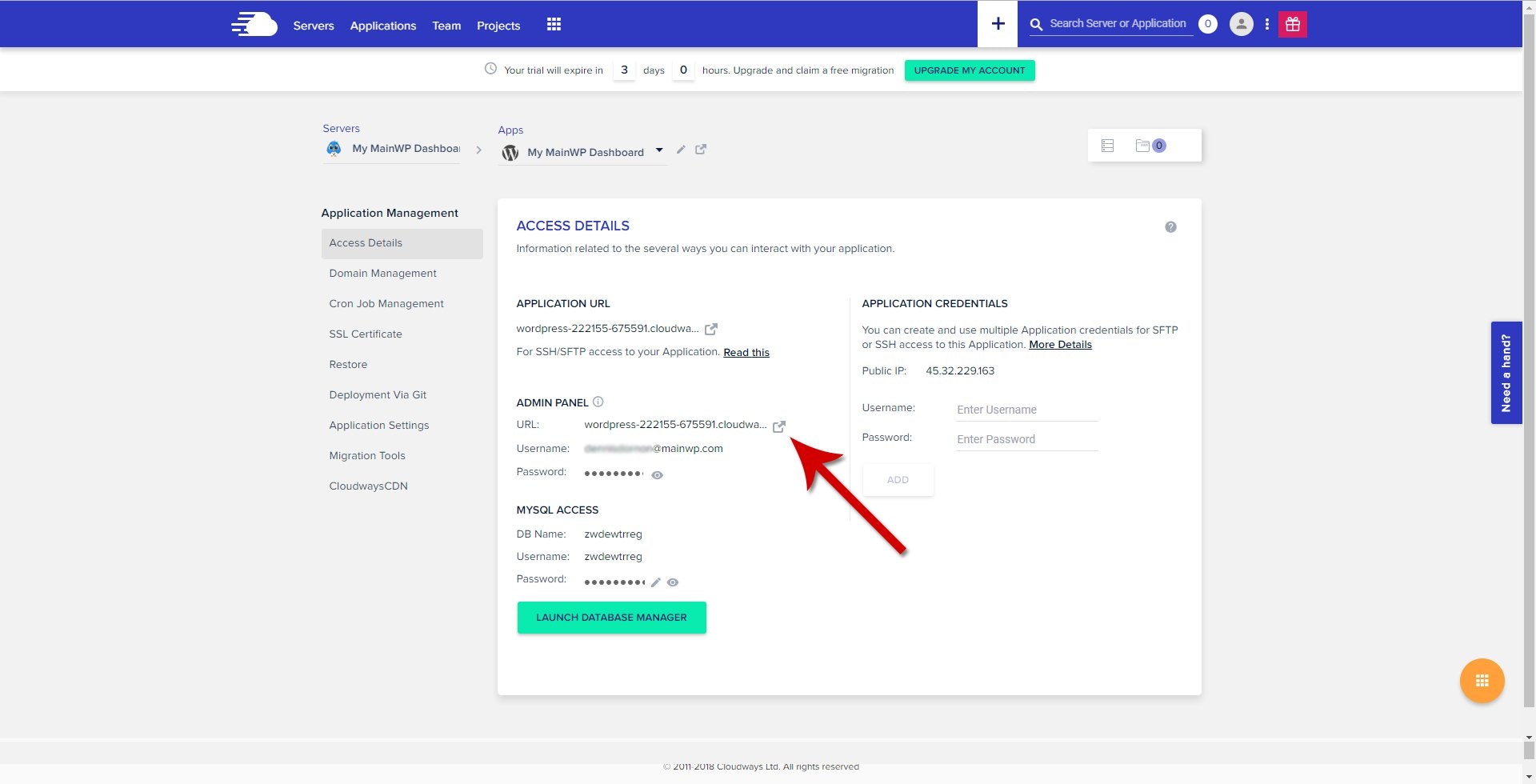 Open the Admin Panel URL and log in with the provided credentials.
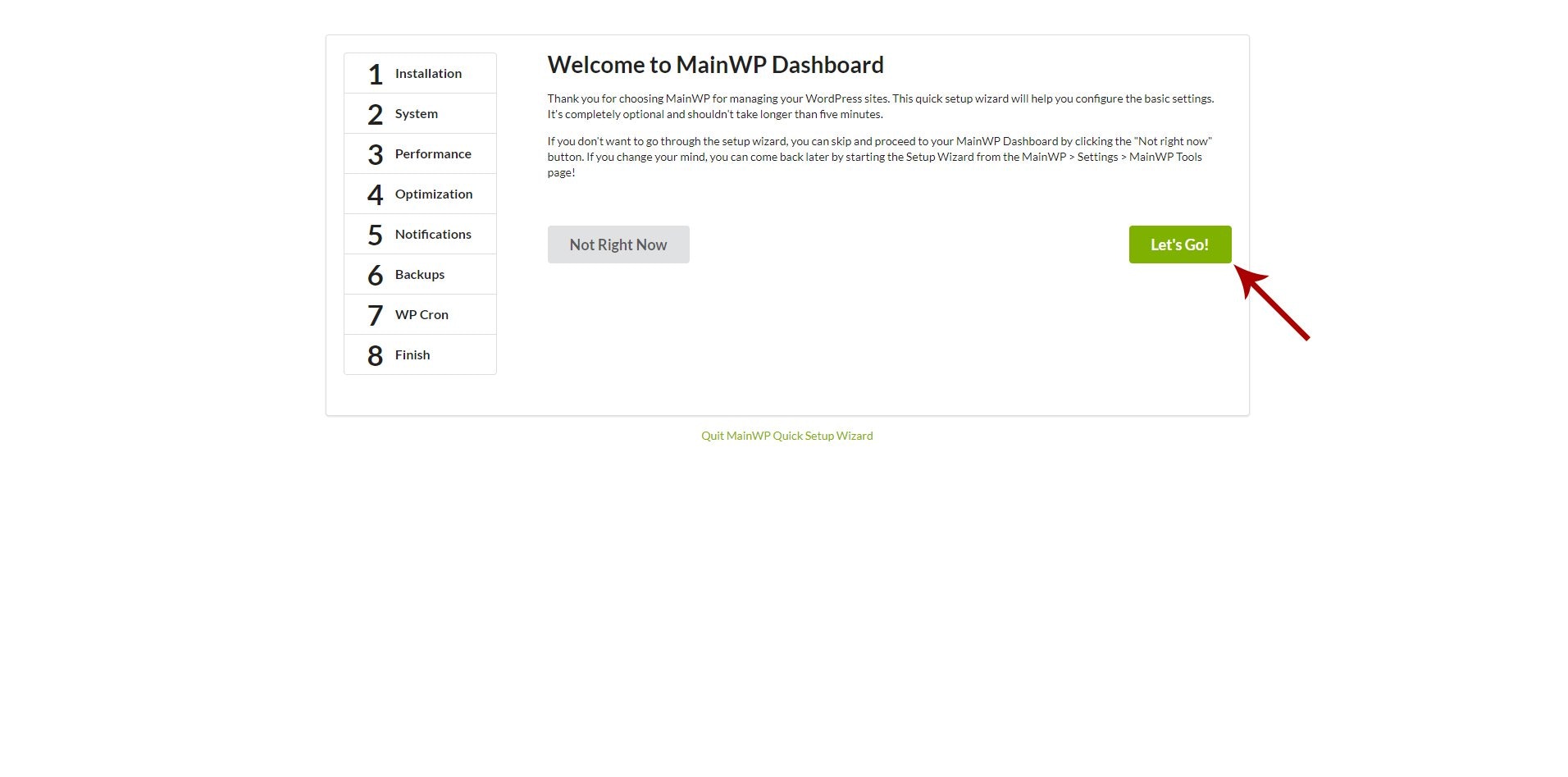
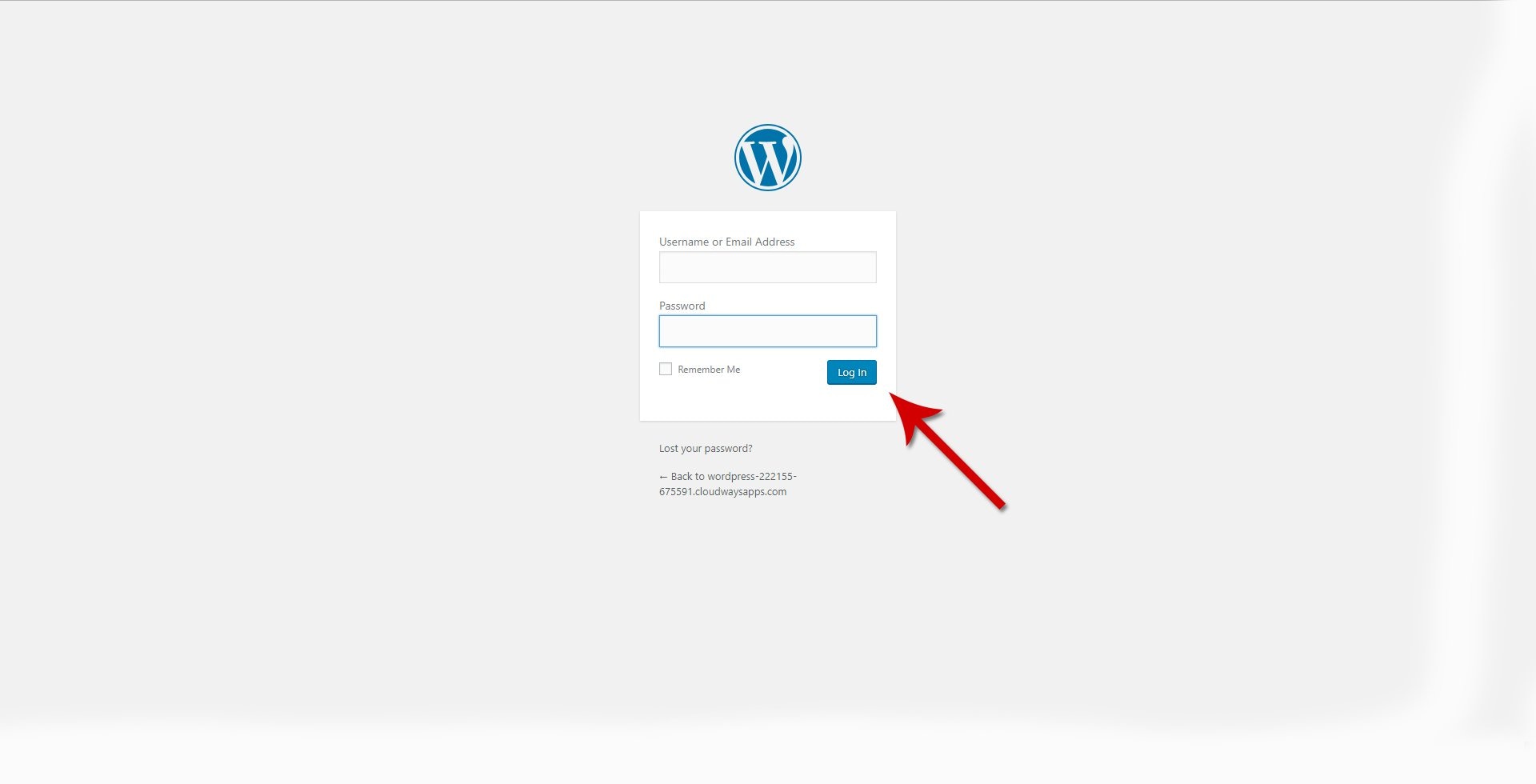 After logging in, the MainWP Quick Setup Wizard appears. Click **Let's Go**.
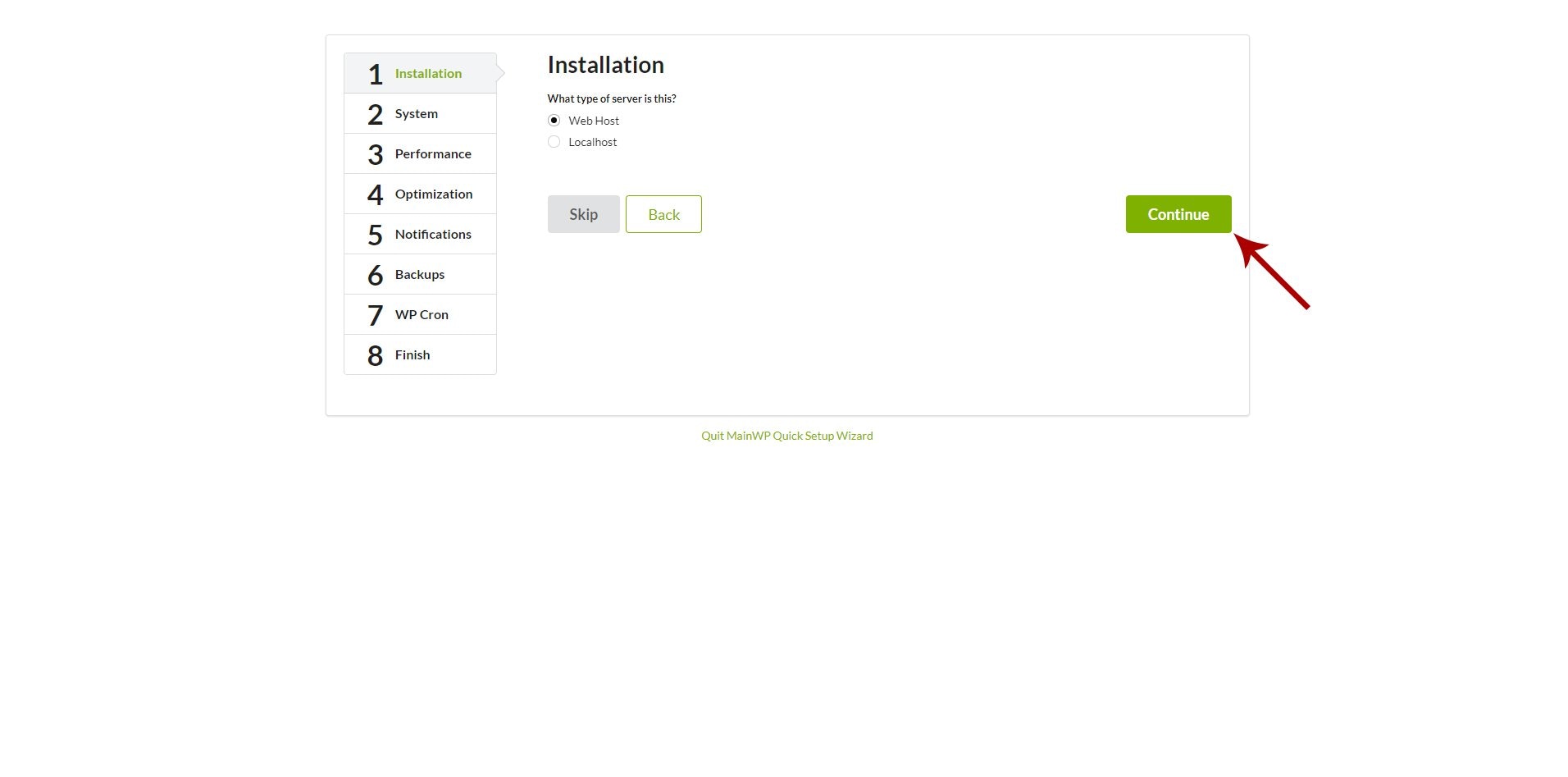
 On the **Installation** step, select **Web host** and click **Continue**.
 Review the system requirements check to confirm all requirements are met.
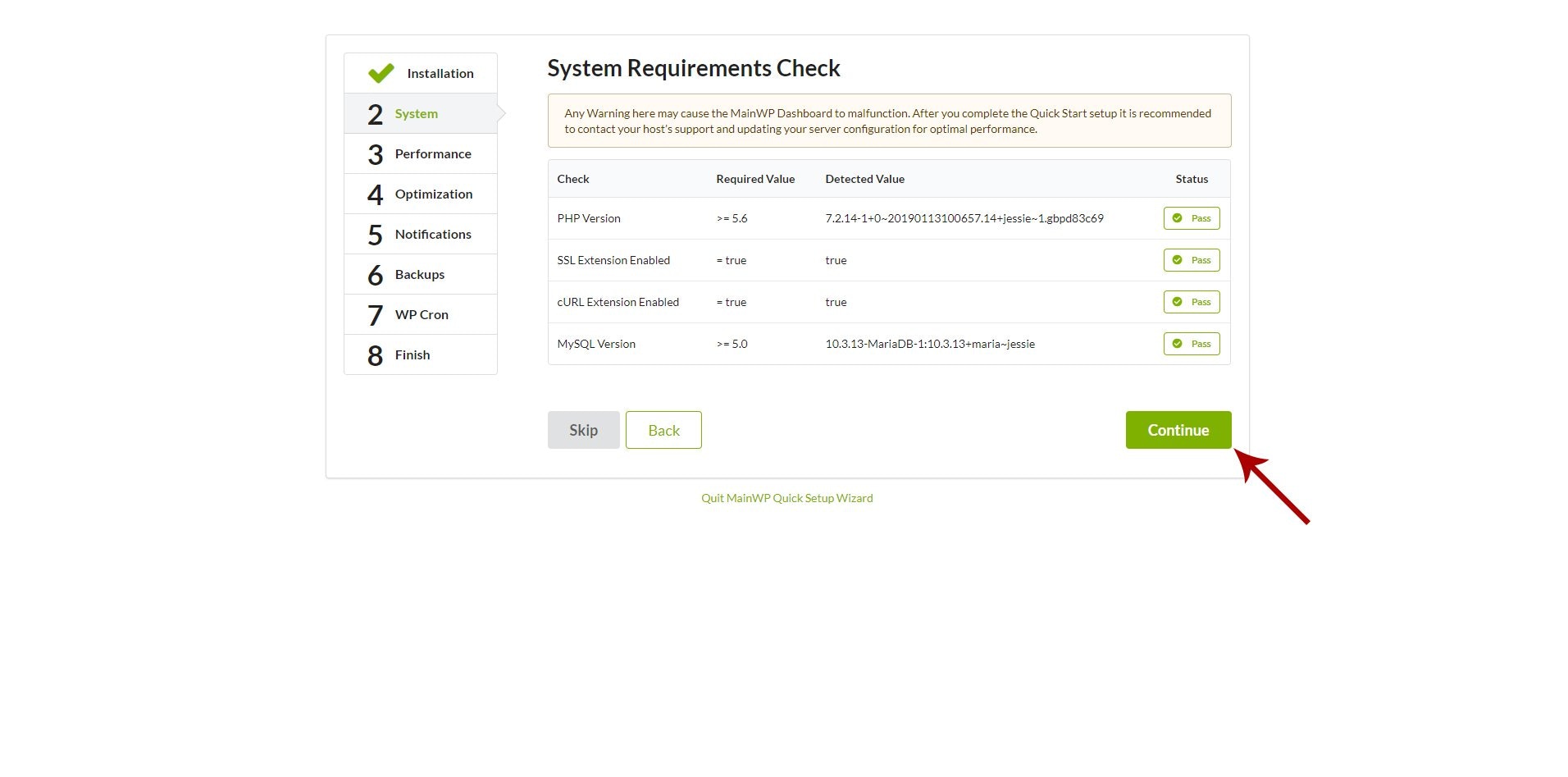 Continue through the remaining wizard steps. For detailed guidance, see [Get Started with MainWP](/getting-started/get-started-with-mainwp).
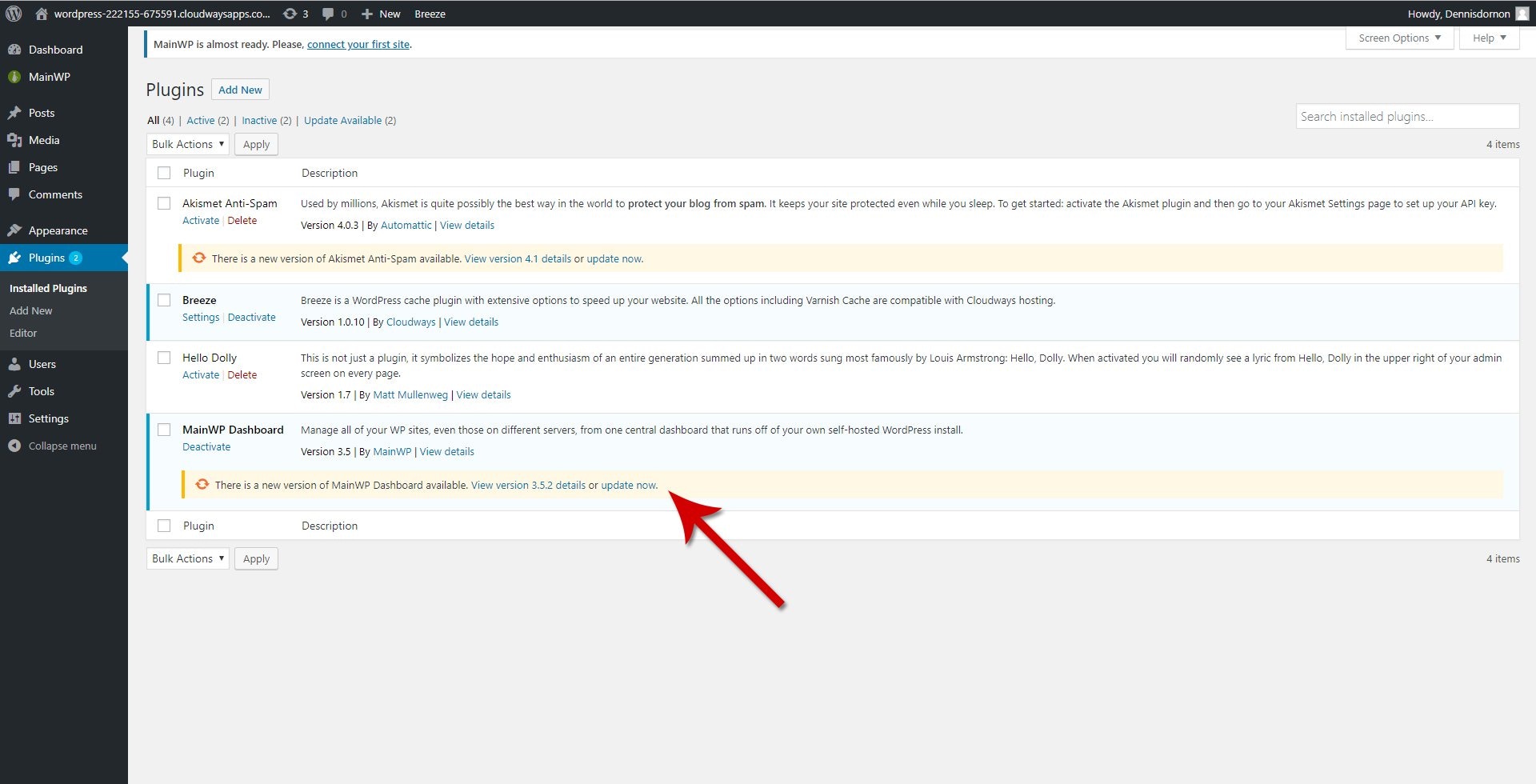
Go to **WP Admin > Plugins** and check if a MainWP Dashboard update is available. If so, update the plugin.
Continue through the remaining wizard steps. For detailed guidance, see [Get Started with MainWP](/getting-started/get-started-with-mainwp).
Go to **WP Admin > Plugins** and check if a MainWP Dashboard update is available. If so, update the plugin.
 ## Migrating from Another Host
If you have an existing MainWP Dashboard on different hosting and want to migrate to Cloudways:
1. [Export your child sites](/sites/management/manage-child-sites) from your current Dashboard
2. Set up your new MainWP Dashboard on Cloudways using the steps above
3. [Import your sites](/sites/management/manage-child-sites) to the new Dashboard
## Related Resources
* [Get Started with MainWP](/getting-started/get-started-with-mainwp) - Complete Quick Setup Wizard guide
* [Server fine-tuning for Cloudways](https://mainwp.com/why-should-you-run-your-mainwp-dashboard-site-on-vultr-using-cloudways/) - Performance optimization tips
## Migrating from Another Host
If you have an existing MainWP Dashboard on different hosting and want to migrate to Cloudways:
1. [Export your child sites](/sites/management/manage-child-sites) from your current Dashboard
2. Set up your new MainWP Dashboard on Cloudways using the steps above
3. [Import your sites](/sites/management/manage-child-sites) to the new Dashboard
## Related Resources
* [Get Started with MainWP](/getting-started/get-started-with-mainwp) - Complete Quick Setup Wizard guide
* [Server fine-tuning for Cloudways](https://mainwp.com/why-should-you-run-your-mainwp-dashboard-site-on-vultr-using-cloudways/) - Performance optimization tips