> ## Documentation Index
> Fetch the complete documentation index at: https://docs.mainwp.com/llms.txt
> Use this file to discover all available pages before exploring further.
# How can I turn off guided tours?
> Disable MainWP guided tours from the Dashboard Tools settings or from the Support menu in the Dashboard interface.
MainWP guided tours provide information about features on each Dashboard page. Once you're familiar with the interface, you can disable these tours.
## What You'll Learn
* How to disable guided tours from settings
* How to disable tours from any page
***
## What Are Guided Tours
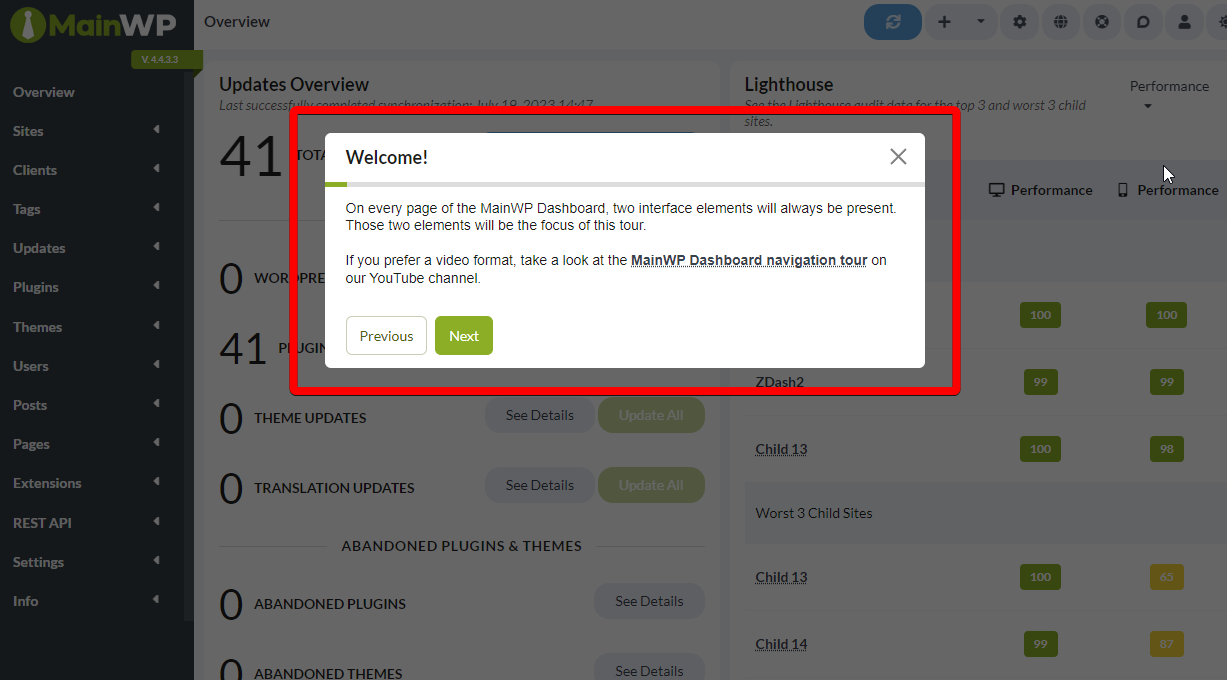
Guided tours are popup overlays that highlight and explain features as you navigate through the Dashboard.
 ***
## Method 1: From Settings
Navigate to **MainWP > Settings > MainWP Tools**.
Locate the **Enable MainWP guided tours** toggle.
Toggle the setting to **Off**.
Click **Save Settings**. Guided tours are now disabled.
***
## Method 2: From Any Page
You can toggle tours off directly from the interface:
Click **Support** in the left navigation.
In the Support modal, locate the **Take a Quick Tour** card and set its **Turn On / Turn Off** toggle to Off.
Click **Update Permissions** to apply the change.
***
## Re-enable Guided Tours
To turn tours back on:
1. Go to **MainWP > Settings > MainWP Tools**
2. Toggle **Enable MainWP guided tours** to On
3. Click **Save Settings**
Or open **Support**, turn the **Take a Quick Tour** toggle back on, and click **Update Permissions**.
***
## Self-Check Checklist
* [ ] Guided tours toggle found
* [ ] Toggle set to preferred state
* [ ] Settings saved (if using Method 1)
* [ ] Tours no longer appear when navigating
***
## Related Resources
* [MainWP Support Modal](/getting-started/mainwp-support-modal) - Learn all Support modal options
* [Disable Tooltips](/customization/how-to-disable-tooltips-in-mainwp-dashboard) - Turn off hover tooltips
* [Disable Update Confirmations](/customization/how-to-disable-update-confirmation-popups) - Remove confirmation dialogs
***
## Method 1: From Settings
Navigate to **MainWP > Settings > MainWP Tools**.
Locate the **Enable MainWP guided tours** toggle.
Toggle the setting to **Off**.
Click **Save Settings**. Guided tours are now disabled.
***
## Method 2: From Any Page
You can toggle tours off directly from the interface:
Click **Support** in the left navigation.
In the Support modal, locate the **Take a Quick Tour** card and set its **Turn On / Turn Off** toggle to Off.
Click **Update Permissions** to apply the change.
***
## Re-enable Guided Tours
To turn tours back on:
1. Go to **MainWP > Settings > MainWP Tools**
2. Toggle **Enable MainWP guided tours** to On
3. Click **Save Settings**
Or open **Support**, turn the **Take a Quick Tour** toggle back on, and click **Update Permissions**.
***
## Self-Check Checklist
* [ ] Guided tours toggle found
* [ ] Toggle set to preferred state
* [ ] Settings saved (if using Method 1)
* [ ] Tours no longer appear when navigating
***
## Related Resources
* [MainWP Support Modal](/getting-started/mainwp-support-modal) - Learn all Support modal options
* [Disable Tooltips](/customization/how-to-disable-tooltips-in-mainwp-dashboard) - Turn off hover tooltips
* [Disable Update Confirmations](/customization/how-to-disable-update-confirmation-popups) - Remove confirmation dialogs