> ## Documentation Index
> Fetch the complete documentation index at: https://docs.mainwp.com/llms.txt
> Use this file to discover all available pages before exploring further.
# How to create a new column in the Manage Sites table
> Add custom columns to the Manage Sites table using PHP code snippets in the Custom Dashboard extension. Display custom data like cURL version or other site information.
You can add custom columns to the Manage Sites table to display additional site information. This guide shows how to create columns using PHP filters in the Custom Dashboard extension.
## What You'll Learn
* How to add custom columns to the Manage Sites table
* How to populate columns with site data
* How to position columns in the table
## Prerequisites
* [Custom Dashboard extension](/add-ons/development/mainwp-custom-dashboard-extension) (free)
***
## Example: Add a cURL Version Column
This example adds a column that displays the cURL version for each child site.
[Install](/dashboard/overview/manage-extensions#install-extensions) the [Custom Dashboard](https://mainwp.com/extension/mainwp-custom-dashboard-extension/) extension.
Navigate to **MainWP > Add-ons > Custom Dashboard**.
Go to the **PHP** tab and add this code:
```php theme={null}
add_filter( 'mainwp_sitestable_getcolumns', 'mycustom_sites_table_column', 10 );
function mycustom_sites_table_column( $cols ) {
$cols['child_curl_version'] = 'cURL Version';
return $cols;
}
add_filter( 'mainwp_sitestable_item', 'mycustom_sitestable_item', 10 );
function mycustom_sitestable_item( $item ) {
$options = apply_filters( 'mainwp_getwebsiteoptions', array(), $item['id'], 'site_info' );
$website_info = json_decode( $options, true );
if ( is_array( $website_info ) && isset( $website_info['child_curl_version'] ) ) {
$item['child_curl_version'] = $website_info['child_curl_version'];
} else {
$item['child_curl_version'] = '';
}
return $item;
}
```
Click **Save Changes**.
Navigate to **MainWP > Sites > Manage Sites** to see the new column.
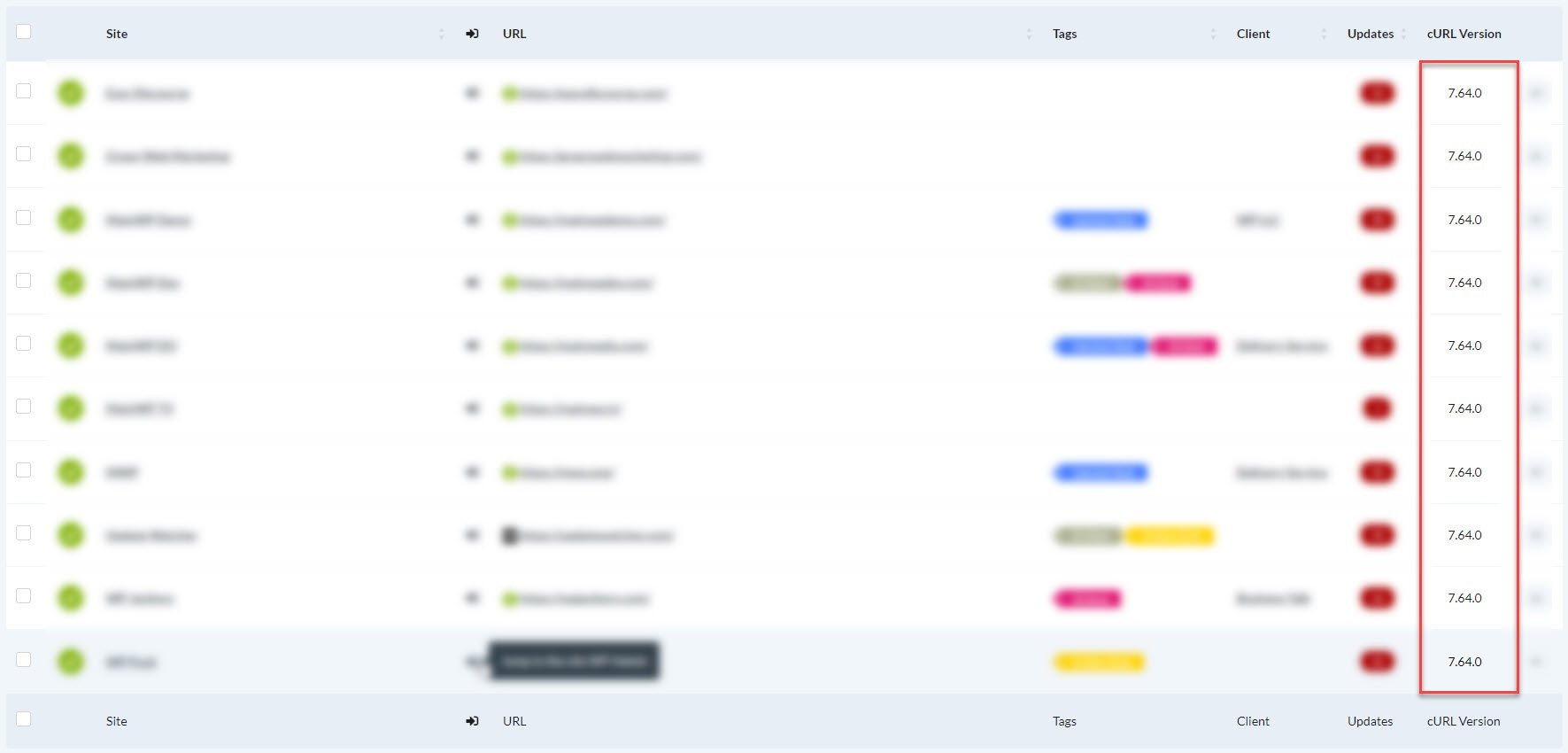 Drag and drop the column header to your preferred position.
***
## How It Works
The code uses two WordPress filters:
| Filter | Purpose |
| ------------------------------ | -------------------------------------------- |
| `mainwp_sitestable_getcolumns` | Registers the new column in the table header |
| `mainwp_sitestable_item` | Populates the column with data for each row |
### Code Structure
```php theme={null}
// Step 1: Register the column
add_filter( 'mainwp_sitestable_getcolumns', 'my_custom_column', 10 );
function my_custom_column( $cols ) {
$cols['column_key'] = 'Column Header'; // Key must be unique
return $cols;
}
// Step 2: Populate the column data
add_filter( 'mainwp_sitestable_item', 'my_custom_item', 10 );
function my_custom_item( $item ) {
$item['column_key'] = 'Value'; // Key matches the column key above
return $item;
}
```
***
## Available Site Data
You can access various site information through the `mainwp_getwebsiteoptions` filter:
```php theme={null}
$options = apply_filters( 'mainwp_getwebsiteoptions', array(), $item['id'], 'site_info' );
$website_info = json_decode( $options, true );
```
Common available fields include:
* `child_curl_version` - cURL version
* `child_openssl_version` - OpenSSL version used by cURL
* `child_version` - MainWP Child version
* `db_size` - Database size
* `debug_mode` - Whether WordPress debug mode is enabled
* `format_datetime` - Site timezone, date format, and time format settings
* `ip` - Server IP address
* `memory_limit` - PHP memory limit
* `mysql_version` - MySQL version
* `phpversion` - PHP version
* `site_lang` - Site locale
* `site_public` - Search engine visibility value
* `themeactivated` - Active theme name
* `wpversion` - WordPress version
`child_site_info` is not a field returned by `site_info`. The `site_info` option already contains the available site data as an array.
***
## Other Column Examples
* Create a column that outputs any value or HTML you assign to `$item['column_key']`
***
## Self-Check Checklist
* [ ] Custom Dashboard extension installed
* [ ] PHP code added and saved
* [ ] New column appears in Manage Sites table
* [ ] Column displays correct data
* [ ] Column positioned as desired
***
## Related Resources
* [MainWP User Interface](/getting-started/mainwp-user-interface) - Table customization overview
* [Custom Dashboard Extension](/add-ons/development/mainwp-custom-dashboard-extension) - Extension documentation
Drag and drop the column header to your preferred position.
***
## How It Works
The code uses two WordPress filters:
| Filter | Purpose |
| ------------------------------ | -------------------------------------------- |
| `mainwp_sitestable_getcolumns` | Registers the new column in the table header |
| `mainwp_sitestable_item` | Populates the column with data for each row |
### Code Structure
```php theme={null}
// Step 1: Register the column
add_filter( 'mainwp_sitestable_getcolumns', 'my_custom_column', 10 );
function my_custom_column( $cols ) {
$cols['column_key'] = 'Column Header'; // Key must be unique
return $cols;
}
// Step 2: Populate the column data
add_filter( 'mainwp_sitestable_item', 'my_custom_item', 10 );
function my_custom_item( $item ) {
$item['column_key'] = 'Value'; // Key matches the column key above
return $item;
}
```
***
## Available Site Data
You can access various site information through the `mainwp_getwebsiteoptions` filter:
```php theme={null}
$options = apply_filters( 'mainwp_getwebsiteoptions', array(), $item['id'], 'site_info' );
$website_info = json_decode( $options, true );
```
Common available fields include:
* `child_curl_version` - cURL version
* `child_openssl_version` - OpenSSL version used by cURL
* `child_version` - MainWP Child version
* `db_size` - Database size
* `debug_mode` - Whether WordPress debug mode is enabled
* `format_datetime` - Site timezone, date format, and time format settings
* `ip` - Server IP address
* `memory_limit` - PHP memory limit
* `mysql_version` - MySQL version
* `phpversion` - PHP version
* `site_lang` - Site locale
* `site_public` - Search engine visibility value
* `themeactivated` - Active theme name
* `wpversion` - WordPress version
`child_site_info` is not a field returned by `site_info`. The `site_info` option already contains the available site data as an array.
***
## Other Column Examples
* Create a column that outputs any value or HTML you assign to `$item['column_key']`
***
## Self-Check Checklist
* [ ] Custom Dashboard extension installed
* [ ] PHP code added and saved
* [ ] New column appears in Manage Sites table
* [ ] Column displays correct data
* [ ] Column positioned as desired
***
## Related Resources
* [MainWP User Interface](/getting-started/mainwp-user-interface) - Table customization overview
* [Custom Dashboard Extension](/add-ons/development/mainwp-custom-dashboard-extension) - Extension documentation