> ## Documentation Index
> Fetch the complete documentation index at: https://docs.mainwp.com/llms.txt
> Use this file to discover all available pages before exploring further.
# MainWP Dashboard Themes
> Learn how MainWP Dashboard Light and Dark themes work, when quick switching appears, and how to manage legacy or custom theme selection.
MainWP Dashboard themes control the appearance of your **MainWP Dashboard** interface only.
They do not control WordPress themes on your Child Sites.
For Child Site themes, see [Manage Themes](/sites/themes/managing-themes-with-mainwp).
## What You'll Learn
* When the header uses quick Light/Dark switching
* When the header opens the theme selection modal
* How to manage theme selection from MainWP Tools
* How OS mode detection works in Quick Setup
* Where custom theme files are stored
## Prerequisites
* Access to your MainWP Dashboard admin area
* FTP or file manager access (for custom themes only)
***
## Quick Light and Dark Switching
Navigate to your MainWP Dashboard.
Use the top-right header theme button:
* Moon icon switches to Dark mode.
* Sun icon switches to Light mode.
The Dashboard reloads and applies the selected mode for your user account.
 MainWP uses quick switching when all of the following are true:
* Your selected theme is `default` (Light) or `default-dark` (Dark).
* No custom theme files are detected in the uploads themes directory.
Under this path, MainWP switches by writing `mainwp_quick_theme_change` in the URL and saving your user preference as `default` or `default-dark`.
***
## When the Theme Modal Appears
The header shows a palette icon and opens the **Select MainWP Theme** modal when quick switching is not used.
Common cases:
* You have one or more custom theme files.
* You are on a legacy/custom theme path.
In this modal flow, select the desired theme and save settings.
***
## Manage Themes from MainWP Tools
The **MainWP > Settings > Tools** page always includes **Select MainWP Dashboard theme**.
MainWP uses quick switching when all of the following are true:
* Your selected theme is `default` (Light) or `default-dark` (Dark).
* No custom theme files are detected in the uploads themes directory.
Under this path, MainWP switches by writing `mainwp_quick_theme_change` in the URL and saving your user preference as `default` or `default-dark`.
***
## When the Theme Modal Appears
The header shows a palette icon and opens the **Select MainWP Theme** modal when quick switching is not used.
Common cases:
* You have one or more custom theme files.
* You are on a legacy/custom theme path.
In this modal flow, select the desired theme and save settings.
***
## Manage Themes from MainWP Tools
The **MainWP > Settings > Tools** page always includes **Select MainWP Dashboard theme**.
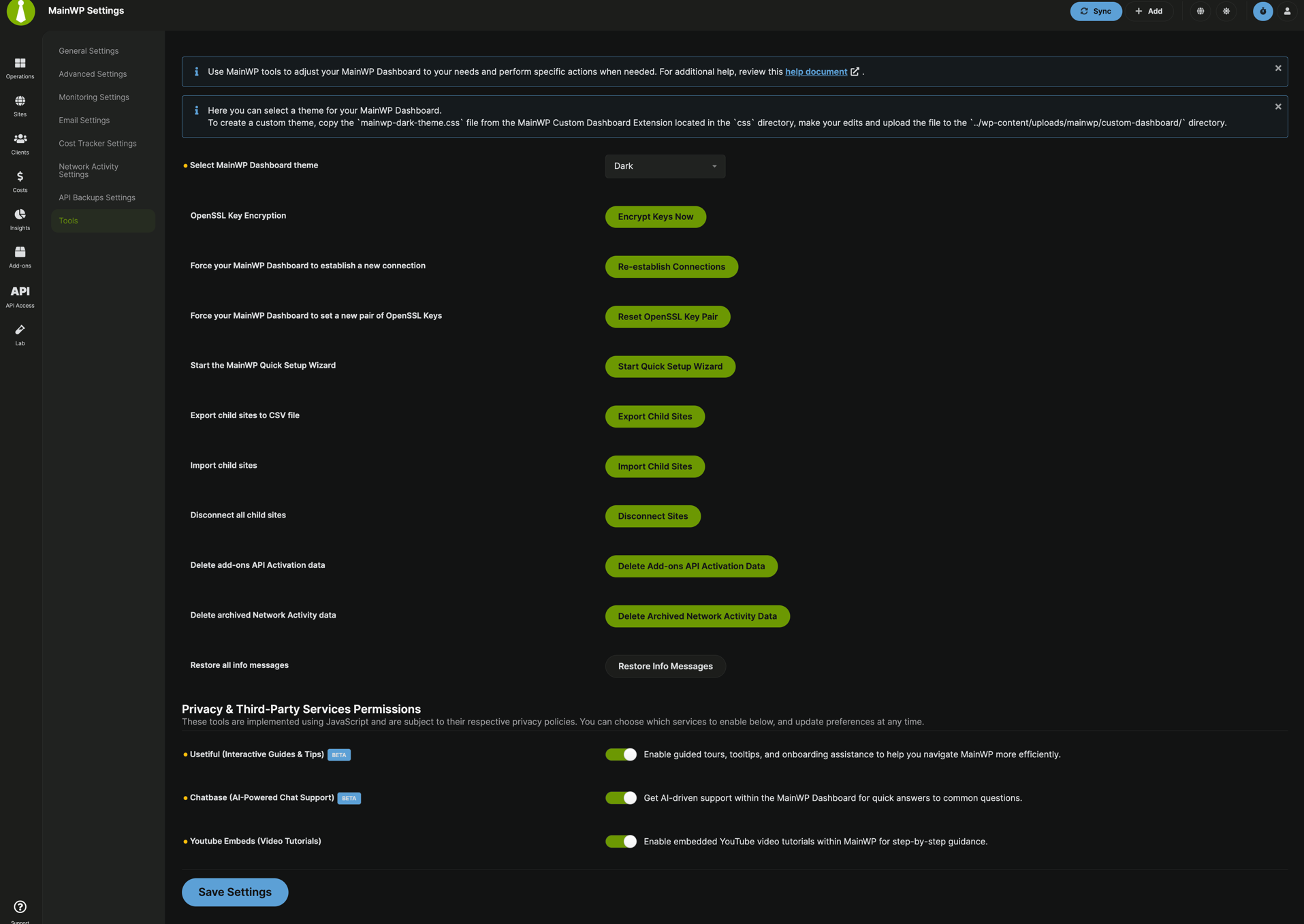 Navigate to **MainWP > Settings > Tools**.
Use the theme dropdown in the Tools section.
Light and Dark are always available.
Legacy options appear when currently selected. Custom `.css` theme files in uploads are also listed.
Click **Save Settings**.
***
## OS Preference Detection
MainWP does not continuously auto-sync theme mode with your operating system.
During Quick Setup, MainWP can detect OS color preference and save an initial Light/Dark selection when:
* Your user has no saved MainWP theme preference.
* The Quick Setup flow condition for an empty connected-sites state applies.
After a theme is saved for your user, that saved preference is used until you change it.
***
## Custom Theme Files
You can create custom themes by modifying existing CSS files and uploading them to your Dashboard site.
Download the **MainWP Dashboard** plugin from the [WordPress.org repository](https://wordpress.org/plugins/mainwp/).
Unzip the plugin files to your computer.
Navigate to `/mainwp/assets/css/themes` directory to find the built-in theme CSS files.
Copy one of the CSS files and open it in your preferred code editor. Make your customizations.
Save the file with a new descriptive name (e.g., `my-agency-theme.css`).
Upload the CSS file to `/wp-content/uploads/mainwp/themes/` on your Dashboard site using FTP or your hosting file manager.
Your custom theme appears in the theme selector in **MainWP > Settings > Tools** and in the theme modal path.
***
## Theme File Locations
| Location | Purpose |
| ----------------------------------------------- | --------------------------------- |
| `/wp-content/plugins/mainwp/assets/css/themes/` | Built-in themes (do not modify) |
| `/wp-content/uploads/mainwp/themes/` | Custom themes (upload yours here) |
If an older `custom-dashboard` folder exists, MainWP migrates it to the `themes` folder path used now.
Custom themes in the uploads directory persist through plugin updates. Built-in themes may be overwritten during updates.
***
## Legacy Theme Compatibility
* Legacy theme options remain supported for users already on those themes.
* If legacy/custom conditions are detected, the header uses the palette button (modal path) instead of direct Light/Dark toggle.
* For the default experience, use Light or Dark themes.
***
## Self-Check Checklist
* [ ] This page is used for MainWP Dashboard appearance, not Child Site themes
* [ ] Header shows moon/sun quick switcher when using default Light/Dark with no custom theme files
* [ ] Header shows palette button and modal path for legacy/custom scenarios
* [ ] MainWP Tools includes **Select MainWP Dashboard theme**
* [ ] Theme preference persists for your user after reload
***
## Related Resources
* [Change Sidebar Position](/customization/how-to-change-the-sidebar-position) - Adjust sidebar location
* [Customize Dashboard Logo](/customization/customize-mainwp-dashboard-logo) - Brand your Dashboard
* [Widget Column Layout](/customization/how-can-i-change-the-number-of-widget-columns-on-the-overview-page) - Adjust widget arrangement
* [Manage Themes](/sites/themes/managing-themes-with-mainwp) - Manage Child Site WordPress themes
Navigate to **MainWP > Settings > Tools**.
Use the theme dropdown in the Tools section.
Light and Dark are always available.
Legacy options appear when currently selected. Custom `.css` theme files in uploads are also listed.
Click **Save Settings**.
***
## OS Preference Detection
MainWP does not continuously auto-sync theme mode with your operating system.
During Quick Setup, MainWP can detect OS color preference and save an initial Light/Dark selection when:
* Your user has no saved MainWP theme preference.
* The Quick Setup flow condition for an empty connected-sites state applies.
After a theme is saved for your user, that saved preference is used until you change it.
***
## Custom Theme Files
You can create custom themes by modifying existing CSS files and uploading them to your Dashboard site.
Download the **MainWP Dashboard** plugin from the [WordPress.org repository](https://wordpress.org/plugins/mainwp/).
Unzip the plugin files to your computer.
Navigate to `/mainwp/assets/css/themes` directory to find the built-in theme CSS files.
Copy one of the CSS files and open it in your preferred code editor. Make your customizations.
Save the file with a new descriptive name (e.g., `my-agency-theme.css`).
Upload the CSS file to `/wp-content/uploads/mainwp/themes/` on your Dashboard site using FTP or your hosting file manager.
Your custom theme appears in the theme selector in **MainWP > Settings > Tools** and in the theme modal path.
***
## Theme File Locations
| Location | Purpose |
| ----------------------------------------------- | --------------------------------- |
| `/wp-content/plugins/mainwp/assets/css/themes/` | Built-in themes (do not modify) |
| `/wp-content/uploads/mainwp/themes/` | Custom themes (upload yours here) |
If an older `custom-dashboard` folder exists, MainWP migrates it to the `themes` folder path used now.
Custom themes in the uploads directory persist through plugin updates. Built-in themes may be overwritten during updates.
***
## Legacy Theme Compatibility
* Legacy theme options remain supported for users already on those themes.
* If legacy/custom conditions are detected, the header uses the palette button (modal path) instead of direct Light/Dark toggle.
* For the default experience, use Light or Dark themes.
***
## Self-Check Checklist
* [ ] This page is used for MainWP Dashboard appearance, not Child Site themes
* [ ] Header shows moon/sun quick switcher when using default Light/Dark with no custom theme files
* [ ] Header shows palette button and modal path for legacy/custom scenarios
* [ ] MainWP Tools includes **Select MainWP Dashboard theme**
* [ ] Theme preference persists for your user after reload
***
## Related Resources
* [Change Sidebar Position](/customization/how-to-change-the-sidebar-position) - Adjust sidebar location
* [Customize Dashboard Logo](/customization/customize-mainwp-dashboard-logo) - Brand your Dashboard
* [Widget Column Layout](/customization/how-can-i-change-the-number-of-widget-columns-on-the-overview-page) - Adjust widget arrangement
* [Manage Themes](/sites/themes/managing-themes-with-mainwp) - Manage Child Site WordPress themes