> ## Documentation Index
> Fetch the complete documentation index at: https://docs.mainwp.com/llms.txt
> Use this file to discover all available pages before exploring further.
# How to add WP Admin button to the main Navigation bar
> Add the WP Admin link back to the MainWP Dashboard navigation sidebar using PHP and CSS code snippets with the Custom Dashboard extension.
The WP Admin link was moved to the three-dot menu in the top right corner to streamline the navigation bar. If you prefer having it in the main navigation sidebar, you can add it back using PHP and CSS snippets.
## What You'll Learn
* How to add a WP Admin link to the sidebar
* How to position it at the bottom of the navigation
## Prerequisites
* [Custom Dashboard extension](/add-ons/development/mainwp-custom-dashboard-extension) (free)
***
## Add the WP Admin Button
This requires both a PHP snippet (to create the menu item) and a CSS snippet (to position it at the bottom).
### Step 1: Add PHP Code
Navigate to the Custom Dashboard extension settings.
Go to the **PHP** tab and add this code:
```php theme={null}
add_filter( 'mainwp_main_menu', 'mycustom_mainwp_main_menu', 10, 1 );
function mycustom_mainwp_main_menu( $left_menu ) {
$index = 10; // Position in the menu
$sub_menu_after = array_splice( $left_menu['leftbar'], $index );
$addition_item = array();
$addition_item[] = 'WP Admin'; // Menu item title
$addition_item[] = ''; // Parent key
$addition_item[] = 'index.php'; // URL to WP Admin dashboard
$addition_item[] = 'custom-wp-admin-item'; // HTML ID attribute
$addition_item[] = ''; // Icon (optional)
$left_menu['leftbar'][] = $addition_item;
$left_menu['leftbar'] = array_merge( $left_menu['leftbar'], $sub_menu_after );
return $left_menu;
}
```
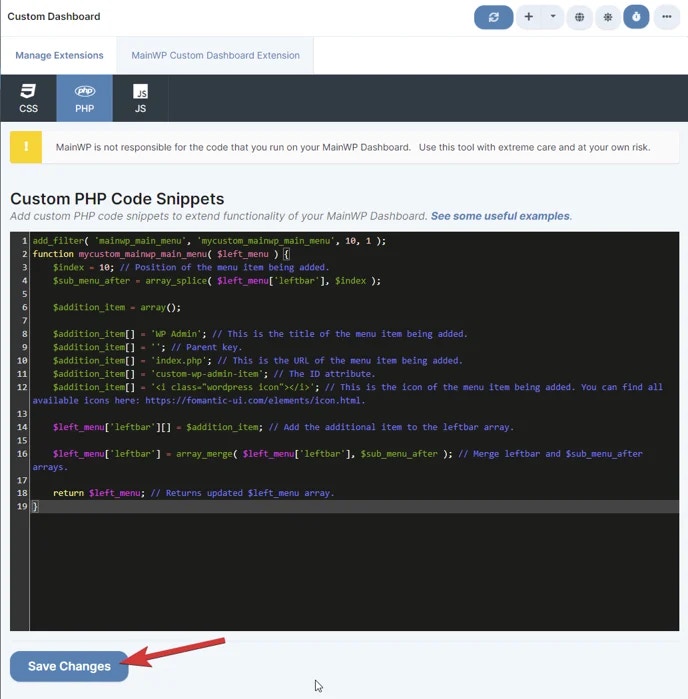 Click **Save Changes**.
### Step 2: Add CSS Code
Switch to the **CSS** tab in the Custom Dashboard extension.
Add this code to position the button at the bottom of the sidebar:
```css theme={null}
#custom-wp-admin-item {
padding-left: 10px;
padding-right: 10px;
position: absolute;
bottom: 0;
}
```
Click **Save Changes**.
### Step 2: Add CSS Code
Switch to the **CSS** tab in the Custom Dashboard extension.
Add this code to position the button at the bottom of the sidebar:
```css theme={null}
#custom-wp-admin-item {
padding-left: 10px;
padding-right: 10px;
position: absolute;
bottom: 0;
}
```
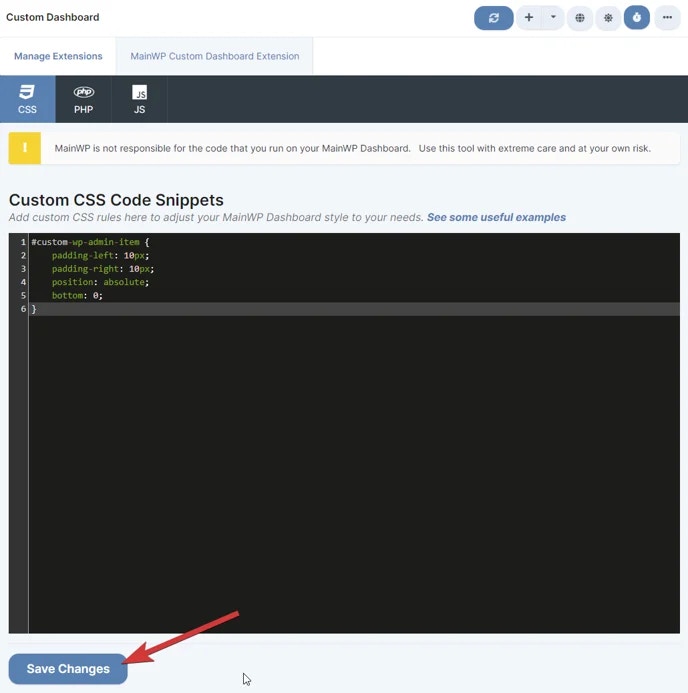 Click **Save Changes**. The WP Admin button now appears at the bottom of the navigation sidebar.
***
## Customization Options
| Option | Change |
| ---------------- | -------------------------------------------------------- |
| Position in menu | Modify `$index` value (lower = higher in menu) |
| Button text | Change `'WP Admin'` to your preferred label |
| Link destination | Change `'index.php'` to another admin page |
| Visual position | Modify CSS `bottom` value or remove `position: absolute` |
***
## Self-Check Checklist
* [ ] Custom Dashboard extension installed
* [ ] PHP code added to PHP tab
* [ ] CSS code added to CSS tab
* [ ] Both snippets saved
* [ ] WP Admin button visible in navigation sidebar
***
## Related Resources
* [Add Menu Entries](/customization/add-new-menu-entries-to-the-mainwp-dashboard-navigation) - Add other custom menu items
* [Custom Dashboard Extension](/add-ons/development/mainwp-custom-dashboard-extension) - Full extension documentation
Click **Save Changes**. The WP Admin button now appears at the bottom of the navigation sidebar.
***
## Customization Options
| Option | Change |
| ---------------- | -------------------------------------------------------- |
| Position in menu | Modify `$index` value (lower = higher in menu) |
| Button text | Change `'WP Admin'` to your preferred label |
| Link destination | Change `'index.php'` to another admin page |
| Visual position | Modify CSS `bottom` value or remove `position: absolute` |
***
## Self-Check Checklist
* [ ] Custom Dashboard extension installed
* [ ] PHP code added to PHP tab
* [ ] CSS code added to CSS tab
* [ ] Both snippets saved
* [ ] WP Admin button visible in navigation sidebar
***
## Related Resources
* [Add Menu Entries](/customization/add-new-menu-entries-to-the-mainwp-dashboard-navigation) - Add other custom menu items
* [Custom Dashboard Extension](/add-ons/development/mainwp-custom-dashboard-extension) - Full extension documentation