> ## Documentation Index
> Fetch the complete documentation index at: https://docs.mainwp.com/llms.txt
> Use this file to discover all available pages before exploring further.
# How to hide "New" and "Beta" labels on the MainWP Dashboard
> Hide the "New" and "Beta" feature labels from the MainWP Dashboard using a CSS snippet in the Custom Dashboard extension for a cleaner interface.
The MainWP Dashboard displays **New** and **Beta** labels next to recently added or experimental features. You can hide these labels if you prefer a cleaner interface.
## What You'll Learn
* What the New and Beta labels indicate
* How to hide them using CSS
## Prerequisites
* [Custom Dashboard extension](https://mainwp.com/extension/mainwp-custom-dashboard-extension/) installed (free)
***
## About the Labels
MainWP uses labels to indicate feature status:
| Label | Meaning |
| -------- | -------------------------------------- |
| **New** | Feature added in the current version |
| **Beta** | Feature is experimental and may change |
***
## Hide the Labels
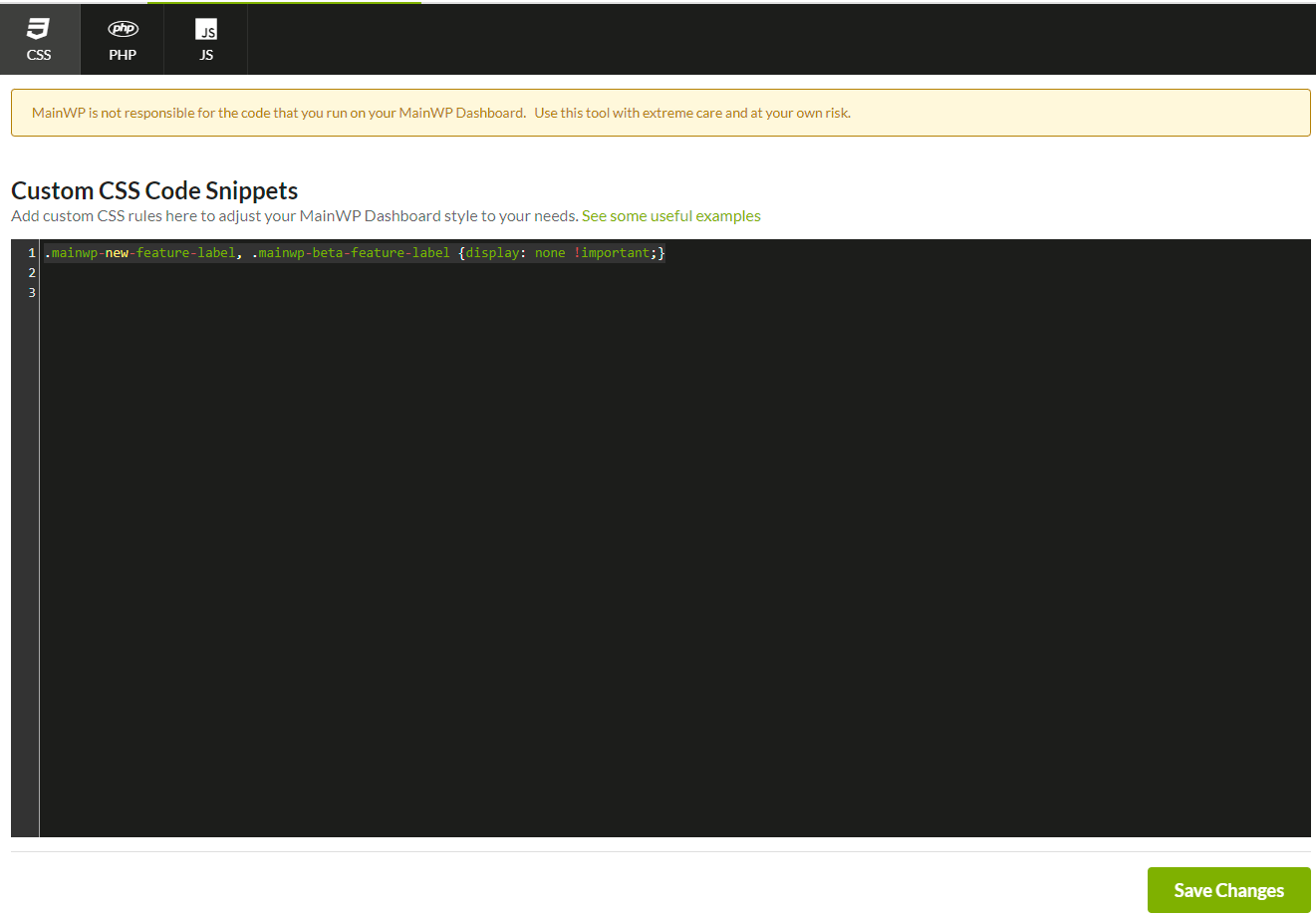
Navigate to the Custom Dashboard extension settings.
Go to the **CSS** tab and add this snippet:
```css theme={null}
.mainwp-new-feature-label, .mainwp-beta-feature-label {
display: none !important;
}
```
Click **Save Changes**. The page reloads automatically.
The New and Beta labels no longer appear in the Dashboard.
***
## Restore the Labels
To show the labels again:
1. Return to the Custom Dashboard extension
2. Remove the CSS snippet from the **CSS** tab
3. Click **Save Changes**
***
## Self-Check Checklist
* [ ] Custom Dashboard extension installed
* [ ] CSS snippet added to CSS tab
* [ ] Changes saved
* [ ] Labels no longer visible on Dashboard
***
## Related Resources
* [Custom Dashboard Extension](/add-ons/development/mainwp-custom-dashboard-extension) - Full extension documentation
* [Disable Tooltips](/customization/how-to-disable-tooltips-in-mainwp-dashboard) - Remove hover tooltips
* [Turn Off Guided Tours](/customization/how-to-turn-off-guided-tours) - Disable tutorial prompts
 ***
## Hide the Labels
***
## Hide the Labels