> ## Documentation Index
> Fetch the complete documentation index at: https://docs.mainwp.com/llms.txt
> Use this file to discover all available pages before exploring further.
# How to add new menu entries to the MainWP Dashboard navigation
> Add custom menu entries to the MainWP Dashboard navigation sidebar using PHP filters and the mainwp_main_menu hook.
You can add custom menu entries to the MainWP Dashboard navigation sidebar using PHP filters. This lets you create shortcuts to frequently used pages or integrate external tools.
## What You'll Learn
* How to add custom menu items to the navigation
* How to control menu position
* How to customize menu icons
## Prerequisites
* MainWP Dashboard version 4.5 or newer
* [Custom Dashboard extension](/add-ons/development/mainwp-custom-dashboard-extension) (free) or access to your theme's functions.php
***
## Add a Custom Menu Entry
Navigate to the [Custom Dashboard extension](/add-ons/development/mainwp-custom-dashboard-extension) settings.
Go to the **PHP** tab and add the following code:
```php theme={null}
add_filter( 'mainwp_main_menu', 'mycustom_mainwp_main_menu', 10, 1 );
function mycustom_mainwp_main_menu( $left_menu ) {
// Position of the menu item (0 = first, 1 = second, etc.)
$index = 2;
$sub_menu_after = array_splice( $left_menu['leftbar'], $index );
$addition_item = array();
$addition_item[] = 'Updates'; // Menu item title
$addition_item[] = 'custom_updates'; // Unique menu key
$addition_item[] = 'admin.php?page=UpdatesManage'; // URL or page slug
$addition_item[] = 'updates_custom_id'; // HTML ID attribute
$addition_item[] = ''; // Icon HTML (optional)
// Add the item to the leftbar array
$left_menu['leftbar'][] = $addition_item;
// Merge arrays to maintain menu order
$left_menu['leftbar'] = array_merge( $left_menu['leftbar'], $sub_menu_after );
return $left_menu;
}
```
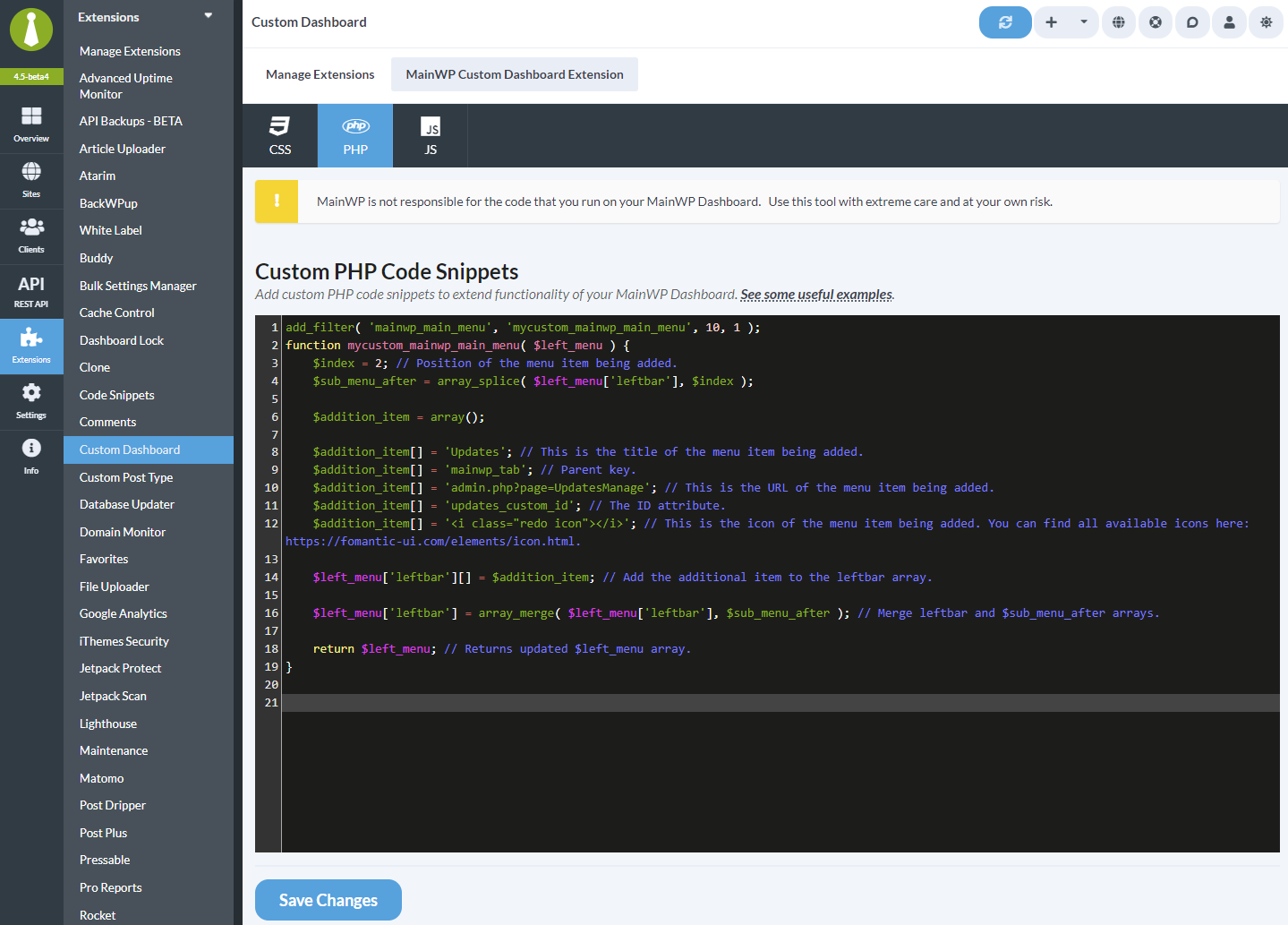 Modify the `$addition_item[]` values for your needs:
| Value | Description | Example |
| -------- | ------------------------- | ---------------------------------- |
| Title | Text displayed in menu | `'My Custom Page'` |
| Menu key | Use a unique internal key | `'my_custom_page'` |
| URL | Page URL or admin slug | `'admin.php?page=MyPage'` |
| ID | HTML element ID | `'my_custom_id'` |
| Icon | Fomantic UI icon HTML | `''` |
Modify the `$index` value to control where the menu item appears:
* `0` = First position
* `1` = Second position
* `2` = Third position
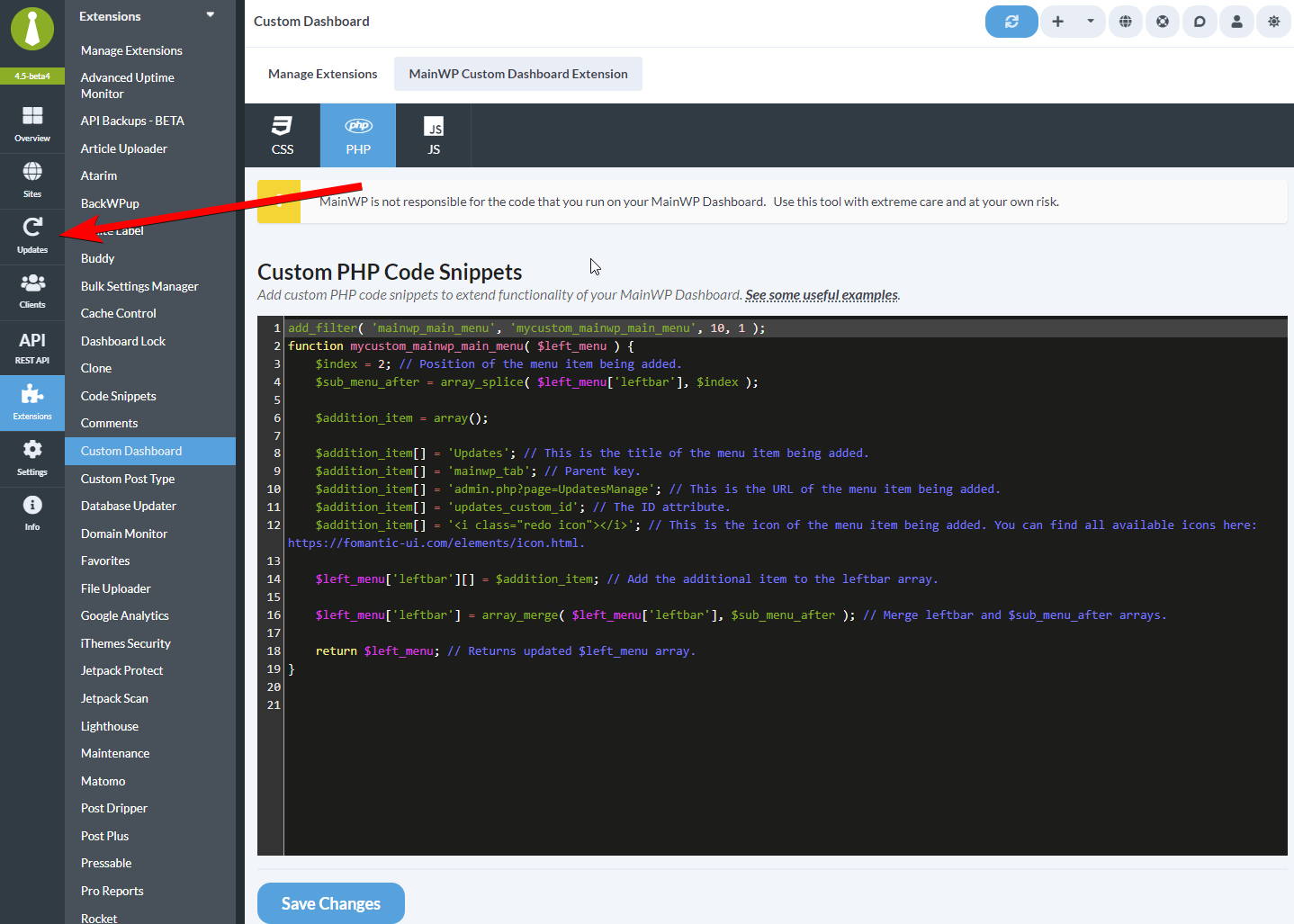
Click **Save Changes**. The new menu entry appears immediately.
Modify the `$addition_item[]` values for your needs:
| Value | Description | Example |
| -------- | ------------------------- | ---------------------------------- |
| Title | Text displayed in menu | `'My Custom Page'` |
| Menu key | Use a unique internal key | `'my_custom_page'` |
| URL | Page URL or admin slug | `'admin.php?page=MyPage'` |
| ID | HTML element ID | `'my_custom_id'` |
| Icon | Fomantic UI icon HTML | `''` |
Modify the `$index` value to control where the menu item appears:
* `0` = First position
* `1` = Second position
* `2` = Third position
Click **Save Changes**. The new menu entry appears immediately.
 ***
## Add an Icon
To add an icon, pass the full icon HTML from the [Fomantic UI icon library](https://fomantic-ui.com/elements/icon.html):
```php theme={null}
$addition_item[] = ''; // Adds a bar chart icon
```
Common icon examples:
* `''` - Home icon
* `''` - Settings gear
* `''` - Bar chart
* `''` - User icon
* `''` - Email icon
If you use only the class name, such as `chart bar`, MainWP renders it as plain text instead of an icon.
***
## Self-Check Checklist
* [ ] Custom Dashboard extension installed
* [ ] PHP code added to PHP tab
* [ ] Menu title and URL customized
* [ ] Position index set correctly
* [ ] Changes saved
* [ ] New menu entry visible in navigation
***
## Related Resources
* [Custom Dashboard Extension](/add-ons/development/mainwp-custom-dashboard-extension) - Extension documentation
* [Add WP Admin Button](/customization/how-to-add-wp-admin-button-to-the-main-navigation-bar) - Add admin link to navigation
* [Change Default Page After Login](/customization/how-to-change-the-default-page-after-logging-into-wordpress) - Customize landing page
***
## Add an Icon
To add an icon, pass the full icon HTML from the [Fomantic UI icon library](https://fomantic-ui.com/elements/icon.html):
```php theme={null}
$addition_item[] = ''; // Adds a bar chart icon
```
Common icon examples:
* `''` - Home icon
* `''` - Settings gear
* `''` - Bar chart
* `''` - User icon
* `''` - Email icon
If you use only the class name, such as `chart bar`, MainWP renders it as plain text instead of an icon.
***
## Self-Check Checklist
* [ ] Custom Dashboard extension installed
* [ ] PHP code added to PHP tab
* [ ] Menu title and URL customized
* [ ] Position index set correctly
* [ ] Changes saved
* [ ] New menu entry visible in navigation
***
## Related Resources
* [Custom Dashboard Extension](/add-ons/development/mainwp-custom-dashboard-extension) - Extension documentation
* [Add WP Admin Button](/customization/how-to-add-wp-admin-button-to-the-main-navigation-bar) - Add admin link to navigation
* [Change Default Page After Login](/customization/how-to-change-the-default-page-after-logging-into-wordpress) - Customize landing page