> ## Documentation Index
> Fetch the complete documentation index at: https://docs.mainwp.com/llms.txt
> Use this file to discover all available pages before exploring further.
# Cost Tracker
> Use the built-in Cost Tracker in MainWP Dashboard to manage recurring and one-time costs for your clients and child sites.
The Cost Tracker is a core feature of MainWP Dashboard. It gives you a centralized place to record expenses, monitor renewals, and review cost trends across your clients and child sites.
## What You'll Learn
* Review Cost Summary widgets
* Add, edit, and delete cost entries
* Import multiple cost entries from CSV
* Configure currencies, product types, and payment methods
* Understand what the Cost Tracker Assistant add-on extends
* Use Cost Tracker REST API endpoints
## Prerequisites
* MainWP Dashboard installed and activated
* Child sites connected to your MainWP Dashboard
***
***
## Cost Summary page
Cost Summary is a widgetized page that provides a visual breakdown of costs associated with clients and child sites. Widgets can be resized, rearranged, and disabled in [Page Settings](https://mainwpcs.com/kb/page-settings).
Chart-based widgets can export data in SVG, PNG, and CSV formats.
## Manage Costs page
Manage Costs is the central table for reviewing, filtering, and updating all tracked costs.
You can filter by Sites, Clients, subscription type, payment method, and more, then save filters as segments for reuse.
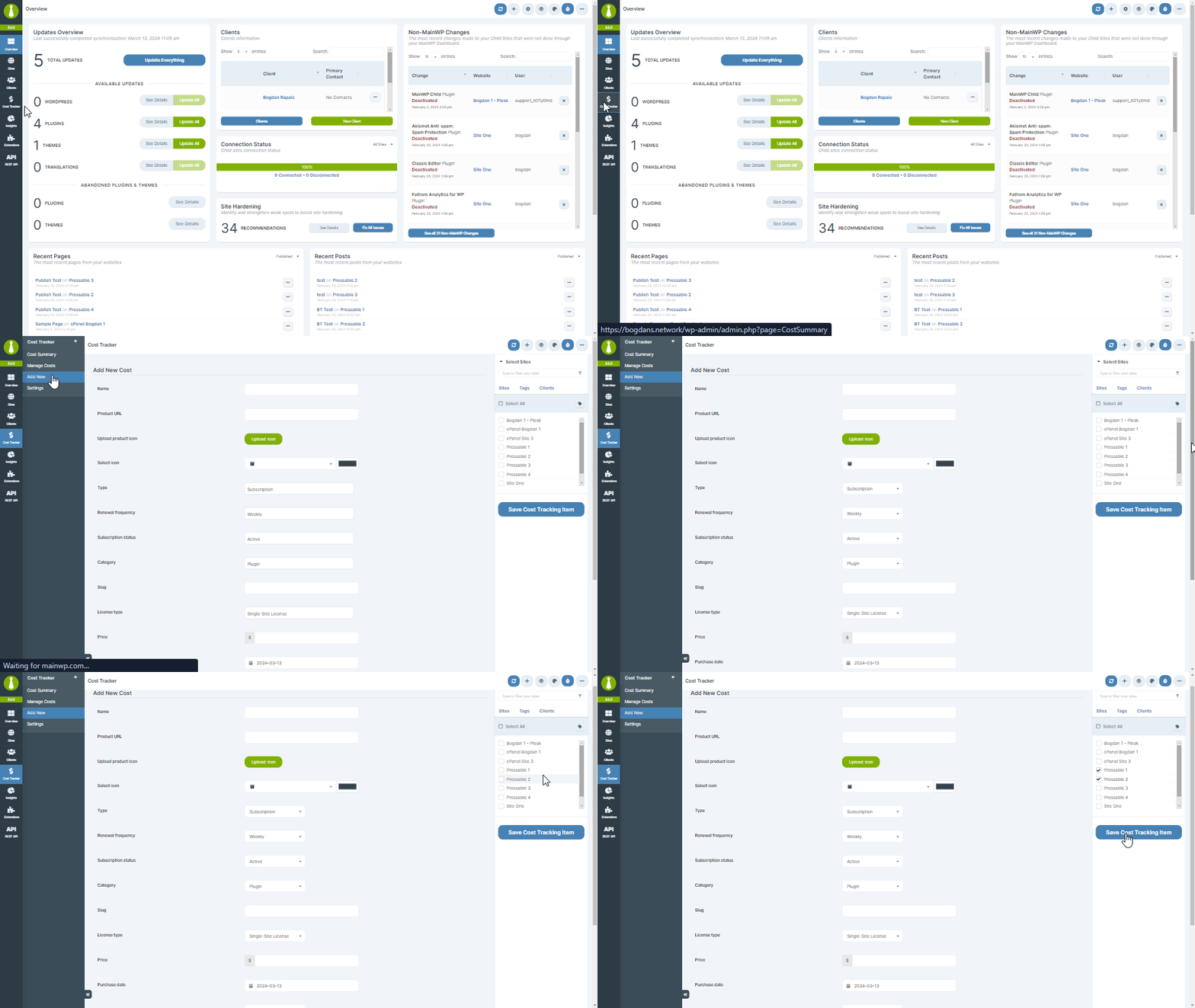
## Adding a New Cost
Go to **Costs > Add New**.
Provide the name, pricing, type, product category, payment method, and purchase dates.
From the right sidebar, select related sites or clients.
Click **Save Cost Tracking Item**.
## Import Costs (CSV)
Use CSV import to add multiple cost entries in one run.
Go to **Costs > Import Costs**.
Click **Download Sample**, then keep the same column order in your file.
Upload your `.csv` file, keep **CSV file contains a header** enabled if your file has a header row, then click **Import Operational Costs**.
Watch the row-by-row import log in the modal. Use **Pause** and **Continue** during import, and use **Try Again** after fixing failed rows.
### CSV columns and formats
| Column | Required | Format |
| ----------------- | -------- | ----------------------------------------------------------------------------------------------------------------------------------- |
| Name | Yes | Plain text |
| URL | No | Full URL (`https://...`) |
| Type | No | `subscription` or `lifetime` |
| Category | No | `plugin`, `theme`, `hosting`, `service`, `other`, or a custom category slug from Cost Tracker Settings |
| License Type | No | `single_site` or `multi_site` |
| Price | Yes | Number (for example `49.00`) |
| Payment Method | No | Default method slug (`paypal`, `stripe`, `apple`, `amazon`, `google`, `credit_debit`, `debit_card`, `cash`) or a custom method slug |
| Renewal Type | No | `weekly`, `monthly`, `quarterly`, or `yearly` |
| Last Renewal Date | No | Recommended format: `YYYY-MM-DD` |
| Status | No | `active`, `canceled`, `onhold`, `expired`, or `pending_cancelation` |
| Select Sites | No | Semicolon-separated site URLs (`https://site1.com;https://site2.com`) |
The importer skips lines that start with `#` and treats them as comments.
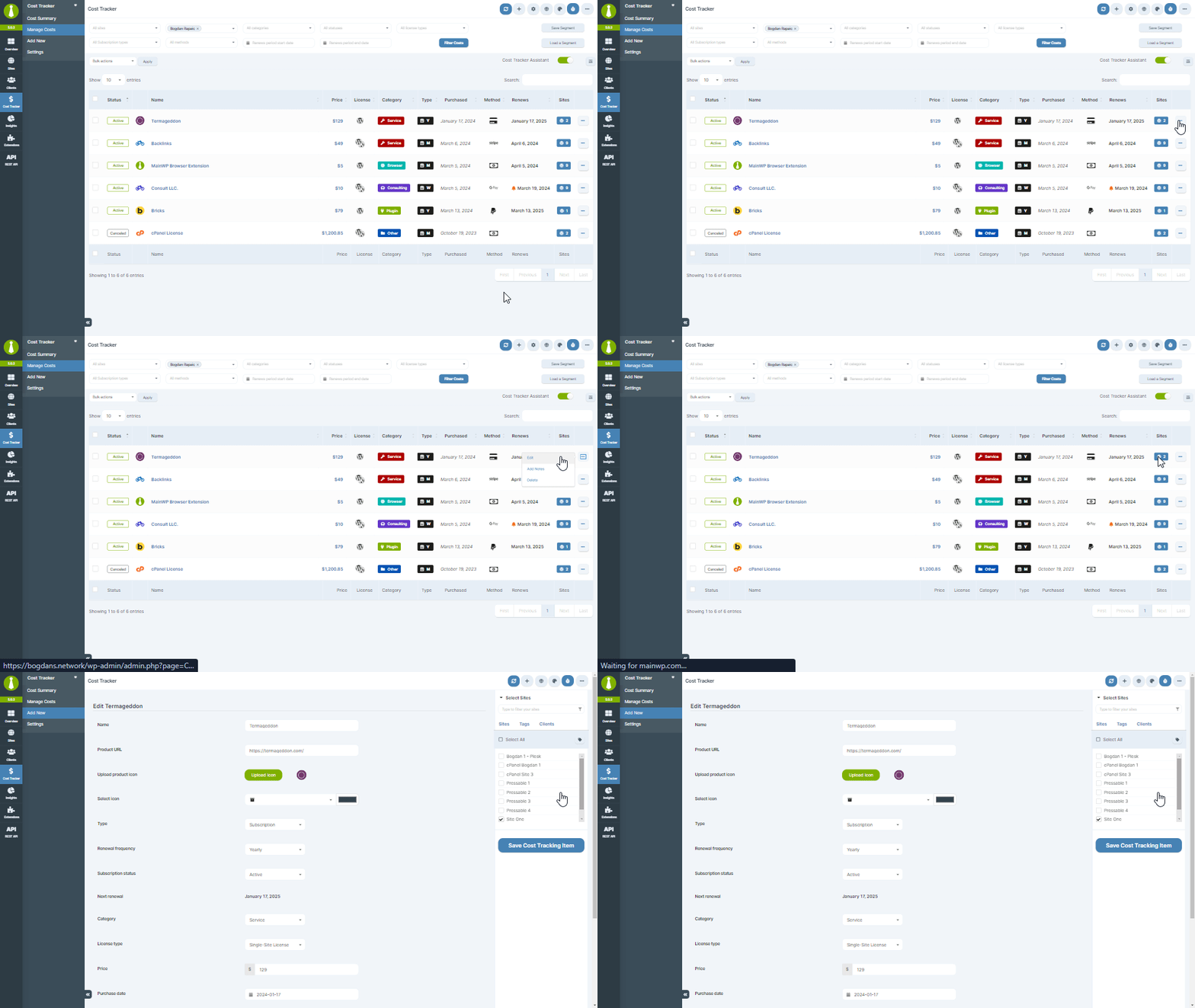
## Edit or Delete an Item
1. Go to **Costs > Manage Costs**.
2. Find the item and open the ellipsis menu.
3. Choose **Edit** or **Delete**.
## Settings page
Go to **Costs > Settings** to configure:
1. Currency and currency symbol position
2. Thousand and decimal separators
3. Decimal places
4. Default product categories
5. Custom payment methods
Notification options for subscription expiration alerts are provided by the Cost Tracker Assistant add-on.
## Widgets and table information
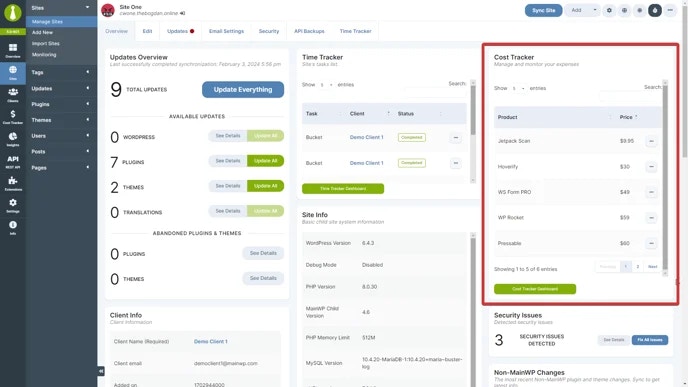
Cost-related widgets are available on individual site and client overview pages for quick visibility.
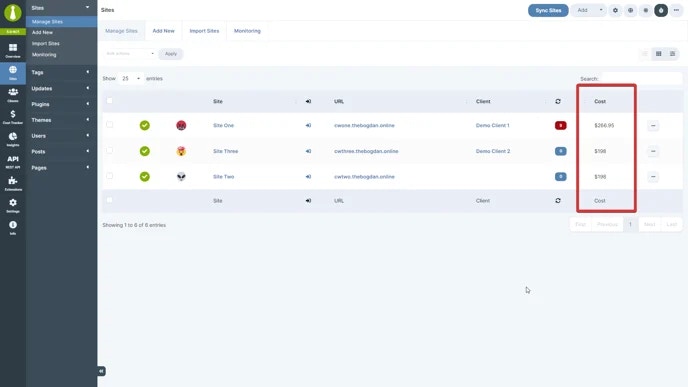
Manage Clients and Manage Sites tables include Cost Tracker columns showing associated cost counts.
## Cost Tracker Assistant add-on
Cost Tracker Assistant is the extension that adds extra functionality to the core Cost Tracker feature, including:
* Subscription expiration notifications
* Faster cost entry when installing plugins or themes from ZIP files
Learn more: [Cost Tracker Assistant](/add-ons/client/cost-tracker-assistant-extension)
## Cost Tracker REST API
For automation and integrations, use the Cost Tracker endpoints in MainWP REST API:
* [Costs Endpoints](/api-reference/rest-api/costs)
* [REST API Overview](/api-reference/rest-api/overview)
***
## Related Resources
* [Cost Tracker Assistant](/add-ons/client/cost-tracker-assistant-extension) - Extension that adds advanced Cost Tracker workflows
* [Manage Clients](/clients/manage-clients) - Manage client records and relationships
* [Client Add-ons](/add-ons/client) - Browse client-focused extensions
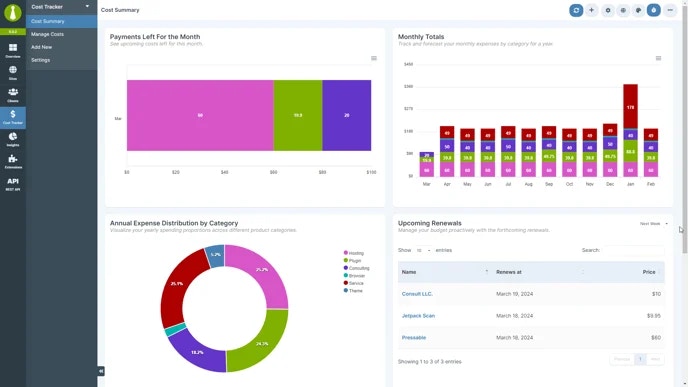 Cost Summary is a widgetized page that provides a visual breakdown of costs associated with clients and child sites. Widgets can be resized, rearranged, and disabled in [Page Settings](https://mainwpcs.com/kb/page-settings).
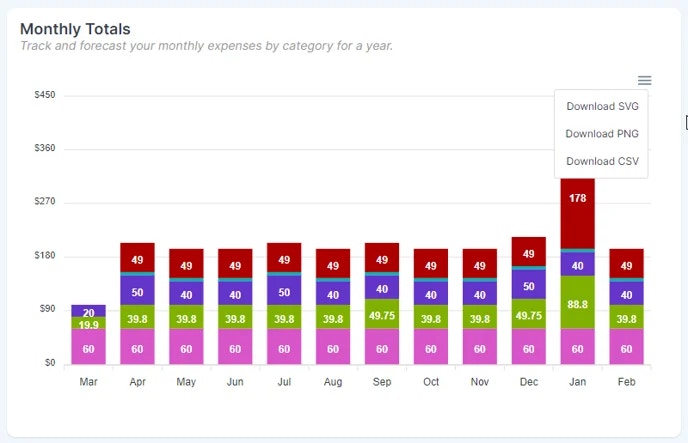 Chart-based widgets can export data in SVG, PNG, and CSV formats.
## Manage Costs page
Chart-based widgets can export data in SVG, PNG, and CSV formats.
## Manage Costs page
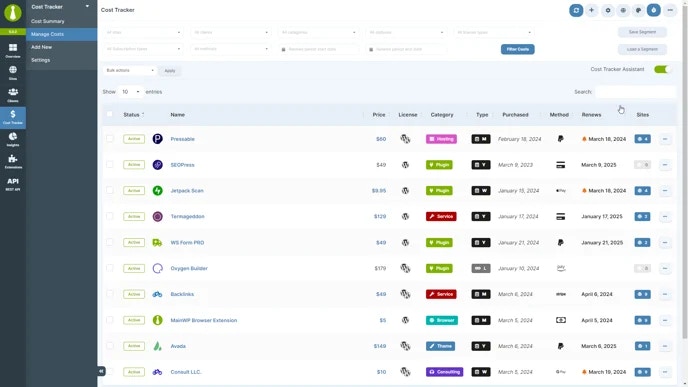 Manage Costs is the central table for reviewing, filtering, and updating all tracked costs.
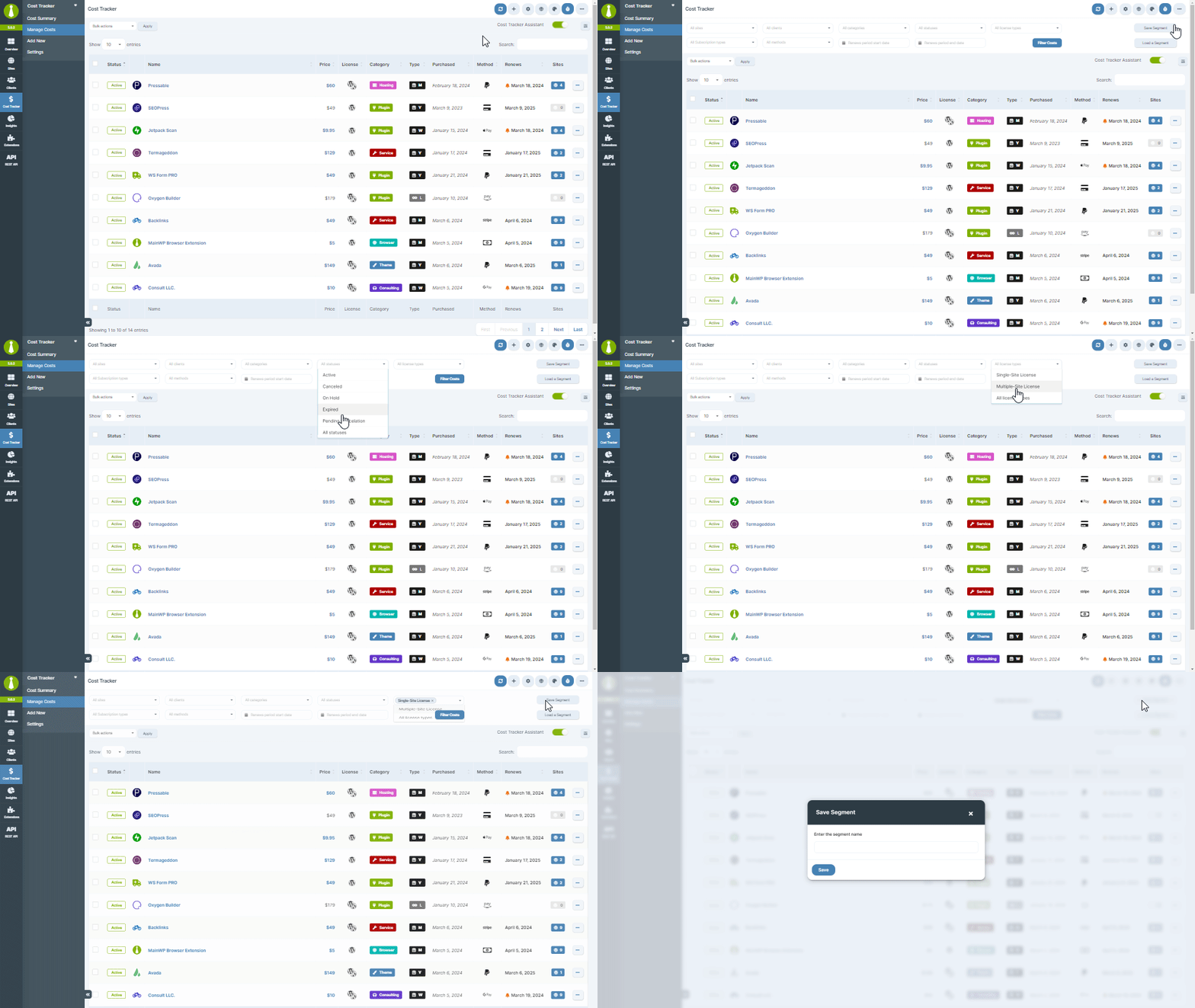 You can filter by Sites, Clients, subscription type, payment method, and more, then save filters as segments for reuse.
## Adding a New Cost
You can filter by Sites, Clients, subscription type, payment method, and more, then save filters as segments for reuse.
## Adding a New Cost
 ## Import Costs (CSV)
Use CSV import to add multiple cost entries in one run.
## Import Costs (CSV)
Use CSV import to add multiple cost entries in one run.
 ## Settings page
Go to **Costs > Settings** to configure:
1. Currency and currency symbol position
2. Thousand and decimal separators
3. Decimal places
4. Default product categories
5. Custom payment methods
Notification options for subscription expiration alerts are provided by the Cost Tracker Assistant add-on.
## Widgets and table information
## Settings page
Go to **Costs > Settings** to configure:
1. Currency and currency symbol position
2. Thousand and decimal separators
3. Decimal places
4. Default product categories
5. Custom payment methods
Notification options for subscription expiration alerts are provided by the Cost Tracker Assistant add-on.
## Widgets and table information
 Cost-related widgets are available on individual site and client overview pages for quick visibility.
 Manage Clients and Manage Sites tables include Cost Tracker columns showing associated cost counts.
## Cost Tracker Assistant add-on
Cost Tracker Assistant is the extension that adds extra functionality to the core Cost Tracker feature, including:
* Subscription expiration notifications
* Faster cost entry when installing plugins or themes from ZIP files
Learn more: [Cost Tracker Assistant](/add-ons/client/cost-tracker-assistant-extension)
## Cost Tracker REST API
For automation and integrations, use the Cost Tracker endpoints in MainWP REST API:
* [Costs Endpoints](/api-reference/rest-api/costs)
* [REST API Overview](/api-reference/rest-api/overview)
***
## Related Resources
* [Cost Tracker Assistant](/add-ons/client/cost-tracker-assistant-extension) - Extension that adds advanced Cost Tracker workflows
* [Manage Clients](/clients/manage-clients) - Manage client records and relationships
* [Client Add-ons](/add-ons/client) - Browse client-focused extensions
Manage Clients and Manage Sites tables include Cost Tracker columns showing associated cost counts.
## Cost Tracker Assistant add-on
Cost Tracker Assistant is the extension that adds extra functionality to the core Cost Tracker feature, including:
* Subscription expiration notifications
* Faster cost entry when installing plugins or themes from ZIP files
Learn more: [Cost Tracker Assistant](/add-ons/client/cost-tracker-assistant-extension)
## Cost Tracker REST API
For automation and integrations, use the Cost Tracker endpoints in MainWP REST API:
* [Costs Endpoints](/api-reference/rest-api/costs)
* [REST API Overview](/api-reference/rest-api/overview)
***
## Related Resources
* [Cost Tracker Assistant](/add-ons/client/cost-tracker-assistant-extension) - Extension that adds advanced Cost Tracker workflows
* [Manage Clients](/clients/manage-clients) - Manage client records and relationships
* [Client Add-ons](/add-ons/client) - Browse client-focused extensions