> ## Documentation Index
> Fetch the complete documentation index at: https://docs.mainwp.com/llms.txt
> Use this file to discover all available pages before exploring further.
# Reset page settings
> Reset widget layouts and table configurations on MainWP Dashboard pages to restore default settings.
MainWP Dashboard pages can be customized with different widget arrangements and table column configurations. If you want to restore a page to its default layout, you can reset the settings.
## What You'll Learn
* How to reset widget layouts on overview pages
* How to reset table layouts on list pages
***
## When to Reset Page Settings
Use this feature when:
* Widgets are arranged in an unhelpful way
* Important widgets are hidden
* Table columns are in a confusing order
* You want to start fresh with default settings
***
## Reset Widget Layout
Widget-based pages include the Overview Page, Child Site Overview Page, and Client Card page.
Click the **Cog** icon in the top right corner of the page.
Click the **Reset Page** button in the bottom left of the popup modal.
Click **Yes, Proceed!** to confirm.
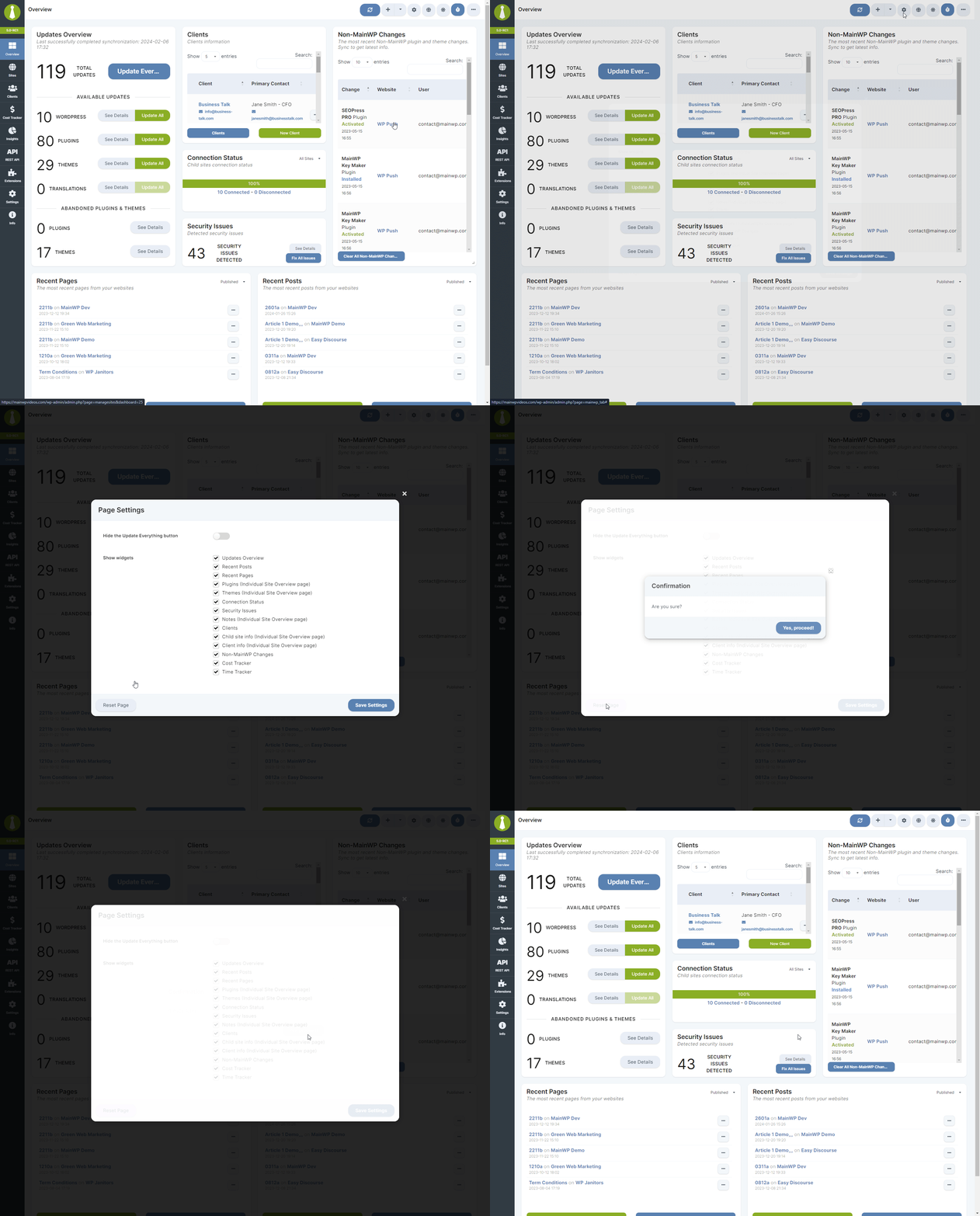 This resets:
* Widget positions
* Widget sizes
* Widget visibility (shown/hidden)
***
## Reset Table Layout
Table-based pages include Manage Sites, Manage Plugins, Manage Themes, and similar list views.
Click the **Cog** icon in the top right corner of the page.
Click the **Reset Page** button in the bottom left of the popup modal.
Click **Yes, Proceed!** to confirm.
This resets:
* Widget positions
* Widget sizes
* Widget visibility (shown/hidden)
***
## Reset Table Layout
Table-based pages include Manage Sites, Manage Plugins, Manage Themes, and similar list views.
Click the **Cog** icon in the top right corner of the page.
Click the **Reset Page** button in the bottom left of the popup modal.
Click **Yes, Proceed!** to confirm.
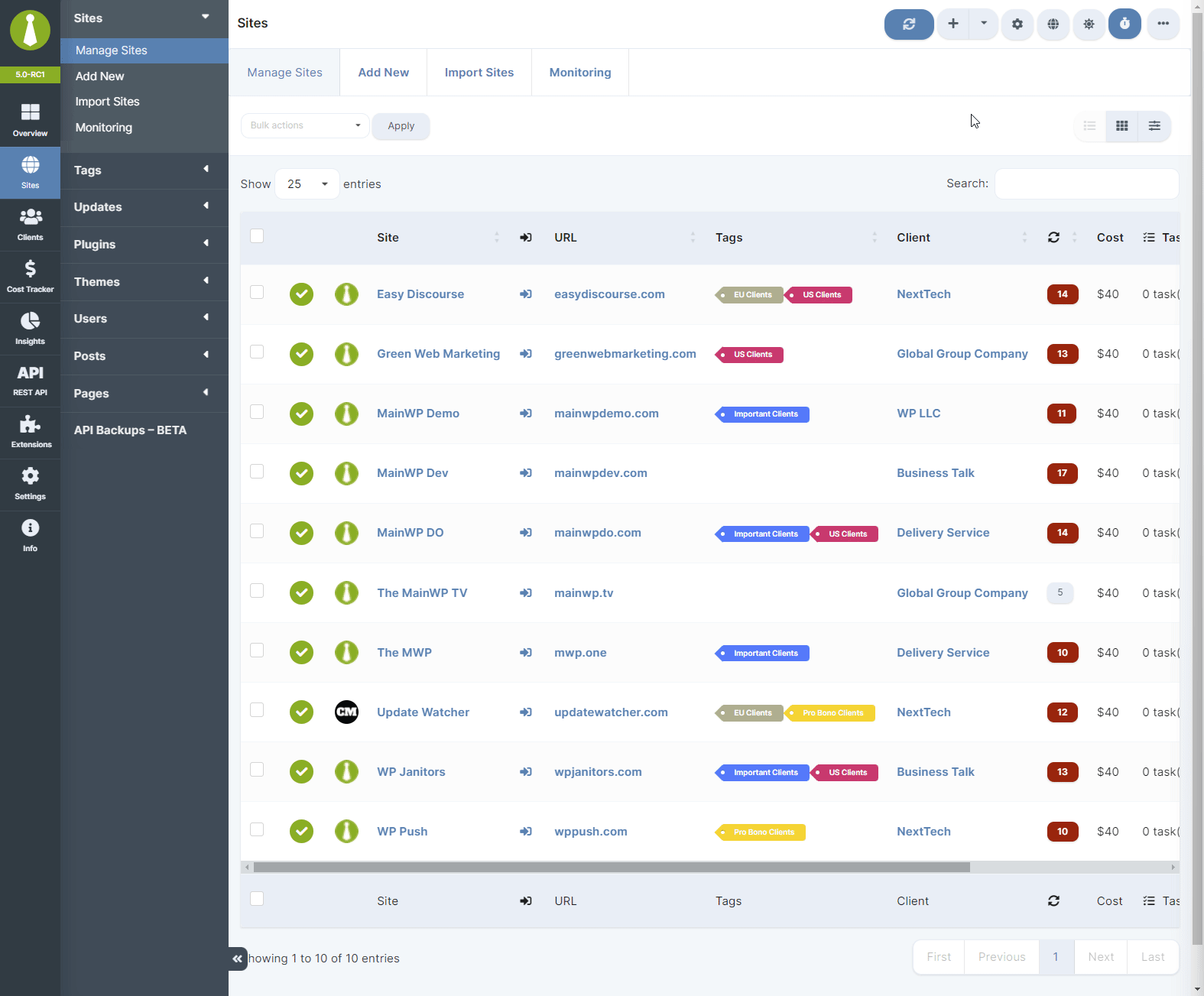 This resets:
* Column visibility
* Column order
* Any sorting preferences
***
## Self-Check Checklist
* [ ] Identified page needing reset
* [ ] Clicked Cog icon
* [ ] Clicked Reset Page
* [ ] Confirmed the reset
* [ ] Page showing default layout
***
## Related Resources
* [Hide Widgets](/customization/can-i-hide-widgets-that-i-dont-need) - Widget visibility options
* [Widget Columns](/customization/how-can-i-change-the-number-of-widget-columns-on-the-overview-page) - Column layout settings
This resets:
* Column visibility
* Column order
* Any sorting preferences
***
## Self-Check Checklist
* [ ] Identified page needing reset
* [ ] Clicked Cog icon
* [ ] Clicked Reset Page
* [ ] Confirmed the reset
* [ ] Page showing default layout
***
## Related Resources
* [Hide Widgets](/customization/can-i-hide-widgets-that-i-dont-need) - Widget visibility options
* [Widget Columns](/customization/how-can-i-change-the-number-of-widget-columns-on-the-overview-page) - Column layout settings