> ## Documentation Index
> Fetch the complete documentation index at: https://docs.mainwp.com/llms.txt
> Use this file to discover all available pages before exploring further.
# How to find sites that don't have a certain plugin or theme installed
> Use the "Not installed" filter in MainWP to identify which child sites are missing a specific plugin or theme.
The "Not installed" filter in MainWP helps you identify which child sites are missing a specific plugin or theme. This is useful when ensuring consistent plugin installations across your network.
## What You'll Learn
* How to use the "Not installed" filter
* How to identify sites missing a plugin or theme
## Prerequisites
* MainWP Dashboard v4.5 or later
* Child sites synced with your Dashboard
***
## Find Sites Missing a Plugin
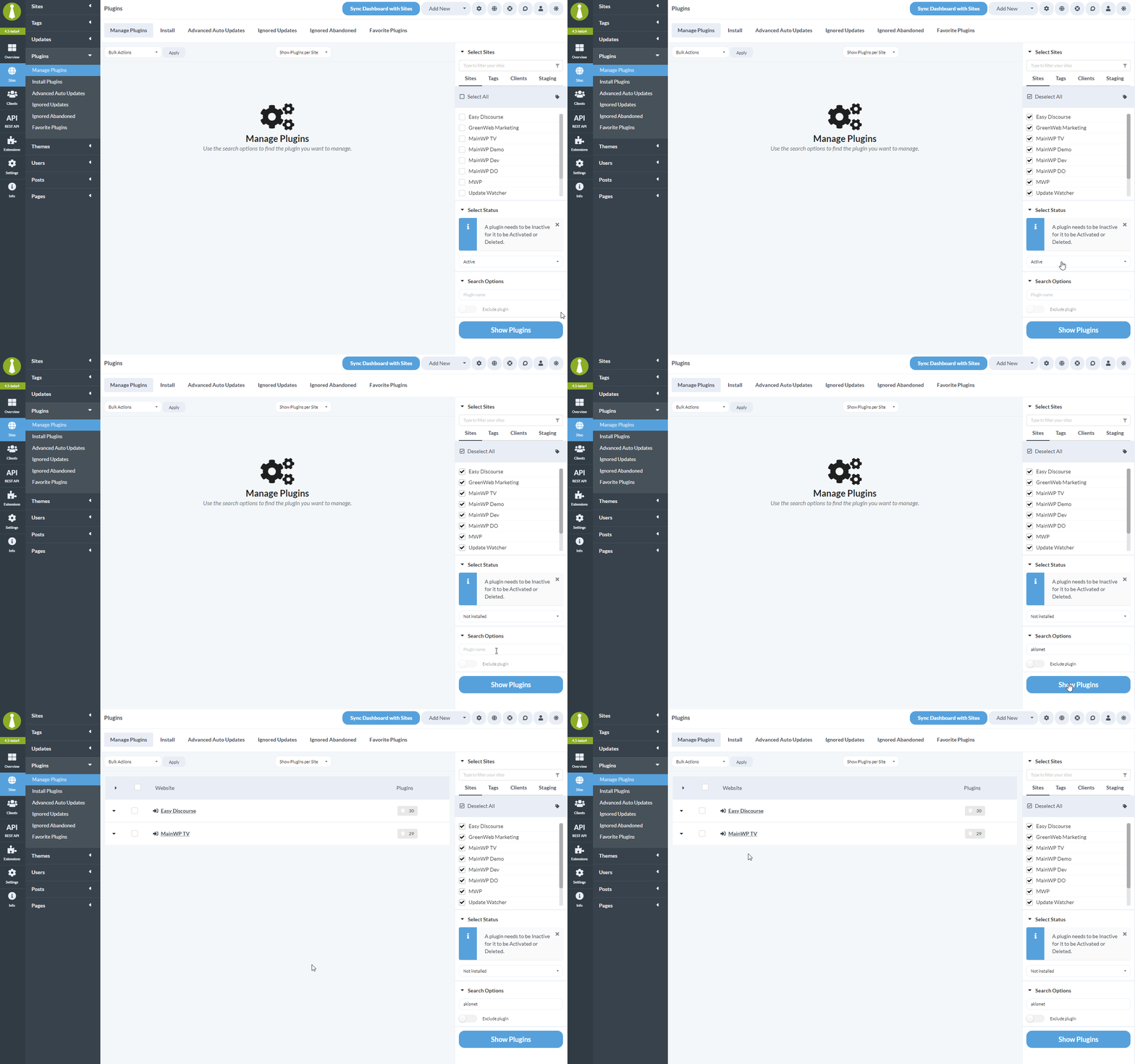
Go to **MainWP > Plugins > Manage Plugins**.
In the site selector, choose which child sites to search.
In the **Select Status** dropdown, choose **Not installed**.
In the **Search Options** field, type the name of the plugin you're looking for.
Click **Show Plugins**. The table displays all selected sites that don't have that plugin installed.
***
## Find Sites Missing a Theme
Go to **MainWP > Themes > Manage Themes**.
Choose which child sites to search.
In the **Select Status** dropdown, choose **Not installed**.
Type the name of the theme you're looking for.
Click **Show Themes**. The table displays all selected sites that don't have that theme installed.
***
## Important Notes
When searching with the "Not installed" status, results display only in "Per Site" view. You cannot switch to "Per Item" view while viewing these results.
***
## After Finding Sites
Once you've identified sites missing a plugin or theme, you can:
1. Install the plugin/theme on those sites using MainWP's bulk install feature
2. Export the list for documentation
3. Use the [Install on Sites](/advanced/miscellaneous/how-to-install-a-plugin-on-sites-that-already-have-a-certain-plugin-installed) feature for targeted installations
***
## Self-Check Checklist
* [ ] Navigated to Manage Plugins or Manage Themes
* [ ] Selected target child sites
* [ ] Chose "Not installed" from status dropdown
* [ ] Entered plugin/theme name in search
* [ ] Reviewed sites missing the plugin/theme
***
## Related Resources
* [Install Plugin on Specific Sites](/advanced/miscellaneous/how-to-install-a-plugin-on-sites-that-already-have-a-certain-plugin-installed) - Targeted installations
* [Managing Plugins](/sites/plugins/managing-plugins-with-mainwp) - Plugin management overview
* [Managing Themes](/sites/themes/managing-themes-with-mainwp) - Theme management overview