> ## Documentation Index
> Fetch the complete documentation index at: https://docs.mainwp.com/llms.txt
> Use this file to discover all available pages before exploring further.
# How to add Two-Factor Authentication (2FA) to MainWP
> Add two-factor authentication to your MainWP Dashboard using a WordPress 2FA plugin for an additional layer of login security.
Two-factor authentication adds a second verification step when logging into your WordPress Dashboard. Enabling 2FA on your MainWP Dashboard does not affect MainWP functionality—it only secures the WordPress login process.
## What You'll Learn
* How to install and configure a 2FA plugin on your Dashboard
* How to set up your authenticator app
* How to enforce 2FA for Dashboard users
## Prerequisites
* Admin access to your MainWP Dashboard WordPress site
* An authenticator app (Google Authenticator, Authy, 1Password, etc.)
***
## Install the 2FA Plugin
This example uses WP 2FA, but you can use any WordPress 2FA plugin.
From your MainWP Dashboard, navigate to **WP Admin > Plugins > Add New**.
Search for **WP 2FA** and install it.
Activate the plugin. The setup wizard starts automatically.
***
## Configure 2FA Settings
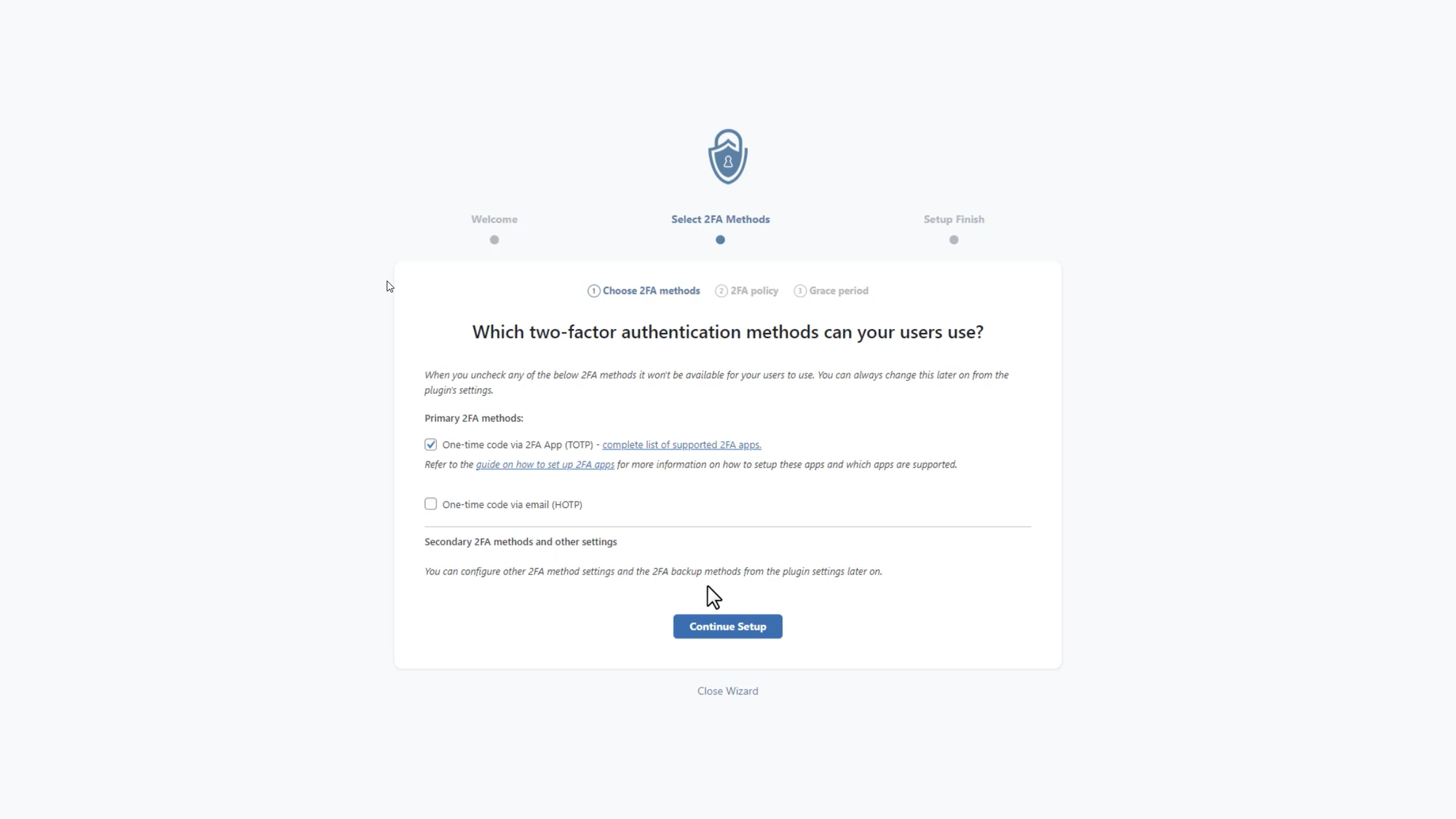
Select your preferred 2FA method:
* **One-time code via 2FA app** (TOTP)
* **One-time code via email**
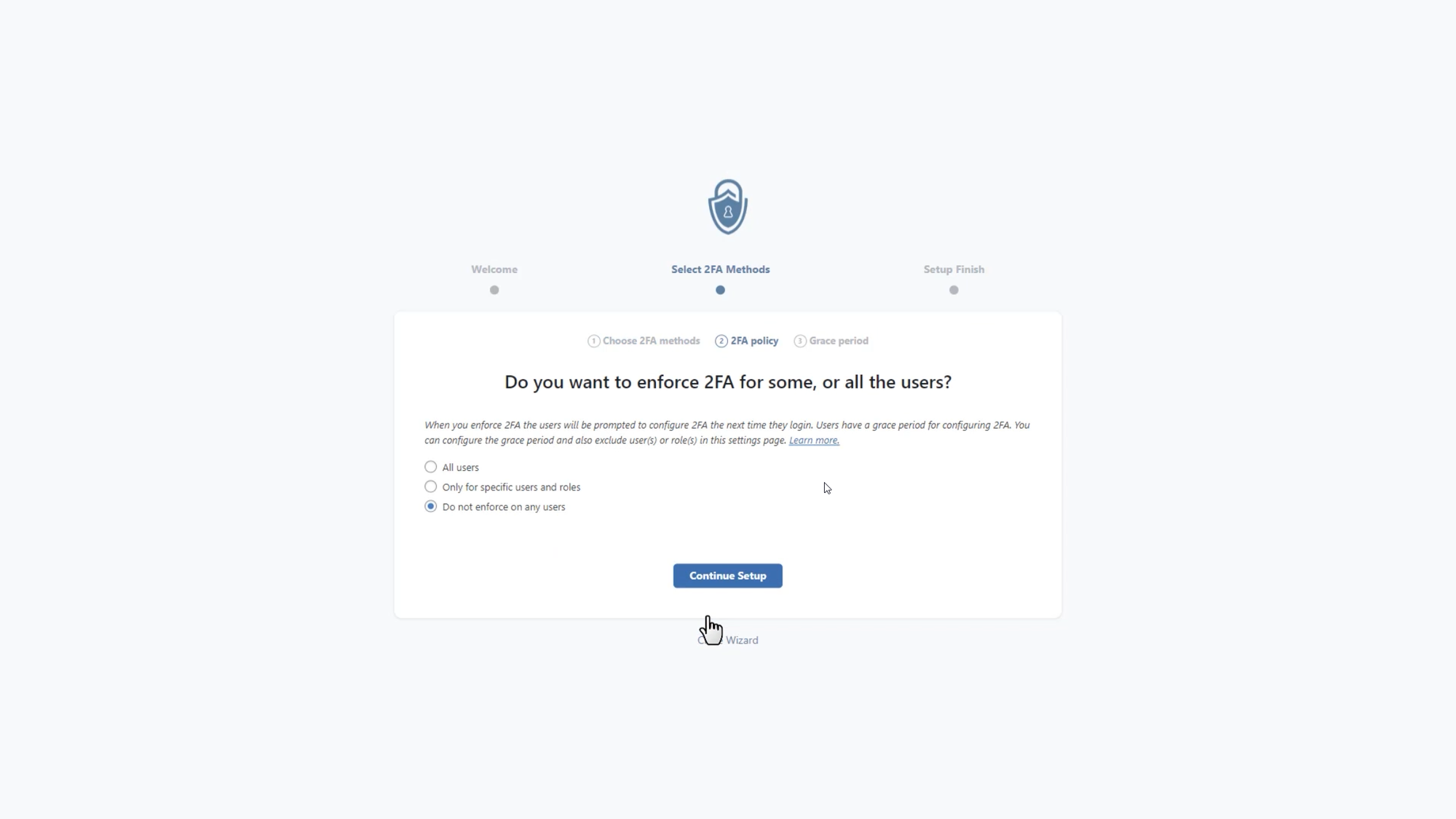
Choose which users must use 2FA.
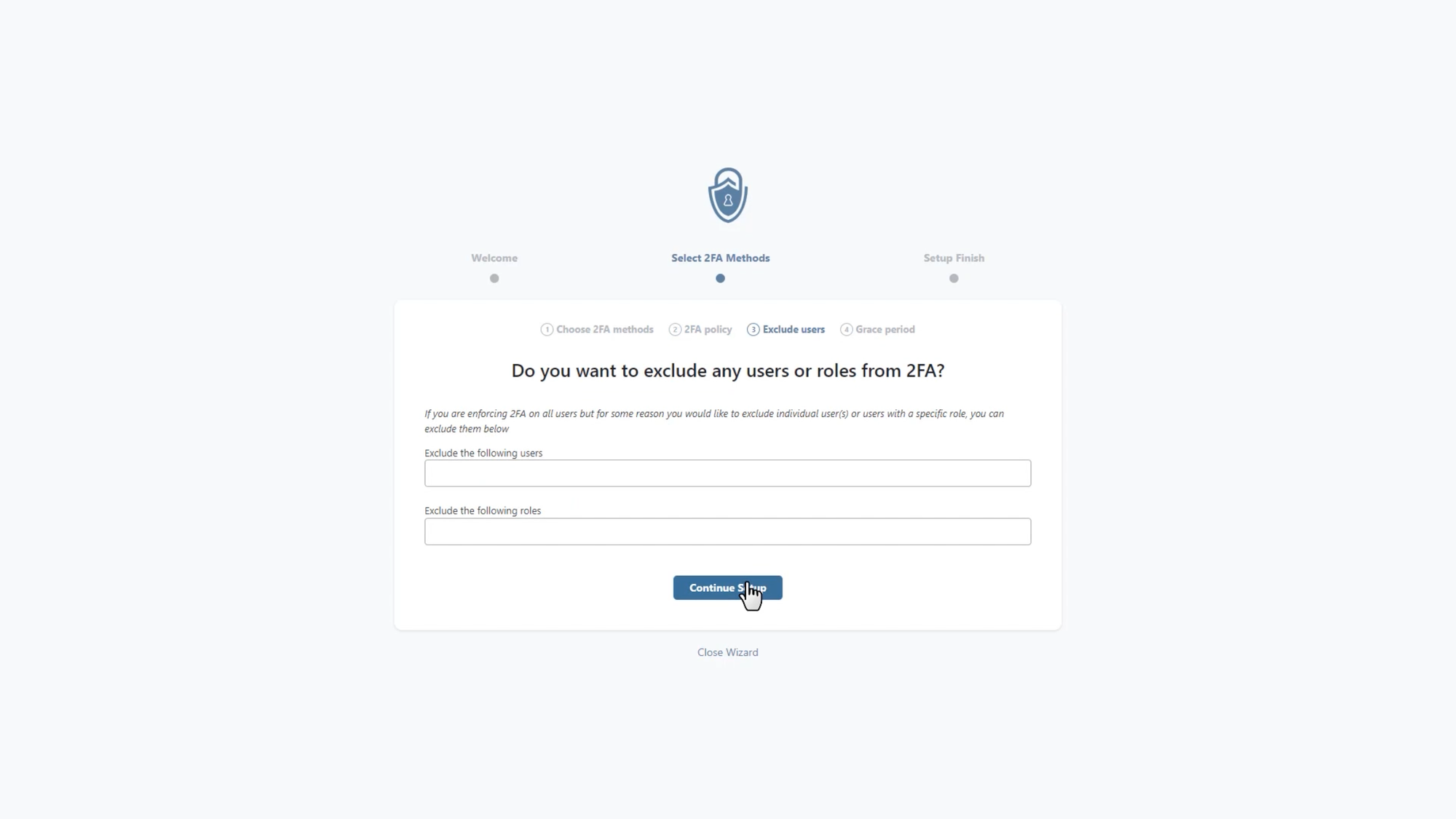
Optionally exclude specific users or roles from the 2FA requirement.
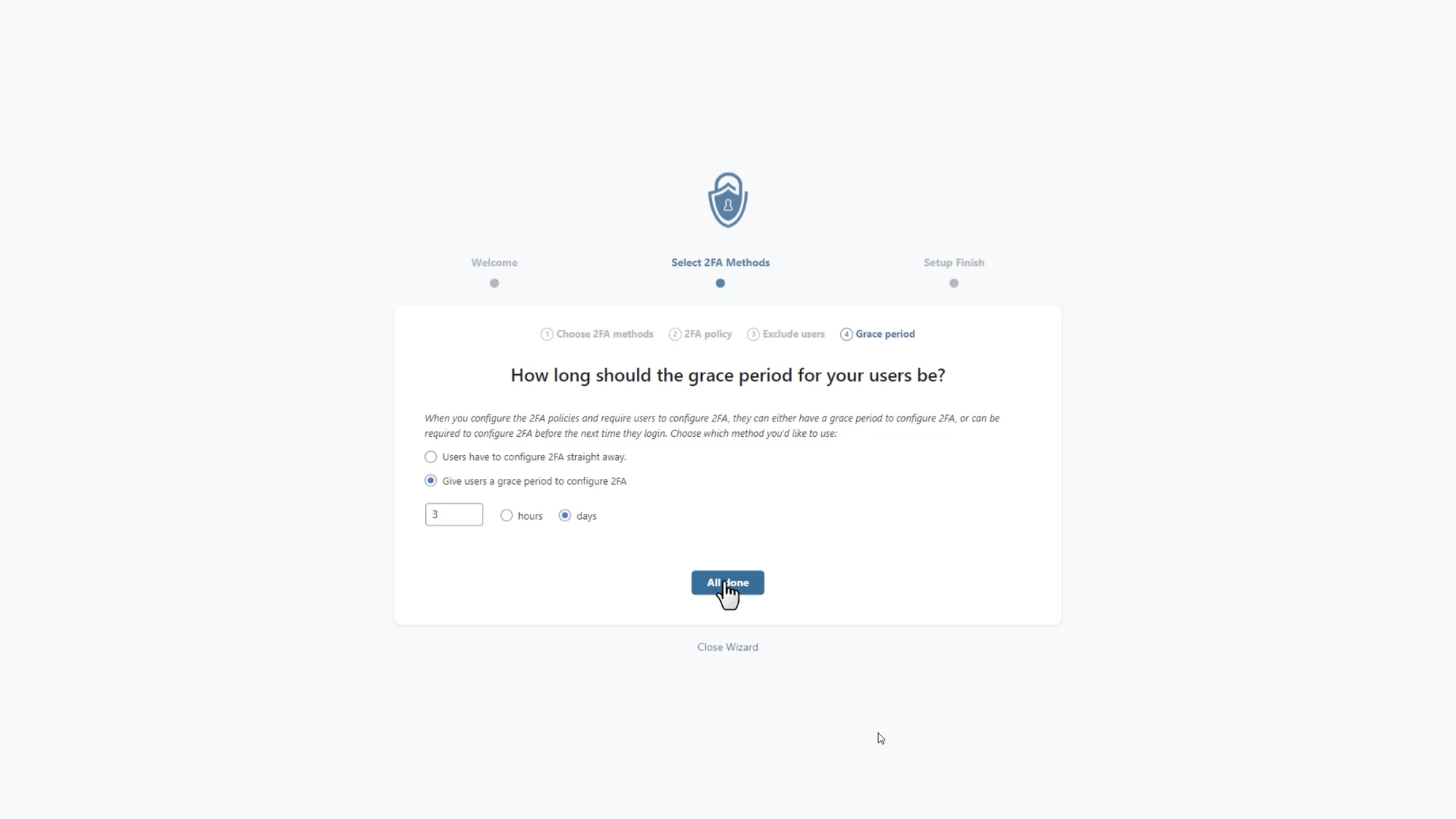
Give users time to set up 2FA before it becomes mandatory.
***
## Set Up Your Authenticator App
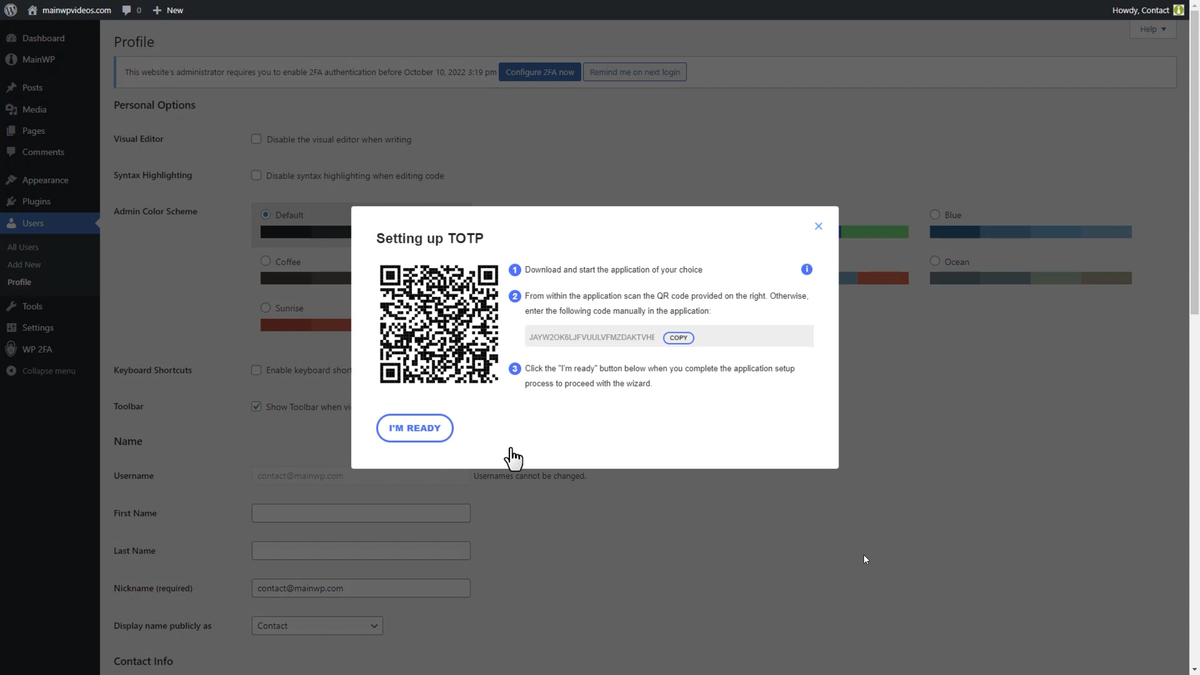
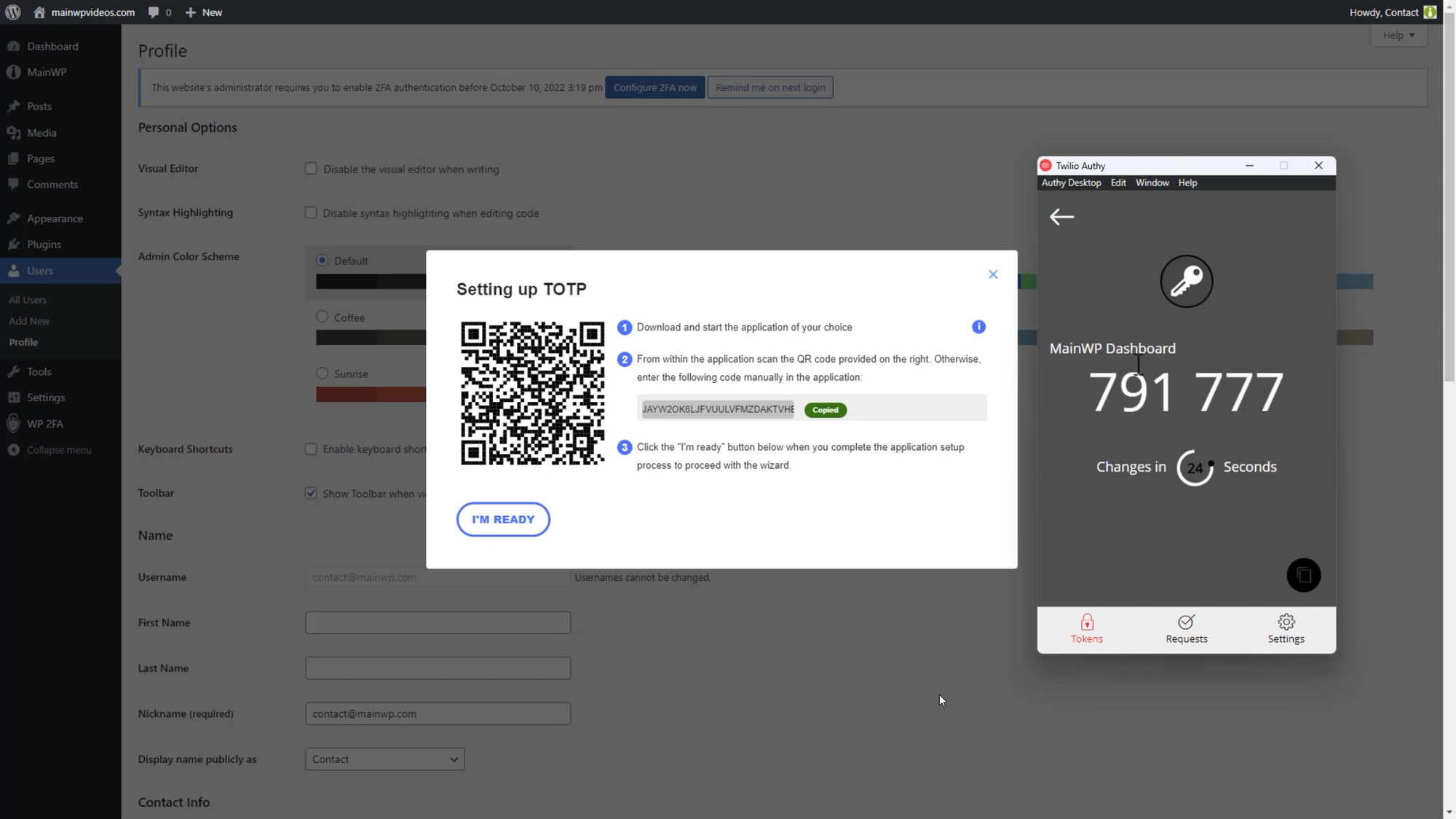
Scan the QR code or enter the code manually in your authenticator app.
Give the account a name and save. The app now generates 6-digit codes.
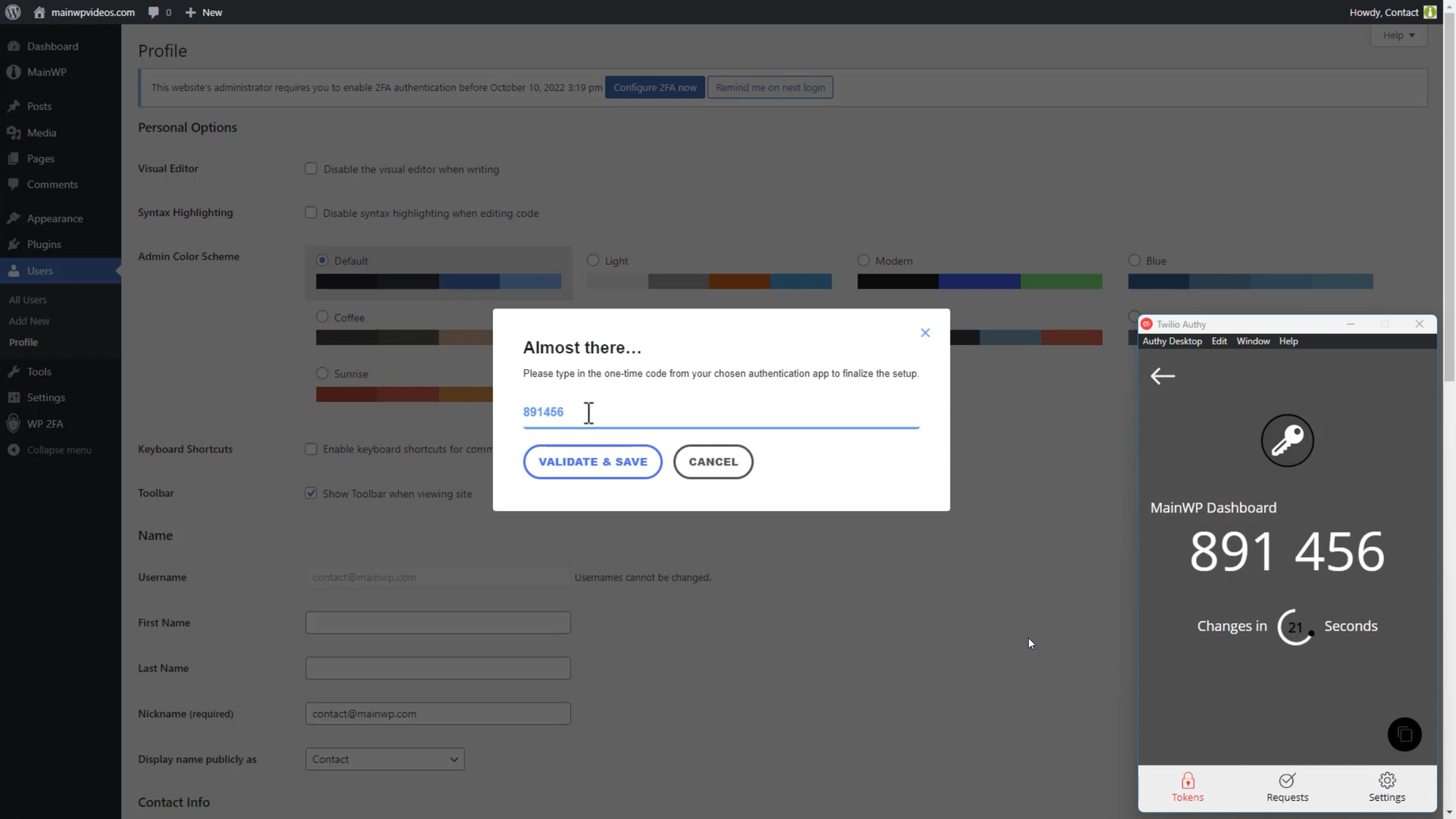
Click **I'M READY**, enter the current code from your app, and click **Validate and Save**.
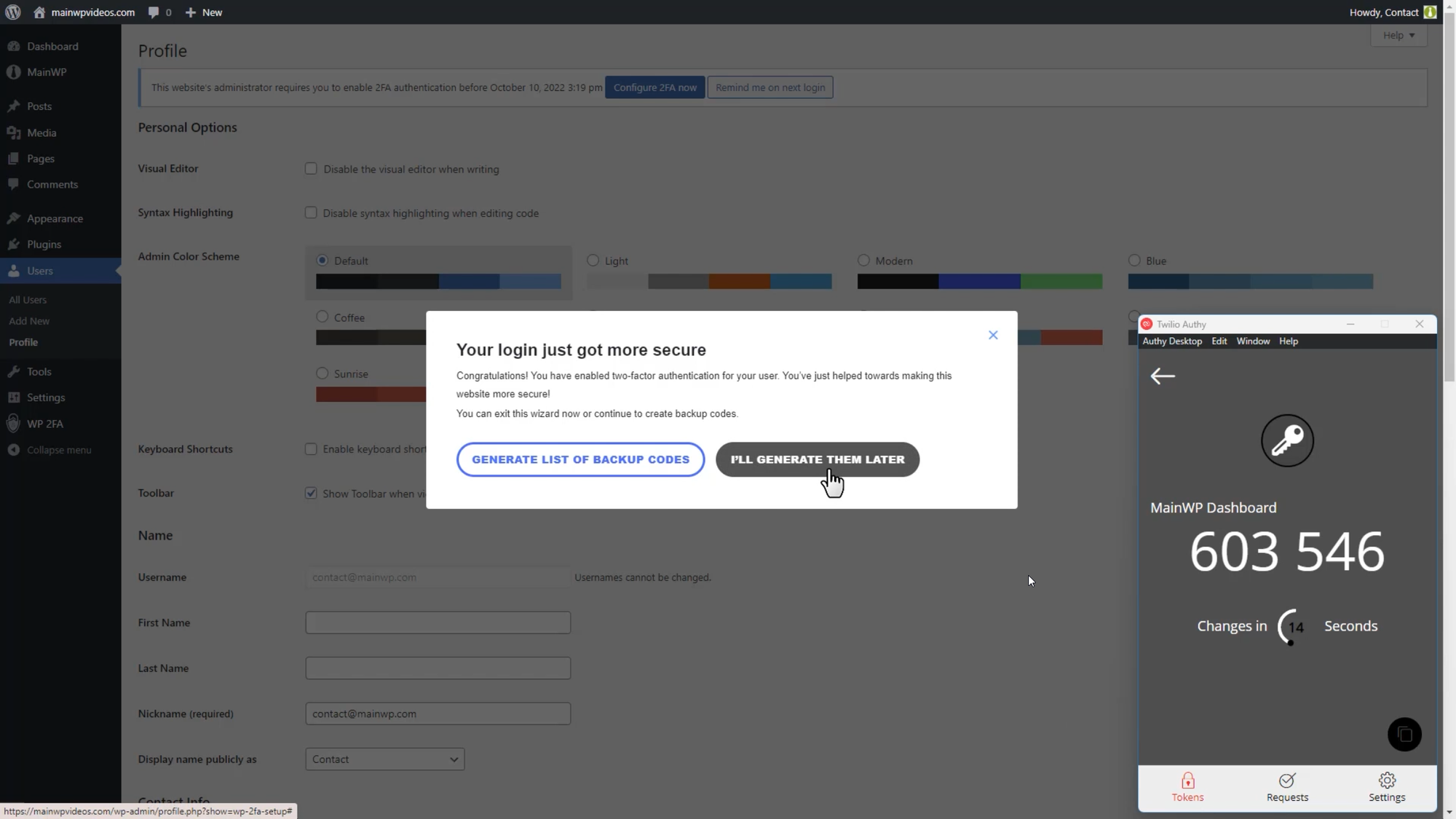
Optionally generate backup codes in case you lose access to your authenticator app.
***
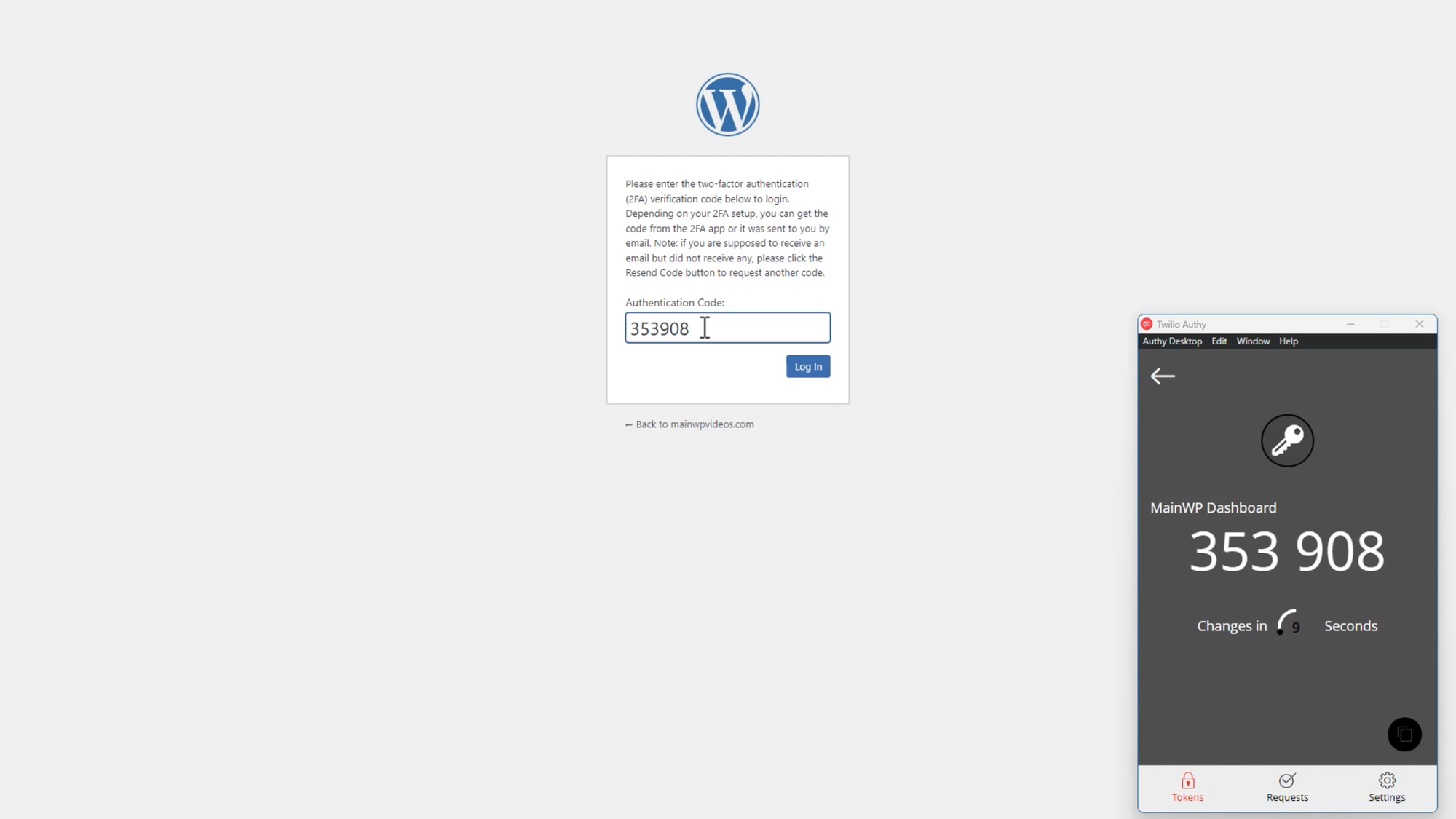
## Logging In with 2FA
After setup, the login process requires two steps:
1. Enter your username and password as usual
2. Enter the current 6-digit code from your authenticator app
***
## Self-Check Checklist
* [ ] 2FA plugin installed and activated on Dashboard
* [ ] Authentication method configured
* [ ] Authenticator app scanning completed
* [ ] Verification code validated
* [ ] Backup codes generated and stored securely
* [ ] Login tested with 2FA verification
***
## Related Resources
* [MainWP.com Account Security](/advanced/miscellaneous/mainwp-com-login-security) - 2FA for your MainWP.com account
* [MainWP Security](/getting-started/how-secure-is-the-mainwp-plugin) - Overall security architecture
* [Connection Security](/advanced/miscellaneous/mainwp-connection-security) - Dashboard-to-Child communication
 ***
## Self-Check Checklist
* [ ] 2FA plugin installed and activated on Dashboard
* [ ] Authentication method configured
* [ ] Authenticator app scanning completed
* [ ] Verification code validated
* [ ] Backup codes generated and stored securely
* [ ] Login tested with 2FA verification
***
## Related Resources
* [MainWP.com Account Security](/advanced/miscellaneous/mainwp-com-login-security) - 2FA for your MainWP.com account
* [MainWP Security](/getting-started/how-secure-is-the-mainwp-plugin) - Overall security architecture
* [Connection Security](/advanced/miscellaneous/mainwp-connection-security) - Dashboard-to-Child communication
***
## Self-Check Checklist
* [ ] 2FA plugin installed and activated on Dashboard
* [ ] Authentication method configured
* [ ] Authenticator app scanning completed
* [ ] Verification code validated
* [ ] Backup codes generated and stored securely
* [ ] Login tested with 2FA verification
***
## Related Resources
* [MainWP.com Account Security](/advanced/miscellaneous/mainwp-com-login-security) - 2FA for your MainWP.com account
* [MainWP Security](/getting-started/how-secure-is-the-mainwp-plugin) - Overall security architecture
* [Connection Security](/advanced/miscellaneous/mainwp-connection-security) - Dashboard-to-Child communication