> ## Documentation Index
> Fetch the complete documentation index at: https://docs.mainwp.com/llms.txt
> Use this file to discover all available pages before exploring further.
# Ensuring correct language for plugins after bulk Installation
> Fix plugins showing in English after bulk installation when child sites use different languages by updating translations.
After bulk installing a plugin through MainWP Dashboard, the plugin may display in English even though the child site uses a different language. This happens because translation files aren't automatically fetched during remote installation.
## What You'll Learn
* Why plugins default to English after bulk install
* How to update translations via MainWP Dashboard
* How to update translations on individual child sites
***
## Why This Happens
When you install a plugin directly on a WordPress site, translations are automatically fetched from WordPress.org:
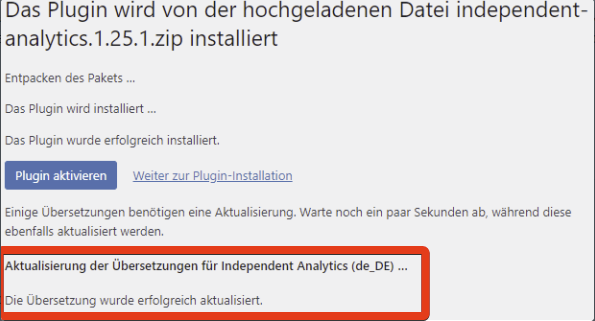 This automatic step doesn't occur when installing plugins remotely through MainWP Dashboard. The translation files must be fetched separately.
***
## Solution 1: Update Translations via MainWP
This approach updates translations for all affected sites at once.
Use MainWP Dashboard to bulk install the plugin.
After installation, sync your MainWP Dashboard to detect the new plugin.
Go to **MainWP > Updates > Translation Updates**.
Available translation updates for the newly installed plugin appear here. Apply these updates to ensure the plugin displays in the correct language on your child sites.
***
## Solution 2: Update Translations on Child Sites
Use this approach if you need to update translations for specific sites.
Install the desired plugin via MainWP.
Log into the WordPress Admin of the child site where the plugin was installed.
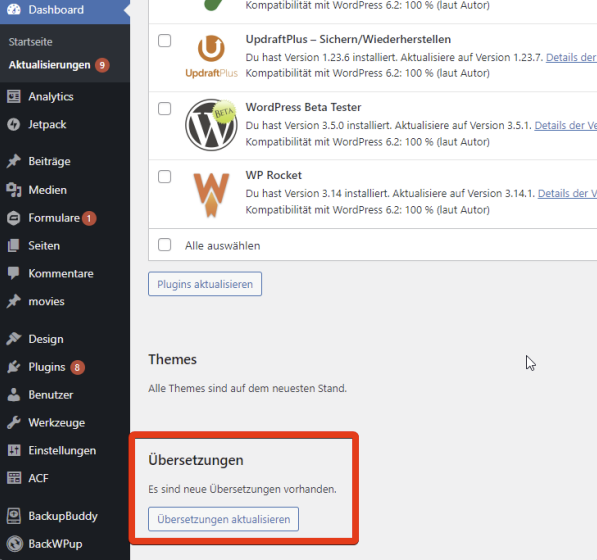
Go to **Dashboard > Updates** and update translations for plugins and themes.
This automatic step doesn't occur when installing plugins remotely through MainWP Dashboard. The translation files must be fetched separately.
***
## Solution 1: Update Translations via MainWP
This approach updates translations for all affected sites at once.
Use MainWP Dashboard to bulk install the plugin.
After installation, sync your MainWP Dashboard to detect the new plugin.
Go to **MainWP > Updates > Translation Updates**.
Available translation updates for the newly installed plugin appear here. Apply these updates to ensure the plugin displays in the correct language on your child sites.
***
## Solution 2: Update Translations on Child Sites
Use this approach if you need to update translations for specific sites.
Install the desired plugin via MainWP.
Log into the WordPress Admin of the child site where the plugin was installed.
Go to **Dashboard > Updates** and update translations for plugins and themes.
 ***
## Best Practice
After any bulk plugin installation:
1. Sync your MainWP Dashboard
2. Check **MainWP > Updates > Translation Updates**
3. Apply any available translation updates
This ensures all plugins display in the correct language immediately.
***
## Self-Check Checklist
* [ ] Plugin bulk installed via MainWP
* [ ] Dashboard synced after installation
* [ ] Translation updates checked
* [ ] Translations applied to child sites
* [ ] Plugin displaying in correct language
***
## Related Resources
* [Managing Plugins](/sites/plugins/managing-plugins-with-mainwp) - Plugin management overview
* [Manage Updates](/sites/updates/manage-updates) - Updates management
***
## Best Practice
After any bulk plugin installation:
1. Sync your MainWP Dashboard
2. Check **MainWP > Updates > Translation Updates**
3. Apply any available translation updates
This ensures all plugins display in the correct language immediately.
***
## Self-Check Checklist
* [ ] Plugin bulk installed via MainWP
* [ ] Dashboard synced after installation
* [ ] Translation updates checked
* [ ] Translations applied to child sites
* [ ] Plugin displaying in correct language
***
## Related Resources
* [Managing Plugins](/sites/plugins/managing-plugins-with-mainwp) - Plugin management overview
* [Manage Updates](/sites/updates/manage-updates) - Updates management