> ## Documentation Index
> Fetch the complete documentation index at: https://docs.mainwp.com/llms.txt
> Use this file to discover all available pages before exploring further.
# How to find the OpenSSL.cnf file
> Locate the openssl.cnf file on local development environments or web hosts using phpinfo() or checking common file paths.
The `openssl.cnf` file contains OpenSSL configuration settings used by PHP for cryptographic operations. You may need to locate this file when troubleshooting SSL-related errors or configuring MainWP's encryption features.
## What You'll Learn
* How to find the openssl.cnf file path using phpinfo()
* Common file locations for local development environments
* How to locate the file on web hosts
***
## Using phpinfo() (Recommended)
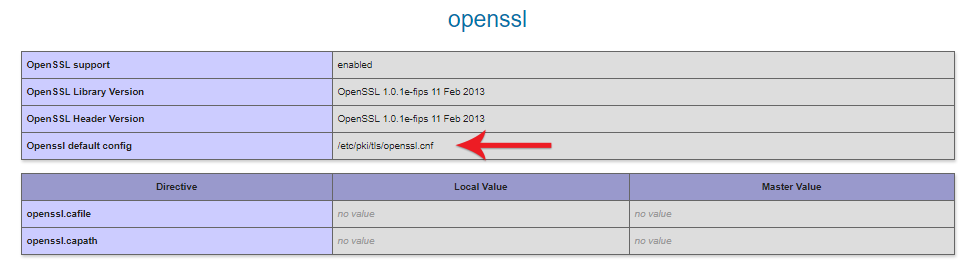
The most reliable way to find the openssl.cnf file is through PHP's info page.
Create a PHP file with `` or use your hosting control panel's PHP info tool.
Search or scroll to the **OpenSSL** settings section.
Find the **Openssl default config** row. The file path is listed there.
 ***
## Common Paths on Local Development Environments
### XAMPP (Windows)
```
C:\xampplite\apache\conf\openssl.cnf
```
If XAMPP is installed on a different drive or includes an Apache version number:
```
D:\xampplite\apache2.4.9\conf\openssl.cnf
```
### WAMP (Windows)
```
C:\wamp\bin\apache2.4.9\conf\openssl.cnf
```
The Apache version number in the path may differ:
```
D:\wamp\bin\apache2.2.1\conf\openssl.cnf
```
### MAMP (Windows/macOS)
```
C:\MAMP\bin\apache\conf\openssl.cnf
```
Or on a different drive:
```
D:\MAMP\bin\apache\conf\openssl.cnf
```
### Local by Flywheel
```
/usr/lib/ssl/openssl.cnf
```
This path is the same on macOS and Windows. To verify the current path:
1. Click the **i** icon beside the site's PHP version to open the PHP info page
2. Scroll to the **openssl** section
3. Check the value of **Openssl default config**
### Laragon (Windows)
```
C:\laragon\bin\apache\httpd-2.4.47-win64-VS16\conf\openssl.cnf
```
The Apache version number in the path (`httpd-2.4.47-win64-VS16`) varies with updates.
***
## Web Hosting Environments
On web hosts, use the phpinfo() method described above to find the exact path.
If you cannot locate the file through phpinfo(), contact your hosting provider's support team. They can provide the exact path to the openssl.cnf file on their server configuration.
***
## Self-Check Checklist
* [ ] Created phpinfo() file or accessed hosting control panel PHP info
* [ ] Located OpenSSL section in phpinfo output
* [ ] Found the Openssl default config path
* [ ] Verified the file exists at the listed path
***
## Related Resources
* [OpenSSL Key Encryption](/advanced/openssl-keys-encryption) - Private key encryption in MainWP
* [Custom Signature Algorithm](/advanced/custom-signature-algorithm-and-phpseclib-as-alternative-to-openssl) - PHPSecLib alternative to OpenSSL
***
## Common Paths on Local Development Environments
### XAMPP (Windows)
```
C:\xampplite\apache\conf\openssl.cnf
```
If XAMPP is installed on a different drive or includes an Apache version number:
```
D:\xampplite\apache2.4.9\conf\openssl.cnf
```
### WAMP (Windows)
```
C:\wamp\bin\apache2.4.9\conf\openssl.cnf
```
The Apache version number in the path may differ:
```
D:\wamp\bin\apache2.2.1\conf\openssl.cnf
```
### MAMP (Windows/macOS)
```
C:\MAMP\bin\apache\conf\openssl.cnf
```
Or on a different drive:
```
D:\MAMP\bin\apache\conf\openssl.cnf
```
### Local by Flywheel
```
/usr/lib/ssl/openssl.cnf
```
This path is the same on macOS and Windows. To verify the current path:
1. Click the **i** icon beside the site's PHP version to open the PHP info page
2. Scroll to the **openssl** section
3. Check the value of **Openssl default config**
### Laragon (Windows)
```
C:\laragon\bin\apache\httpd-2.4.47-win64-VS16\conf\openssl.cnf
```
The Apache version number in the path (`httpd-2.4.47-win64-VS16`) varies with updates.
***
## Web Hosting Environments
On web hosts, use the phpinfo() method described above to find the exact path.
If you cannot locate the file through phpinfo(), contact your hosting provider's support team. They can provide the exact path to the openssl.cnf file on their server configuration.
***
## Self-Check Checklist
* [ ] Created phpinfo() file or accessed hosting control panel PHP info
* [ ] Located OpenSSL section in phpinfo output
* [ ] Found the Openssl default config path
* [ ] Verified the file exists at the listed path
***
## Related Resources
* [OpenSSL Key Encryption](/advanced/openssl-keys-encryption) - Private key encryption in MainWP
* [Custom Signature Algorithm](/advanced/custom-signature-algorithm-and-phpseclib-as-alternative-to-openssl) - PHPSecLib alternative to OpenSSL