> ## Documentation Index
> Fetch the complete documentation index at: https://docs.mainwp.com/llms.txt
> Use this file to discover all available pages before exploring further.

# Database Updater

> MainWP Database Updater Extension is designed for updating the databases for WooCommerce and Elementor plugins. With this Extension, you can quickly update the databases of these plugins directly from inside the MainWP Dashboard.

## What You'll Learn

* Installing the Database Updater extension
* Detecting database updates for WooCommerce and Elementor
* Updating databases on all sites or individually
* Avoiding the need to access child site wp-admin

***

<div id="addon-data" style={{display: 'none'}} data-title="Database Updater" data-purchase-url="https://mainwp.com/extension/database-updater/" data-pricing-tier="pro" data-bundle="MainWP Pro" data-addon-type="extension" data-version="5.0" data-developer="MainWP" data-changelog-url="https://mainwp.com/changelog/mainwp-database-updater-extension/" data-owned-by="Jestart LLC" data-privacy-url="https://mainwp.com/mainwp-plugin-privacy-policy/" />

<Info>
  **Extension Add-on** - This add-on provides standalone functionality within MainWP Dashboard. No third-party plugins required.
</Info>

<iframe className="w-full aspect-video rounded-xl" src="https://www.youtube.com/embed/R93OoLsYJzY" title="Database Updater - Video Tutorial" frameBorder="0" allow="accelerometer; autoplay; clipboard-write; encrypted-media; gyroscope; picture-in-picture" allowFullScreen />

The Database Updater Extension detects if there are updates to WooCommerce and Elementor plugin databases. This means that you no longer need to access the wp-admin of a Child Site just to click the Update Database button for WooCommerce and Elementor.

## Install the Database Updater Extension

<Steps>
  <Step title="Go to your MainWP Dashboard" />

  <Step title="Go to the MainWP > Add-ons page" />

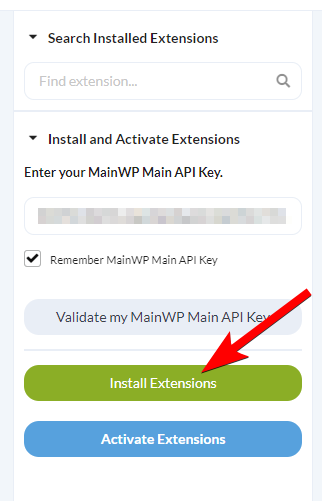
  <Step title="Click the Install Add-ons button">
    Click the **Install Add-ons** button <img src="https://mintcdn.com/mainwp/9Fi7dKBCIriTb92d/images/add-ons/2833252556cc.png?fit=max&auto=format&n=9Fi7dKBCIriTb92d&q=85&s=a8cef4a17468ae3d301a5c1e41e3fa6d" alt="MainWP Domain Monitor Extension 1" width="322" height="501" data-path="images/add-ons/2833252556cc.png" />
  </Step>

  <Step title="Locate the Database Updater extension and select it" />

  <Step title="Click the Install button" />

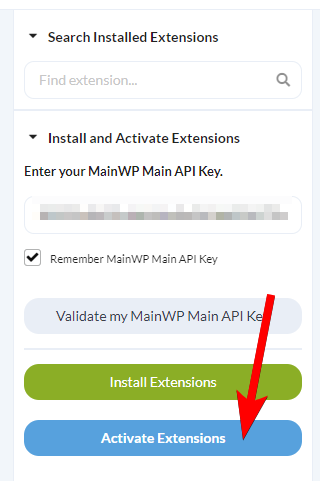
  <Step title="Once the installation process is complete, click the Activate Add-ons button.">
    Once the installation process is complete, click the **Activate Add-ons** button. <img src="https://mintcdn.com/mainwp/PMb515K3nlj7x2jI/images/add-ons/578da5c7dc89.png?fit=max&auto=format&n=PMb515K3nlj7x2jI&q=85&s=c381ceab5b9dff6da69a292b5ac0045c" alt="MainWP Domain Monitor Extension 2" width="320" height="481" data-path="images/add-ons/578da5c7dc89.png" />
  </Step>
</Steps>

## How to Update the Databases

After you've installed the extension, a new Database Updates page will appear. <img src="https://mintcdn.com/mainwp/MgeoyuksyWqkgJHX/images/add-ons/database-updater-settings.png?fit=max&auto=format&n=MgeoyuksyWqkgJHX&q=85&s=c56d1006f2e071c7cad1ffa621dba23c" alt="Database Updates page showing WooCommerce and Elementor update status" width="1783" height="875" data-path="images/add-ons/database-updater-settings.png" /> The page can be accessed by going to the **Dashboard > Updates > Database Updates** or **Dashboard > Add-ons > Database Updater** menu entry.

### Update databases on all child sites

<Steps>
  <Step title="Go to the MainWP > Updates > Database Updates page." />

  <Step title="Click the Update All button in the top right">
    <img src="https://mintcdn.com/mainwp/9Fi7dKBCIriTb92d/images/add-ons/295e9ab3a808.png?fit=max&auto=format&n=9Fi7dKBCIriTb92d&q=85&s=0e4a04cc514ad70b7039d2df301dbeea" alt="Click the Update All button in the top right" width="1198" height="218" data-path="images/add-ons/295e9ab3a808.png" />
  </Step>
</Steps>

### Update databases on individual child sites

<Steps>
  <Step title="Go to the MainWP > Updates > Database Updates page." />

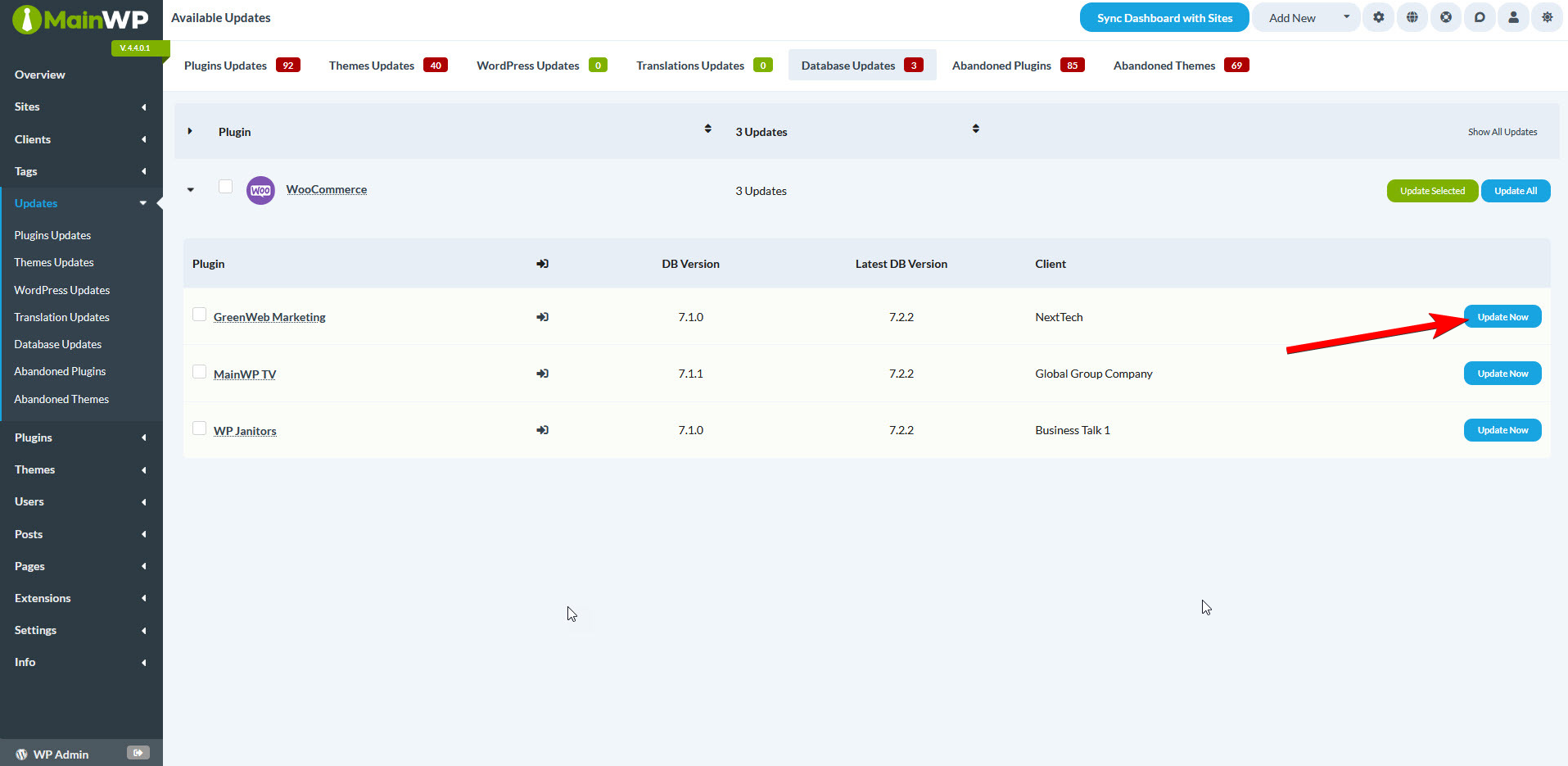
  <Step title="Expand the plugin row and locate the desired site in the table" />

  <Step title="Click the Update Now button next to the desired site">
    <img src="https://mintcdn.com/mainwp/MgeoyuksyWqkgJHX/images/add-ons/database-updater-overview.png?fit=max&auto=format&n=MgeoyuksyWqkgJHX&q=85&s=99844df5750c1dcad9b6a03956e89f3c" alt="Click the Update Now button next to the desired site" width="1915" height="935" data-path="images/add-ons/database-updater-overview.png" />
  </Step>
</Steps>

***

## Related Resources

* [Updates Add-ons](/add-ons/updates) - Browse all update tools
* [Manage Updates](/sites/updates/manage-updates) - Core update management guide
* [WooCommerce Status Extension](/add-ons/administrative/woocommerce-status-extension) - WooCommerce integration