> ## Documentation Index
> Fetch the complete documentation index at: https://docs.mainwp.com/llms.txt
> Use this file to discover all available pages before exploring further.
# Yoast SEO
> The MainWP WordPress SEO Extension simplifies the setup and management process for Yoast SEO across all of your sites and since the Extension also integrates with the Yoast SEO meta box you can customize each Post or Page then publish those custom settings to your Child sites.
## What You'll Learn
* Installing Yoast SEO on Dashboard and child sites
* Exporting and importing SEO settings templates
* Publishing posts and pages with custom SEO settings
* Managing Yoast SEO across your network
***
**Integration Add-on** - This add-on extends MainWP to work with Yoast SEO. Requires Yoast SEO to be installed on your child sites.
The [MainWP WordPress SEO Extension](https://mainwp.com/add-on/wordpress-seo/) simplifies the setup and management process for Yoast SEO across all of your sites. Since the Extension also integrates with the Yoast SEO meta box, you can customize each Post or Page then publish those custom settings to your Child sites. **Important Notes:** This Extension requires the Yoast SEO plugin to be installed on your Dashboard and Child sites to function properly.
## Install and Set the WordPress SEO Extension
Installation of the MainWP WordPress SEO Extension requires three important steps:
* Installing the Extension itself on your MainWP Dashboard site
* Installing the Yoast SEO plugin on your MainWP Dashboard site
* Installing the Yoast SEO plugin on Child Sites
### Installing the Extension
The MainWP WordPress SEO Extension needs to be installed only on your MainWP Dashboard site. You can [install it as any other MainWP Add-on.](/dashboard/overview/manage-extensions#install-extensions)
### Installing the Plugin on MainWP Dashboard Site
The Yoast SEO plugin needs to be installed on your MainWP Dashboard site. You can install it like any other WordPress plugin. For additional help with installing WordPress plugins, please review this [help document.](https://wordpress.org/documentation/article/manage-plugins/)
### Installing the Plugin on Child Sites
For the proper use of the MainWP Yoast SEO Extension, you need to install the Yoast SEO Plugin on your child sites.
### Install from MainWP Dashboard
[Select your child](/getting-started/mainwp-user-interface) sites
In the **Installation Options** box, make sure that the **Activate after installation option** is selected.
### Install directly on Child Site
For additional help with installing WordPress plugins, please review this [help document.](https://wordpress.org/documentation/article/manage-plugins/) **Important Notes:** After installing the **Yoast SEO** plugin, it is required to Synchronize your sites so your MainWP Dashboard becomes aware that the plugin has been installed and activated.
## Yoast SEO Dashboard
From the **MainWP > Add-ons > Content Operations > WordPress SEO > Yoast SEO Dashboard** page, you can monitor all of your child sites where the synced plugin inventory includes the Yoast SEO plugin. In the sites list, you will be notified if the plugin has an update available or if the plugin is deactivated.
* In case the plugin is not activated, the **Activate Plugin** action will appear in the corresponding site row.
* If there is a new version of the plugin, the **Update Plugin** action will appear in the corresponding site row.
### Available Actions
From the **MainWP > Add-ons > Content Operations > WordPress SEO > Yoast SEO Dashboard** page, you can open the child site overview, edit the child site, open the child site's WordPress admin, or open Yoast SEO on the child site. Actions are provided in a Child Site row. **Important Notes:** If you know that you have the plugin installed on a child site, but the child site doesn't appear in the list, try to re-sync your sites.
## Manage Yoast SEO Plugin Settings
The MainWP WordPress SEO Extension lets you manage Yoast SEO plugin settings on your child sites. The process of the settings management requires three steps:
1. Exporting Yoast SEO Settings from one of your Websites
2. Importing the Settings Template to your Extension
3. Saving the Template to Child Sites
### Export Yoast SEO Settings
Log in to one of your WordPress sites where you have the Yoast SEO plugin configured
Follow the [Import And Export in Yoast SEO](https://kb.yoast.com/kb/import-options-in-yoast-seo/) tutorial
### Import the Yoast SEO Settings Template to the Extension
In the **Import Template** modal:
1. Set the **Template title**
2. Set the **Template description**
3. Paste the exported settings into **Import Settings**
4. Click the **Import Settings** button
### Save Yoast SEO Settings to Child Sites
[Select your Child Sites](/getting-started/mainwp-user-interface)
## Publishing Posts and Pages with your SEO Settings
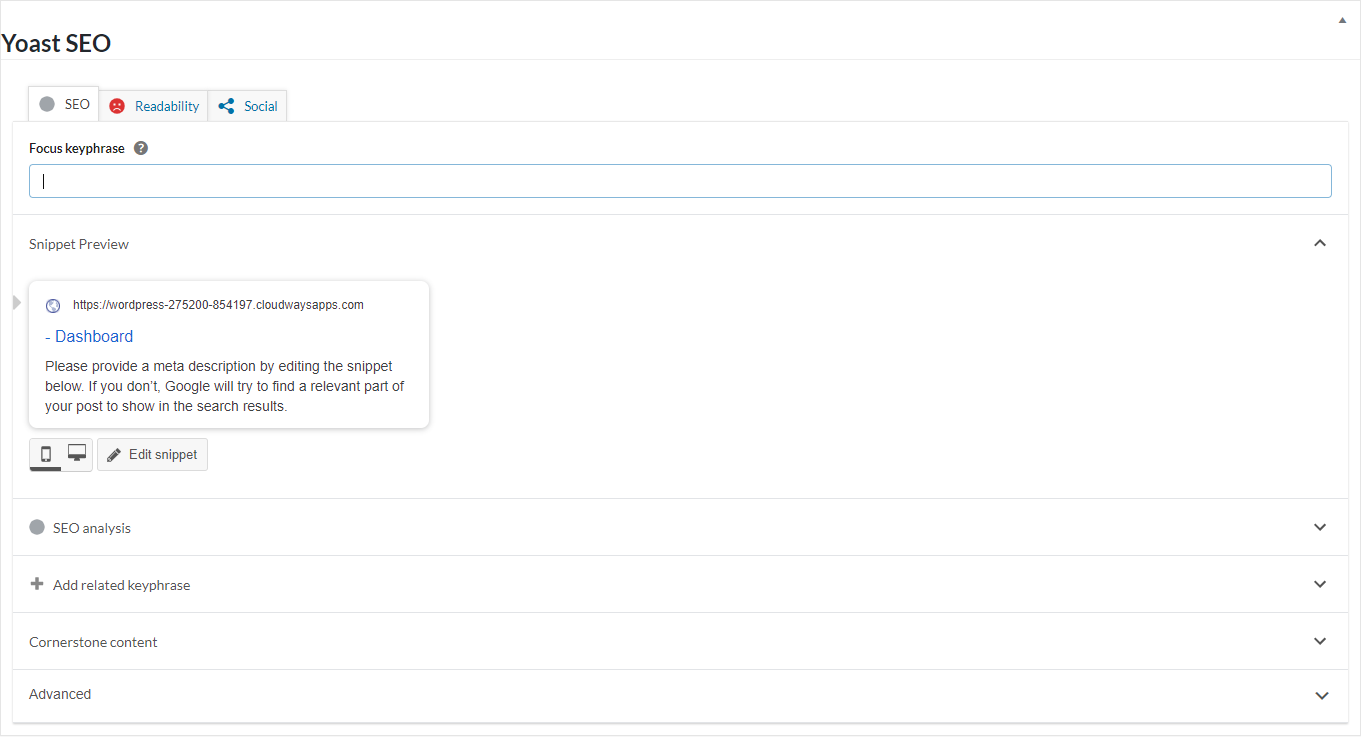
Once the WordPress SEO Extension and Yoast SEO plugin are installed on your MainWP Dashboard, the Yoast SEO meta box is available in the Add New Post and Add New Page screens. From there, you can publish your custom SEO settings along with the post content.
### Publish Posts with Custom SEO Settings
[Select your child sites](/getting-started/mainwp-user-interface)
 ### Publish Pages with Custom SEO Settings
[Select your child sites](/getting-started/mainwp-user-interface)
***
## Related Resources
* [Posts/Pages Add-ons](/add-ons/posts-pages) - Browse all content tools
* [SEOPress Extension](/add-ons/posts-pages/seopress-extension) - Alternative SEO integration
* [Manage Posts](/sites/content/manage-posts) - Post management guide
### Publish Pages with Custom SEO Settings
[Select your child sites](/getting-started/mainwp-user-interface)
***
## Related Resources
* [Posts/Pages Add-ons](/add-ons/posts-pages) - Browse all content tools
* [SEOPress Extension](/add-ons/posts-pages/seopress-extension) - Alternative SEO integration
* [Manage Posts](/sites/content/manage-posts) - Post management guide