> ## Documentation Index
> Fetch the complete documentation index at: https://docs.mainwp.com/llms.txt
> Use this file to discover all available pages before exploring further.
# Termageddon
> Termageddon for MainWP allows you to create Privacy Policy, Terms of Service, Disclaimer, and Cookie Policy & Consent Tool pages on your Child Sites.
## What You'll Learn
* Installing and linking Termageddon with your API key
* Creating policy pages (Privacy Policy, Terms of Service, Disclaimer, Cookie Policy & Consent Tool)
* Editing and deleting policy pages
* Linking sites to Policy Sets for status monitoring
***
**Integration Add-on** - This add-on extends MainWP to work with the Termageddon API. It requires a Termageddon account and API key.
Termageddon for MainWP is a free Integration Add-on developed by Termageddon. Using this add-on, you can create and manage Termageddon policy pages for your Child Sites from your MainWP Dashboard. The add-on also checks Termageddon policy set statuses so you can see when a linked policy set requires action.
## Setting up the extension
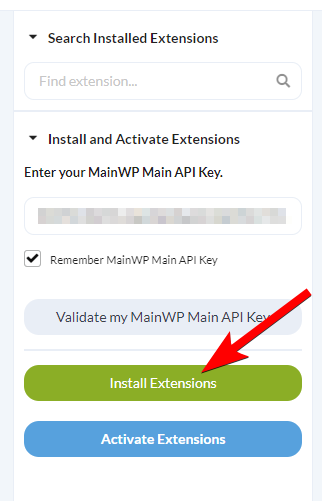
Click the **Install Add-ons** button
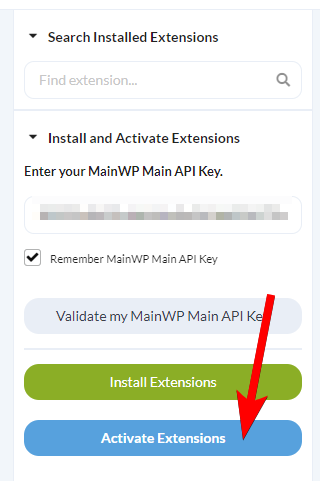
Once the installation process is complete, click the **Activate Add-ons** button.
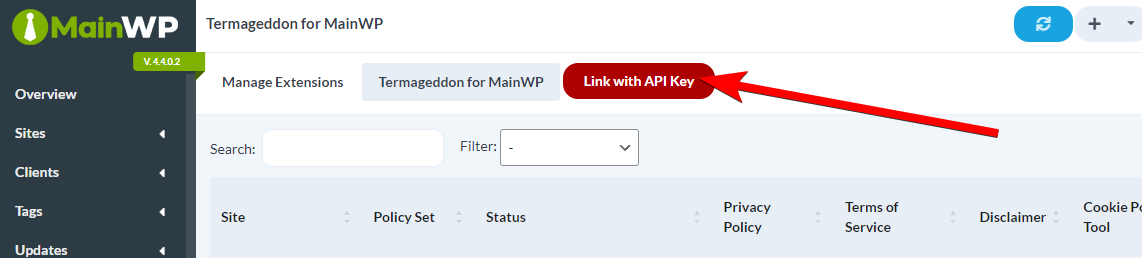
Click the **Link with API Key** button, enter the API key generated in your [Termageddon Dashboard](https://app.termageddon.com/settings), and click **Save API Key**.
## How to create Termageddon Policy Pages
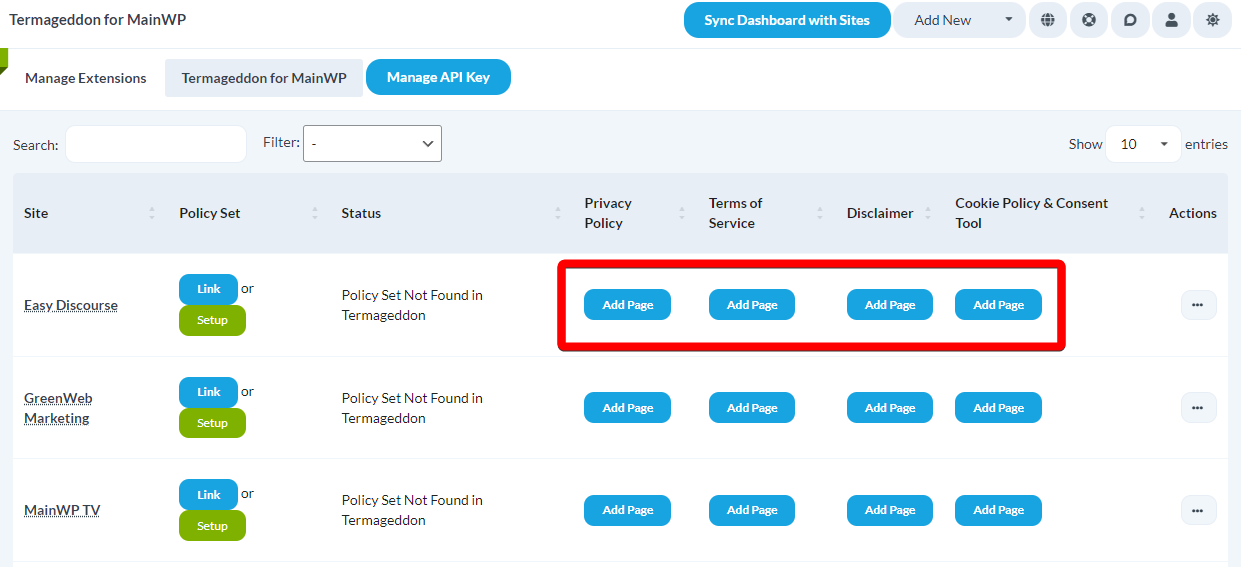
Click the **Add Page** button in the appropriate Column.
**NOTE:** Termageddon currently supports Privacy Policy, Terms of Service, Disclaimer and Cookie Policy & Consent Tool.
1. Enter the title for the desired page
2. Paste in the **Termageddon Embed Code** copied from your Termageddon account
3. Review the rest of the page options, and when ready, click the **Publish** button
## How to edit or delete a Policy Page
After you've created a policy page, the Add Page button will become **Edit Page**. Simply click it to **edit** an existing policy page. To delete policy pages, select the **Delete \[policy type]** action from the ellipsis menu next to a desired policy page, and confirm the deletion.
## Link a child site to a Policy Set
After you've created a Policy Set on Termageddon Dashboard, you can link a Child Site to that Policy Set.
The benefit of linking a child site to the Policy Set is that you will get notified in the **Termageddon for MainWP** extension, in the **Status** column, if an action is required (Statuses: ***Update Required, Incomplete, Pending Invite***).
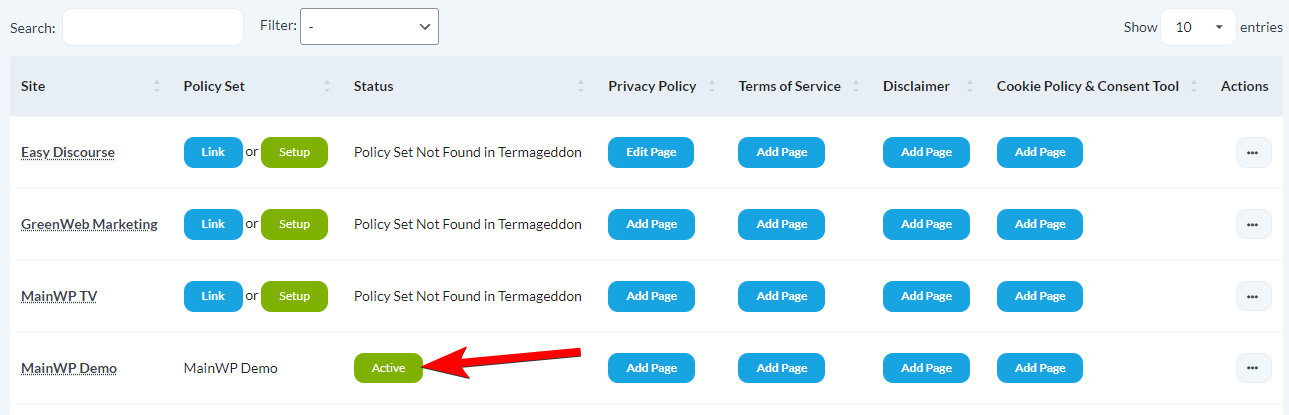
If there are no actions required, the Status will display **Active**.
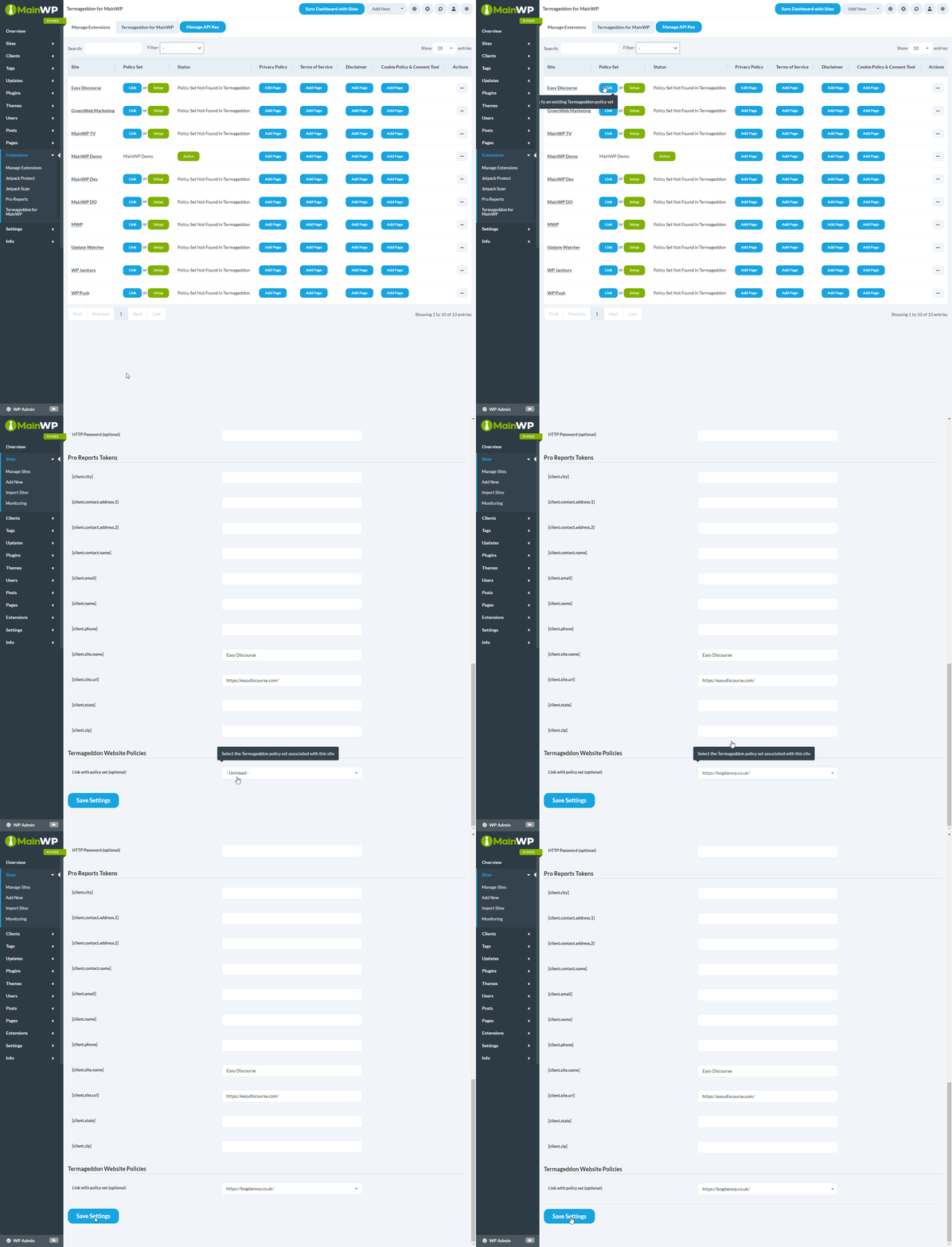
To link a site, click the **Link** button in the **Policy Set** column. MainWP opens the Child Site edit screen at the **Termageddon Website Policies** section. Select a Policy Set from the **Link with policy set (optional)** dropdown menu, and then click the **Save Settings** button.
## Filter Sites
The "Filter" option allows you to filter your Child Sites based on the below statuses:
* Active
* Update Required
* Incomplete
* Pending Invite
**NOTE:** A child site needs to be linked to a Policy Set, as explained in the chapter above, in order to have **Status** info.
***
## Related Resources
* [Posts/Pages Add-ons](/add-ons/posts-pages) - Browse all content tools
* [Manage Pages](/sites/content/manage-pages) - Page management guide
* [White Label Extension](/add-ons/agency/white-label-extension) - Customize branding for clients
 1. Enter the title for the desired page
2. Paste in the **Termageddon Embed Code** copied from your Termageddon account
3. Review the rest of the page options, and when ready, click the **Publish** button
1. Enter the title for the desired page
2. Paste in the **Termageddon Embed Code** copied from your Termageddon account
3. Review the rest of the page options, and when ready, click the **Publish** button 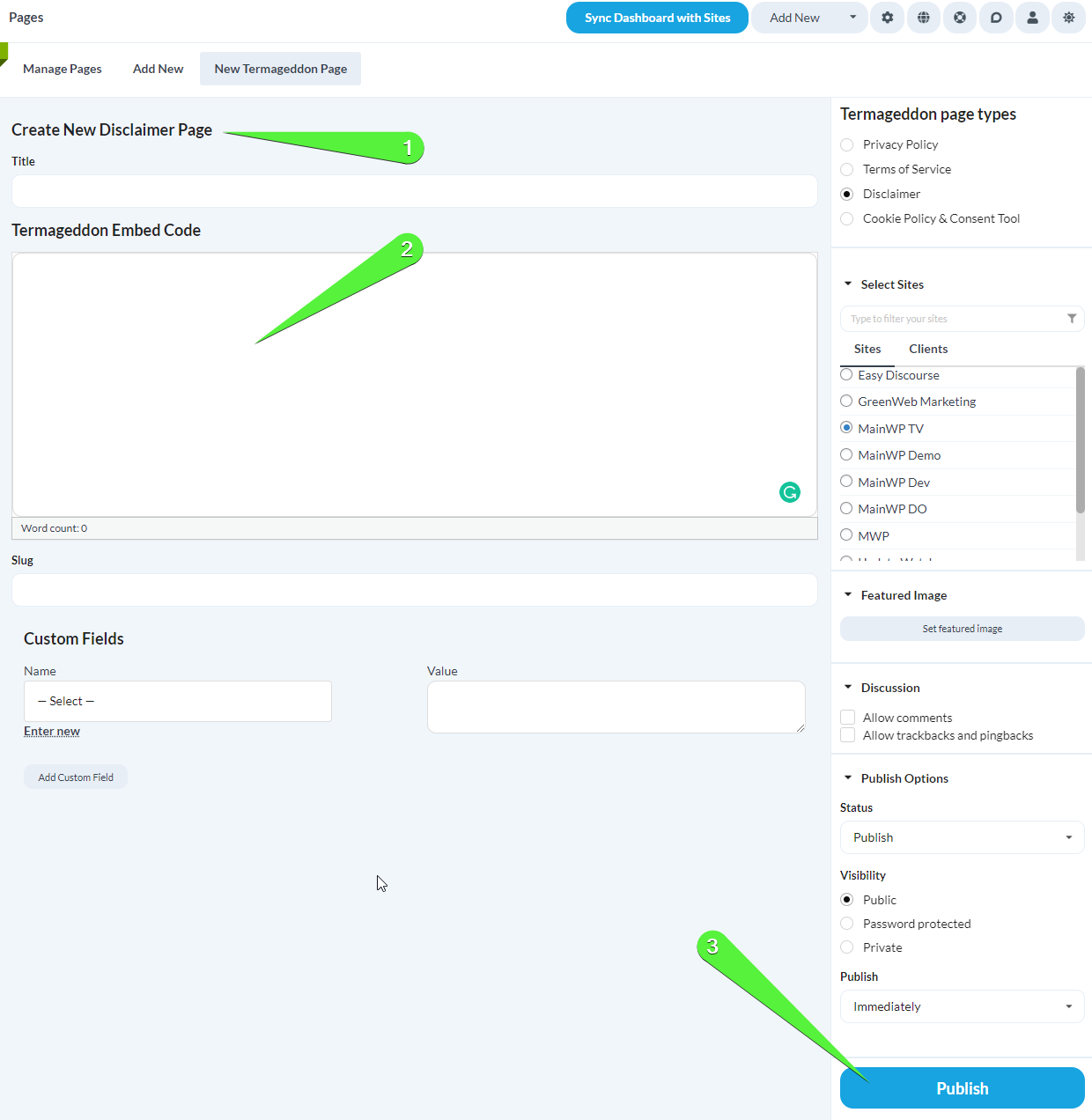
 To delete policy pages, select the **Delete \[policy type]** action from the ellipsis menu next to a desired policy page, and confirm the deletion.
  ## Link a child site to a Policy Set
After you've created a Policy Set on Termageddon Dashboard, you can link a Child Site to that Policy Set.
The benefit of linking a child site to the Policy Set is that you will get notified in the **Termageddon for MainWP** extension, in the **Status** column, if an action is required (Statuses: ***Update Required, Incomplete, Pending Invite***).
If there are no actions required, the Status will display **Active**.
## Link a child site to a Policy Set
After you've created a Policy Set on Termageddon Dashboard, you can link a Child Site to that Policy Set.
The benefit of linking a child site to the Policy Set is that you will get notified in the **Termageddon for MainWP** extension, in the **Status** column, if an action is required (Statuses: ***Update Required, Incomplete, Pending Invite***).
If there are no actions required, the Status will display **Active**.
 To link a site, click the **Link** button in the **Policy Set** column. MainWP opens the Child Site edit screen at the **Termageddon Website Policies** section. Select a Policy Set from the **Link with policy set (optional)** dropdown menu, and then click the **Save Settings** button.
 ## Filter Sites
The "Filter" option allows you to filter your Child Sites based on the below statuses:
* Active
* Update Required
* Incomplete
* Pending Invite
**NOTE:** A child site needs to be linked to a Policy Set, as explained in the chapter above, in order to have **Status** info.
## Filter Sites
The "Filter" option allows you to filter your Child Sites based on the below statuses:
* Active
* Update Required
* Incomplete
* Pending Invite
**NOTE:** A child site needs to be linked to a Policy Set, as explained in the chapter above, in order to have **Status** info.  ***
## Related Resources
* [Posts/Pages Add-ons](/add-ons/posts-pages) - Browse all content tools
* [Manage Pages](/sites/content/manage-pages) - Page management guide
* [White Label Extension](/add-ons/agency/white-label-extension) - Customize branding for clients
***
## Related Resources
* [Posts/Pages Add-ons](/add-ons/posts-pages) - Browse all content tools
* [Manage Pages](/sites/content/manage-pages) - Page management guide
* [White Label Extension](/add-ons/agency/white-label-extension) - Customize branding for clients