> ## Documentation Index
> Fetch the complete documentation index at: https://docs.mainwp.com/llms.txt
> Use this file to discover all available pages before exploring further.
# SEOPress
> The SEOPress for MainWP is a free extension that allows you to manage the SEO parameters of all connected Child Sites on which you have installed the SEOPress plugin. Requires SEOPress Free 5.9+; SEOPress PRO 5.9+ is optional.
## What You'll Learn
* Installing the SEOPress extension on MainWP Dashboard
* Managing SEO settings on individual child sites
* Applying global SEO settings across multiple sites
* Exporting and importing configurations between sites
***
The SEOPress for MainWP is a free extension that allows you to manage the SEO parameters of all connected Child Sites on which you have installed the SEOPress plugin. SEOPress Free must be installed and activated on your MainWP Dashboard site and at least one Child Site. SEOPress PRO is optional, but if you use it, it must also be installed and activated on the Dashboard site and at least one Child Site. The minimum supported versions are:
* SEOPress Free on the MainWP Dashboard and at least one Child Site (5.9+)
* SEOPress PRO on the MainWP Dashboard and at least one Child Site (5.9+, optional)
* MainWP Dashboard (4.2.7+)
* MainWP Child on at least one Child Site (4.2.6+)
## Install SEOPress Extension on MainWP Dashboard
The SEOPress extension is available on the WordPress repository. Installing it is just like installing a regular plugin.
1. From inside the wp-admin of your MainWP Dashboard, navigate to **Plugins -> Add New**.
2. Search for “**SEOPress for MainWP**”.
3. Install and Activate the plugin.
4. Get into your MainWP Dashboard, navigate to **Add-ons -> Posts/Pages -> SEOPress**, and start using it. 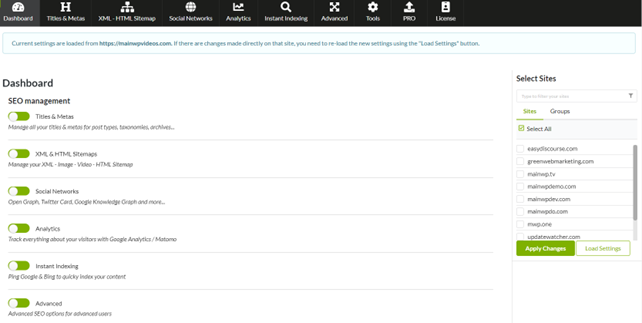 ## Manage Settings on One Child Site
From the MainWP Dashboard, navigate to **Add-ons -> Posts/Pages -> SEOPress**.
Select exactly one Child Site in the site selector and click **Load Settings**.
Your new settings will be applied to the selected Child Site.
## Manage SEOPress Global Settings on Selected Child Sites
From the MainWP Dashboard, navigate to **Add-ons -> Posts/Pages -> SEOPress**.
Your new settings will be applied to all the selected Child Sites.
## Export a Configuration from One Child Site and Import It to Selected Child Sites
From the MainWP Dashboard, navigate to **Add-ons -> Posts/Pages -> SEOPress -> Tools**.
The selected Child Sites will receive the imported settings.
***
## Related Resources
* [Yoast SEO Extension](/add-ons/posts-pages/yoast-seo-extension) - Alternative SEO management extension
* [Posts/Pages Add-ons](/add-ons/posts-pages) - Browse content management add-ons
## Manage Settings on One Child Site
From the MainWP Dashboard, navigate to **Add-ons -> Posts/Pages -> SEOPress**.
Select exactly one Child Site in the site selector and click **Load Settings**.
Your new settings will be applied to the selected Child Site.
## Manage SEOPress Global Settings on Selected Child Sites
From the MainWP Dashboard, navigate to **Add-ons -> Posts/Pages -> SEOPress**.
Your new settings will be applied to all the selected Child Sites.
## Export a Configuration from One Child Site and Import It to Selected Child Sites
From the MainWP Dashboard, navigate to **Add-ons -> Posts/Pages -> SEOPress -> Tools**.
The selected Child Sites will receive the imported settings.
***
## Related Resources
* [Yoast SEO Extension](/add-ons/posts-pages/yoast-seo-extension) - Alternative SEO management extension
* [Posts/Pages Add-ons](/add-ons/posts-pages) - Browse content management add-ons