> ## Documentation Index
> Fetch the complete documentation index at: https://docs.mainwp.com/llms.txt
> Use this file to discover all available pages before exploring further.
# Post Dripper
> MainWP Post Dripper Extension allows you to deliver posts or pages to your network of sites over a pre-scheduled period of time.
## What You'll Learn
* Understanding how post dripping works
* Creating drip sessions for posts and pages
* Canceling active drip sessions
* Using Post Dripper with Boilerplate content
***
**Extension Add-on** - This add-on provides standalone functionality within MainWP Dashboard. No third-party plugins required.
[MainWP Post Dripper Extension](https://mainwp.com/add-on/post-dripper/) allows you to deliver posts or pages to your child sites over a pre-scheduled period of time. The Extension allows you to drip:
* Posts
* Pages
* Boilerplate Posts **(only if the [Boilerplate Extension](https://mainwp.com/add-on/boilerplate/) is installed and activated)**
* Boilerplate Pages **(only if the [Boilerplate Extension](https://mainwp.com/add-on/boilerplate/) is installed and activated)**
## How it Works
Post Dripper Extension allows you to set how many selected sites receive the content at each interval. The Extension will post to all selected child sites. Once the Post/Page is published on all selected sites, the drip session ends. It will never publish the same content to one child site multiple times.
### Example 1
Publish this post to 1 site every 1 day (20 child sites selected)
* Day 1: the article gets published on one selected child site
* Day 2: the article gets published on another selected child site
* Day 3: the article gets published on another selected child site
* ...
* Day 20: the article gets published on the final selected child site
### Example 2
Publish this post to 3 sites every 2 days (20 child sites selected)
* Day 1: the article gets published on 3 selected child sites
* Day 2: nothing gets published
* Day 3: the article gets published on another 3 selected child sites
* Day 4: nothing gets published
* Day 5: the article gets published on another 3 selected child sites
* Day 6: nothing gets published
* ...
* Day 13: the article gets published on the final 2 selected child sites
### Example 3
Publish this post to 5 sites every 1 week (20 child sites selected)
* Day 1: the article gets published on 5 selected child sites
* Day 2: nothing gets published
* Day 3: nothing gets published
* Day 4: nothing gets published
* Day 5: nothing gets published
* Day 6: nothing gets published
* Day 7: nothing gets published
* Day 8: the article gets published on another 5 selected child sites
* Day 9: nothing gets published
* Day 10: nothing gets published
* Day 11: nothing gets published
* Day 12: nothing gets published
* Day 13: nothing gets published
* Day 14: nothing gets published
* Day 15: the article gets published on another 5 selected child sites
* ...
* Day 22: the article gets published on the final 5 selected child sites
#### Important Notes
Post Dripper runs through the `mainwp_post_dripper_cronposting` scheduled event. If you rely on WordPress cron, keep **MainWP Dashboard > Settings > Advanced Settings > Use WP Cron** enabled and make sure your MainWP Dashboard site receives regular cron triggers.
## Cancel a Drip Session
### Cancel Post Drip Session
Click the **Cancel Drip** action ### Cancel Page Drip Session
## Create a Drip Session
### Drip Posts
Set your [post content and meta fields](/sites/content/manage-posts)
Locate the Post Dripper section
### Cancel Page Drip Session
## Create a Drip Session
### Drip Posts
Set your [post content and meta fields](/sites/content/manage-posts)
Locate the Post Dripper section 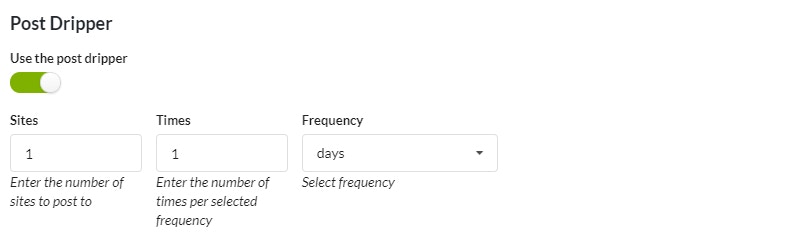 1. Select the **Use the post dripper** option
2. Set dripper preferences
[Select your child sites](/getting-started/mainwp-user-interface)
### Drip Pages
Set your [page content and meta fields](/sites/content/manage-pages)
Locate the Post Dripper section
1. Select the **Use the post dripper** option
2. Set dripper preferences
[Select your child sites](/getting-started/mainwp-user-interface)
### Drip Boilerplate Posts
Set your [boilerplate post content and meta fields](/add-ons/posts-pages/boilerplate-extension)
Locate the Post Dripper section
1. Select the **Use the post dripper** option
2. Set dripper preferences
[Select your child sites](/getting-started/mainwp-user-interface)
### Drip Boilerplate Pages
Set your [boilerplate page content and meta fields](/add-ons/posts-pages/boilerplate-extension#create-a-boilerplate-page)
Locate the Post Dripper section
1. Select the **Use the post dripper** option
2. Set dripper preferences
[Select your child sites](/getting-started/mainwp-user-interface)
## Related Resources
* [Posts/Pages Add-ons](/add-ons/posts-pages) - Browse all content tools
* [Boilerplate Extension](/add-ons/posts-pages/boilerplate-extension) - Create reusable content
* [Manage Posts](/sites/content/manage-posts) - Post management guide
1. Select the **Use the post dripper** option
2. Set dripper preferences
[Select your child sites](/getting-started/mainwp-user-interface)
### Drip Pages
Set your [page content and meta fields](/sites/content/manage-pages)
Locate the Post Dripper section
1. Select the **Use the post dripper** option
2. Set dripper preferences
[Select your child sites](/getting-started/mainwp-user-interface)
### Drip Boilerplate Posts
Set your [boilerplate post content and meta fields](/add-ons/posts-pages/boilerplate-extension)
Locate the Post Dripper section
1. Select the **Use the post dripper** option
2. Set dripper preferences
[Select your child sites](/getting-started/mainwp-user-interface)
### Drip Boilerplate Pages
Set your [boilerplate page content and meta fields](/add-ons/posts-pages/boilerplate-extension#create-a-boilerplate-page)
Locate the Post Dripper section
1. Select the **Use the post dripper** option
2. Set dripper preferences
[Select your child sites](/getting-started/mainwp-user-interface)
## Related Resources
* [Posts/Pages Add-ons](/add-ons/posts-pages) - Browse all content tools
* [Boilerplate Extension](/add-ons/posts-pages/boilerplate-extension) - Create reusable content
* [Manage Posts](/sites/content/manage-posts) - Post management guide