> ## Documentation Index
> Fetch the complete documentation index at: https://docs.mainwp.com/llms.txt
> Use this file to discover all available pages before exploring further.
# Article Uploader
> The MainWP Article Uploader Extension allows you to bulk upload articles to your MainWP Dashboard and publish them to child sites. You can upload separate TXT files or import articles from custom-formatted TXT or CSV files.
## What You'll Learn
* Uploading articles from TXT files
* Importing articles from CSV files
* CSV file format and structure
* Publishing imported content to sites
***
**Extension Add-on** - This add-on provides standalone functionality within MainWP Dashboard. No third-party plugins required.
The MainWP Article Uploader Extension allows you to bulk upload articles to your MainWP Dashboard and publish them to child sites. You can upload separate TXT files or import articles from custom-formatted TXT or CSV files.
## Upload Method
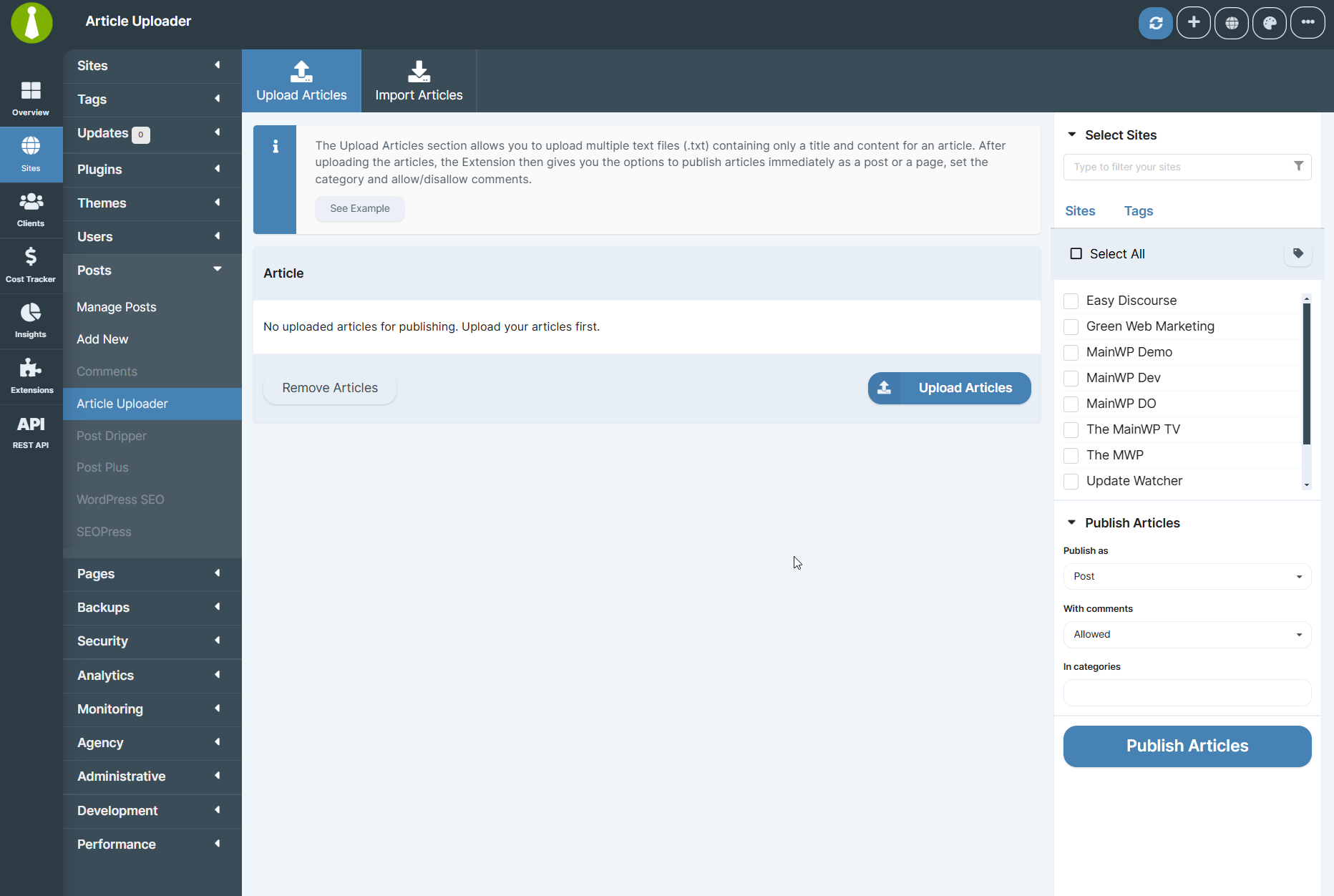
The Upload Articles section allows you to upload multiple text files (.txt) containing only a title and content for an article. After uploading the articles, the Extension gives you the option to publish articles immediately as a post or a page, set the category, and allow/disallow comments.
## Import Method
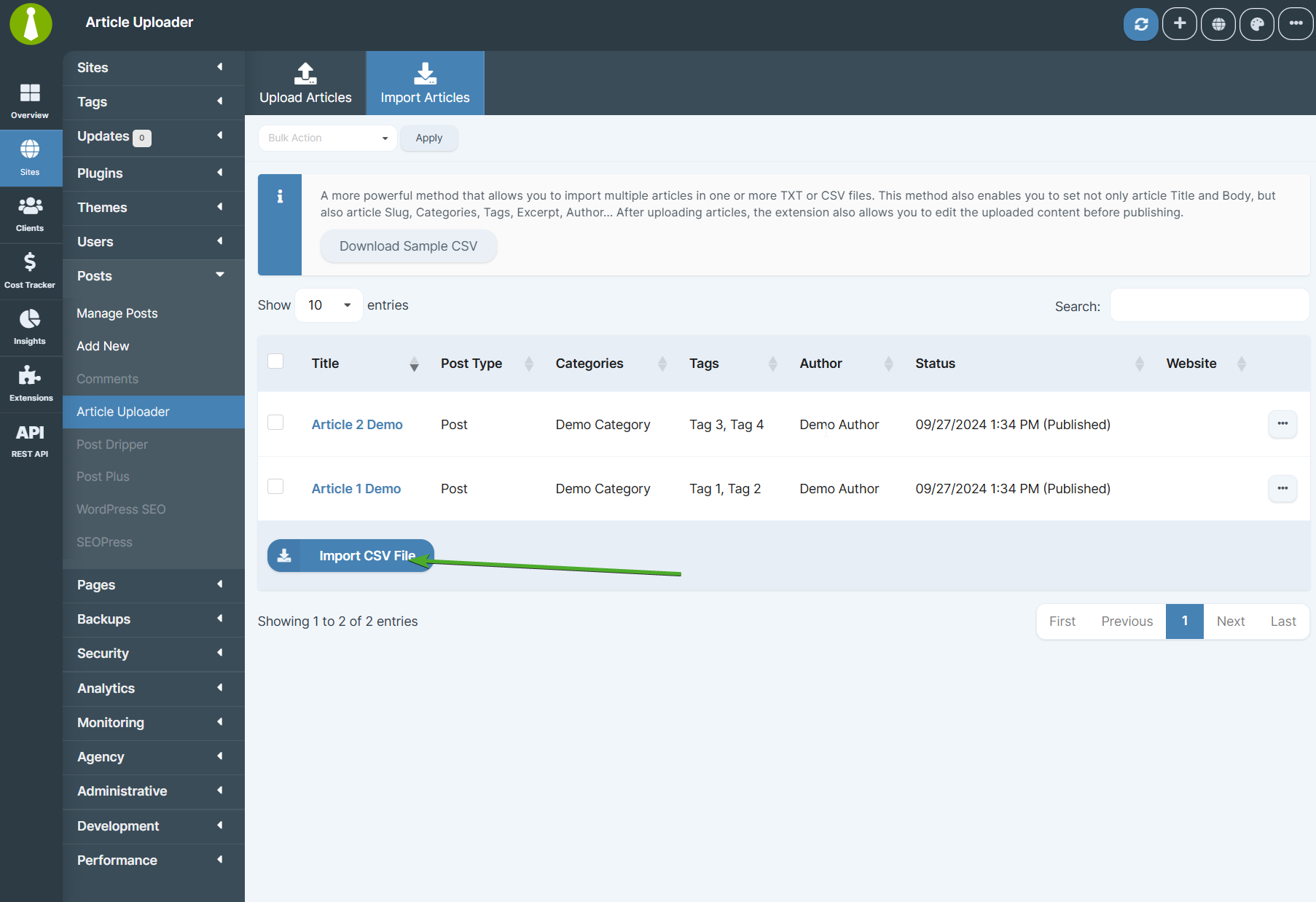
A more powerful method allows you to import multiple articles in one or more TXT or CSV files. This method also enables you to set not only article Title and Body but also article Slug, Categories, Tags, Excerpt, Author, Status, and selected Sites. After importing articles, the Extension also allows you to edit the uploaded content before publishing.
## Upload Articles
Go to **Sites > Content Operations > Article Uploader > Upload Articles**.
After clicking the **Upload Articles** button, the new options will enable you to **Publish, Edit, or Delete** uploaded articles.
### Manage Articles After Uploading
After a successful upload,
### Publish Articles
[Select child sites](/getting-started/mainwp-user-interface) where you want to publish the articles.
### Edit Articles
## Import Articles
Go to **Sites > Content Operations > Article Uploader > Import Articles**.
After clicking the **Import Articles** button, the imported articles table provides options to **Publish, Edit, or Delete** imported articles.
### Manage Articles After Importing
After successful import, the extension will show you the imported articles so you can continue the process.
### Publish Articles
Use the Publish action under an Article Title or select multiple articles and use the Publish action from the bulk actions menu.
### Edit Articles
## Formatting the CSV File for Importing Articles
The CSV file used for importing articles has custom formatting. It may be different than what you're used to, so please check the sample. **This CSV file doesn't have tabular data and uses custom tags to detect errors.** The tag begins at the line start, and everything added next to it will be used as its value, please see the example below. We highly recommend editing this file in a Notepad-like application or a code editor. For each article, you can set:
* TITLE
* POST TYPE
* AUTHOR
* CATEGORIES
* TAGS
* SLUG
* BODY
* EXCERPT
* STATUS
* ALLOW COMMENTS
* ALLOW PINGBACKS
* SITES
* CUSTOM fields using `CUSTOM_: `
Categories, Tags, and Sites can contain multiple values. Separate values with a comma. The special token for creating an import file is **\[NEW].** After you set one article, under it, add the \[NEW] tag, and you can start another article inside the same CSV file.
### CSV Example
Here is an example of the MainWP Article Uploader CSV file contents with three articles:
TITLE: Article Demo Title 1
POST TYPE: post
AUTHOR: Demo Author
CATEGORIES: Category 1, Category 2, Category 3
TAGS: Tag 1, Tag 2
SLUG: demo-article-slug
EXCERPT: Donec dignissim et erat et feugiat. Pellentesque vestibulum ultricies nunc
vel sollicitudin. Pellentesque consectetur at neque ut suscipit.
Morbi eleifend arcu at erat rhoncus placerat.
BODY: Donec dignissim et erat et feugiat. Pellentesque vestibulum ultricies nunc
vel sollicitudin. Pellentesque consectetur at neque ut suscipit.
Morbi eleifend arcu at erat rhoncus placerat. Vestibulum quam eros,
rutrum ac lorem in, pulvinar ornare metus. Aliquam bibendum malesuada augue,
vitae consectetur lorem dictum vitae. Aenean tempor viverra euismod.
Phasellus eget eros id ante condimentum iaculis.
Nam in est luctus, congue risus in, consequat dolor. Vestibulum lectus sem,
dictum semper augue eu, laoreet bibendum massa. In vitae elit diam.
Nulla sit amet odio risus. Suspendisse sem est, placerat sed leo vel,
vestibulum sagittis ante. Phasellus bibendum lacus tortor, non lacinia
augue rutrum a. In ipsum mi, faucibus eget rutrum id, facilisis non velit.
Proin congue pharetra orci, at suscipit turpis eleifend ut.
ALLOW COMMENTS: 0
ALLOW PINGBACKS: 0
SITES: all
\[NEW]
TITLE: Article Demo Title 2
POST TYPE: post
AUTHOR: Author 2
CATEGORIES: category1, category2, category3
TAGS: tag1, tag2, tag3
SLUG: demo-article-slug
EXCERPT: Lorem ipsum dolor sit amet, consectetur adipiscing elit. Suspendisse eget lorem eu purus gravida consequat.
Integer cursus arcu ipsum, mollis volutpat dolor adipiscing vel. Quisque ornare
orci non vehicula lobortis.
BODY: Lorem ipsum dolor sit amet, consectetur adipiscing elit. Suspendisse eget lorem eu purus gravida consequat.
Integer cursus arcu ipsum, mollis volutpat dolor adipiscing vel. Quisque ornare
orci non vehicula lobortis. Quisque eget turpis vitae nisi condimentum fringilla
non vel ligula. Nam eget ornare velit. Integer tortor neque, tincidunt et convallis eu, cursus in risus.
Vivamus ornare sagittis leo non fermentum. Fusce molestie, erat vel interdum iaculis, enim libero viverra ipsum,
porttitor luctus velit mi ut diam. Sed sit amet magna arcu.
Cum sociis natoque penatibus et magnis dis parturient montes, nascetur ridiculus mus.
Proin faucibus tincidunt sapien, eu aliquam augue.
ALLOW COMMENTS: 1
ALLOW PINGBACKS: 0
SITES: [http://childsite1.com](http://childsite1.com), [http://childsite2.com](http://childsite2.com), [http://childsite3.com](http://childsite3.com)
\[NEW]
TITLE: Article Demo Title 3
POST TYPE: page
AUTHOR: admin
TAGS:
SLUG: about-us
EXCERPT:
BODY: Nullam mollis justo tempus est fringilla suscipit. Ut suscipit arcu nec turpis pharetra,
vel eleifend enim varius. Fusce a ligula laoreet, viverra nunc quis,
lobortis nulla. Praesent rhoncus nec risus ornare laoreet. Vivamus viverra adipiscing tortor et posuere.
Nam vitae elit dolor. Duis blandit bibendum risus a tempor. Nam in purus nulla.
Morbi hendrerit ac enim sit amet bibendum. Cras nec molestie lacus. Quisque a consequat nulla.
Suspendisse vitae odio ut eros tincidunt tincidunt. In vehicula dapibus dui eget gravida. Sed ligula dui,
facilisis faucibus rutrum vel, placerat euismod ante. Etiam ultricies auctor sem et iaculis.
Maecenas gravida lorem ac dui fringilla pharetra.
ALLOW COMMENTS: 1
ALLOW PINGBACKS: 1
SITES: [http://childsite1.com](http://childsite1.com), [http://childsite2.com](http://childsite2.com), [http://childsite3.com](http://childsite3.com), [http://childsite4.com](http://childsite4.com), [http://childsite5.com](http://childsite5.com), [http://childsite6.com](http://childsite6.com), [http://childsite7.com](http://childsite7.com), [http://childsite8.com](http://childsite8.com), [http://childsite9.com](http://childsite9.com), [http://childsite10.com](http://childsite10.com), [http://childsite11.com](http://childsite11.com), [http://childsite12.com](http://childsite12.com)
#### Important Notes
For TXT uploads, the extension uses the first line of the file as the article title and the remaining content as the article body. The Article Uploader Extension allows you to use HTML markup in a CSV file to format the body of your articles to include images, videos, or any other HTML tags to enhance your blog readers' experience.
***
## Related Resources
* [Posts/Pages Add-ons](/add-ons/posts-pages) - Browse all content tools
* [Post Plus Extension](/add-ons/posts-pages/post-plus-extension) - Draft management and randomization
* [Manage Posts](/sites/content/manage-posts) - Post management guide
 ### Publish Articles
 ### Publish Articles