> ## Documentation Index
> Fetch the complete documentation index at: https://docs.mainwp.com/llms.txt
> Use this file to discover all available pages before exploring further.
# Rocket
> With the MainWP Rocket Extension you can control the WP Rocket settings for all your child sites directly from your MainWP Dashboard. This includes giving you the ability to manage your preferences, clear and preload cache on your child sites.
## What You'll Learn
* Installing WP Rocket plugin on child sites
* Managing WP Rocket settings from the Dashboard
* Clearing and preloading cache across sites
* Overriding settings for individual sites
***
**Integration Add-on** - This add-on extends MainWP to work with WP Rocket. Requires WP Rocket to be installed and activated on your child sites.
With the [MainWP Rocket Extension](https://mainwp.com/add-on/rocket/), you can control the [WP Rocket](https://wp-rocket.me/) settings for all your child sites directly from your MainWP Dashboard. This includes giving you the ability to manage your preferences, clear and preload cache on your child sites. This powerful combination will enable you to:
* Cache Pages
* Preload Cache
* Optimize CSS delivery
* Self-host Google Fonts
* Use LazyLoad
* Minify JS and CSS files
* Add missing image dimensions
* Defer JavaScript Loading
* Delay JavaScript Execution
* Use CDN
* Use DNS Prefetching
and much more...
## What makes WP Rocket better than the other caching plugins?
WP Rocket integrates performance features such as deferred JavaScript loading, delayed JavaScript execution, LazyLoad, CSS delivery optimization, minification, CDN configuration, and cache preloading. While being complete, WP Rocket is also very simple to configure, even for beginners. WP Rocket also has its own self-hosted crawler bot that will visit your site and generate cached files so that when human visitors come to your website, they immediately get the fast, cached version of the page. If you have issues with the WP Rocket plugin, help documentation can be found in the [WP Rocket documentation](https://docs.wp-rocket.me/).
## Install and Set the MainWP Rocket Extension
Installation of the MainWP Rocket Extension requires two important steps:
* Installing the Extension itself on your MainWP Dashboard site
* Installing the WP Rocket plugin on Child Sites
### Installing the Extension
The MainWP Rocket Extension needs to be installed only on your MainWP Dashboard site. You can [install it as any other MainWP Extension.](/dashboard/overview/manage-extensions#install-extensions)
### Installing the Plugin
For the proper use of the MainWP Rocket Extension, you need to install the WP Rocket Plugin on your child sites.
### Install from MainWP Dashboard
[Select your child](/getting-started/mainwp-user-interface) sites
In the **Installation Options** section, make sure **Activate after installation** is enabled.
For additional help with installing WordPress plugins from the MainWP Dashboard, please review this [help document](/sites/plugins/managing-plugins-with-mainwp).
### Install directly on Child Site
For additional help with installing WordPress plugins, please review this [help document.](https://wordpress.org/documentation/article/manage-plugins/) After installing the WP Rocket plugin, it is required to Synchronize your sites so your MainWP Dashboard becomes aware that the plugin has been installed and activated.
## WP Rocket Dashboard
From the **MainWP > Add-ons > Performance > Rocket > Dashboard** page, you can monitor all of your child sites where you have the WP Rocket plugin installed. In the sites list, you will be notified if the plugin has an update available or if the plugin is deactivated.
* If the plugin is not activated, the **Activate Plugin** action will appear in the corresponding site row.
* If there is a new version of the plugin, the **Update Plugin** action will appear in the corresponding site row.
### Available Actions
From the **MainWP > Add-ons > Performance > Rocket > Dashboard** page, you can clear cache, open WP Rocket on a child site, open the site's MainWP overview or edit screen, hide or unhide the WP Rocket plugin on child sites, and update or activate WP Rocket when an action is available. Actions are provided in the actions menu. If you know that you have the plugin installed on a child site, but the child site doesn't appear in the list, try to re-sync your sites.
## Manage WP Rocket Settings
The MainWP Rocket Extension allows you to manage the WP Rocket plugin settings. It provides you the ability to manage the following settings:
* Quick Actions
* File Optimization
* Media
* Preload
* Advanced Rules
* Database
* CDN
* Heartbeat
* Add-ons
* Tools
If you need help with WP Rocket options, you can find additional help at the [WP Rocket Documentation](https://docs.wp-rocket.me/) website.
### Update WP Rocket Settings on All Your Sites
### Update WP Rocket Settings on a Single Site
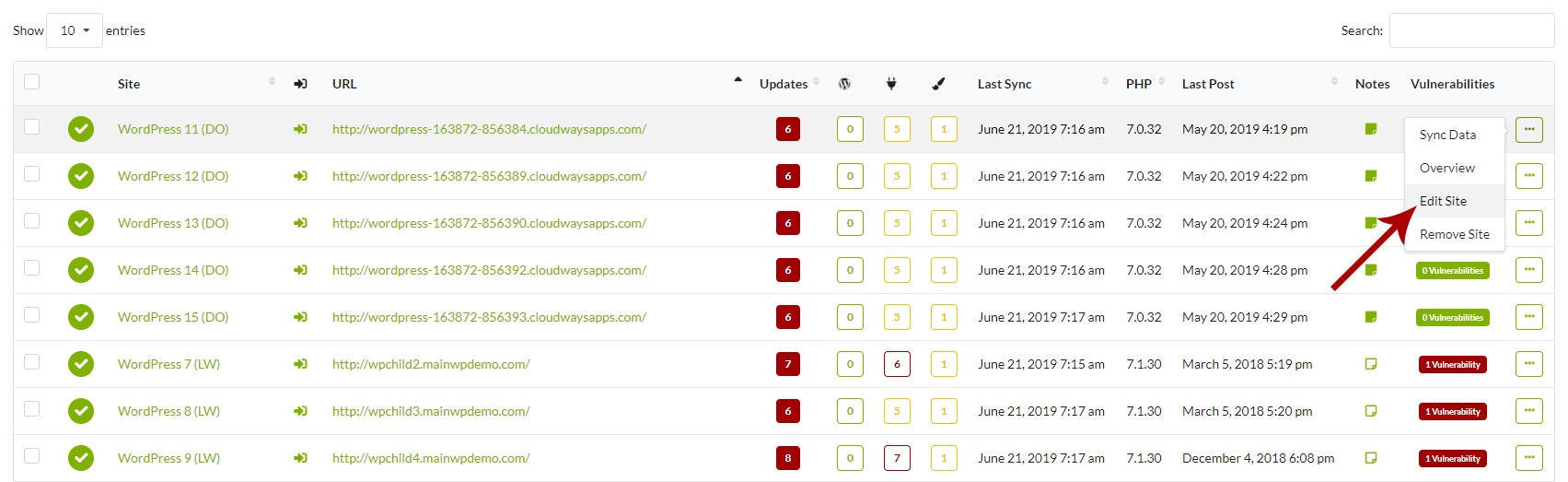 Enable **Override general settings** and click **Save**.
## Clear/Preload WP Rocket Cache
MainWP Rocket Extension allows you to quickly clear and preload cache on your child sites. On the **MainWP > Add-ons > Performance > Rocket** page, under the **Quick Actions** tab, you will find the **Clear and Preload Cache**, **Regenerate Critical CSS**, and **Clear Priority Elements** buttons.
* By clicking the **Clear and Preload Cache** button, you will clear and preload cache on all child sites where WP Rocket is installed.
* By clicking the **Regenerate Critical CSS** button, you will trigger WP Rocket critical CSS generation on those child sites.
* By clicking the **Clear Priority Elements** button, you will clear WP Rocket priority elements on those child sites.
***
## Related Resources
* [Performance Add-ons](/add-ons/performance) - Browse all performance tools
* [Cache Control](/add-ons/performance/cache-control-extension) - Multi-plugin cache management
* [Managing Plugins](/sites/plugins/managing-plugins-with-mainwp) - Plugin management guide
Enable **Override general settings** and click **Save**.
## Clear/Preload WP Rocket Cache
MainWP Rocket Extension allows you to quickly clear and preload cache on your child sites. On the **MainWP > Add-ons > Performance > Rocket** page, under the **Quick Actions** tab, you will find the **Clear and Preload Cache**, **Regenerate Critical CSS**, and **Clear Priority Elements** buttons.
* By clicking the **Clear and Preload Cache** button, you will clear and preload cache on all child sites where WP Rocket is installed.
* By clicking the **Regenerate Critical CSS** button, you will trigger WP Rocket critical CSS generation on those child sites.
* By clicking the **Clear Priority Elements** button, you will clear WP Rocket priority elements on those child sites.
***
## Related Resources
* [Performance Add-ons](/add-ons/performance) - Browse all performance tools
* [Cache Control](/add-ons/performance/cache-control-extension) - Multi-plugin cache management
* [Managing Plugins](/sites/plugins/managing-plugins-with-mainwp) - Plugin management guide