> ## Documentation Index
> Fetch the complete documentation index at: https://docs.mainwp.com/llms.txt
> Use this file to discover all available pages before exploring further.
# Cache Control
> MainWP Cache Control automatically purges cache on MainWP Child sites after WordPress core, theme, or plugin updates run through MainWP Dashboard.
## What You'll Learn
* Supported cache plugins and services
* Automatically purging cache after updates
* Manually purging cache from MainWP Dashboard
* Configuring global and site-specific Cloudflare credentials
* Reading Cache Control logs and Cloudflare status indicators
***
**Integration Add-on** - This add-on connects MainWP Dashboard with Cloudflare and supported cache plugins on your MainWP Child sites.
MainWP Cache Control can automatically purge cache after MainWP Dashboard updates WordPress core, themes, or plugins on your MainWP Child sites. You can also manually purge cache for one site, selected sites, or all connected sites.
## Supported Cache Systems
Cache Control supports Cloudflare and the following cache plugins or cache services:
* AccelerateWP
* Autoptimize
* Breeze
* Cache Enabler
* Comet Cache
* FlyingPress
* Hummingbird Performance
* LiteSpeed Cache
* Nginx Helper
* Nitropack
* Pressable Cache Management
* Rocket.net CDN Cache Plugin
* RunCloud Hub
* Seraphinite Accelerator
* SiteGround Optimizer
* Swift Performance
* Swift Performance Lite
* Swis Performance
* W3 Total Cache
* WP Fastest Cache
* WP Optimize
* WP Rocket
* WP Super Cache
If a MainWP Child site has both Cloudflare and a supported cache plugin enabled, Cache Control can purge both during the same operation. When the Rocket.net CDN Cache Plugin is detected, Cloudflare purging is skipped to avoid double-purging the same Cloudflare-backed cache layer.
## Configure Global Settings
Use the global settings when most of your MainWP Child sites should use the same cache behavior.
In MainWP Dashboard, go to **MainWP > Add-ons > Cache Control**.
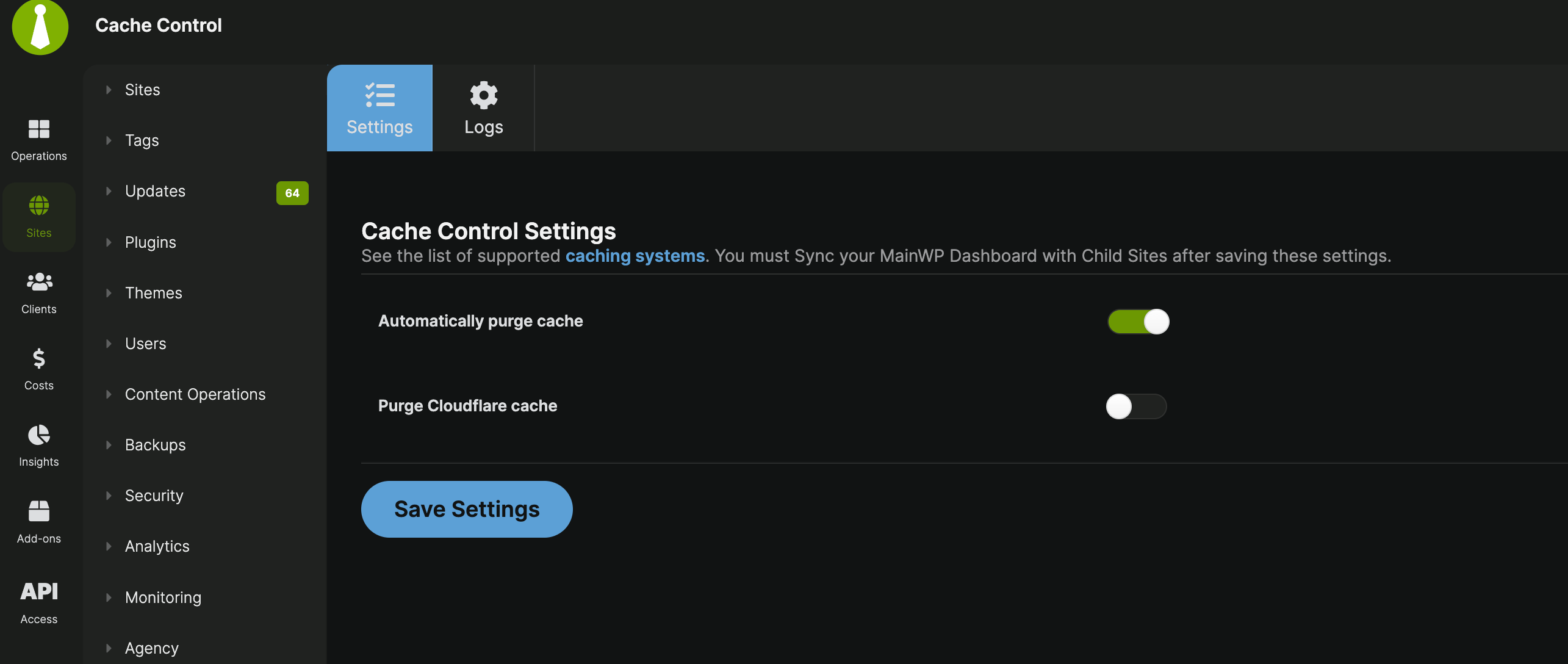
Turn on **Automatically purge cache** to purge supported cache after MainWP Dashboard updates WordPress core, themes, or plugins.
Turn on **Purge Cloudflare cache** if you want Cache Control to purge Cloudflare cache for sites that use the global Cloudflare account.
Under **Cloudflare API Credentials**, select **Email & API key** or **API Token**, then enter the matching Cloudflare credentials.
Click **Save Settings**, then sync your MainWP Dashboard with your MainWP Child sites so the new settings are sent to the sites.
When **Purge Cloudflare cache** is enabled, Cache Control verifies the Cloudflare credentials after you click **Save Settings**. If Cloudflare returns an error, the settings are saved, but MainWP Dashboard shows a warning with the Cloudflare API error so you can correct the credentials before syncing.
## Configure a Single Site
Use single-site settings when one MainWP Child site needs different cache behavior or different Cloudflare credentials from the global settings.
In MainWP Dashboard, go to **MainWP > Sites > Manage Sites**, locate the site, and open its site dashboard.
Go to the site's **Cache Control** page.
For **Automatically purge cache**, choose **Yes**, **No**, or **Use global setting**.
For **Purge Cloudflare cache**, choose **Use global setting**, **Yes (use site-specific credentials)**, or **No (disabled for this site)**.
If you choose **Yes (use site-specific credentials)**, select **Email & API key** or **API Token**, then enter the Cloudflare credentials for that site.
Click **Save Settings**, then sync the MainWP Child site.
Site-specific Cloudflare credentials are verified on save when **Yes (use site-specific credentials)** is selected. If Cloudflare returns an error, MainWP Dashboard shows the returned API error in a warning notice.
## Manually Purge Cache
Cache Control can purge cache automatically after updates, but you can also start a manual purge from MainWP Dashboard.
### From Manage Sites
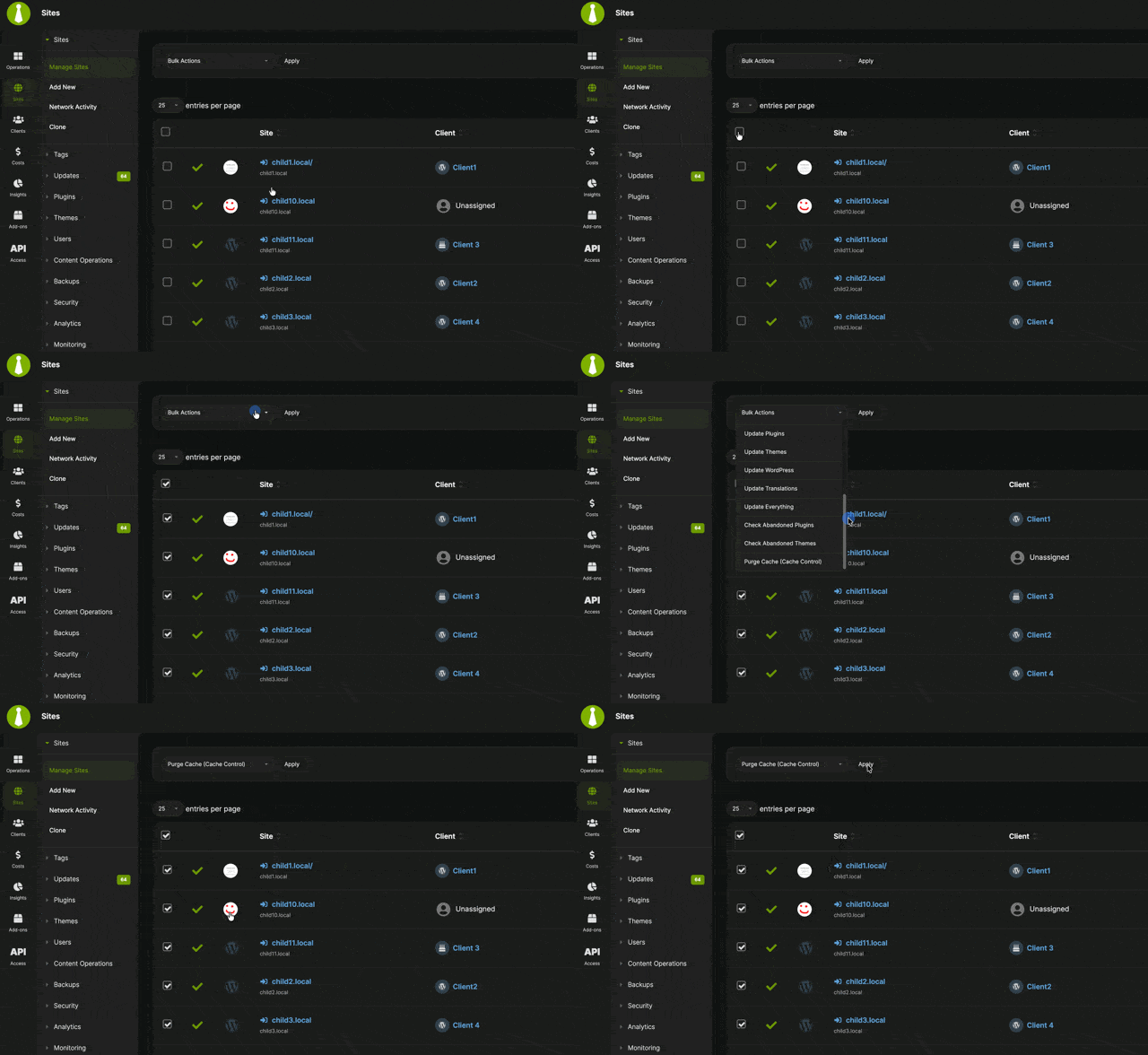
Go to **MainWP > Sites > Manage Sites**, select the sites, choose **Purge Cache (Cache Control)** from the bulk actions menu, and click **Apply**.
If a selected site does not have a supported cache plugin detected and does not have Cloudflare purging enabled, MainWP Dashboard shows a warning for that site instead of reporting a successful purge.
### From Widgets
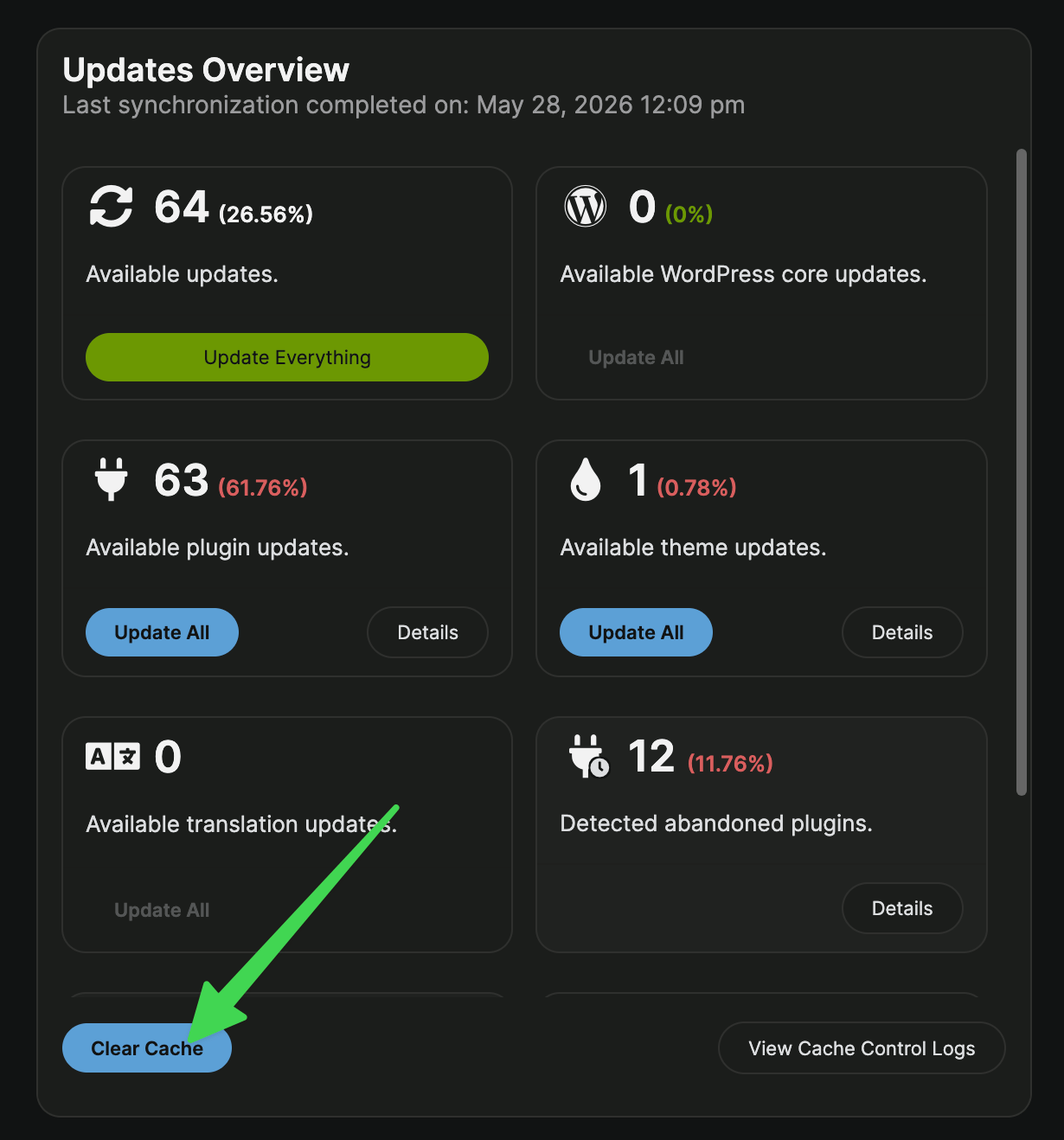
Cache Control widgets can appear on the Dashboard Operations page and individual site dashboard pages. Click **Clear Cache** in the widget to purge cache for the relevant site or site set. If you do not see the widget, enable it from the page settings for that screen.
## View Cache Control Status
The **MainWP > Sites > Manage Sites** table can show Cache Control columns such as **Last Purged Cache** and **Cache Solution**. These columns help you confirm when cache was last purged and which supported cache plugin MainWP Child detected on each site.
## View Logs
Go to **MainWP > Add-ons > Cache Control > Logs** to review the Cache Control log table.
The log table includes:
* **Site** - The MainWP Child site name and URL.
* **Status** - Whether automatic cache purging is enabled for that site after global and site-specific settings are applied.
* **Cache Solution** - The detected cache plugin or a not-found value when no supported cache plugin is detected.
* **Cloudflare** - A Cloudflare icon that reflects the current Cloudflare purge state.
* **Last Purged** - The most recent plugin or Cloudflare purge time, shown as elapsed time when available.
* **Log** - The plugin and Cloudflare purge messages returned by the site.
The **Cloudflare** column uses three status colors:
| Color | Meaning |
| ------ | ------------------------------------------------------------------------------------------------------------------------------ |
| Green | Cloudflare cache purging is enabled and the latest result did not return an error. |
| Yellow | Cloudflare cache purging is enabled, but the latest Cloudflare result returned an error. Check the **Log** column for details. |
| Grey | Cloudflare cache purging is disabled for the site. |
***
## Related Resources
* [Performance Add-ons](/add-ons/performance) - Browse all performance tools
* [WP Rocket Extension](/add-ons/performance/rocket-extension) - Advanced WP Rocket management
* [Manage Updates](/sites/updates/manage-updates) - Update management guide
 If a selected site does not have a supported cache plugin detected and does not have Cloudflare purging enabled, MainWP Dashboard shows a warning for that site instead of reporting a successful purge.
### From Widgets
Cache Control widgets can appear on the Dashboard Operations page and individual site dashboard pages. Click **Clear Cache** in the widget to purge cache for the relevant site or site set. If you do not see the widget, enable it from the page settings for that screen.
If a selected site does not have a supported cache plugin detected and does not have Cloudflare purging enabled, MainWP Dashboard shows a warning for that site instead of reporting a successful purge.
### From Widgets
Cache Control widgets can appear on the Dashboard Operations page and individual site dashboard pages. Click **Clear Cache** in the widget to purge cache for the relevant site or site set. If you do not see the widget, enable it from the page settings for that screen.
 ## View Cache Control Status
The **MainWP > Sites > Manage Sites** table can show Cache Control columns such as **Last Purged Cache** and **Cache Solution**. These columns help you confirm when cache was last purged and which supported cache plugin MainWP Child detected on each site.
## View Logs
Go to **MainWP > Add-ons > Cache Control > Logs** to review the Cache Control log table.
The log table includes:
* **Site** - The MainWP Child site name and URL.
* **Status** - Whether automatic cache purging is enabled for that site after global and site-specific settings are applied.
* **Cache Solution** - The detected cache plugin or a not-found value when no supported cache plugin is detected.
* **Cloudflare** - A Cloudflare icon that reflects the current Cloudflare purge state.
* **Last Purged** - The most recent plugin or Cloudflare purge time, shown as elapsed time when available.
* **Log** - The plugin and Cloudflare purge messages returned by the site.
The **Cloudflare** column uses three status colors:
| Color | Meaning |
| ------ | ------------------------------------------------------------------------------------------------------------------------------ |
| Green | Cloudflare cache purging is enabled and the latest result did not return an error. |
| Yellow | Cloudflare cache purging is enabled, but the latest Cloudflare result returned an error. Check the **Log** column for details. |
| Grey | Cloudflare cache purging is disabled for the site. |
***
## Related Resources
* [Performance Add-ons](/add-ons/performance) - Browse all performance tools
* [WP Rocket Extension](/add-ons/performance/rocket-extension) - Advanced WP Rocket management
* [Manage Updates](/sites/updates/manage-updates) - Update management guide
## View Cache Control Status
The **MainWP > Sites > Manage Sites** table can show Cache Control columns such as **Last Purged Cache** and **Cache Solution**. These columns help you confirm when cache was last purged and which supported cache plugin MainWP Child detected on each site.
## View Logs
Go to **MainWP > Add-ons > Cache Control > Logs** to review the Cache Control log table.
The log table includes:
* **Site** - The MainWP Child site name and URL.
* **Status** - Whether automatic cache purging is enabled for that site after global and site-specific settings are applied.
* **Cache Solution** - The detected cache plugin or a not-found value when no supported cache plugin is detected.
* **Cloudflare** - A Cloudflare icon that reflects the current Cloudflare purge state.
* **Last Purged** - The most recent plugin or Cloudflare purge time, shown as elapsed time when available.
* **Log** - The plugin and Cloudflare purge messages returned by the site.
The **Cloudflare** column uses three status colors:
| Color | Meaning |
| ------ | ------------------------------------------------------------------------------------------------------------------------------ |
| Green | Cloudflare cache purging is enabled and the latest result did not return an error. |
| Yellow | Cloudflare cache purging is enabled, but the latest Cloudflare result returned an error. Check the **Log** column for details. |
| Grey | Cloudflare cache purging is disabled for the site. |
***
## Related Resources
* [Performance Add-ons](/add-ons/performance) - Browse all performance tools
* [WP Rocket Extension](/add-ons/performance/rocket-extension) - Advanced WP Rocket management
* [Manage Updates](/sites/updates/manage-updates) - Update management guide