> ## Documentation Index
> Fetch the complete documentation index at: https://docs.mainwp.com/llms.txt
> Use this file to discover all available pages before exploring further.

# SSL Monitor

> MainWP SSL Monitor Extension allows you to keep an eye on your Child Site(s) SSL Certificates and sends email alerts for nearing expirations.

## What You'll Learn

* Checking SSL certificate status for all sites
* Viewing detailed certificate information
* Scheduling automated SSL checks
* Overriding settings for individual sites

***

<div id="addon-data" style={{display: 'none'}} data-title="SSL Monitor" data-purchase-url="https://mainwp.com/extension/ssl-monitor/" data-pricing-tier="pro" data-bundle="MainWP Pro" data-addon-type="extension" data-version="5.0" data-developer="MainWP" data-changelog-url="https://mainwp.com/changelog/mainwp-ssl-monitor-extension/" data-owned-by="Jestart LLC" data-privacy-url="https://mainwp.com/mainwp-plugin-privacy-policy/" />

<Info>
  **Extension Add-on** - This add-on provides standalone functionality within MainWP Dashboard. No third-party plugins required.
</Info>

<iframe className="w-full aspect-video rounded-xl" src="https://www.youtube.com/embed/HYb9xZ7Lxe0" title="SSL Monitor - Video Tutorial" frameBorder="0" allow="accelerometer; autoplay; clipboard-write; encrypted-media; gyroscope; picture-in-picture" allowFullScreen />

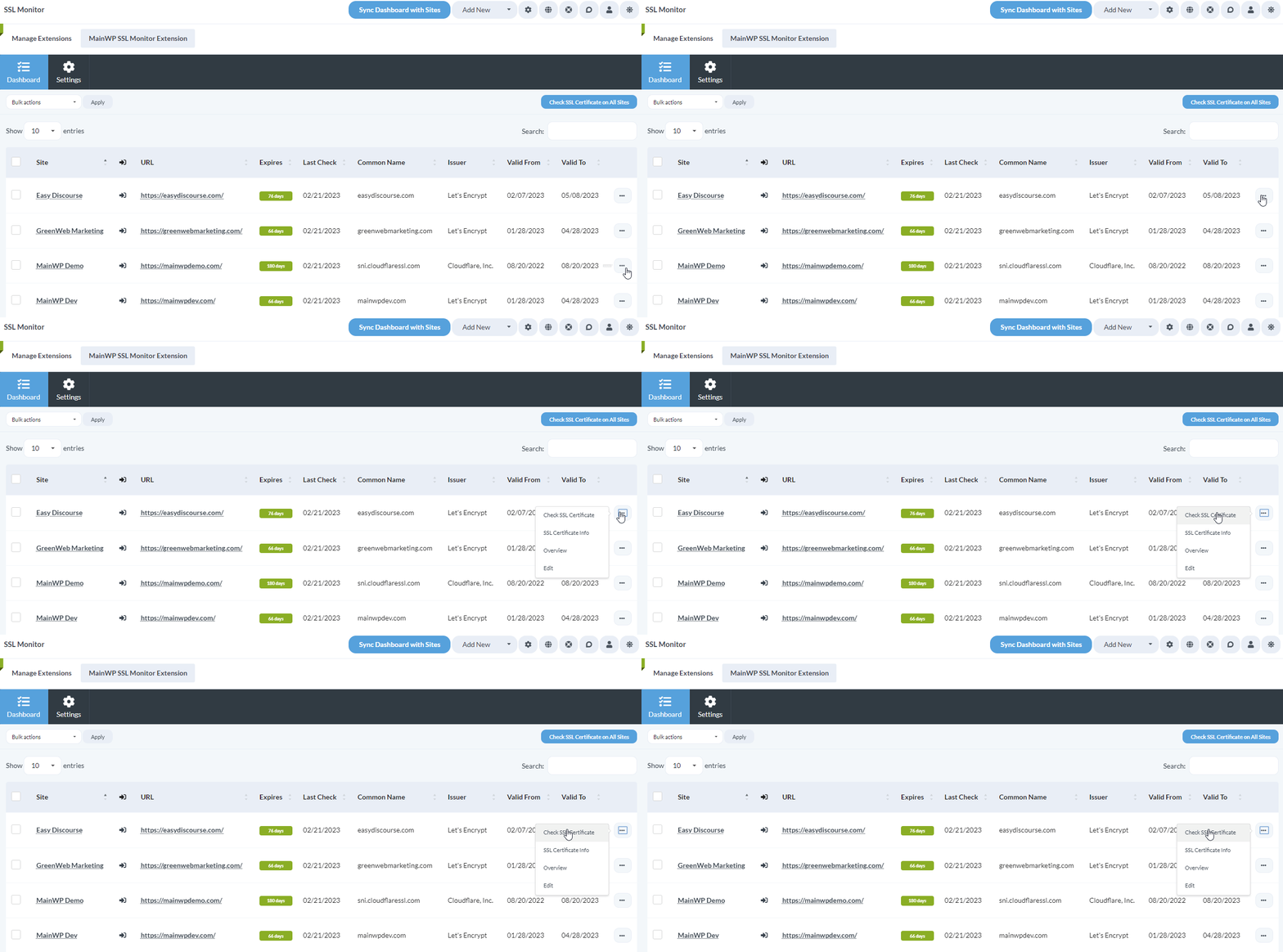
The SSL Monitor extension allows you to check information about SSL certificates for all your child sites. The table on the **Dashboard** page of the SSL Monitor extension gives you insight into the most important information, such as the expiration date, who the issuer is, and the common name.

<Frame>
  <img src="https://mintcdn.com/mainwp/4f1gyeWHSqPS10n_/images/add-ons/ssl-monitor-settings.png?fit=max&auto=format&n=4f1gyeWHSqPS10n_&q=85&s=c955d72daea42199125b5ea9b9d428db" alt="Screenshot of SSL Monitor dashboard showing certificate expiration dates, issuers, and common names" width="1313" height="662" data-path="images/add-ons/ssl-monitor-settings.png" />
</Frame>

The extension also provides all the detailed information about the SSL certificates that you may need.

## Install the SSL Monitor extension
<Steps>
  <Step title="Go to your MainWP Dashboard" />

  <Step title="Go to the MainWP > Add-ons page" />

  <Step title="Click the Install Add-ons button">
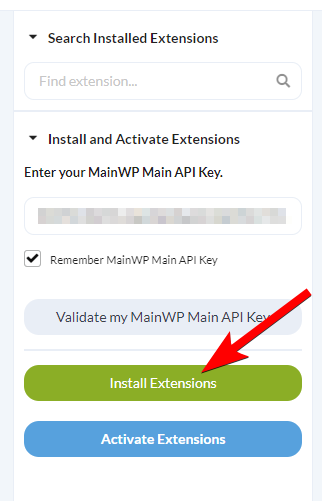
    Click the **Install Add-ons** button <img src="https://mintcdn.com/mainwp/9Fi7dKBCIriTb92d/images/add-ons/2833252556cc.png?fit=max&auto=format&n=9Fi7dKBCIriTb92d&q=85&s=a8cef4a17468ae3d301a5c1e41e3fa6d" alt="Screenshot highlighting the Install Add-ons button on the Add-ons page" width="322" height="501" data-path="images/add-ons/2833252556cc.png" />
  </Step>

  <Step title="Locate the SSL Monitor extension and select it" />

  <Step title="Click the Install button" />

  <Step title="Once the installation process is complete, click the Activate Add-ons button.">
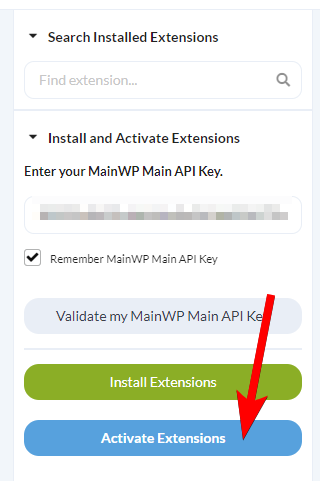
    Once the installation process is complete, click the **Activate Add-ons** button. <img src="https://mintcdn.com/mainwp/PMb515K3nlj7x2jI/images/add-ons/578da5c7dc89.png?fit=max&auto=format&n=PMb515K3nlj7x2jI&q=85&s=c381ceab5b9dff6da69a292b5ac0045c" alt="Screenshot showing the Activate Add-ons button after SSL Monitor installation" width="320" height="481" data-path="images/add-ons/578da5c7dc89.png" />
  </Step>
</Steps>

## Check SSL Certificates

### For all Sites

<Steps>
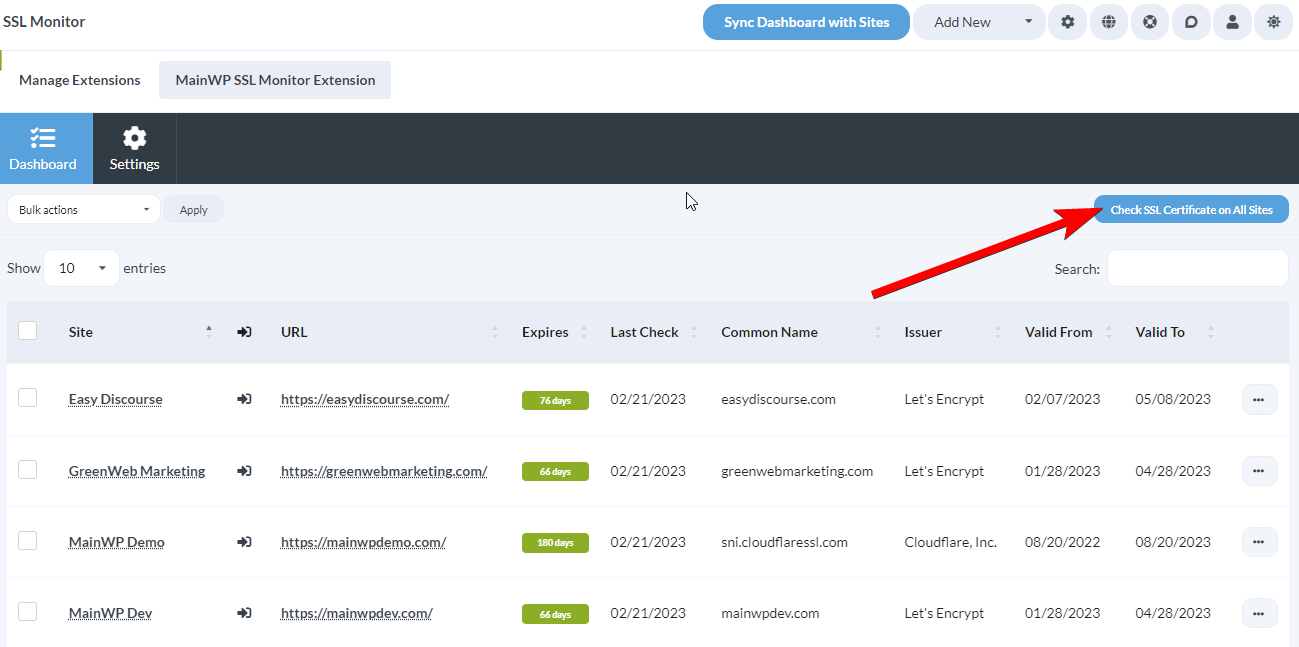
  <Step title="Go to the MainWP > Add-ons > SSL Monitor > Dashboard page." />

  <Step title="Click the Check SSL Certificate on All Sites button in the top right" />
</Steps>

<img src="https://mintcdn.com/mainwp/2rlXQ4CNzTqDCqtT/images/add-ons/34e0cb37356d.png?fit=max&auto=format&n=2rlXQ4CNzTqDCqtT&q=85&s=a297aebff346972e7574cbd43eff9132" alt="Screenshot showing Check SSL Certificate on All Sites button" width="1299" height="647" data-path="images/add-ons/34e0cb37356d.png" />

### For individual Sites

<Steps>
  <Step title="Go to the MainWP > Add-ons > SSL Monitor > Dashboard page." />

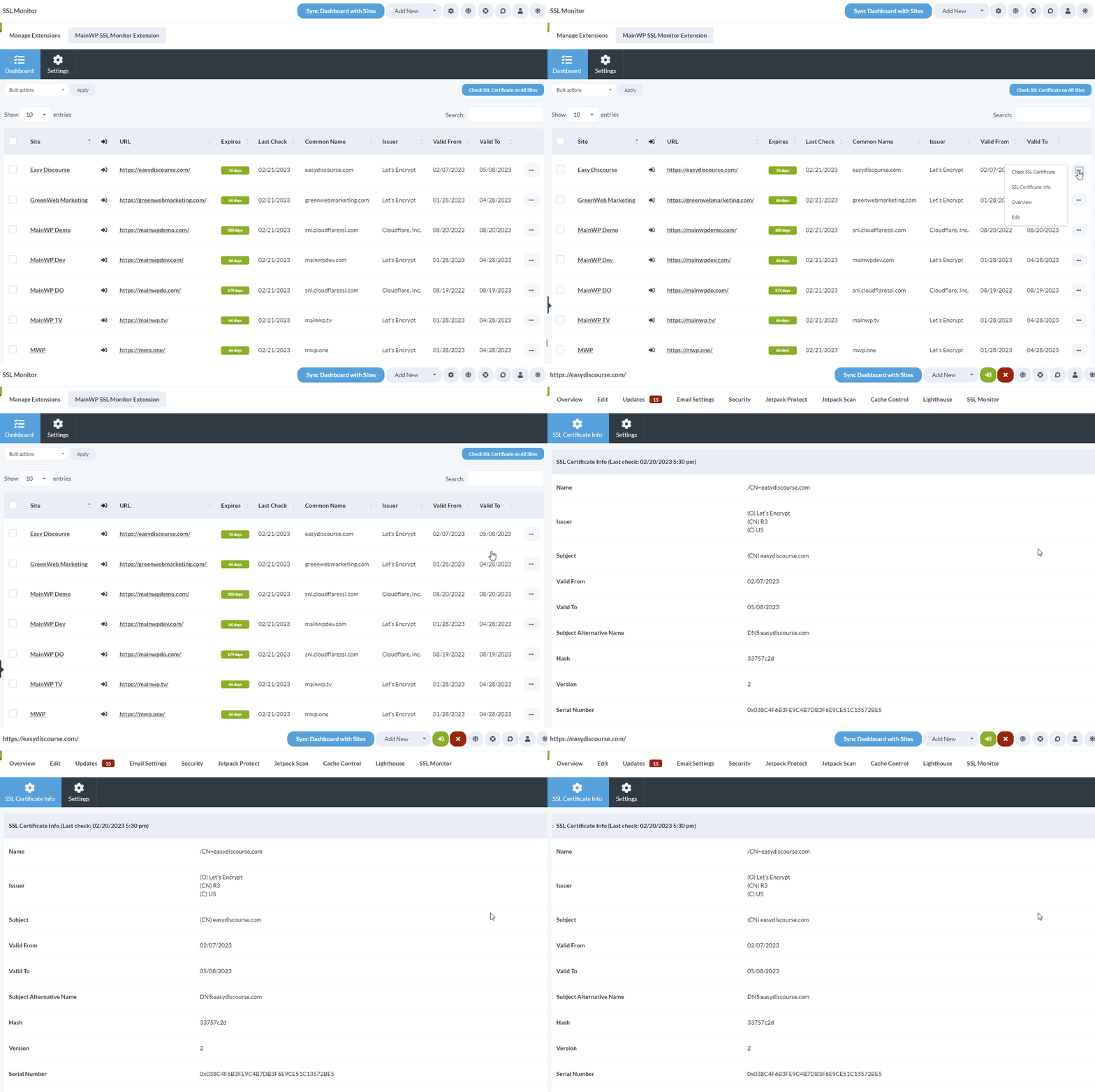
  <Step title="Locate the desired site in the table." />

  <Step title="Click the Check SSL Certificate action in the ellipsis menu." />
</Steps>

<img src="https://mintcdn.com/mainwp/4f1gyeWHSqPS10n_/images/add-ons/ssl-monitor-overview.gif?s=9ccfd11162dd277ddf3ead6cda1a2b04" alt="Animated screenshot showing Check SSL Certificate action in ellipsis menu" width="1303" height="645" data-path="images/add-ons/ssl-monitor-overview.gif" />

## View Detailed Certificate Information
<Steps>
  <Step title="Go to the MainWP > Add-ons > SSL Monitor > Dashboard page." />

  <Step title="Locate the desired site in the t.able" />

  <Step title="Click the SSL Certificate Info action in the ellipsis menu." />
</Steps>

<img src="https://mintcdn.com/mainwp/9Fi7dKBCIriTb92d/images/add-ons/0906be47c99b.gif?s=6bba7ef407150d6be0425291be5640dc" alt="Animated screenshot showing SSL Certificate Info action and detailed certificate view" width="1300" height="864" data-path="images/add-ons/0906be47c99b.gif" />

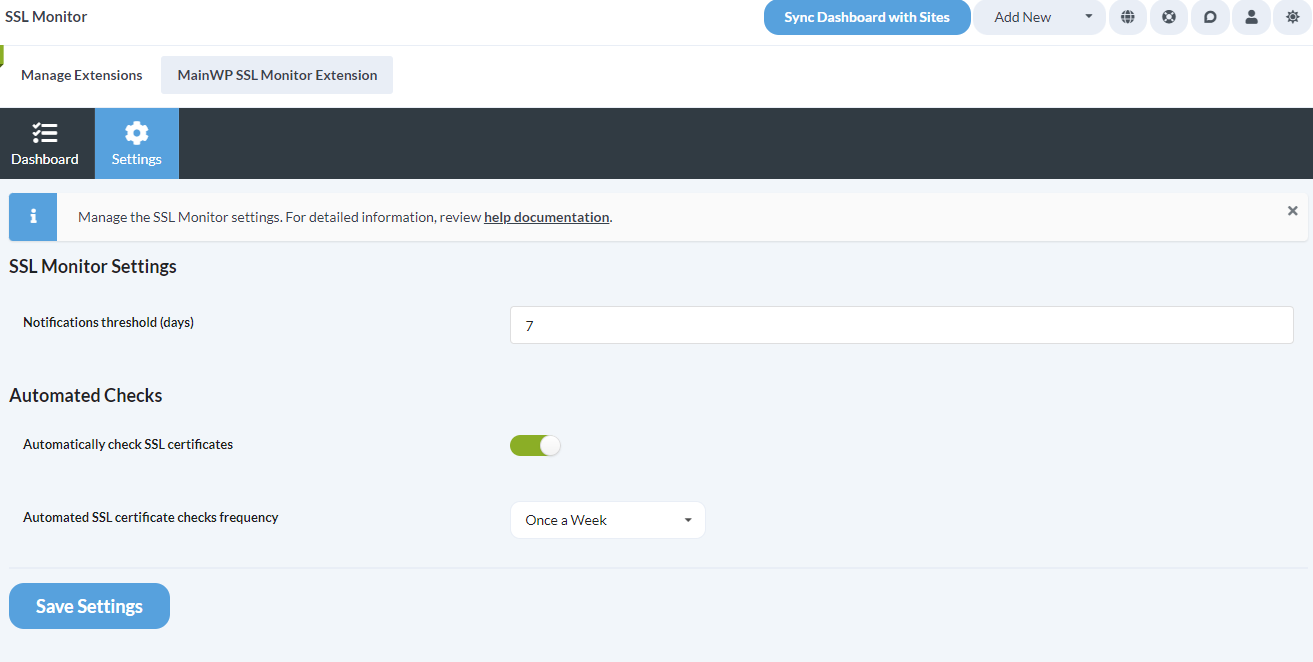
## Adjust the SSL Monitor Settings

<img src="https://mintcdn.com/mainwp/4f1gyeWHSqPS10n_/images/add-ons/ssl-monitor-settings.png?fit=max&auto=format&n=4f1gyeWHSqPS10n_&q=85&s=c955d72daea42199125b5ea9b9d428db" alt="Screenshot of SSL Monitor settings page with notification threshold and automated check options" width="1313" height="662" data-path="images/add-ons/ssl-monitor-settings.png" />

<Steps>
  <Step title="Go to the MainWP > Add-ons > SSL Monitor > Settings page.">
    Go to the **MainWP > Add-ons > SSL Monitor > Settings** page.

    1. **Notification threshold days:** you will be notified by email if an SSL Certificate for any site reaches the threshold you define here.
    2. **Automated Checks:** you can enable automatic SSL certificate checks and set the frequency for those checks
  </Step>

  <Step title="After you've adjusted the settings, click the Save Settings button" />
</Steps>

## Adjust the SSL Monitor settings on a Single Site

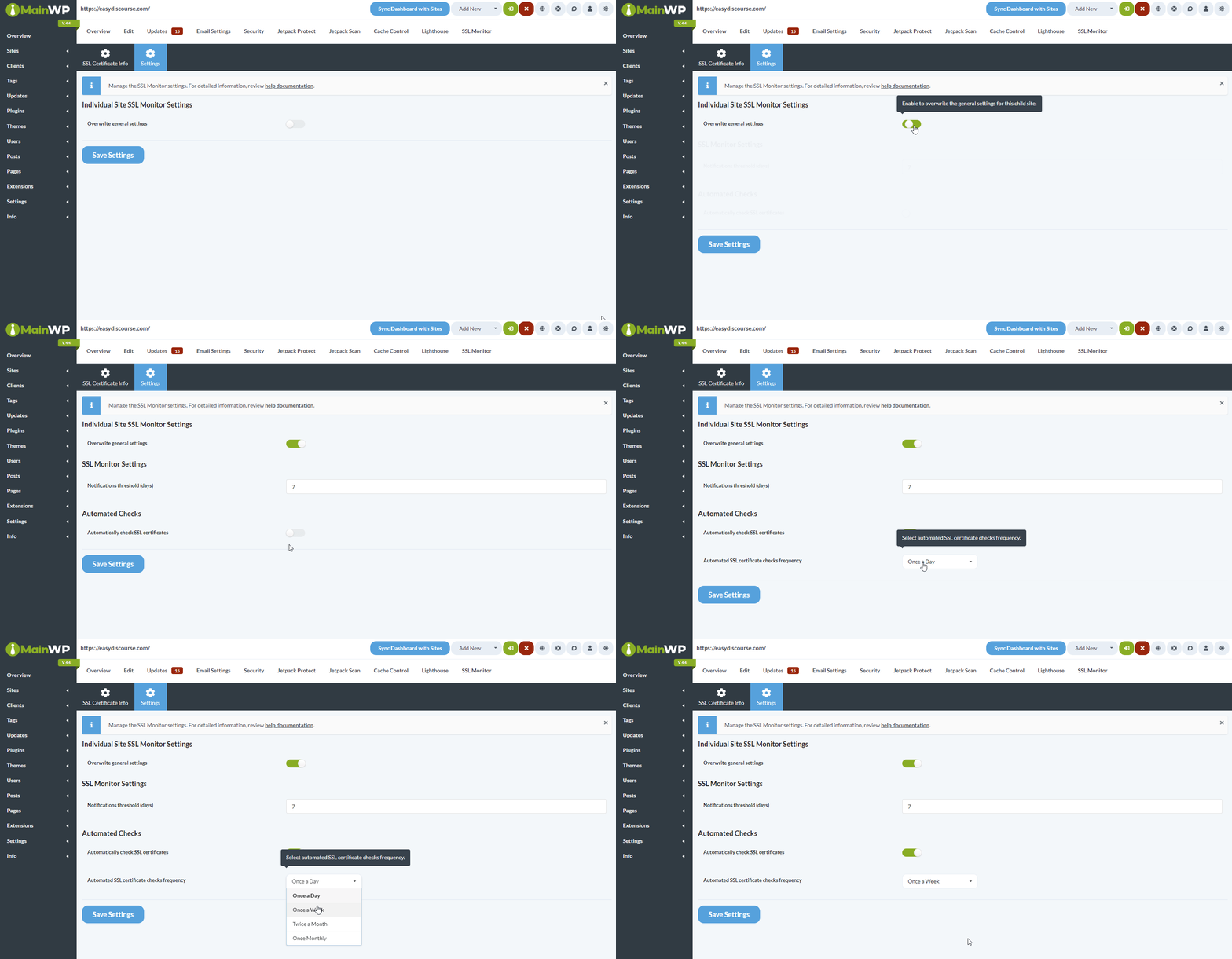
<img src="https://mintcdn.com/mainwp/2rlXQ4CNzTqDCqtT/images/add-ons/4f9770763ce7.gif?s=c8938182ca1a39a13320efdb93f39c3a" alt="Animated screenshot showing how to override global SSL Monitor settings for a single site" width="1599" height="831" data-path="images/add-ons/4f9770763ce7.gif" />

<Steps>
  <Step title="Login to your MainWP Dashboard" />

  <Step title="Go to the MainWP > Sites > Manage Sites page" />

  <Step title="Locate the Child site, open its Dashboard, and go to SSL Monitor > Settings page">
    Locate the Child site, open its Dashboard, and go to **SSL Monitor > Settings** page

    1. Override the global settings by enabling the **Override general settings** toggle
    2. Adjust the Notification threshold and whether you want to automatically check the SSL certificate for this specific site
  </Step>

  <Step title="Click the Save Settings button" />
</Steps>

## SSL Monitor REST API

All MainWP REST API calls, including full documentation, and examples, are now publicly available on [Postman](https://www.postman.com/mainwp/workspace/mainwp/overview). Please refer to our REST API document for more details on enabling REST API and managing Keys: [REST API Overview](/api-reference/rest-api/overview)

***

## Related Resources

* [Monitoring Add-ons](/add-ons/monitoring) - Browse all monitoring tools
* [Domain Monitor](/add-ons/monitoring/mainwp-domain-monitor-extension) - Track domain expiration
* [Advanced Uptime Monitor](/add-ons/monitoring/advanced-uptime-monitor-extension) - Monitor site uptime