> ## Documentation Index
> Fetch the complete documentation index at: https://docs.mainwp.com/llms.txt
> Use this file to discover all available pages before exploring further.
# Lighthouse
> MainWP Lighthouse Add-on is used for measuring the quality of your websites. It uses the Google PageSpeed Insights API to audit the performance, accessibility, best practices, and search engine optimization of your WordPress sites.
## What You'll Learn
* Installing and configuring the Lighthouse add-on
* Running performance audits on child sites
* Getting your Google PageSpeed Insights API key
* Understanding Lighthouse scores and reports
***
**Extension Add-on** - This add-on provides standalone functionality within MainWP Dashboard. No third-party plugins required.
## Install and Set Up MainWP Lighthouse Add-on
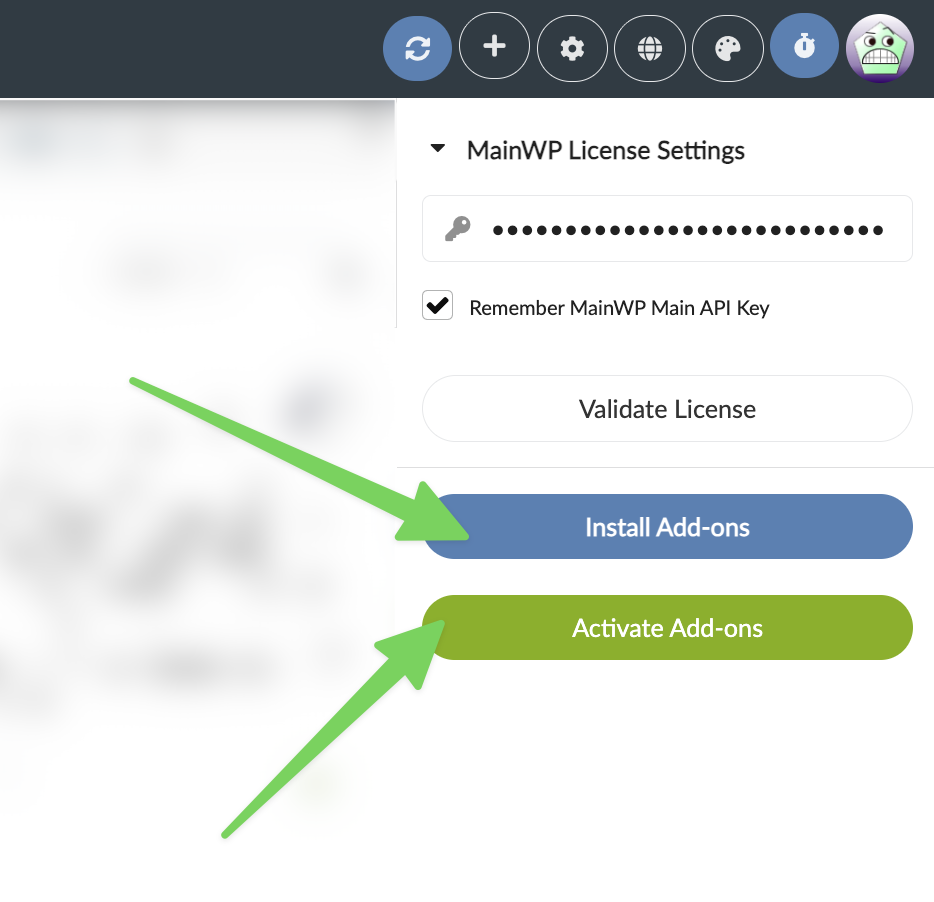
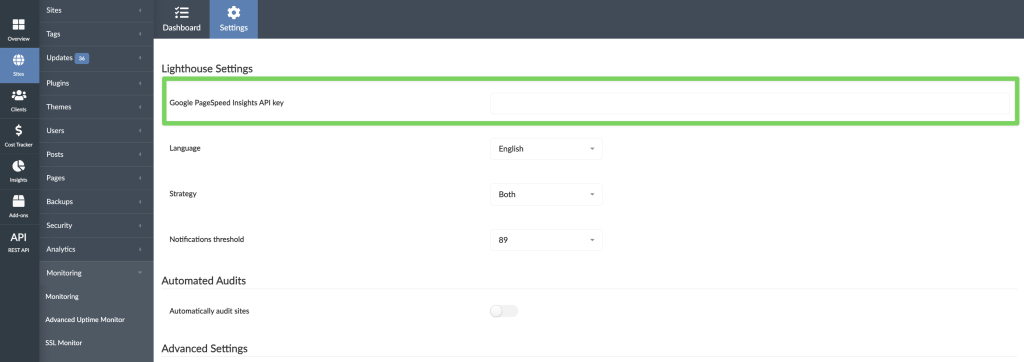
* After successful installation, go to **Add-ons > Monitoring > Lighthouse > Settings**.
* Insert your **Google PageSpeed Insights API key**. If you don't have it, [see here how to get it](#get-the-google-pagespeed-insights-api-key).
* **Save Settings**, and you are ready to audit your sites.
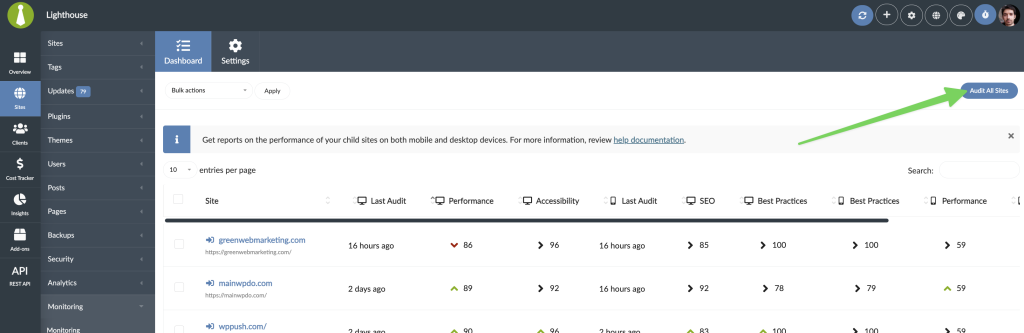
## Audit Child Sites
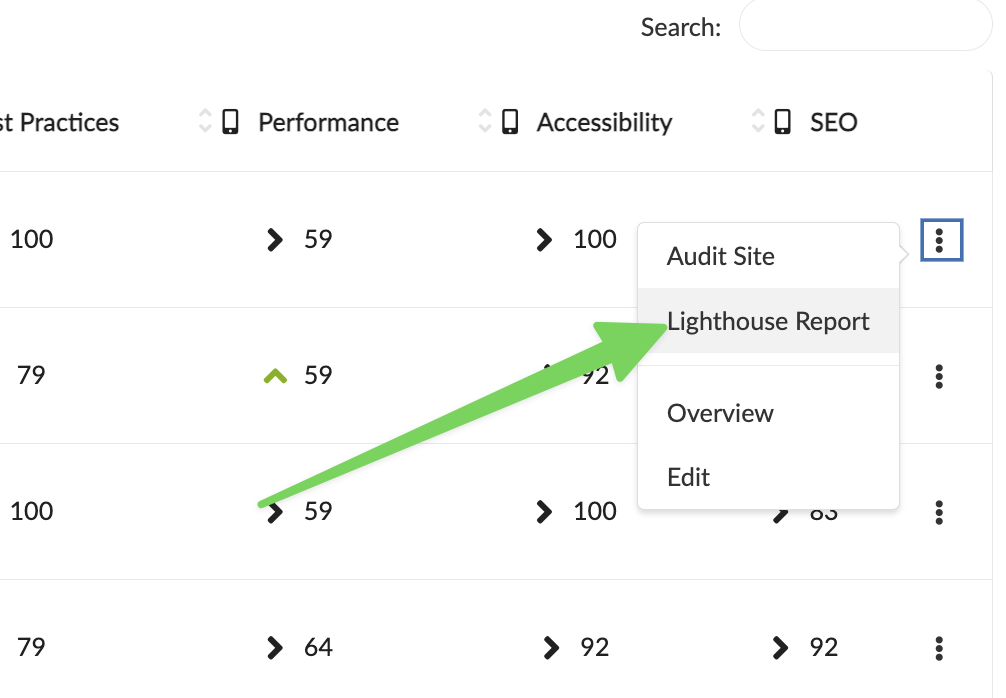
Alternatively, you can use the **Bulk Actions** menu to audit only certain sites, or use the **Audit Site** action from the site **Action Menu** to audit one site.
## Schedule Automated Audits
Locate the **Automatically audit sites** option and Enable it.
Locate the **Automated audit frequency** option and set how often you want to check your sites.
## Get a Lighthouse Report for a Site
Locate the site you want to check in the list and click the **Lighthouse Report** action from the Actions Menu.
## Widgets and Manage Sites Table Information
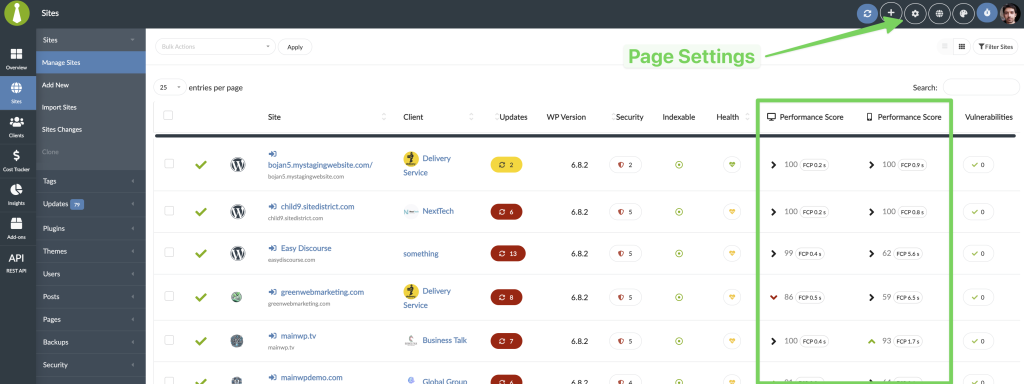
You can enable Performance Score columns (Desktop and Mobile) for the Manage Sites table from the Page Settings menu.
Widgets are available on the Operations page and on the child site's Overview page.
They can also be enabled in the Page Settings on the relevant page.
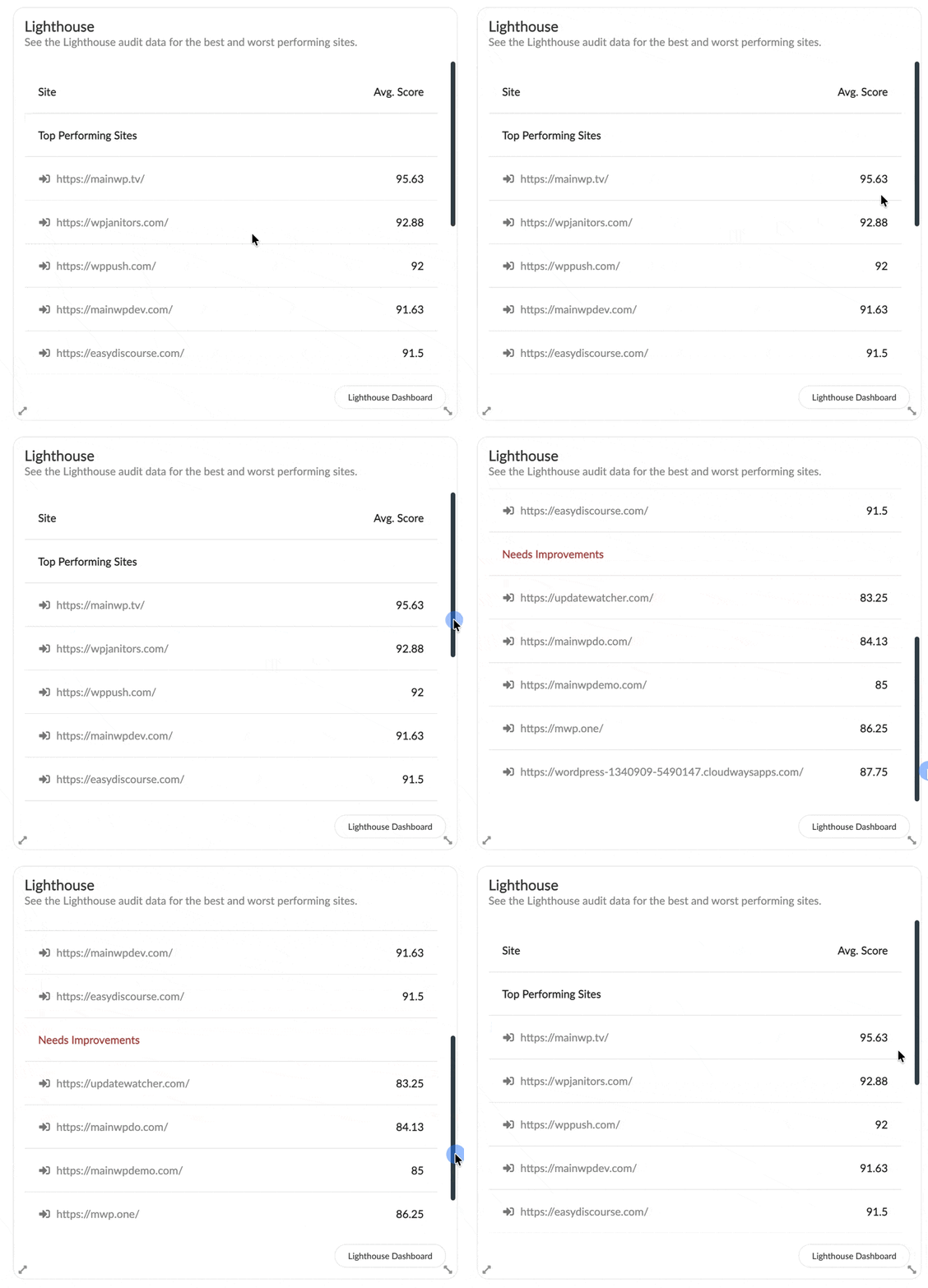
The widget on the Operations page provides scores for the best and worst performing sites:
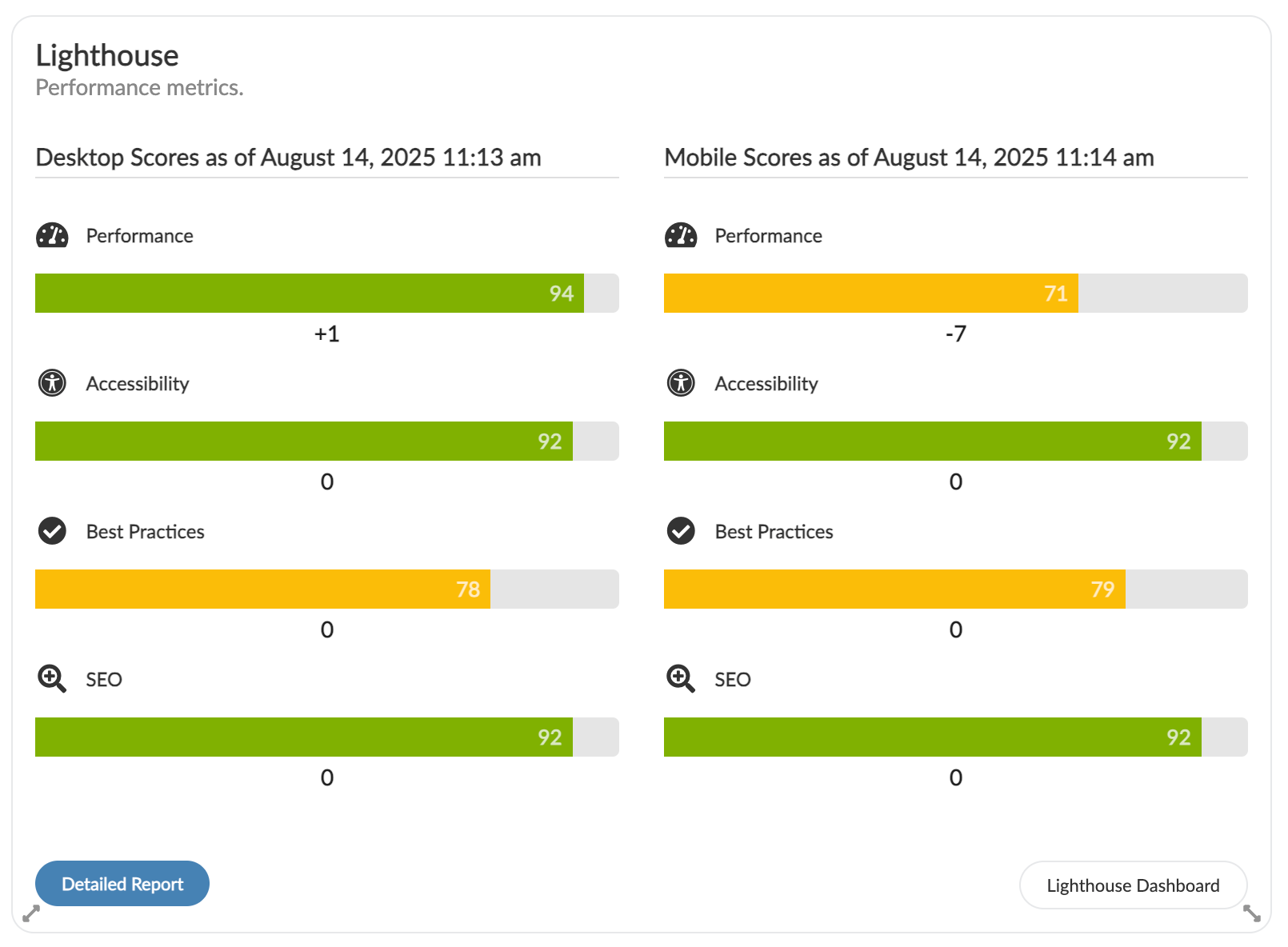
The widget on the child site's Overview page provides scores for Desktop and Mobile and how that score has changed since the preceding audit.
## Lighthouse Settings
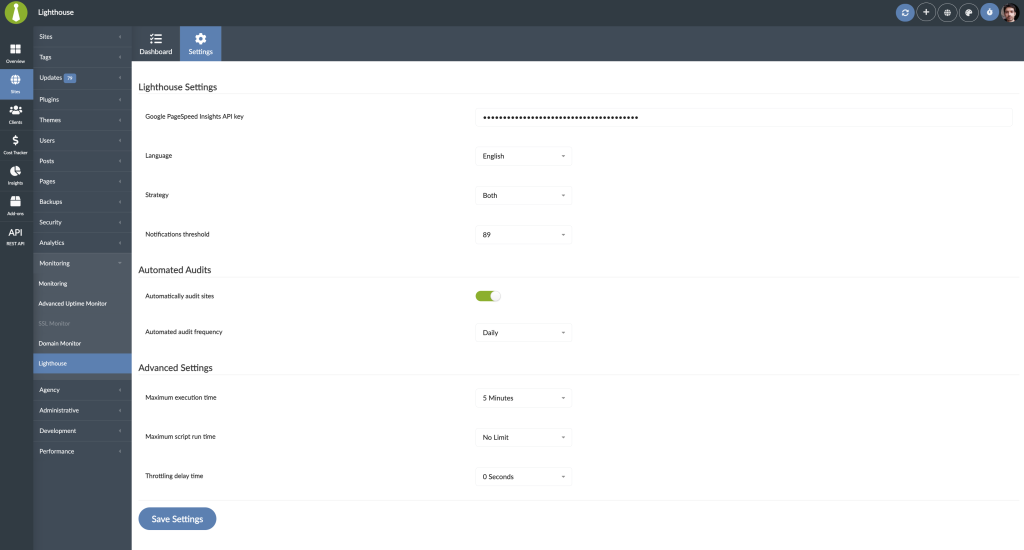
* **Google PageSpeed Insights API key** - In order to run audits, you need to enter your Google PageSpeed Insights API key, if you don't have it, [see here how to get it](#get-the-google-pagespeed-insights-api-key).
* **Language** - Select language for Lighthouse reports.
* **Strategy** - Select if you want to get Desktop, Mobile, or Both strategy Lighthouse reports.
* **Notifications threshold** - Set the threshold for notifications. If any tracked Lighthouse score is at or below the set value, the add-on can send a Lighthouse notification.
* **Automatically audit sites** - If you want the add-on to automatically run audits, enable this feature.
* **Automated audit frequency** - If automated audits are enabled, here you can set how often you want them to run.
* **Maximum execution time** - Change the Max execution time if needed. If the Lighthouse reports are not being completed, increasing this value may help.
* **Maximum script run time** - Change the Max script run time if needed. If your scans do not finish completely and changing the Maximum Execution Time does not help, increase this value until you find the maximum allowed runtime.
* **Throttling delay time** - Change the Throttling delay time. Increasing this value may slow down Lighthouse reporting, but may help provide more accurate reports on poorly performing web servers.
## Audit Sites via WP-CLI
Scan one or multiple sites:
```text theme={null}
wp mainwp-lighthouse audit 125,126
```
Audit all sites:
```text theme={null}
wp mainwp-lighthouse audit --all
```
View reports for one or multiple sites:
```text theme={null}
wp mainwp-lighthouse results 125,126
```
View reports for all sites:
```text theme={null}
wp mainwp-lighthouse results --all
```
## Lighthouse REST API
All MainWP REST API calls, including full documentation, and examples, are now publicly available on [Postman](https://www.postman.com/mainwp/workspace/mainwp/overview).
Please refer to our [REST API documentation](/api-reference/rest-api/overview) for more details on enabling REST API and managing API keys.
## Get the Google PageSpeed Insights API Key
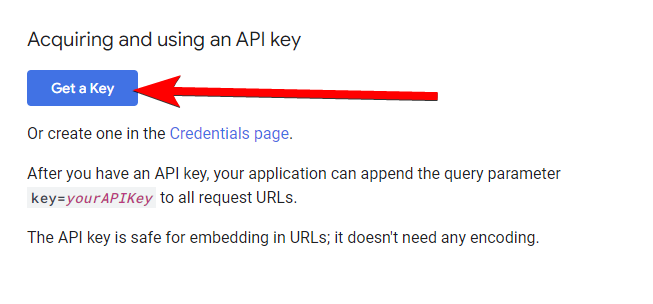
Navigate to [https://developers.google.com/speed/docs/insights/v5/get-started](https://developers.google.com/speed/docs/insights/v5/get-started) and click **Get a Key** button\\
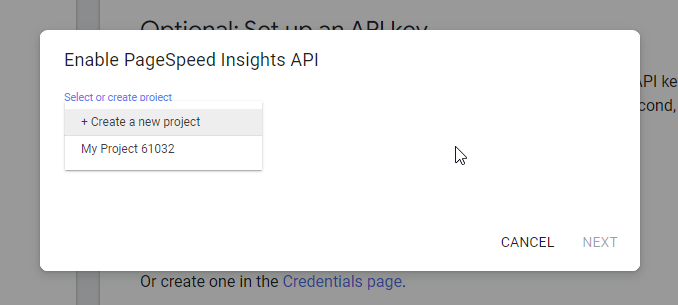
**Select** existing or **Create** a new project and click **Next**\\
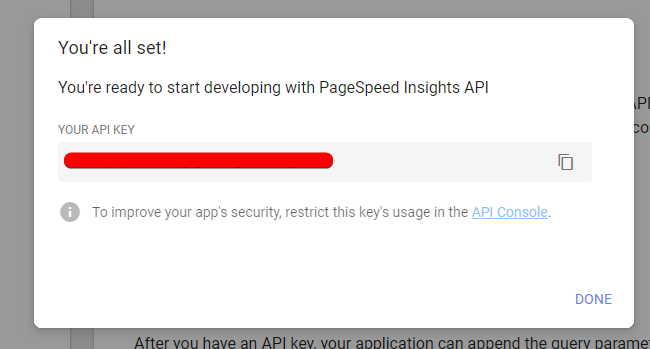
**Copy API Key** to clipboard and click **Done**\\
***
## Related Resources
* [Monitoring Add-ons](/add-ons/monitoring) - Browse all monitoring tools
* [Cache Control](/add-ons/performance/cache-control-extension) - Performance optimization
* [WP Rocket Extension](/add-ons/performance/rocket-extension) - Advanced caching tools


 * After successful installation, go to **Add-ons > Monitoring > Lighthouse > Settings**.
* Insert your **Google PageSpeed Insights API key**. If you don't have it, [see here how to get it](#get-the-google-pagespeed-insights-api-key).
* After successful installation, go to **Add-ons > Monitoring > Lighthouse > Settings**.
* Insert your **Google PageSpeed Insights API key**. If you don't have it, [see here how to get it](#get-the-google-pagespeed-insights-api-key).
 * **Save Settings**, and you are ready to audit your sites.
## Audit Child Sites
* **Save Settings**, and you are ready to audit your sites.
## Audit Child Sites
 Widgets are available on the Operations page and on the child site's Overview page.
They can also be enabled in the Page Settings on the relevant page.
The widget on the Operations page provides scores for the best and worst performing sites:
Widgets are available on the Operations page and on the child site's Overview page.
They can also be enabled in the Page Settings on the relevant page.
The widget on the Operations page provides scores for the best and worst performing sites:
 The widget on the child site's Overview page provides scores for Desktop and Mobile and how that score has changed since the preceding audit.
 ## Lighthouse Settings
 * **Google PageSpeed Insights API key** - In order to run audits, you need to enter your Google PageSpeed Insights API key, if you don't have it, [see here how to get it](#get-the-google-pagespeed-insights-api-key).
* **Language** - Select language for Lighthouse reports.
* **Strategy** - Select if you want to get Desktop, Mobile, or Both strategy Lighthouse reports.
* **Notifications threshold** - Set the threshold for notifications. If any tracked Lighthouse score is at or below the set value, the add-on can send a Lighthouse notification.
* **Automatically audit sites** - If you want the add-on to automatically run audits, enable this feature.
* **Automated audit frequency** - If automated audits are enabled, here you can set how often you want them to run.
* **Maximum execution time** - Change the Max execution time if needed. If the Lighthouse reports are not being completed, increasing this value may help.
* **Maximum script run time** - Change the Max script run time if needed. If your scans do not finish completely and changing the Maximum Execution Time does not help, increase this value until you find the maximum allowed runtime.
* **Throttling delay time** - Change the Throttling delay time. Increasing this value may slow down Lighthouse reporting, but may help provide more accurate reports on poorly performing web servers.
## Audit Sites via WP-CLI
Scan one or multiple sites:
```text theme={null}
wp mainwp-lighthouse audit 125,126
```
Audit all sites:
```text theme={null}
wp mainwp-lighthouse audit --all
```
View reports for one or multiple sites:
```text theme={null}
wp mainwp-lighthouse results 125,126
```
View reports for all sites:
```text theme={null}
wp mainwp-lighthouse results --all
```
## Lighthouse REST API
All MainWP REST API calls, including full documentation, and examples, are now publicly available on [Postman](https://www.postman.com/mainwp/workspace/mainwp/overview).
Please refer to our [REST API documentation](/api-reference/rest-api/overview) for more details on enabling REST API and managing API keys.
## Get the Google PageSpeed Insights API Key
* **Google PageSpeed Insights API key** - In order to run audits, you need to enter your Google PageSpeed Insights API key, if you don't have it, [see here how to get it](#get-the-google-pagespeed-insights-api-key).
* **Language** - Select language for Lighthouse reports.
* **Strategy** - Select if you want to get Desktop, Mobile, or Both strategy Lighthouse reports.
* **Notifications threshold** - Set the threshold for notifications. If any tracked Lighthouse score is at or below the set value, the add-on can send a Lighthouse notification.
* **Automatically audit sites** - If you want the add-on to automatically run audits, enable this feature.
* **Automated audit frequency** - If automated audits are enabled, here you can set how often you want them to run.
* **Maximum execution time** - Change the Max execution time if needed. If the Lighthouse reports are not being completed, increasing this value may help.
* **Maximum script run time** - Change the Max script run time if needed. If your scans do not finish completely and changing the Maximum Execution Time does not help, increase this value until you find the maximum allowed runtime.
* **Throttling delay time** - Change the Throttling delay time. Increasing this value may slow down Lighthouse reporting, but may help provide more accurate reports on poorly performing web servers.
## Audit Sites via WP-CLI
Scan one or multiple sites:
```text theme={null}
wp mainwp-lighthouse audit 125,126
```
Audit all sites:
```text theme={null}
wp mainwp-lighthouse audit --all
```
View reports for one or multiple sites:
```text theme={null}
wp mainwp-lighthouse results 125,126
```
View reports for all sites:
```text theme={null}
wp mainwp-lighthouse results --all
```
## Lighthouse REST API
All MainWP REST API calls, including full documentation, and examples, are now publicly available on [Postman](https://www.postman.com/mainwp/workspace/mainwp/overview).
Please refer to our [REST API documentation](/api-reference/rest-api/overview) for more details on enabling REST API and managing API keys.
## Get the Google PageSpeed Insights API Key