> ## Documentation Index
> Fetch the complete documentation index at: https://docs.mainwp.com/llms.txt
> Use this file to discover all available pages before exploring further.
# Domain Monitor
> MainWP Domain Monitor Extension lets you keep a watchful eye on your domains. It alerts you via email when monitored domains are nearing expiration.
## What You'll Learn
* Checking domain expiration dates across all sites
* Entering domain info manually for unsupported TLDs
* Scheduling automated domain checks
* Using Pro Reports tokens for domain data
***
## Supported TLDs
**Extension Add-on** - This add-on provides standalone functionality within MainWP Dashboard. No third-party plugins required.
**Domain lookup may fail or return incomplete data for some TLDs due to restrictions or a lack of available information from RDAP or WHOIS services.**
### TLD lookup support
Domain Monitor attempts lookups through RDAP first. If RDAP does not return usable domain data, the extension falls back to its built-in WHOIS server map for TLDs with a configured WHOIS server.
For current TLD lookup references, use these maintained external sources:
* [IANA RDAP DNS bootstrap data](https://data.iana.org/rdap/dns.json) - Current RDAP service coverage by TLD.
* [IANA Root Zone Database](https://www.iana.org/domains/root/db) - Current TLD registry records, including WHOIS server details where available.
If the extension cannot retrieve your domain information automatically, you can enter it manually as described [**below**](#enter-domain-info-manually).
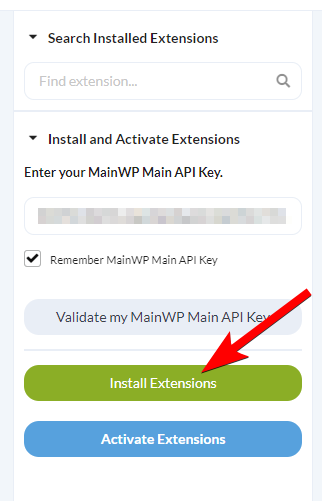
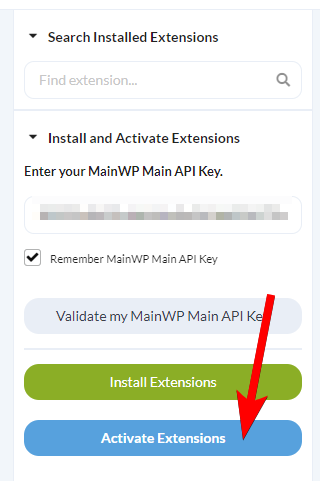
## Install and Set Domain Monitor Extension
Once the installation process is complete, click the **Activate Add-ons** button
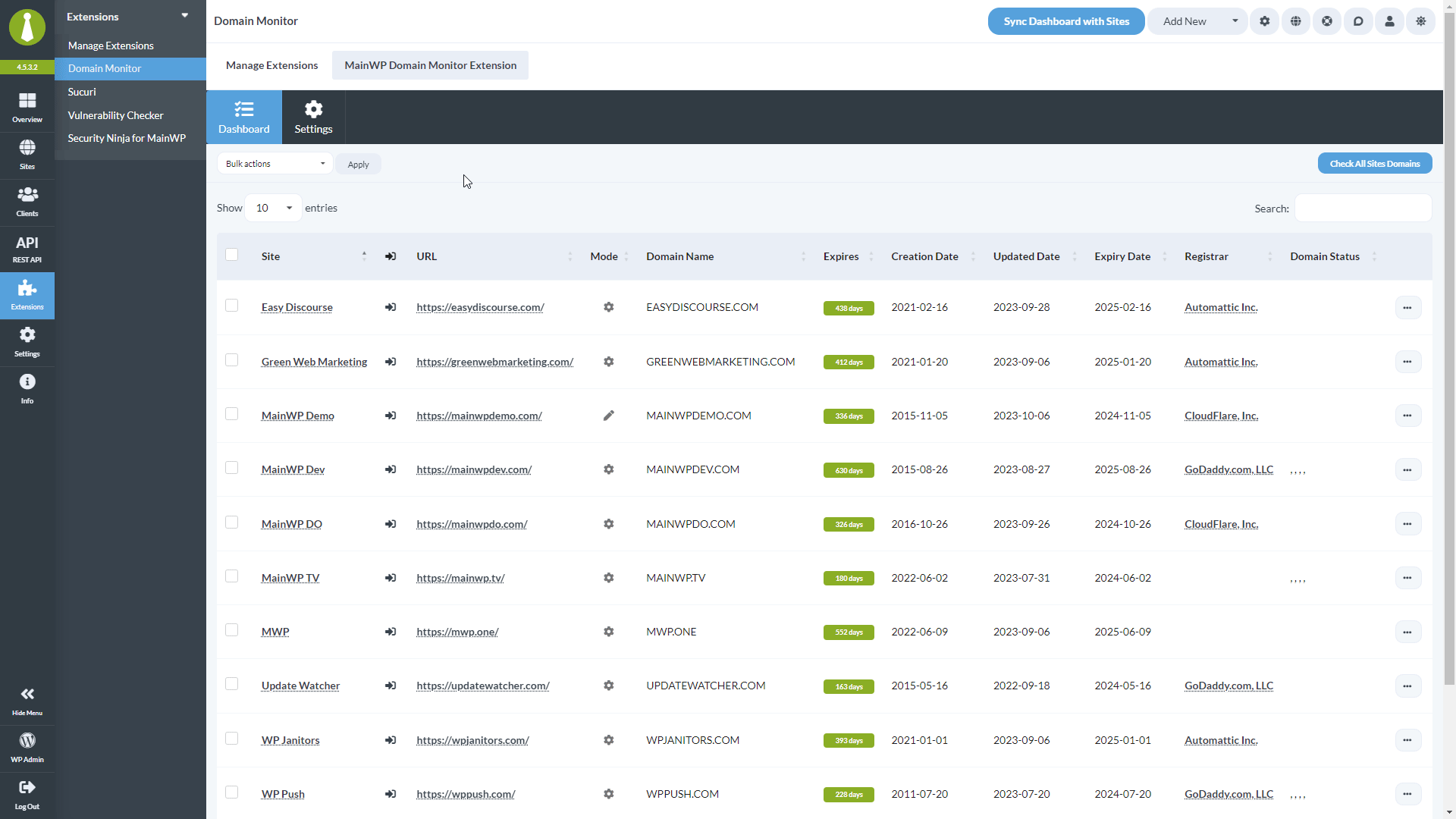
## Check Domains
Alternatively, you can use the **Bulk actions** menu to check selected sites, or use the **Check Domain** action from the site **Actions** menu to audit just one site.
### Unscanned Sites
Sites that have not been checked yet are highlighted in the Domain Monitor dashboard so you can spot them at a glance:
* The row is shaded yellow.
* The **Expires** column shows a **Not checked** button instead of remaining days. Click it to run a check for that site.
* Domain fields with no data display **N/A**.
* The **Domain Info** action is disabled until the first successful check completes.
Once a check completes, the row returns to its normal style and the remaining-days indicator (green, yellow, or red hourglass) appears based on how close the domain is to expiration.
## Enter Domain Info Manually
If your domain is not on the list of supported TLDs, you can add information manually by following the steps below.
Toggle on the **Manual Domain information entry** option and click **Save Settings**
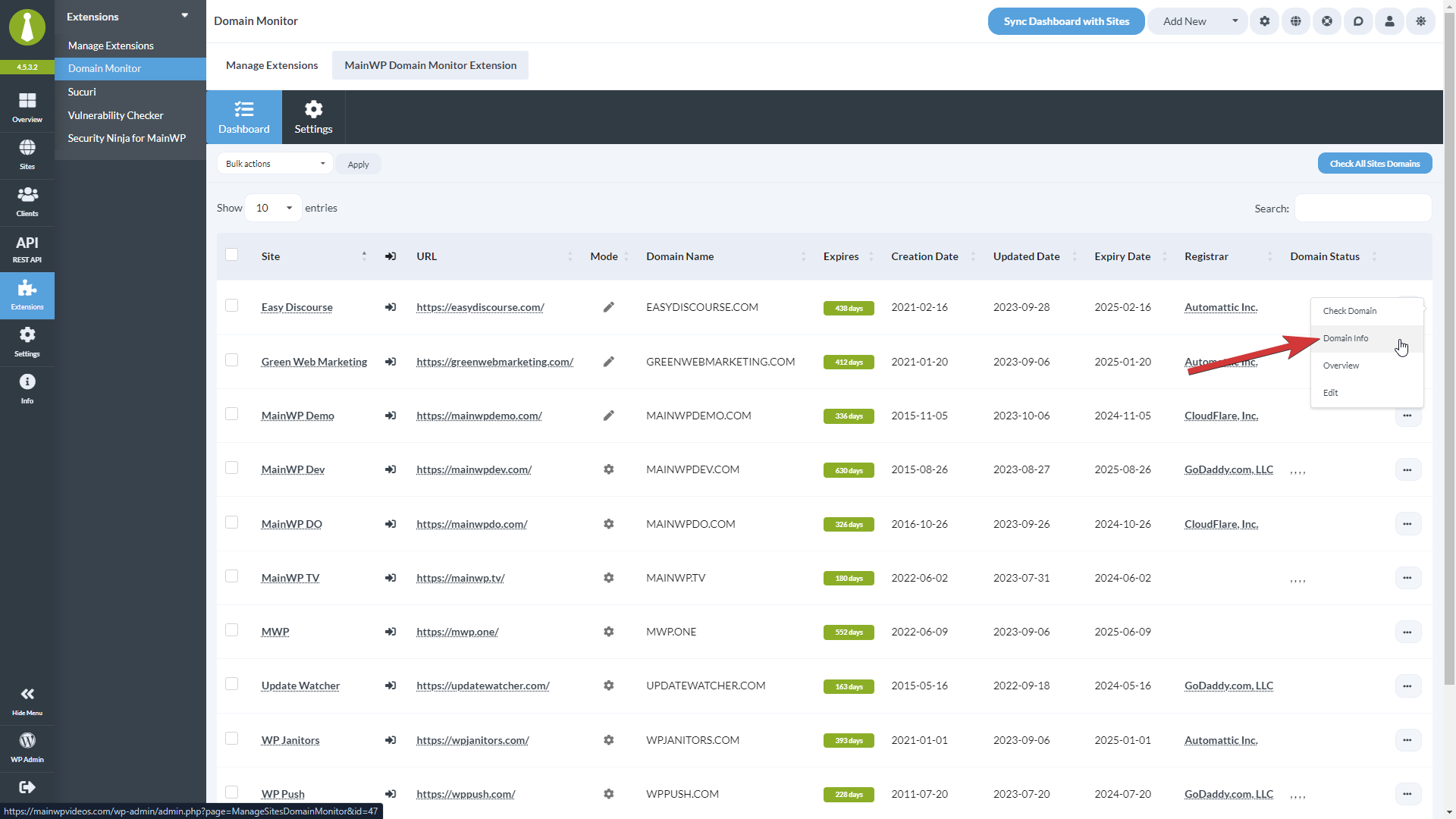
## See Domain Info
Locate the site/domain you want to check in the list and use the **Domain Info** action from the **Actions** menu.
## Schedule Automated Checks
Choose **Once a Day**, **Once a Week**, **Twice a Month**, or **Once Monthly**.
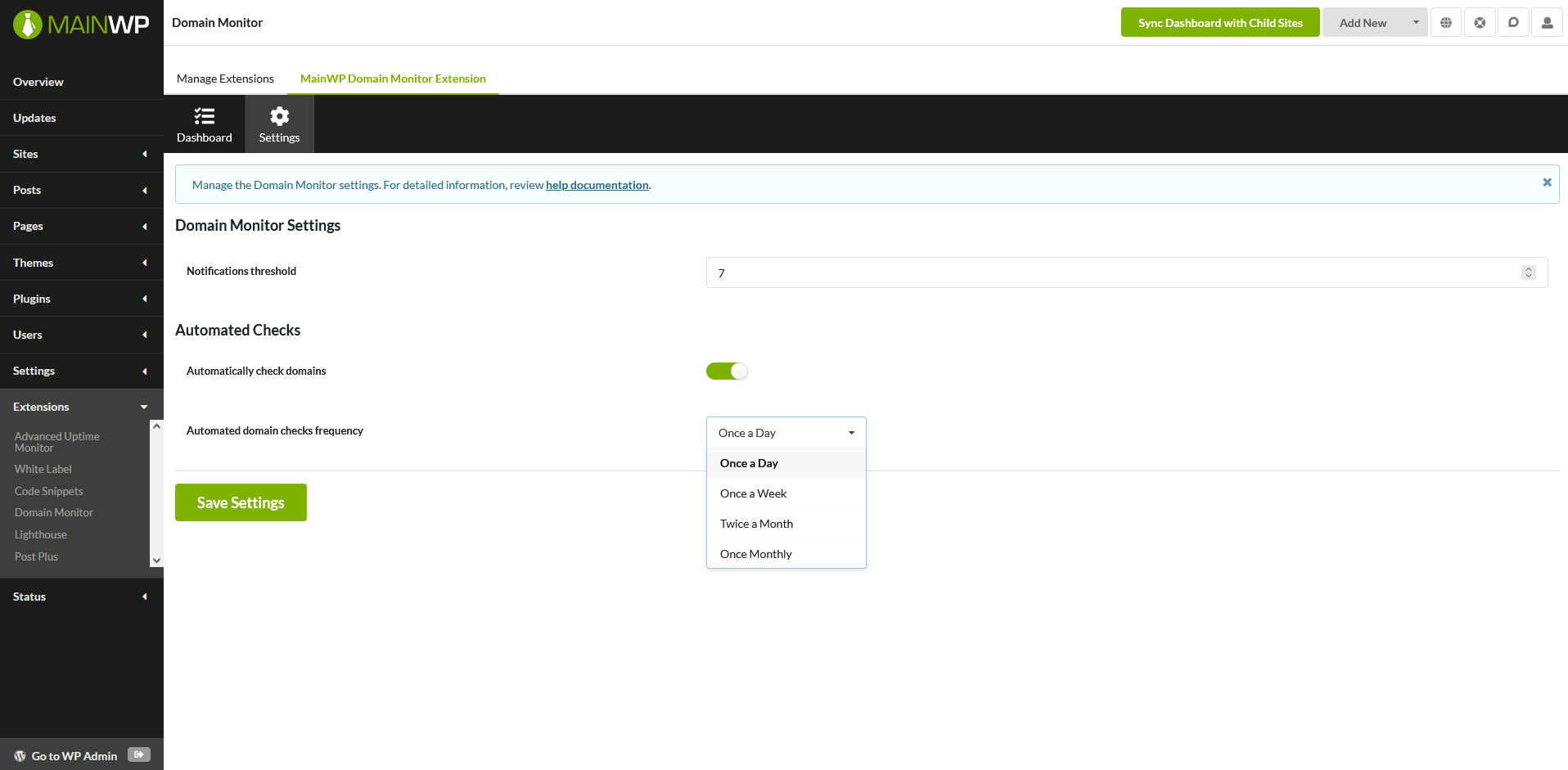
## Domain Monitor Settings
* **Notifications threshold** - Set the threshold for notifications. If the domain expiration is less in the set number of days, an email will be sent.
* **Automatically check domains** - If you want the extension to automatically run checks, enable this feature.
* **Automated domain checks frequency** - If automated checks are enabled, here you can set how often you want them to run.
## Check Sites via WP CLI
Check one or more sites:
```bash theme={null}
wp mainwp-domain-monitor check 129
wp mainwp-domain-monitor check 129,130
```
Check all sites:
```bash theme={null}
wp mainwp-domain-monitor check --all
```
View saved domain profiles for one or more sites:
```bash theme={null}
wp mainwp-domain-monitor results 129
wp mainwp-domain-monitor results 129,130
wp mainwp-domain-monitor results --all
```
## Domain Monitor REST API
MainWP REST API calls, including Domain Monitor endpoints, full documentation, and examples, are available in the [MainWP Postman workspace](https://www.postman.com/mainwp/workspace/mainwp/overview). Refer to our [REST API documentation](/api-reference/rest-api/overview) for more details on enabling REST API and managing API keys.
## Available Reports Tokens
* `[domain.monitor.domain.name]` - Displays the domain name.
* `[domain.monitor.registrar]` - Displays the domain registrar.
* `[domain.monitor.updated.date]` - Displays the domain updated date.
* `[domain.monitor.creation.date]` - Displays the domain creation date.
* `[domain.monitor.expiry.date]` - Displays the domain expiry date.
* `[domain.monitor.expires]` - Displays the number of days left before the domain expires.
* `[domain.monitor.status]` - Displays the domain status.
* `[domain.monitor.last.check]` - Displays the last check timestamp.
***
## Related Resources
* [Monitoring Add-ons](/add-ons/monitoring) - Browse all monitoring tools
* [SSL Monitor](/add-ons/monitoring/mainwp-ssl-monitor-extension) - Monitor SSL certificates
* [Pro Reports Extension](/add-ons/agency/pro-reports-extension-overview) - Include domain data in reports

 * **Notifications threshold** - Set the threshold for notifications. If the domain expiration is less in the set number of days, an email will be sent.
* **Automatically check domains** - If you want the extension to automatically run checks, enable this feature.
* **Automated domain checks frequency** - If automated checks are enabled, here you can set how often you want them to run.
## Check Sites via WP CLI
Check one or more sites:
```bash theme={null}
wp mainwp-domain-monitor check 129
wp mainwp-domain-monitor check 129,130
```
Check all sites:
```bash theme={null}
wp mainwp-domain-monitor check --all
```
View saved domain profiles for one or more sites:
```bash theme={null}
wp mainwp-domain-monitor results 129
wp mainwp-domain-monitor results 129,130
wp mainwp-domain-monitor results --all
```
## Domain Monitor REST API
MainWP REST API calls, including Domain Monitor endpoints, full documentation, and examples, are available in the [MainWP Postman workspace](https://www.postman.com/mainwp/workspace/mainwp/overview). Refer to our [REST API documentation](/api-reference/rest-api/overview) for more details on enabling REST API and managing API keys.
## Available Reports Tokens
* `[domain.monitor.domain.name]` - Displays the domain name.
* `[domain.monitor.registrar]` - Displays the domain registrar.
* `[domain.monitor.updated.date]` - Displays the domain updated date.
* `[domain.monitor.creation.date]` - Displays the domain creation date.
* `[domain.monitor.expiry.date]` - Displays the domain expiry date.
* `[domain.monitor.expires]` - Displays the number of days left before the domain expires.
* `[domain.monitor.status]` - Displays the domain status.
* `[domain.monitor.last.check]` - Displays the last check timestamp.
***
## Related Resources
* [Monitoring Add-ons](/add-ons/monitoring) - Browse all monitoring tools
* [SSL Monitor](/add-ons/monitoring/mainwp-ssl-monitor-extension) - Monitor SSL certificates
* [Pro Reports Extension](/add-ons/agency/pro-reports-extension-overview) - Include domain data in reports
* **Notifications threshold** - Set the threshold for notifications. If the domain expiration is less in the set number of days, an email will be sent.
* **Automatically check domains** - If you want the extension to automatically run checks, enable this feature.
* **Automated domain checks frequency** - If automated checks are enabled, here you can set how often you want them to run.
## Check Sites via WP CLI
Check one or more sites:
```bash theme={null}
wp mainwp-domain-monitor check 129
wp mainwp-domain-monitor check 129,130
```
Check all sites:
```bash theme={null}
wp mainwp-domain-monitor check --all
```
View saved domain profiles for one or more sites:
```bash theme={null}
wp mainwp-domain-monitor results 129
wp mainwp-domain-monitor results 129,130
wp mainwp-domain-monitor results --all
```
## Domain Monitor REST API
MainWP REST API calls, including Domain Monitor endpoints, full documentation, and examples, are available in the [MainWP Postman workspace](https://www.postman.com/mainwp/workspace/mainwp/overview). Refer to our [REST API documentation](/api-reference/rest-api/overview) for more details on enabling REST API and managing API keys.
## Available Reports Tokens
* `[domain.monitor.domain.name]` - Displays the domain name.
* `[domain.monitor.registrar]` - Displays the domain registrar.
* `[domain.monitor.updated.date]` - Displays the domain updated date.
* `[domain.monitor.creation.date]` - Displays the domain creation date.
* `[domain.monitor.expiry.date]` - Displays the domain expiry date.
* `[domain.monitor.expires]` - Displays the number of days left before the domain expires.
* `[domain.monitor.status]` - Displays the domain status.
* `[domain.monitor.last.check]` - Displays the last check timestamp.
***
## Related Resources
* [Monitoring Add-ons](/add-ons/monitoring) - Browse all monitoring tools
* [SSL Monitor](/add-ons/monitoring/mainwp-ssl-monitor-extension) - Monitor SSL certificates
* [Pro Reports Extension](/add-ons/agency/pro-reports-extension-overview) - Include domain data in reports