> ## Documentation Index
> Fetch the complete documentation index at: https://docs.mainwp.com/llms.txt
> Use this file to discover all available pages before exploring further.
# File Uploader
> The MainWP File Uploader Extension makes it super easy to upload multiple files to all your Child Sites from one place without the hassle of logging into each site's cPanel or FTP individually.
## What You'll Learn
* Uploading files to multiple child sites simultaneously
* Setting upload paths and destinations
* Supported file types list
* Adding support for custom file types
***
**Extension Add-on** - This add-on provides standalone functionality within MainWP Dashboard. No third-party plugins required.
The [MainWP File Uploader Add-on](https://mainwp.com/extension/file-uploader/) is a simple way to upload files to your child sites from one centralized location. It gives you the ability to upload multiple files to all of your child sites simultaneously.
## Upload Files to Child Sites
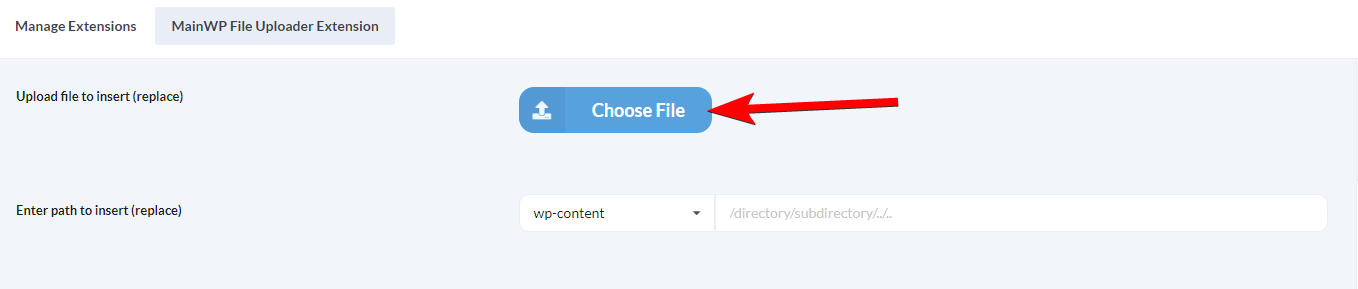
Click the **Choose File** button and upload the wanted file *(alternatively, drag\&drop files to the marked area) *
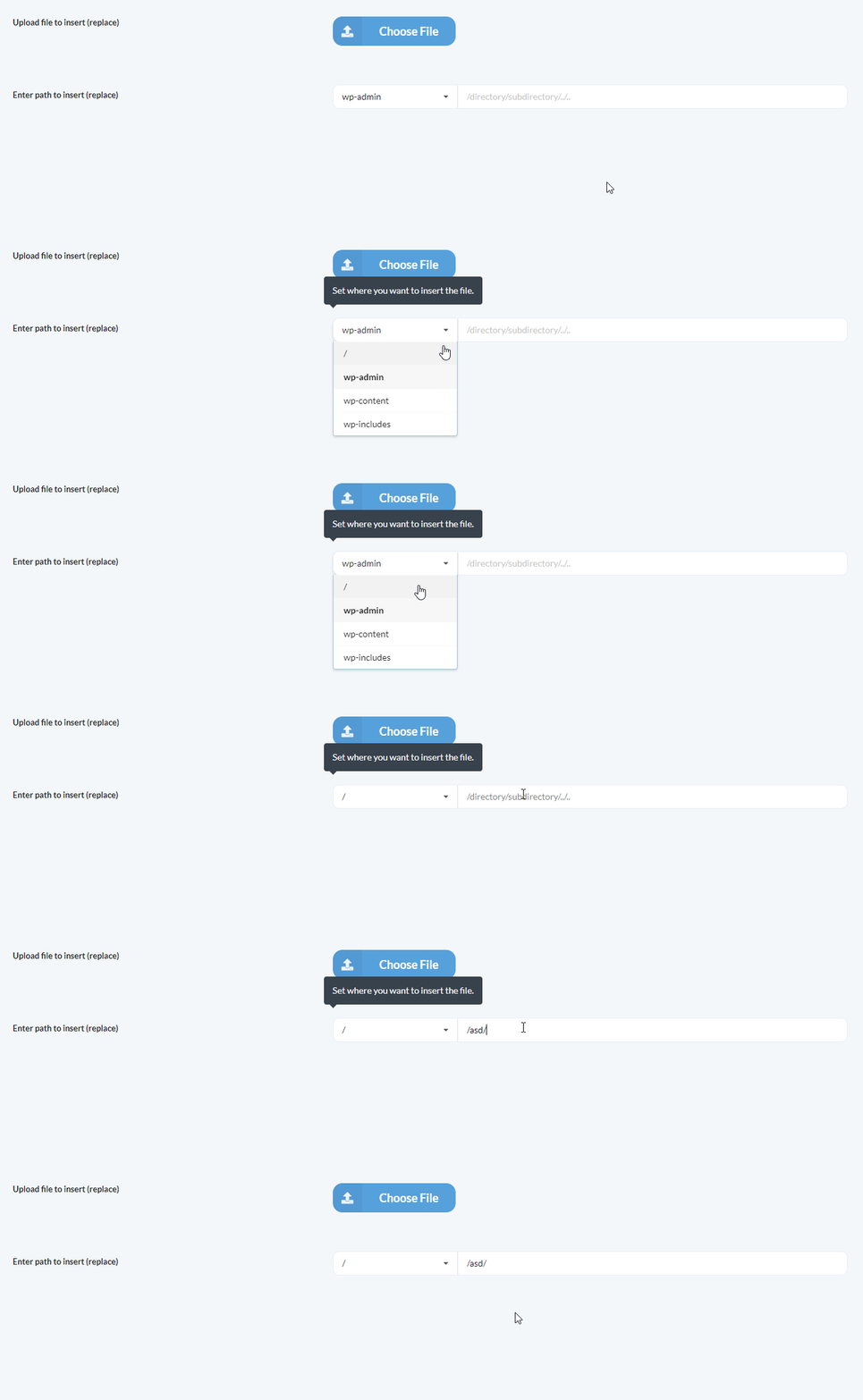
Set the path where you want to upload your file(s).
**NOTE:** If a directory does not exist on the child site, it will be created.
[Select websites, tags, or clients](/getting-started/mainwp-user-interface) where you want to upload file(s)
The file that already exists with the same name in the same directory **will be overwritten.** File names are sanitized before upload, so spaces and certain special characters in file names can be replaced with dashes. Enter the destination path exactly as you want MainWP Child to create it.
## Supported File Types
* .php
* .css
* .xml
* .js
* .txt
* .zip
* .rar
* .ico
* .html
* .po
* .mo
* .dat
* .jpg
* .jpeg
* .png
* .bmp
* .gif
* .pdf
* .doc, .docx
* .ppt, .pptx, .pps, .ppsx
* .odt
* .xls, .xlsx
* .mp3
* .m4a
* .ogg
* .wav
* .mp4, .m4v
* .mov
* .wmv
* .avi
* .mpg
* .ogv
* .3gp
* .3g2
## Add Support for a Custom File Type in File Uploader
By default, the MainWP File Uploader Add-on doesn't support all file types. By using the `mainwp_file_uploader_allowed_file_types` filter, it is possible to add support for any file type. In this example, we will show how to add support for the JSON file type:
Install and activate the [MainWP Custom Dashboard Add-on](https://mainwp.com/extension/mainwp-custom-dashboard-extension/)
```php theme={null}
add_filter('mainwp_file_uploader_allowed_file_types', 'mycustom_mainwp_file_uploader_allowed_file_types');
function mycustom_mainwp_file_uploader_allowed_file_types( $types ) {
$types[] = 'json';
return $types;
}
```
MainWP is not responsible for the files that you upload to your sites. The File Uploader Add-on doesn't allow uploading the .**htaccess** file. This Add-on upload files directly to your server, so treat it with the same care you would when uploading a file via FTP. Not all web hosts permit all file types to be uploaded. Also, they may not allow large file uploads. If you are having issues, please check with your host first. If you are having issues with uploading files, be sure to check that you are trying to upload a supported file type and that the file size is not over the limit declared by **PHP Max Upload Filesize** and **PHP Post Max Size** on your MainWP Dashboard server.
***
## Related Resources
* [Development Add-ons](/add-ons/development) - Browse all development tools
* [Custom Dashboard Extension](/add-ons/development/mainwp-custom-dashboard-extension) - Add custom snippets
* [System Requirements](/advanced/miscellaneous/mainwp-system-requirements) - PHP configuration settings
 *
*