> ## Documentation Index
> Fetch the complete documentation index at: https://docs.mainwp.com/llms.txt
> Use this file to discover all available pages before exploring further.
# Favorites
> The MainWP Favorites Extension lets you store frequently used plugins and themes by URL or direct ZIP upload, organize them into groups, and install them quickly. Favorites are stored locally on your MainWP Dashboard and do not use the WordPress.org Favorites API, so your privacy is maintained.
## What You'll Learn
* Adding plugins and themes to your favorites list by URL or direct ZIP upload
* Organizing favorites into groups
* Assigning and filtering favorites by group
* Managing and editing saved favorites
* Installing favorites on child sites from the install pages
***
**Extension Add-on** - This add-on provides standalone functionality within MainWP Dashboard. No third-party plugins required.
The **MainWP Favorites Extension** allows you to save frequently used plugins and themes for quick and easy installation on your child sites. Instead of manually searching for plugins or themes each time, you can store your preferred items in your Favorites list by URL or direct ZIP upload and install them whenever needed. Use groups to keep your favorites organized and easier to find.
## Accessing the Favorites Extension
To access the Favorites Extension, navigate to:
**Dashboard > Add-ons > Favorites**
Here, you will see two sections:
* **Plugins** - A list of your favorite plugins
* **Themes** - A list of your favorite themes
Each section includes an **Add New** button, a **Manage Groups** button, an **Install Favorites** button, and a **Filter by Group** dropdown. If favorites already exist, you will also see **Update Versions Info**.
## Adding Plugins and Themes to Favorites
To add a plugin or theme to your favorites list:
* For URL-based favorites, you can use a WordPress.org URL or a custom URL where your custom plugin or theme ZIP is stored.
* For direct uploads, click the file field and choose the ZIP file from your local computer.
* If left blank, the system will automatically fetch the name from the item's metadata.
* This works for both URL-based items and ZIP uploads.
If you use a URL, it must be publicly accessible. If you upload a ZIP file directly, Favorites stores it in the site uploads folder for favorites, so you do not need to host the file elsewhere first.
Direct ZIP uploads are stored in the MainWP Dashboard site's WordPress uploads directory. On a standard site, the path is `/wp-content/uploads/mainwp/0/favorites/`. If your uploads directory is customized, use that uploads base path plus `/mainwp/0/favorites/`.
The process is the same for both plugins and themes.
## Managing Your Favorites List
Once you've added items to your Favorites list, use the three-dot menu in each row to manage them:
* **Update Version Info**: Re-read the file or URL to refresh the version shown in the list.
* **Edit**: Click the **pen icon** to update the name, change the URL, or replace the source with a ZIP upload.
* **Download**: Click the **download icon** to save the ZIP file to your local computer.
* **Delete**: Click the **trash icon** to remove the item from your favorites.
Favorites added from a local ZIP upload display as `Local: filename.zip` in the URL column, making it easier to distinguish them from URL-based items.
## Organizing Favorites with Groups
Groups help you organize plugin favorites separately from theme favorites. Use the **Manage Groups** button in each section to create or update groups for that type.
To edit a group, click the **pen icon**, update the fields in the same modal, then click **Update Group**. To delete a group, click the **trash icon** and confirm the deletion. Deleting a group does not delete favorites.
## Assigning Favorites to Groups
Use the **Groups** dropdown in each row to assign one or more groups. Changes save automatically. If no groups exist yet, you will see **No groups available**.
## Filtering Favorites by Group
Use the **Filter by Group** dropdown above the list to narrow results. The dropdown supports multi-select, so you can combine groups, or choose **All Groups** to reset. The Install Favorites list uses the same multi-select filter when groups exist.
## Installing Favorites on Child Sites
Use the **Favorites** page to manage your saved items, groups, and metadata. Installations happen from the **Install Plugins** and **Install Themes** pages. The **Install Favorites** button on the Favorites page is a shortcut that opens the matching install page with the Favorites tab selected. The installer also includes a link back to the Favorites page if you need to add, edit, or reorganize items before installation.
To install a favorite:
* **Dashboard > Add-ons > Favorites**, then click **Install Favorites** in the **Plugins** or **Themes** section to open the matching install page.
* **Dashboard > Plugins > Install Plugins**
* **Dashboard > Themes > Install Themes**
* If you started from the Install Plugins or Install Themes page, click **Install from Favorites**.
* If you used the shortcut on the Favorites page, the matching install page opens with the Favorites tab already selected.
MainWP will then install the selected items on the chosen sites automatically.
***
## Related Resources
* [Development Add-ons](/add-ons/development) - Browse all development tools
* [Managing Plugins](/sites/plugins/managing-plugins-with-mainwp) - Plugin management guide
* [Managing Themes](/sites/themes/managing-themes-with-mainwp) - Theme management guide
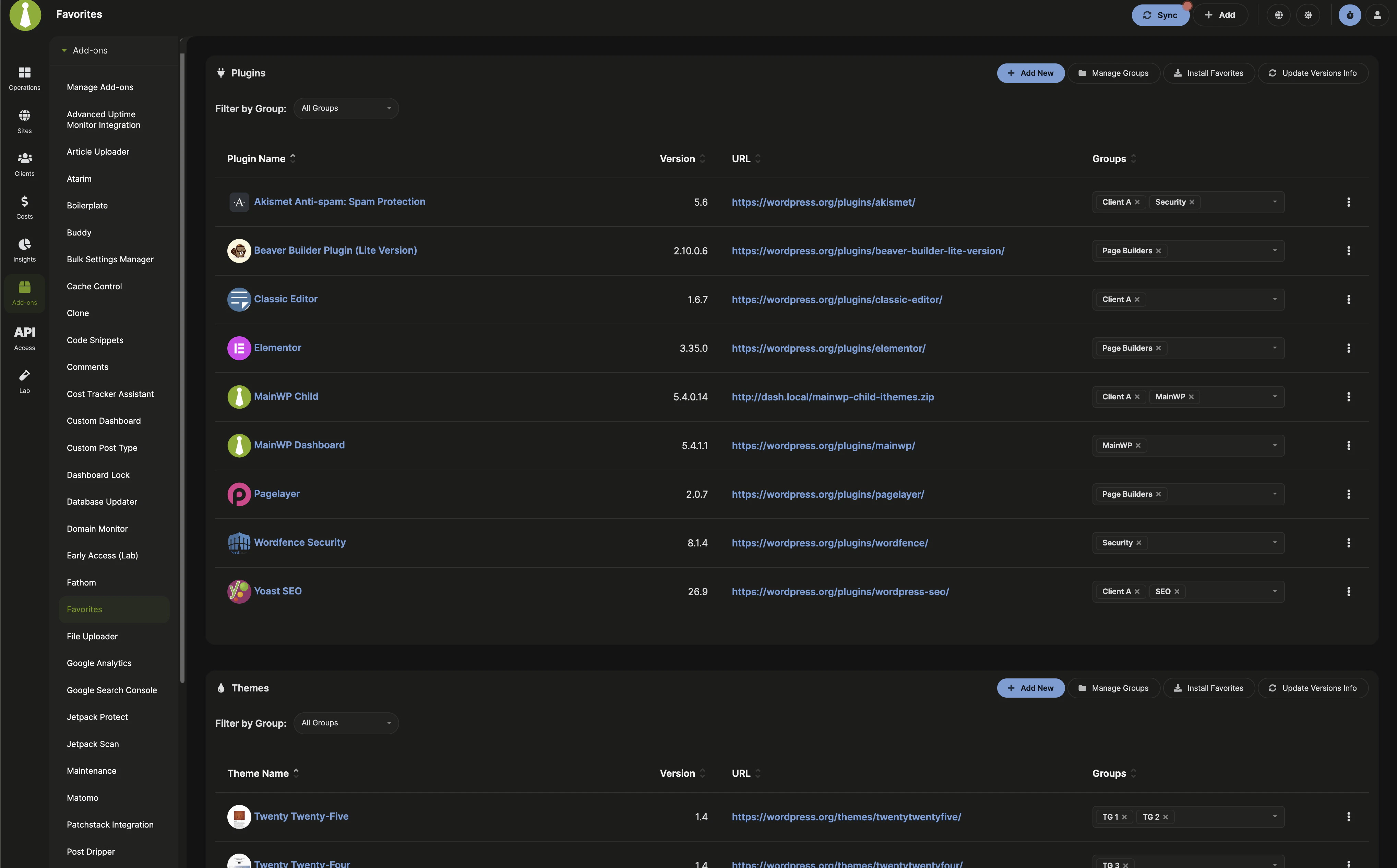 To access the Favorites Extension, navigate to:
**Dashboard > Add-ons > Favorites**
Here, you will see two sections:
* **Plugins** - A list of your favorite plugins
* **Themes** - A list of your favorite themes
Each section includes an **Add New** button, a **Manage Groups** button, an **Install Favorites** button, and a **Filter by Group** dropdown. If favorites already exist, you will also see **Update Versions Info**.
## Adding Plugins and Themes to Favorites
To access the Favorites Extension, navigate to:
**Dashboard > Add-ons > Favorites**
Here, you will see two sections:
* **Plugins** - A list of your favorite plugins
* **Themes** - A list of your favorite themes
Each section includes an **Add New** button, a **Manage Groups** button, an **Install Favorites** button, and a **Filter by Group** dropdown. If favorites already exist, you will also see **Update Versions Info**.
## Adding Plugins and Themes to Favorites
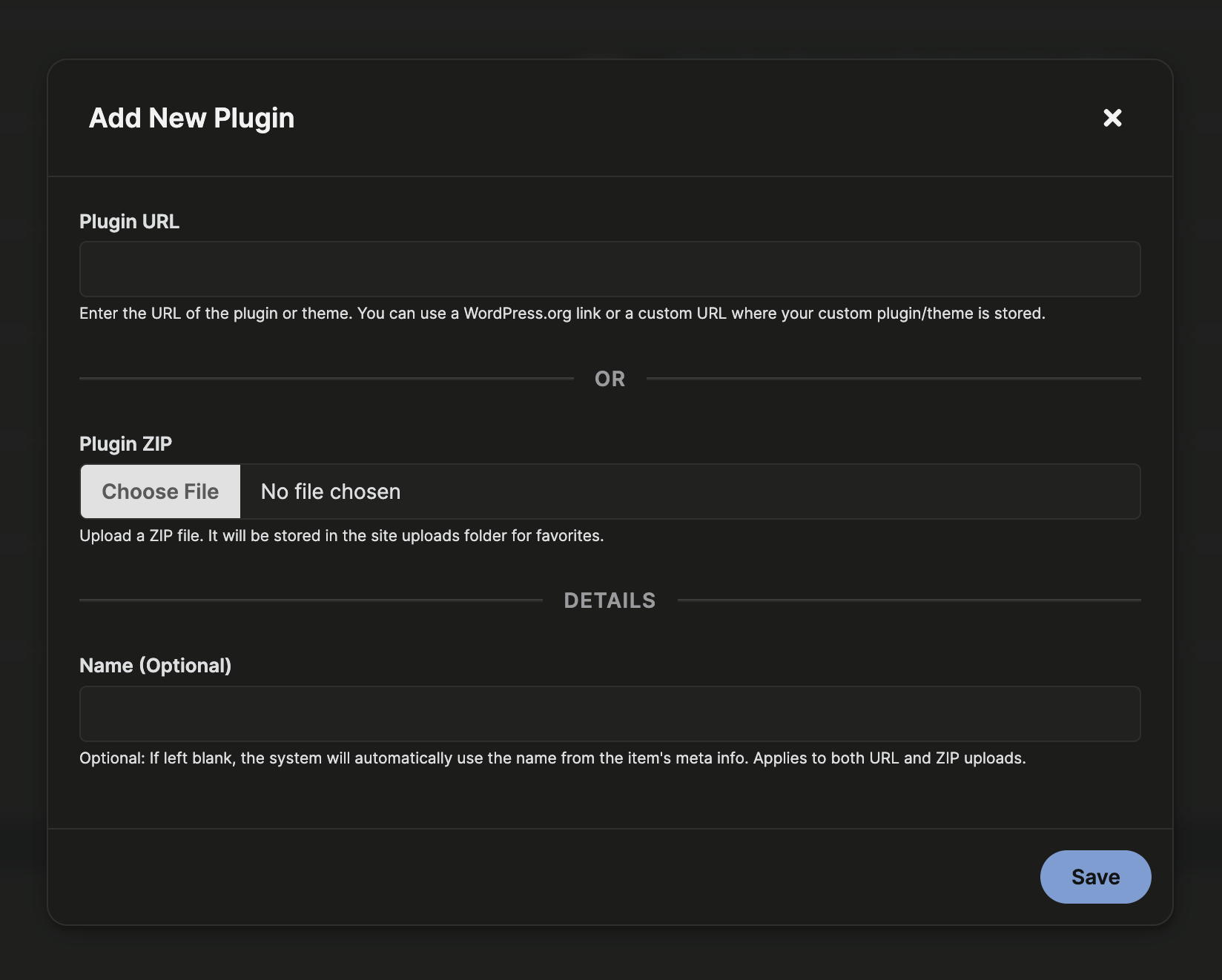 To add a plugin or theme to your favorites list: