> ## Documentation Index
> Fetch the complete documentation index at: https://docs.mainwp.com/llms.txt
> Use this file to discover all available pages before exploring further.
# Time Tracker
> Track your time for your client projects, all within the MainWP Dashboard!
## What You'll Learn
* Creating and managing time buckets
* Tracking tasks and billable hours
* Configuring timer modes and rounding
* Understanding payment statuses
* Using the Time Tracker REST API
***
**Extension Add-on** - This add-on provides standalone functionality within MainWP Dashboard. No third-party plugins required.
## Introduction
The Time Tracker Extension allows users to track the work they do for their clients directly from their Dashboard or Browser Extension. The Time Tracker extension integrates seamlessly with the MainWP Clients feature, allowing users to create time-tracking entries for custom work performed for clients. This extension is particularly useful for MainWP managers who need to monitor the time dedicated to various tasks, ensuring accurate billing and reporting.
## Key Features
* **Buckets:** Users can create "Buckets," which are pools of hours assigned specific price tags for different services offered to clients.
* **Time Counting and Rounding:** Offers the ability to count time up from 0 or down from a specific time and round entries up or down for neat and understandable reporting.
* **Flexible Settings:** Users can adjust settings globally or per client, catering to diverse client needs and billing practices.
## Setting Up Time Tracker
### **Creating Buckets:**
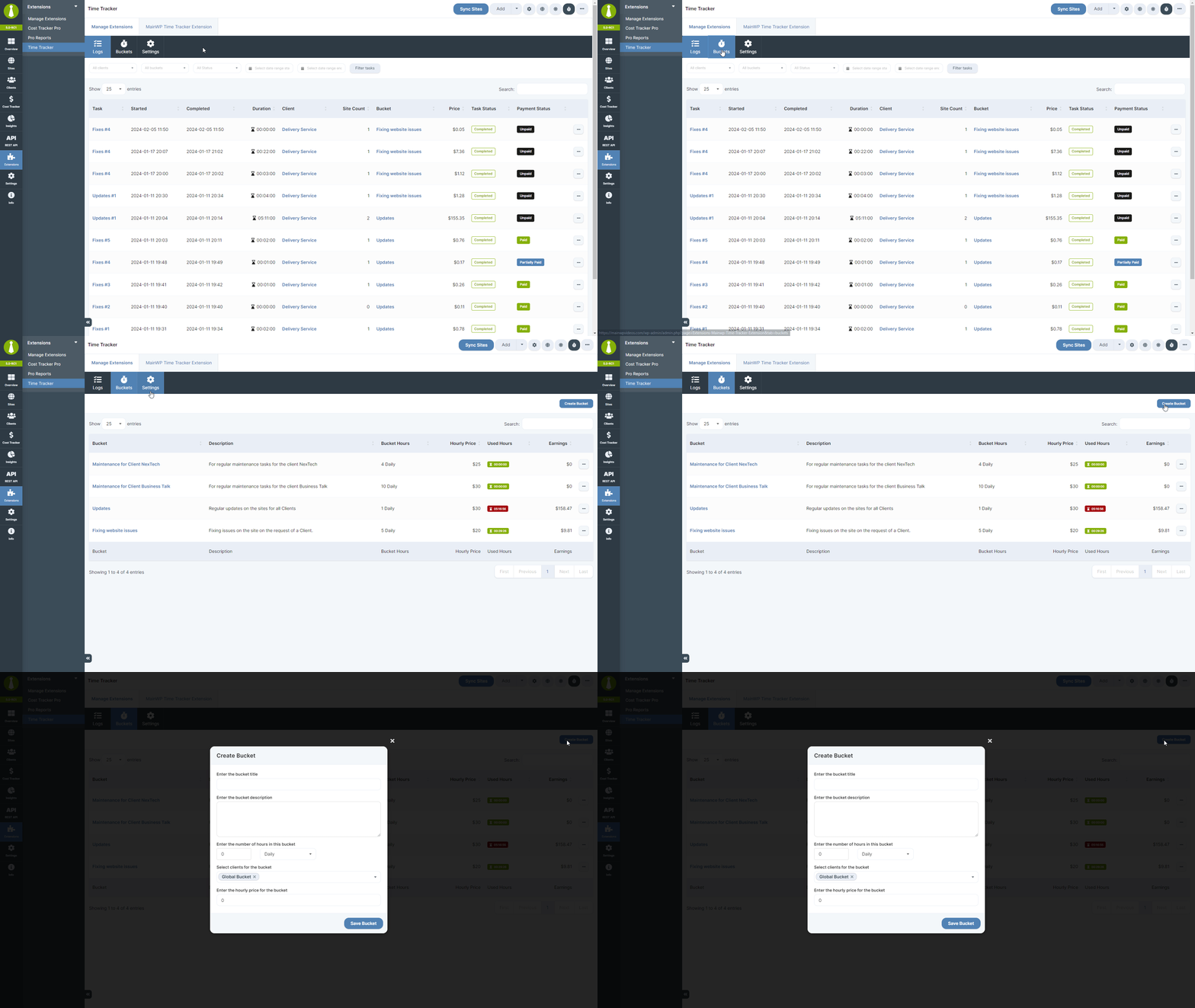
1. Navigate to **Add-ons > Time Tracker > Buckets** and click the **Create Bucket** button
1. Enter the bucket title and description
2. Enter the number of hours in this bucket
3. Select the clients to associate them with this bucket
4. Enter the hourly price for the bucket **NOTE**: Enter just the numeric value here. The currency is defined in the settings.
5. Click **Save Bucket**
### **Buckets Page**
The Buckets Page allows for the creation and management of buckets, showing details like hours, recurrence, and pricing. Users can view detailed usage of buckets and edit or delete them as needed.
### **Settings**
Navigate to **Add-ons > Time Tracker > Settings**
1. Default timer mode
1. Count Up: the timer will start counting up from 0
2. Count Down: the timer will start counting down from the time remaining in the selected bucket
2. Default currency symbol: select your preferred currency symbol to use as the default
3. Currency symbol position: choose the position of the currency symbol, before or after the amount
4. Thousand separator: select a separator for thousands to enhance readability
5. Decimal separator: choose a symbol to separate decimal portions in numbers
6. Decimal places: set the number of decimal places for numerical values
7. Time rounding: enable this to round time entries to the nearest set interval
1. Rounding interval: choose between round to nearest, round up or round down
2. Rounding value: choose the interval for rounding time
## Time Tracking a Task
To **initiate time tracking a task**:
Click the stopwatch icon in the header actions, then select **New Task** to open the Time Tracker modal.
You can now dismiss the popup modal by clicking the X icon in the top right of the modal and continue with your work. When you are ready to **finish tracking** this task, navigate to the Time Tracker **Logs** page, locate the running task, and from the ellipsis menu, select **Continue**, then from the popup modal, select **Stop and Submit**.
### View Task details
Navigate to the Time Tracker **Logs** page, locate the running task, and click its name in the table. Alternatively, from the ellipsis menu, you can select **View Detail**. Here, you get a brief overview of the information related to that task.
### Edit a Task
Navigate to the Time Tracker **Logs** page, locate the running task, and from the ellipsis menu, select **Edit**. From the popup modal, you can change all information related to the task that you selected earlier when starting it. In addition to that information, you can now also change the **Payment status** and **Task status** of the task.
### Delete a task
Navigate to the Time Tracker **Logs** page, locate the running task, and from the ellipsis menu, select **Delete**, then confirm the deletion.
## Payment Statuses
1. **Draft** - The bill has been created but not yet finalized or sent to the recipient. This status is used for bills that are still being worked on.
2. **Sent** - The bill has been finalized and sent to the recipient but has not yet been paid. This indicates that the bill is awaiting action from the recipient.
3. **Pending** - The payment for the bill is pending; this can indicate awaiting payment from the recipient or that the payment process has been initiated but not yet completed.
4. **Paid** - The bill has been fully paid. This status is used once the payment has been received and processed.
5. **Partially Paid** - Part of the bill's amount has been paid, but there is still an outstanding balance.
6. **Overdue** - The bill has not been paid by the due date. This status is used for bills that are past their payment deadline.
7. **Canceled** - The bill has been canceled and is no longer valid. This status can be used if the bill was issued in error or if the services/products were not delivered as expected.
8. **Disputed** - The recipient has disputed the bill. This status is used when there are disagreements about the bill's charges, services, or products provided.
9. **Refunded** - The bill has been paid, but the amount paid was later refunded to the payer. This status might be used in cases of overpayment or if the services/products were found unsatisfactory and a refund was agreed upon.
10. **Write-Off** - The bill is considered uncollectible and has been written off as a loss. This status is used for bills that have not been paid for an extended period, and the issuer has decided not to pursue collection further.
11. **Unbilled** - The default status that will be applied to a task.
## Widgets and table information
The extension provides widgets on the individual site overview and client overview pages, displaying tasks related to the selected site or client. It also adds a **Tasks** column to the Manage Sites and Manage Clients tables that shows in-progress and completed task counts. The in-progress count includes both paused and working tasks.
## Time Tracker REST API
The Time Tracker extension supports REST API for integration with the MainWP Browser Extension, allowing for seamless time tracking and management across platforms. All MainWP REST API calls, including full documentation and examples, are now publicly available on [Postman](https://www.postman.com/mainwp/workspace/mainwp/overview). Version 1 registers routes under `wp-json/mainwp/v1/time-tracker/...` when the MainWP REST API is enabled. Version 2 registers routes under `wp-json/mainwp/v2/time-tracker/...` for tasks, settings, clients, sites, and buckets. For authentication and key management, see [REST API Overview](/api-reference/rest-api/overview).
***
## Related Resources
* [Client Add-ons](/add-ons/client) - Browse all client management add-ons
* [Manage Clients](/clients/manage-clients) - Client management in MainWP Dashboard
* [Pro Reports Extension](/add-ons/agency/pro-reports-extension-overview) - Include time data in reports
 1. Navigate to **Add-ons > Time Tracker > Buckets** and click the **Create Bucket** button
1. Enter the bucket title and description
2. Enter the number of hours in this bucket
3. Select the clients to associate them with this bucket
4. Enter the hourly price for the bucket **NOTE**: Enter just the numeric value here. The currency is defined in the settings.
5. Click **Save Bucket**
### **Buckets Page**
The Buckets Page allows for the creation and management of buckets, showing details like hours, recurrence, and pricing. Users can view detailed usage of buckets and edit or delete them as needed.
1. Navigate to **Add-ons > Time Tracker > Buckets** and click the **Create Bucket** button
1. Enter the bucket title and description
2. Enter the number of hours in this bucket
3. Select the clients to associate them with this bucket
4. Enter the hourly price for the bucket **NOTE**: Enter just the numeric value here. The currency is defined in the settings.
5. Click **Save Bucket**
### **Buckets Page**
The Buckets Page allows for the creation and management of buckets, showing details like hours, recurrence, and pricing. Users can view detailed usage of buckets and edit or delete them as needed.  ### **Settings**
Navigate to **Add-ons > Time Tracker > Settings**
1. Default timer mode
1. Count Up: the timer will start counting up from 0
2. Count Down: the timer will start counting down from the time remaining in the selected bucket
2. Default currency symbol: select your preferred currency symbol to use as the default
3. Currency symbol position: choose the position of the currency symbol, before or after the amount
4. Thousand separator: select a separator for thousands to enhance readability
5. Decimal separator: choose a symbol to separate decimal portions in numbers
6. Decimal places: set the number of decimal places for numerical values
7. Time rounding: enable this to round time entries to the nearest set interval
1. Rounding interval: choose between round to nearest, round up or round down
2. Rounding value: choose the interval for rounding time
## Time Tracking a Task
To **initiate time tracking a task**:
### **Settings**
Navigate to **Add-ons > Time Tracker > Settings**
1. Default timer mode
1. Count Up: the timer will start counting up from 0
2. Count Down: the timer will start counting down from the time remaining in the selected bucket
2. Default currency symbol: select your preferred currency symbol to use as the default
3. Currency symbol position: choose the position of the currency symbol, before or after the amount
4. Thousand separator: select a separator for thousands to enhance readability
5. Decimal separator: choose a symbol to separate decimal portions in numbers
6. Decimal places: set the number of decimal places for numerical values
7. Time rounding: enable this to round time entries to the nearest set interval
1. Rounding interval: choose between round to nearest, round up or round down
2. Rounding value: choose the interval for rounding time
## Time Tracking a Task
To **initiate time tracking a task**:
 You can now dismiss the popup modal by clicking the X icon in the top right of the modal and continue with your work. When you are ready to **finish tracking** this task, navigate to the Time Tracker **Logs** page, locate the running task, and from the ellipsis menu, select **Continue**, then from the popup modal, select **Stop and Submit**.
  ### View Task details
 Navigate to the Time Tracker **Logs** page, locate the running task, and click its name in the table. Alternatively, from the ellipsis menu, you can select **View Detail**. Here, you get a brief overview of the information related to that task.
### Edit a Task
Navigate to the Time Tracker **Logs** page, locate the running task, and from the ellipsis menu, select **Edit**. From the popup modal, you can change all information related to the task that you selected earlier when starting it. In addition to that information, you can now also change the **Payment status** and **Task status** of the task.
### Delete a task
Navigate to the Time Tracker **Logs** page, locate the running task, and from the ellipsis menu, select **Delete**, then confirm the deletion.
## Payment Statuses
1. **Draft** - The bill has been created but not yet finalized or sent to the recipient. This status is used for bills that are still being worked on.
2. **Sent** - The bill has been finalized and sent to the recipient but has not yet been paid. This indicates that the bill is awaiting action from the recipient.
3. **Pending** - The payment for the bill is pending; this can indicate awaiting payment from the recipient or that the payment process has been initiated but not yet completed.
4. **Paid** - The bill has been fully paid. This status is used once the payment has been received and processed.
5. **Partially Paid** - Part of the bill's amount has been paid, but there is still an outstanding balance.
6. **Overdue** - The bill has not been paid by the due date. This status is used for bills that are past their payment deadline.
7. **Canceled** - The bill has been canceled and is no longer valid. This status can be used if the bill was issued in error or if the services/products were not delivered as expected.
8. **Disputed** - The recipient has disputed the bill. This status is used when there are disagreements about the bill's charges, services, or products provided.
9. **Refunded** - The bill has been paid, but the amount paid was later refunded to the payer. This status might be used in cases of overpayment or if the services/products were found unsatisfactory and a refund was agreed upon.
10. **Write-Off** - The bill is considered uncollectible and has been written off as a loss. This status is used for bills that have not been paid for an extended period, and the issuer has decided not to pursue collection further.
11. **Unbilled** - The default status that will be applied to a task.
## Widgets and table information
The extension provides widgets on the individual site overview and client overview pages, displaying tasks related to the selected site or client.
Navigate to the Time Tracker **Logs** page, locate the running task, and click its name in the table. Alternatively, from the ellipsis menu, you can select **View Detail**. Here, you get a brief overview of the information related to that task.
### Edit a Task
Navigate to the Time Tracker **Logs** page, locate the running task, and from the ellipsis menu, select **Edit**. From the popup modal, you can change all information related to the task that you selected earlier when starting it. In addition to that information, you can now also change the **Payment status** and **Task status** of the task.
### Delete a task
Navigate to the Time Tracker **Logs** page, locate the running task, and from the ellipsis menu, select **Delete**, then confirm the deletion.
## Payment Statuses
1. **Draft** - The bill has been created but not yet finalized or sent to the recipient. This status is used for bills that are still being worked on.
2. **Sent** - The bill has been finalized and sent to the recipient but has not yet been paid. This indicates that the bill is awaiting action from the recipient.
3. **Pending** - The payment for the bill is pending; this can indicate awaiting payment from the recipient or that the payment process has been initiated but not yet completed.
4. **Paid** - The bill has been fully paid. This status is used once the payment has been received and processed.
5. **Partially Paid** - Part of the bill's amount has been paid, but there is still an outstanding balance.
6. **Overdue** - The bill has not been paid by the due date. This status is used for bills that are past their payment deadline.
7. **Canceled** - The bill has been canceled and is no longer valid. This status can be used if the bill was issued in error or if the services/products were not delivered as expected.
8. **Disputed** - The recipient has disputed the bill. This status is used when there are disagreements about the bill's charges, services, or products provided.
9. **Refunded** - The bill has been paid, but the amount paid was later refunded to the payer. This status might be used in cases of overpayment or if the services/products were found unsatisfactory and a refund was agreed upon.
10. **Write-Off** - The bill is considered uncollectible and has been written off as a loss. This status is used for bills that have not been paid for an extended period, and the issuer has decided not to pursue collection further.
11. **Unbilled** - The default status that will be applied to a task.
## Widgets and table information
The extension provides widgets on the individual site overview and client overview pages, displaying tasks related to the selected site or client.  It also adds a **Tasks** column to the Manage Sites and Manage Clients tables that shows in-progress and completed task counts. The in-progress count includes both paused and working tasks.
  ## Time Tracker REST API
The Time Tracker extension supports REST API for integration with the MainWP Browser Extension, allowing for seamless time tracking and management across platforms. All MainWP REST API calls, including full documentation and examples, are now publicly available on [Postman](https://www.postman.com/mainwp/workspace/mainwp/overview). Version 1 registers routes under `wp-json/mainwp/v1/time-tracker/...` when the MainWP REST API is enabled. Version 2 registers routes under `wp-json/mainwp/v2/time-tracker/...` for tasks, settings, clients, sites, and buckets. For authentication and key management, see [REST API Overview](/api-reference/rest-api/overview).
***
## Related Resources
* [Client Add-ons](/add-ons/client) - Browse all client management add-ons
* [Manage Clients](/clients/manage-clients) - Client management in MainWP Dashboard
* [Pro Reports Extension](/add-ons/agency/pro-reports-extension-overview) - Include time data in reports
## Time Tracker REST API
The Time Tracker extension supports REST API for integration with the MainWP Browser Extension, allowing for seamless time tracking and management across platforms. All MainWP REST API calls, including full documentation and examples, are now publicly available on [Postman](https://www.postman.com/mainwp/workspace/mainwp/overview). Version 1 registers routes under `wp-json/mainwp/v1/time-tracker/...` when the MainWP REST API is enabled. Version 2 registers routes under `wp-json/mainwp/v2/time-tracker/...` for tasks, settings, clients, sites, and buckets. For authentication and key management, see [REST API Overview](/api-reference/rest-api/overview).
***
## Related Resources
* [Client Add-ons](/add-ons/client) - Browse all client management add-ons
* [Manage Clients](/clients/manage-clients) - Client management in MainWP Dashboard
* [Pro Reports Extension](/add-ons/agency/pro-reports-extension-overview) - Include time data in reports