> ## Documentation Index
> Fetch the complete documentation index at: https://docs.mainwp.com/llms.txt
> Use this file to discover all available pages before exploring further.
# UpdraftPlus
> Control UpdraftPlus Plugin settings, create backups, schedule automated backups, and restore Child Sites directly from your MainWP Dashboard. Supports both free and premium UpdraftPlus versions.
## What You'll Learn
* Installing the UpdraftPlus extension and plugin
* Configuring backup schedules and settings
* Creating and restoring backups from MainWP
* Managing per-site backup configurations
***
**Integration Add-on** - This add-on extends MainWP to work with UpdraftPlus. Requires UpdraftPlus to be installed on your child sites.
Installation of the MainWP UpdraftPlus Extension requires two important steps:
* Installing the Extension itself on your MainWP Dashboard site
* Installing the UpdraftPlus plugin on Child Sites
### Installing the Extension
The MainWP UpdraftPlus Extension needs to be installed only on your MainWP Dashboard site. You can [install it as any other MainWP Extension.](/dashboard/overview/manage-extensions#install-extensions)
### Installing the Plugin
For the proper use of the MainWP UpdraftPlus Extension, you need to install the UpdraftPlus Plugin on your child sites.
### Install from MainWP Dashboard
[Select your child](/getting-started/mainwp-user-interface) sites
In the **Installation Options** box, make sure that the **Activate after installation option** is selected.
For additional help with installing WordPress plugins from the MainWP Dashboard, please review this [help document](/sites/plugins/managing-plugins-with-mainwp).
### Install directly on Child Site
For additional help with installing WordPress plugins, please review this [help document.](https://wordpress.org/documentation/article/manage-plugins/)
#### Important Note
After installing the UpdraftPlus plugin, it is required to Synchronize your sites so your MainWP Dashboard becomes aware that the plugin has been installed and activated.
## UpdraftPlus Backups Dashboard
From the **MainWP > Add-ons > UpdraftPlus > Overview page**\*\*,\*\* you can monitor all of your child sites where you have the UpdraftPlus plugin installed. In the sites list, you will be notified if the plugin has an update available or if the plugin is deactivated.
* In case the plugin is not activated, the **Activate** action will appear in the corresponding site row.
* If there is a new version of the plugin, the **Update** action will appear in the corresponding site row.
### Available Actions
From the **MainWP > Add-ons > UpdraftPlus > Overview page**\*\*,\*\* you can **hide/unhide** the UpdraftPlus plugin on your child sites, quickly **access** the plugin settings on a child site or the WP Admin section. Actions are provided in the actions menu.
#### Important Notes
If you know that you have the plugin installed on a child site, but the child site doesn't appear in the list, try to re-sync your sites.
## UpdraftPlus Settings
MainWP UpdraftPlus Extension allows you to manage UpdraftPlus Plugin settings on your child sites. From the settings tab, you can set the following options for your child sites.
* Files Backup Schedule
* Database Backup Schedule
* Include/Exclude Files from Backups
* Database options
* Notifications
* Set Remote Storage options
* Note: Due to security reasons imposed by the providers of remote storage options, some of them may need to be authenticated on the child site itself. After that initial authentication, the rest of the setup can be performed via MainWP Dashboard.
* Advanced Debugging Options
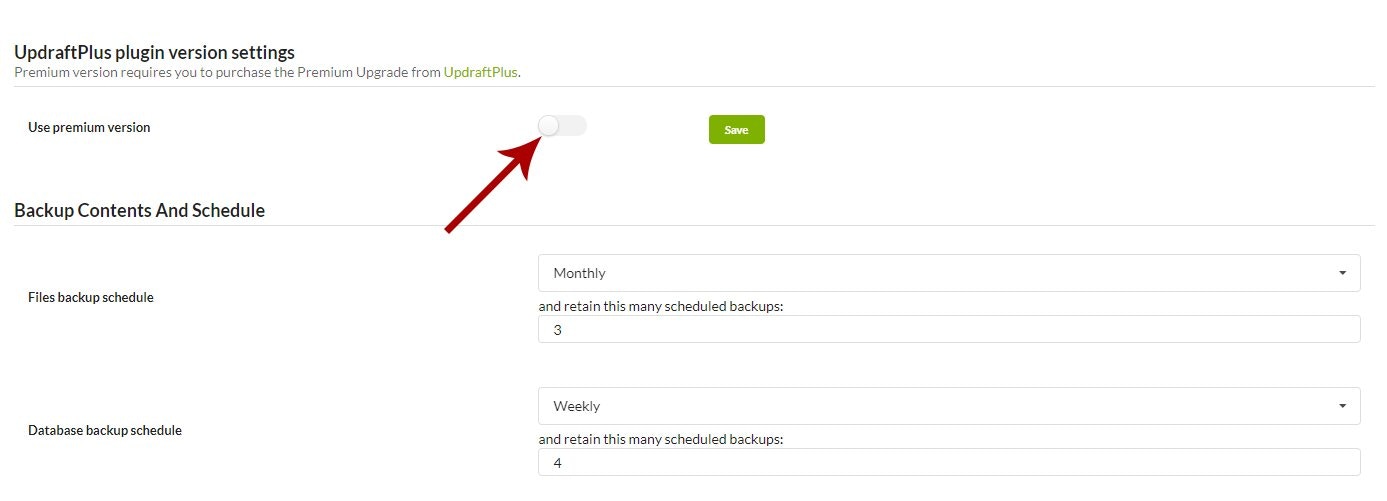
If you use the Premium version of the UpdraftPlus Plugin, make sure the Use Premium Version is set to YES. This will show you premium version options.
 ### UpdraftPlus Settings per Child Site
All UpdraftPlus Settings can be set separately for different child sites. To do this, go to the MainWP > Sites page, and in the sites table, under the child site URL, you can find the UpdraftPlus Backup/Restore link. This link will open Individual site UpdraftPlus Options. The Settings tab will show you all plugin options to set custom settings for the child site. To override global options, set the **Override General Settings** to **YES** and click the Save button.
## MainWP UpdraftPlus Extensions Backup/Restore
To backup your child site with the MainWP UpdraftPlus Extension
### UpdraftPlus Settings per Child Site
All UpdraftPlus Settings can be set separately for different child sites. To do this, go to the MainWP > Sites page, and in the sites table, under the child site URL, you can find the UpdraftPlus Backup/Restore link. This link will open Individual site UpdraftPlus Options. The Settings tab will show you all plugin options to set custom settings for the child site. To override global options, set the **Override General Settings** to **YES** and click the Save button.
## MainWP UpdraftPlus Extensions Backup/Restore
To backup your child site with the MainWP UpdraftPlus Extension
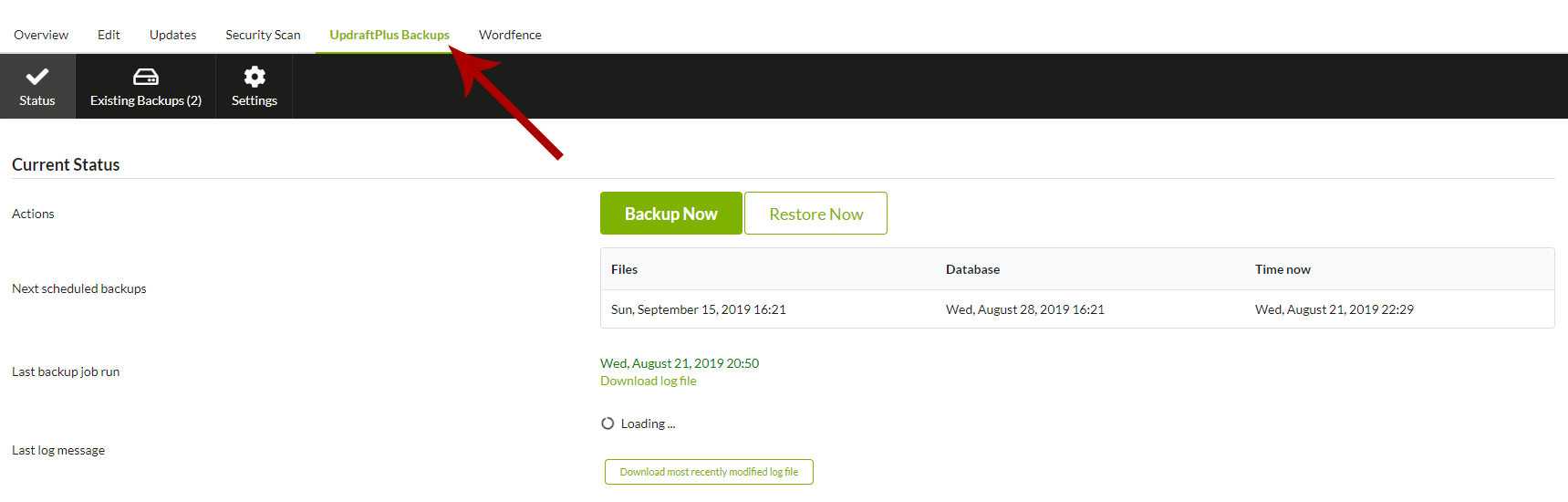 **You can get to the UpdraftPlus Backups tab from various places. In the extension settings page, in all provided tables, you will find the Backup Now link. It will lead you directly to the child site backup page.**
On the backup child site UpdraftPlus Backups page on the Status tab:
**You can get to the UpdraftPlus Backups tab from various places. In the extension settings page, in all provided tables, you will find the Backup Now link. It will lead you directly to the child site backup page.**
On the backup child site UpdraftPlus Backups page on the Status tab:
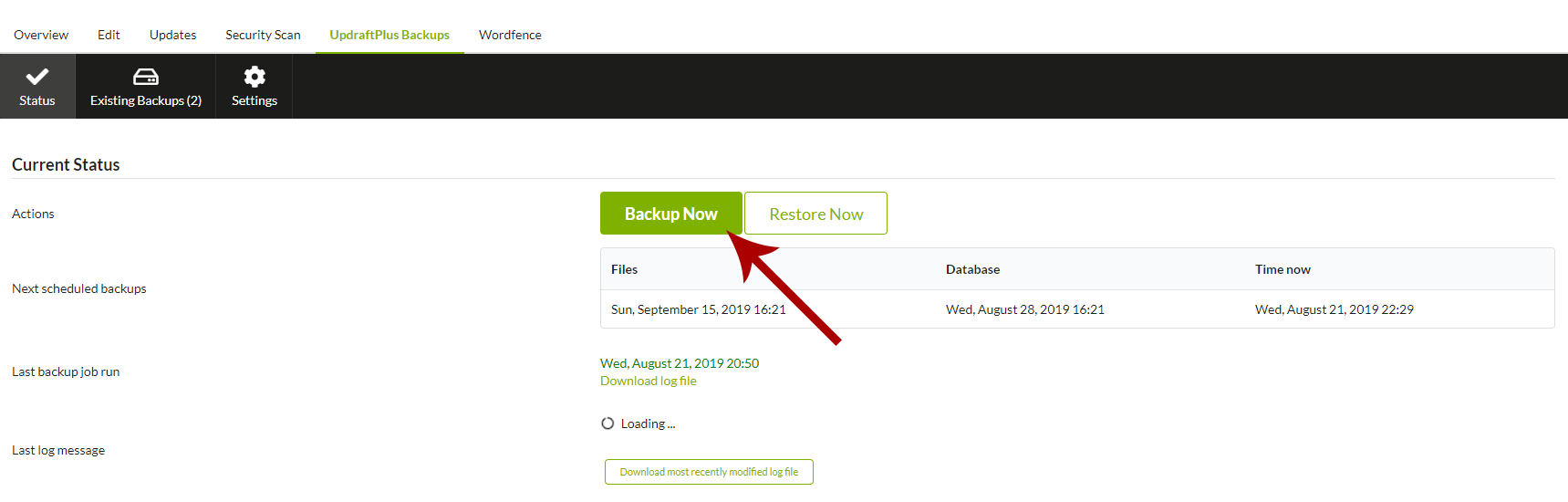 You will find the Backup Now and Restore buttons. To create a Backup of your child site, click the **Backup Now** link. To restore a backup of your child site, click the **Restore** button, and follow the process.
 ### Backup Now options
When you click **Backup Now** for an individual child site, the dialog loads the backup settings from that site and adapts the available options to whichever version of UpdraftPlus (free or Premium) is installed there. Options that require UpdraftPlus Premium or one of its paid add-ons are only shown when the child site can use them.
The dialog always exposes these top-level toggles:
* **Include your database in the backup** - clear this checkbox to back up files only.
* **Include your files in the backup** - clear this checkbox to back up the database only.
* **Send this backup to remote storage** - clear this checkbox to keep the backup on the child site instead of uploading it to a configured remote destination.
Click the **`...`** link next to **Include your database** or **Include your files** to expand the advanced selectors described below.
#### File selection and exclusions
Expanding the files options shows one checkbox per backup entity reported by the child site (plugins, themes, uploads, `wp-content` "others", must-use plugins, and any extra paths configured on the site). For the **uploads** and **others** entities, you can also add per-path exclusion rules - for example, to skip a cache directory or a large media folder. Wildcards (`*`) are supported at the start or end of an entry.
#### Database table selection (Premium)
With UpdraftPlus Premium installed on the child site, expanding the database options lists every table in the WordPress database with checkboxes. Use the **Select all**, **Select all (this site)**, and **Deselect all** links to quickly pick a subset:
* **Select all** - includes every table, including tables from other WordPress installs that share the database.
* **Select all (this site)** - includes only tables that use the current site's table prefix.
* **Deselect all** - clears the selection so you can pick tables manually.
Non-WordPress tables are listed but unchecked by default.
#### Remote storage selection
If the child site has multiple remote storage destinations configured, expanding the cloud options shows one checkbox per destination so you can target a specific provider (for example, send one backup to Dropbox and skip Amazon S3). If no remote storage is configured on the child site, the option is disabled and a link to the site's UpdraftPlus settings is shown.
#### Retention override
Enable **Only allow this backup to be deleted manually** to mark the resulting backup set as "always keep". UpdraftPlus will not remove it when retention limits would otherwise prune it - useful for milestone backups taken before a major update or migration.
#### Backup label (Reporting add-on)
If the child site has the UpdraftPlus **Reporting** add-on active, a **Your label for this backup (optional)** field is shown. Enter a short label (up to 40 characters) to make the backup easier to identify in the backup history and in reporting emails.
#### Incremental backup (Premium add-on)
If the child site has the UpdraftPlus **Incremental Backups** add-on active and an existing backup set is available to append to, the dialog adds files changed since the last backup as a new increment in that set instead of creating a new full backup. If no suitable existing backup is found, the option is disabled and a notice is shown.
Incremental backups apply to files only. To also capture database changes, run a separate database backup.
#### Database anonymization (Anonymisation add-on)
If the child site has the UpdraftPlus **Anonymisation** add-on active, the database options expand to include checkboxes that strip personal data from the backup before it is written:
* **Anonymize personal data for all users except the logged-in user**
* **Anonymize personal data for all users except staff**
* **Anonymize WooCommerce order data** - only shown when WooCommerce is detected on the child site.
Anonymized data cannot be recovered from the backup. Use anonymization for backups you intend to share with developers or to seed staging environments, not for disaster-recovery copies.
## Schedule Backups With MainWP UpdraftPlus Extension
MainWP UpdraftPlus Extension allows you to schedule your backups easily. To set scheduled backups, go to the Extension Settings page and locate the **File Backups Intervals** and the **Database Backup Intervals** options.
### Backup Now options
When you click **Backup Now** for an individual child site, the dialog loads the backup settings from that site and adapts the available options to whichever version of UpdraftPlus (free or Premium) is installed there. Options that require UpdraftPlus Premium or one of its paid add-ons are only shown when the child site can use them.
The dialog always exposes these top-level toggles:
* **Include your database in the backup** - clear this checkbox to back up files only.
* **Include your files in the backup** - clear this checkbox to back up the database only.
* **Send this backup to remote storage** - clear this checkbox to keep the backup on the child site instead of uploading it to a configured remote destination.
Click the **`...`** link next to **Include your database** or **Include your files** to expand the advanced selectors described below.
#### File selection and exclusions
Expanding the files options shows one checkbox per backup entity reported by the child site (plugins, themes, uploads, `wp-content` "others", must-use plugins, and any extra paths configured on the site). For the **uploads** and **others** entities, you can also add per-path exclusion rules - for example, to skip a cache directory or a large media folder. Wildcards (`*`) are supported at the start or end of an entry.
#### Database table selection (Premium)
With UpdraftPlus Premium installed on the child site, expanding the database options lists every table in the WordPress database with checkboxes. Use the **Select all**, **Select all (this site)**, and **Deselect all** links to quickly pick a subset:
* **Select all** - includes every table, including tables from other WordPress installs that share the database.
* **Select all (this site)** - includes only tables that use the current site's table prefix.
* **Deselect all** - clears the selection so you can pick tables manually.
Non-WordPress tables are listed but unchecked by default.
#### Remote storage selection
If the child site has multiple remote storage destinations configured, expanding the cloud options shows one checkbox per destination so you can target a specific provider (for example, send one backup to Dropbox and skip Amazon S3). If no remote storage is configured on the child site, the option is disabled and a link to the site's UpdraftPlus settings is shown.
#### Retention override
Enable **Only allow this backup to be deleted manually** to mark the resulting backup set as "always keep". UpdraftPlus will not remove it when retention limits would otherwise prune it - useful for milestone backups taken before a major update or migration.
#### Backup label (Reporting add-on)
If the child site has the UpdraftPlus **Reporting** add-on active, a **Your label for this backup (optional)** field is shown. Enter a short label (up to 40 characters) to make the backup easier to identify in the backup history and in reporting emails.
#### Incremental backup (Premium add-on)
If the child site has the UpdraftPlus **Incremental Backups** add-on active and an existing backup set is available to append to, the dialog adds files changed since the last backup as a new increment in that set instead of creating a new full backup. If no suitable existing backup is found, the option is disabled and a notice is shown.
Incremental backups apply to files only. To also capture database changes, run a separate database backup.
#### Database anonymization (Anonymisation add-on)
If the child site has the UpdraftPlus **Anonymisation** add-on active, the database options expand to include checkboxes that strip personal data from the backup before it is written:
* **Anonymize personal data for all users except the logged-in user**
* **Anonymize personal data for all users except staff**
* **Anonymize WooCommerce order data** - only shown when WooCommerce is detected on the child site.
Anonymized data cannot be recovered from the backup. Use anonymization for backups you intend to share with developers or to seed staging environments, not for disaster-recovery copies.
## Schedule Backups With MainWP UpdraftPlus Extension
MainWP UpdraftPlus Extension allows you to schedule your backups easily. To set scheduled backups, go to the Extension Settings page and locate the **File Backups Intervals** and the **Database Backup Intervals** options.
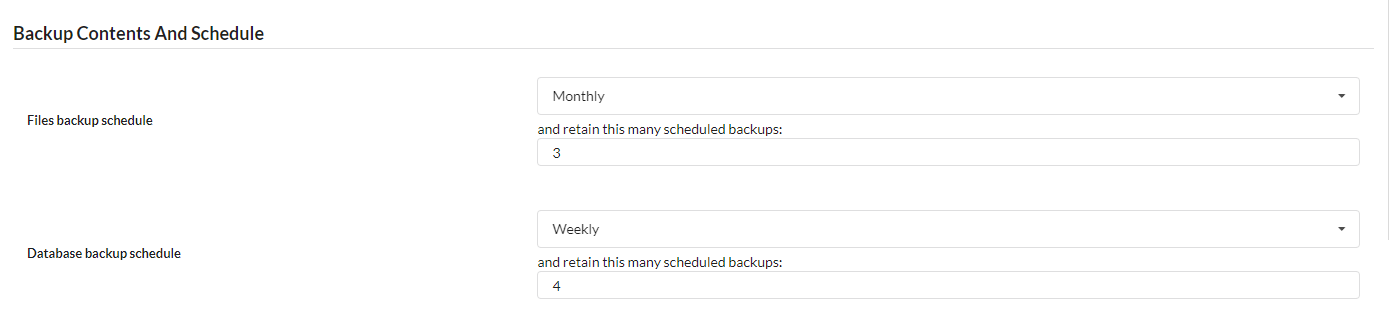 Set the frequency of the wanted backup and click the **Save Settings** button at the bottom of the page. To see your schedule status, go to the **Scheduled Backups** tab, and check the times in the provided table.
 To be sure you see the fresh data, select wanted sites, and click the Reload Data button.
***
## Related Resources
* [Backup Add-ons](/add-ons/backups) - Browse all backup integrations
* [Manage Backups](/sites/backups/manage-backups) - Understanding backup management in MainWP
* [Managing Plugins with MainWP](/sites/plugins/managing-plugins-with-mainwp) - Installing plugins on child sites
To be sure you see the fresh data, select wanted sites, and click the Reload Data button.
***
## Related Resources
* [Backup Add-ons](/add-ons/backups) - Browse all backup integrations
* [Manage Backups](/sites/backups/manage-backups) - Understanding backup management in MainWP
* [Managing Plugins with MainWP](/sites/plugins/managing-plugins-with-mainwp) - Installing plugins on child sites