> ## Documentation Index
> Fetch the complete documentation index at: https://docs.mainwp.com/llms.txt
> Use this file to discover all available pages before exploring further.
# BackWPup
> Create, schedule backups, and control BackWPup plugin settings for all Child Sites from your MainWP Dashboard. Free add-on that integrates with the BackWPup WordPress backup plugin.
## What You'll Learn
* Installing the add-on and BackWPup plugin
* Creating global and per-site backup jobs
* Scheduling and triggering backups
* Managing backup files and settings
***
**Integration Add-on** - This add-on extends MainWP to work with BackWPup. Requires BackWPup to be installed on your child sites.
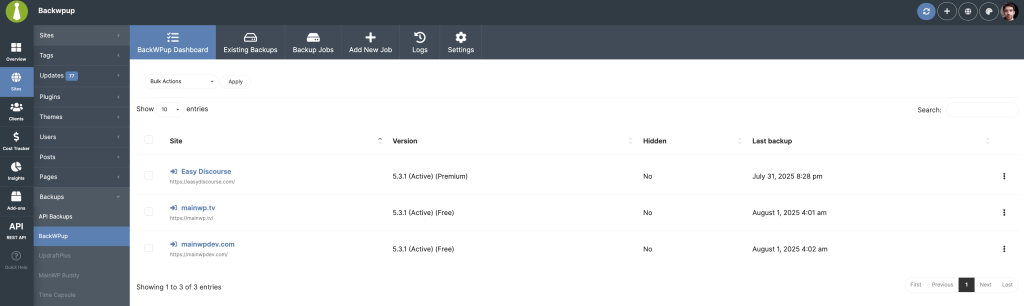 With the MainWP BackWPup Add-on, you can control the [BackWPup Plugin](https://wordpress.org/plugins/backwpup/) settings for all your child sites directly from your MainWP Dashboard. This includes giving you the ability to create your child site backups and even set Backup schedules directly from your MainWP Dashboard.
## Installing the BackWPup add-on
The MainWP BackWPup add-on needs to be installed **only on your MainWP Dashboard** site. You can [install it as any other MainWP add-on](https://mainwp.com/kb/manage-extensions/#install-add-ons).
## Installing the BackWPup Plugin
For the proper use of the MainWP BackWPup Add-on, you need to install the BackWPup Plugin on your child sites. The plugin does not need to be installed on the MainWP Dashboard site.
### Install from MainWP Dashboard
After the search results appear, locate the Plugin, select the **Install this Plugin** option
In the **Installation Options** box, make sure that the **Activate after installation option** is selected
### Install directly on Child Site
**Important Notes:**\
After installing the BackWPup Plugin, it is required to Synchronize your sites, so your MainWP Dashboard becomes aware that the Plugin has been installed and activated.
## BackWPup Dashboard
From the **MainWP > Sites > Backups > BackWPup > BackWPup Dashboard page,** you can monitor all of your child sites where you have the BackWPup plugin installed. In the sites list, you will be notified if the plugin has an update available (the row will be highlighted in yellow) or if the plugin is deactivated (highlighted in red).
### Available Actions
With the MainWP BackWPup Add-on, you can control the [BackWPup Plugin](https://wordpress.org/plugins/backwpup/) settings for all your child sites directly from your MainWP Dashboard. This includes giving you the ability to create your child site backups and even set Backup schedules directly from your MainWP Dashboard.
## Installing the BackWPup add-on
The MainWP BackWPup add-on needs to be installed **only on your MainWP Dashboard** site. You can [install it as any other MainWP add-on](https://mainwp.com/kb/manage-extensions/#install-add-ons).
## Installing the BackWPup Plugin
For the proper use of the MainWP BackWPup Add-on, you need to install the BackWPup Plugin on your child sites. The plugin does not need to be installed on the MainWP Dashboard site.
### Install from MainWP Dashboard
After the search results appear, locate the Plugin, select the **Install this Plugin** option
In the **Installation Options** box, make sure that the **Activate after installation option** is selected
### Install directly on Child Site
**Important Notes:**\
After installing the BackWPup Plugin, it is required to Synchronize your sites, so your MainWP Dashboard becomes aware that the Plugin has been installed and activated.
## BackWPup Dashboard
From the **MainWP > Sites > Backups > BackWPup > BackWPup Dashboard page,** you can monitor all of your child sites where you have the BackWPup plugin installed. In the sites list, you will be notified if the plugin has an update available (the row will be highlighted in yellow) or if the plugin is deactivated (highlighted in red).
### Available Actions
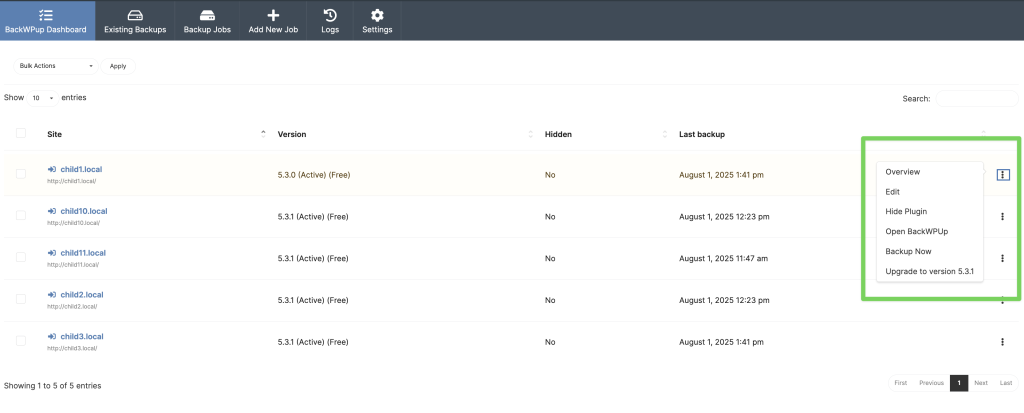 From the ellipsis menu, you can access the child site's Overview and Edit pages, as well as the ability to:
* **Hide/Unhide** the BackWPup plugin on the child site
* **Open BackWPup** plugin page on the Child Site
* Use the **Backup Now** action
* Update the plugin on the child site when an update is available
* **Activate** it if it is deactivated
### **Important Notes:**
If you know that you have the BackWPup plugin installed on a child site, but the child site doesn't appear in the list, try to re-sync your sites.
## Manage BackWPup Backups
The BackWPup Add-on allows you to manage the BackWPup plugin backups directly from your MainWP Dashboard. This includes:
* Creating new backup jobs
* Edit created backup jobs
* Triggering backup jobs
* Deleting backup jobs
* Downloading existing backups
* Deleting existing backups
## Create a BackWPup Job
### Create a Global Job
From the ellipsis menu, you can access the child site's Overview and Edit pages, as well as the ability to:
* **Hide/Unhide** the BackWPup plugin on the child site
* **Open BackWPup** plugin page on the Child Site
* Use the **Backup Now** action
* Update the plugin on the child site when an update is available
* **Activate** it if it is deactivated
### **Important Notes:**
If you know that you have the BackWPup plugin installed on a child site, but the child site doesn't appear in the list, try to re-sync your sites.
## Manage BackWPup Backups
The BackWPup Add-on allows you to manage the BackWPup plugin backups directly from your MainWP Dashboard. This includes:
* Creating new backup jobs
* Edit created backup jobs
* Triggering backup jobs
* Deleting backup jobs
* Downloading existing backups
* Deleting existing backups
## Create a BackWPup Job
### Create a Global Job
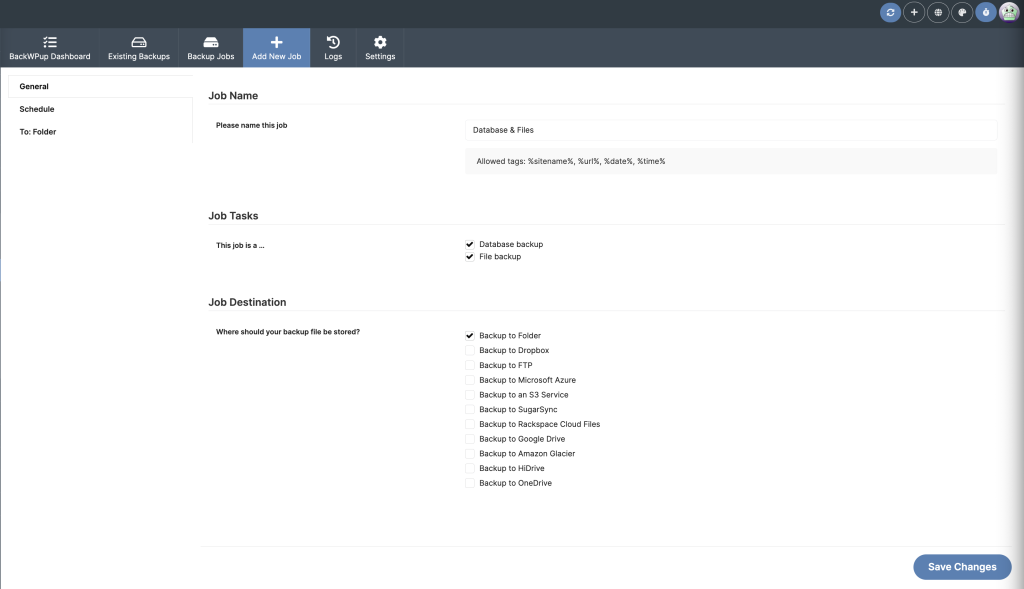 1. Go to the **MainWP > Sites > Backups > BackWPup > Add New Job** page
2. In the **Job Name** option box, Enter a **Name** for the Backup Job
3. In the **Job Tasks** option box, set tasks that you want to include in this Job: **Database** and/or **Files**
4. Select the Desired **Job Destinations**
5. Next, select the Schedule in the sidebar on the left to configure the **Scheduled execution time**\\
1. Go to the **MainWP > Sites > Backups > BackWPup > Add New Job** page
2. In the **Job Name** option box, Enter a **Name** for the Backup Job
3. In the **Job Tasks** option box, set tasks that you want to include in this Job: **Database** and/or **Files**
4. Select the Desired **Job Destinations**
5. Next, select the Schedule in the sidebar on the left to configure the **Scheduled execution time**\\
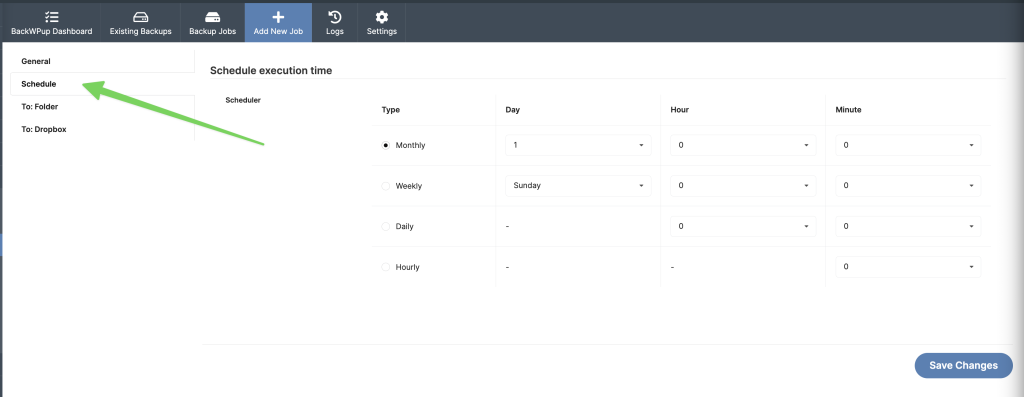 6. Next, select the enabled Remote Storage options on the left to configure them\\
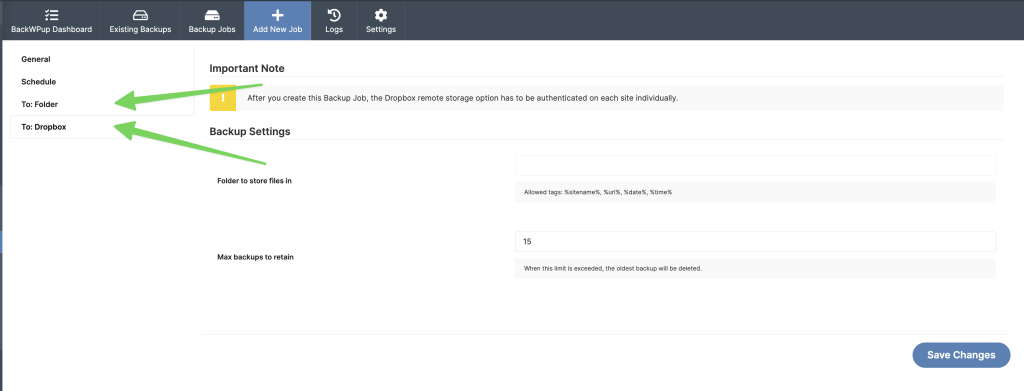 7. Finally, click **Save Changes**
After you click **Save Changes**, the add-on syncs this global job to child sites that do not use **Override General Settings**.
### Create a Backup Job on a Single Site
Click **BackWPup** in the sidebar on the left\\
7. Finally, click **Save Changes**
After you click **Save Changes**, the add-on syncs this global job to child sites that do not use **Override General Settings**.
### Create a Backup Job on a Single Site
Click **BackWPup** in the sidebar on the left\\
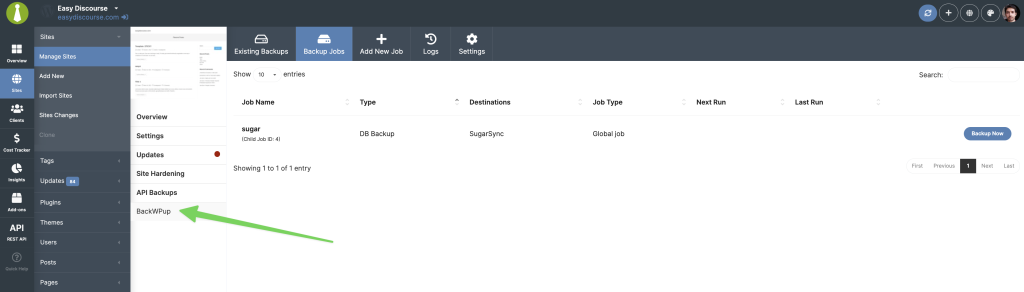 Click the **Add New Job** tab, and follow the same instructions as for creating a Global Backup Job
### Job Additional Settings
Click the **Add New Job** tab, and follow the same instructions as for creating a Global Backup Job
### Job Additional Settings
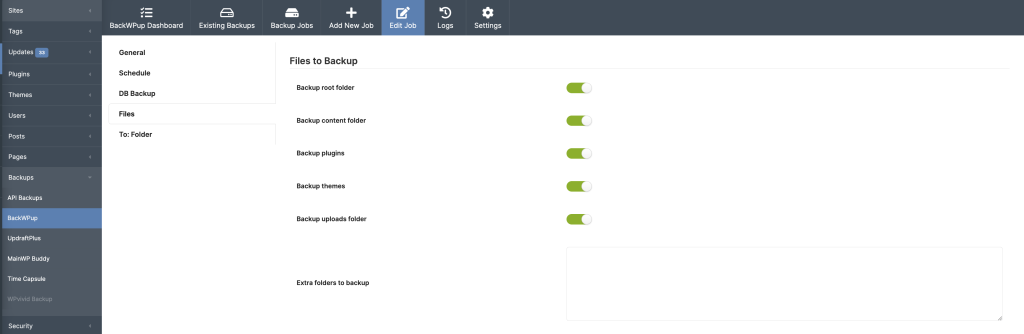 Once the job is successfully created, a new set of options will appear for you, depending on your previous settings.
The add-on will allow you to manage Database tables to be backed up (in a Global Job, this cannot be modified), and additional settings for which files to back up or exclude.
## Edit a BackWPup Job
Once the job is successfully created, a new set of options will appear for you, depending on your previous settings.
The add-on will allow you to manage Database tables to be backed up (in a Global Job, this cannot be modified), and additional settings for which files to back up or exclude.
## Edit a BackWPup Job
 ### Edit Global Job
### Edit Job on a Single Site
## Trigger BackWPup Job
### Edit Global Job
### Edit Job on a Single Site
## Trigger BackWPup Job
 ### Trigger Global Schedule
### Trigger Schedule on a Single Site
## Delete BackWPup Job
### Trigger Global Schedule
### Trigger Schedule on a Single Site
## Delete BackWPup Job
 ### Delete Global Job
### Delete Job on a Single Site
## Manage BackWPup Backup Files
### Download Backup Files
In the top right of the page, select the desired child site from the dropdown, and click **Apply**
### Delete Backup Files
In the top right of the page, select the desired child site from the dropdown, and click **Apply**
## Manage BackWPup Settings
The MainWP BackWPup add-on allows you to manage the BackWPup plugin settings from your dashboard. If you are using the paid version of the BackWPup plugin on your child sites, go to the **MainWP > Sites > Backups > BackWPup > Settings** page, enable the **Use premium version** toggle, and click **Save**. This reveals the **License** and **Encryption** tabs that are available only when premium settings are enabled.
### Manage BackWPup Global Settings
### Manage BackWPup Settings on a Single Site
Set the **Overwrite General Settings** option to **YES** and click the **Save Changes** button
***
## Related Resources
* [Backup Add-ons](/add-ons/backups) - Browse all backup integrations
* [Manage Backups](/sites/backups/manage-backups) - Understanding backup management in MainWP
* [Managing Plugins with MainWP](/sites/plugins/managing-plugins-with-mainwp) - Installing plugins on child sites
### Delete Global Job
### Delete Job on a Single Site
## Manage BackWPup Backup Files
### Download Backup Files
In the top right of the page, select the desired child site from the dropdown, and click **Apply**
### Delete Backup Files
In the top right of the page, select the desired child site from the dropdown, and click **Apply**
## Manage BackWPup Settings
The MainWP BackWPup add-on allows you to manage the BackWPup plugin settings from your dashboard. If you are using the paid version of the BackWPup plugin on your child sites, go to the **MainWP > Sites > Backups > BackWPup > Settings** page, enable the **Use premium version** toggle, and click **Save**. This reveals the **License** and **Encryption** tabs that are available only when premium settings are enabled.
### Manage BackWPup Global Settings
### Manage BackWPup Settings on a Single Site
Set the **Overwrite General Settings** option to **YES** and click the **Save Changes** button
***
## Related Resources
* [Backup Add-ons](/add-ons/backups) - Browse all backup integrations
* [Manage Backups](/sites/backups/manage-backups) - Understanding backup management in MainWP
* [Managing Plugins with MainWP](/sites/plugins/managing-plugins-with-mainwp) - Installing plugins on child sites