> ## Documentation Index
> Fetch the complete documentation index at: https://docs.mainwp.com/llms.txt
> Use this file to discover all available pages before exploring further.
# Matomo
> The MainWP Matomo Extension allows you to view your Matomo data for your Child Sites in your MainWP Dashboard. It adds a widget to your main dashboard where you can monitor Matomo data from.
## What You'll Learn
* Connecting Matomo Dashboard to MainWP
* Configuring API authentication and settings
* Assigning Matomo sites to child sites
* Enabling Unique Visitors for custom date ranges
***
**Integration Add-on** - This add-on extends MainWP to work with Matomo. Requires Matomo to be installed on your child sites.
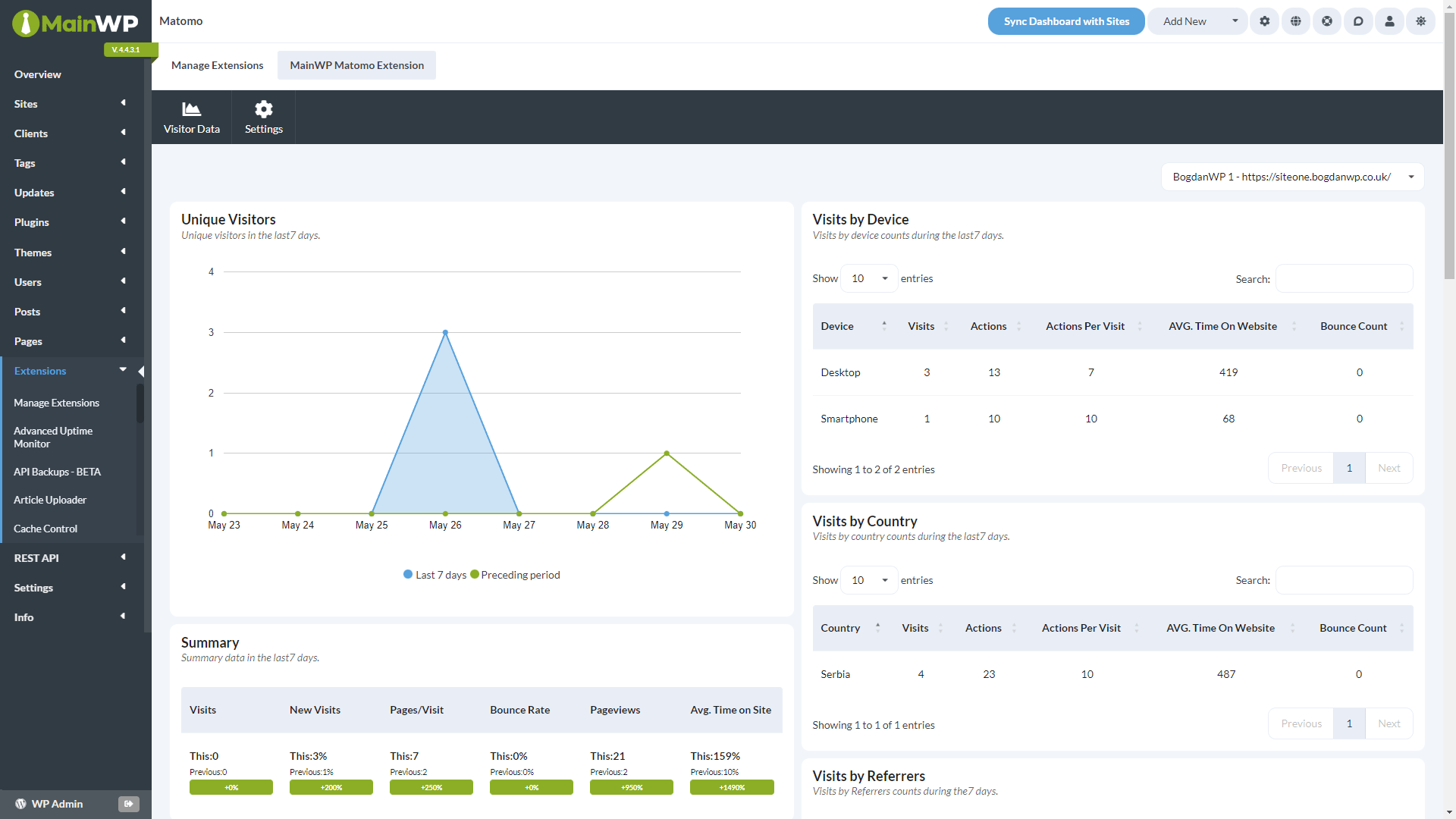 The [MainWP Matomo (formerly Piwik) Extension](/add-ons/analytics/matomo-extension) gives you valuable insights into your visitor's search and traffic patterns, your marketing campaigns, and much more, allowing you to optimize your strategy and the online experience of your users. Matomo is the leading open-source web analytics platform and can help you gather and analyze important information about your visitors. Track Key Performance Indicators such as visits, goal conversion rates, downloads, keywords, and much more. **Important Notes:** The Matomo Extension doesn't allow you to insert the Piwik tracking code on your child sites. To do that, you will need to add the code manually or use a 3rd party plugin. The Matomo Extension is compatible only with Matomo Dashboard, On-Premise or Cloud. **Matomo for WordPress plugin and Piwik Pro are not supported.** That means that the extension cannot ready data directly from the Matomo for WordPress plugin!
## Use this Extension To Track:
* Visits
* Pageviews
* Pages/Visit
* Bounce Rate
* Average Time on Site
* New Visits
The extension works with both Matomo Cloud and Matomo on Premise.
Both options require a few easy-to-follow steps. After installing and adding your blogs, it easily integrates with your MainWP Matomo (Piwik) Extension.
## Matomo (formerly Piwik) Analytics Widget
The Matomo Analytics widget allows you to track data in your MainWP Dashboard. The global widget will be added to the Overview page and individual widget on each child site overview page.
## Extension Configuration
Matomo (formerly Piwik) Extension configuration requires two important steps:
1. Establishing Connection with your Matomo (formerly Piwik) Site
2. Assigning sites from your Matomo Site to Child Sites in your MainWP Dashboard
### 1. Establishing Connection with your Matomo (formerly Piwik) Site
Locate the **Connect Matomo (formerly Piwik) Dashboard** section
The [MainWP Matomo (formerly Piwik) Extension](/add-ons/analytics/matomo-extension) gives you valuable insights into your visitor's search and traffic patterns, your marketing campaigns, and much more, allowing you to optimize your strategy and the online experience of your users. Matomo is the leading open-source web analytics platform and can help you gather and analyze important information about your visitors. Track Key Performance Indicators such as visits, goal conversion rates, downloads, keywords, and much more. **Important Notes:** The Matomo Extension doesn't allow you to insert the Piwik tracking code on your child sites. To do that, you will need to add the code manually or use a 3rd party plugin. The Matomo Extension is compatible only with Matomo Dashboard, On-Premise or Cloud. **Matomo for WordPress plugin and Piwik Pro are not supported.** That means that the extension cannot ready data directly from the Matomo for WordPress plugin!
## Use this Extension To Track:
* Visits
* Pageviews
* Pages/Visit
* Bounce Rate
* Average Time on Site
* New Visits
The extension works with both Matomo Cloud and Matomo on Premise.
Both options require a few easy-to-follow steps. After installing and adding your blogs, it easily integrates with your MainWP Matomo (Piwik) Extension.
## Matomo (formerly Piwik) Analytics Widget
The Matomo Analytics widget allows you to track data in your MainWP Dashboard. The global widget will be added to the Overview page and individual widget on each child site overview page.
## Extension Configuration
Matomo (formerly Piwik) Extension configuration requires two important steps:
1. Establishing Connection with your Matomo (formerly Piwik) Site
2. Assigning sites from your Matomo Site to Child Sites in your MainWP Dashboard
### 1. Establishing Connection with your Matomo (formerly Piwik) Site
Locate the **Connect Matomo (formerly Piwik) Dashboard** section 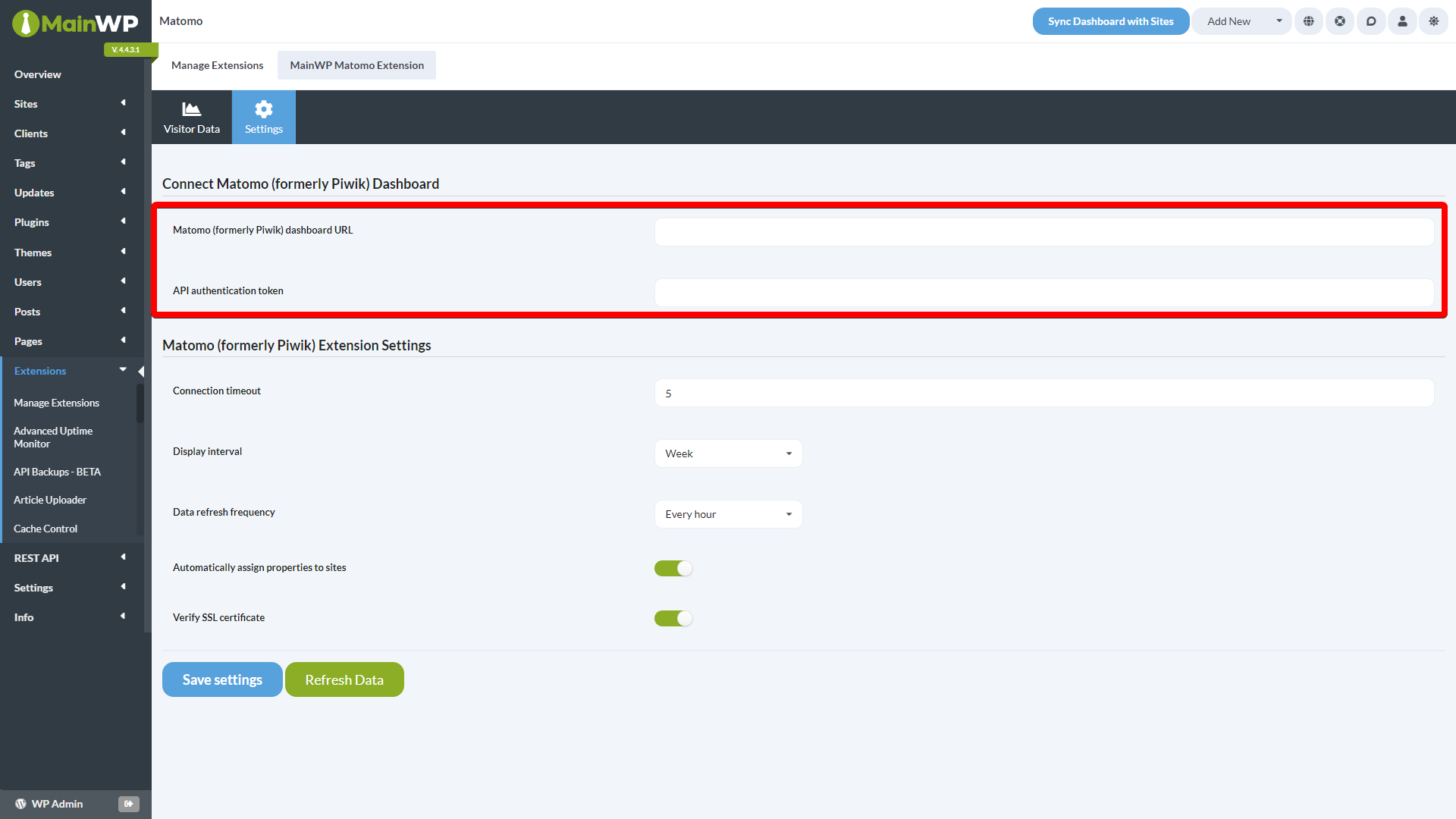 1. Enter your **Piwik Site (Dashboard) URL**
2. Enter your **API Authentication Token** *(The API Authentication Token looks like this: c26364b7sfbb743f1xadea17f73c4132 (this is a sample number DO NOT use it in your installation). You can find your auth token in your Piwik Dashboard on the **Personal > Settings > API Authentication Token** page)*
3. Set the **Connection Timeout Limit** *(We suggest 5-10 seconds)*
4. Set the **Time Interval** *(Controls the visual time span of the Widget graph. You can view your sites for the past week or month)*
5. Set the **Refresh Rate** *(Set how often you want to grab data from your MainWP Dashboard to update your reports)*
6. Click the **Save Settings** button
### 2. Assigning sites from your Piwik Site to Child Sites in your MainWP Dashboard
Locate your first child site and click the **Edit** action
1. Enter your **Piwik Site (Dashboard) URL**
2. Enter your **API Authentication Token** *(The API Authentication Token looks like this: c26364b7sfbb743f1xadea17f73c4132 (this is a sample number DO NOT use it in your installation). You can find your auth token in your Piwik Dashboard on the **Personal > Settings > API Authentication Token** page)*
3. Set the **Connection Timeout Limit** *(We suggest 5-10 seconds)*
4. Set the **Time Interval** *(Controls the visual time span of the Widget graph. You can view your sites for the past week or month)*
5. Set the **Refresh Rate** *(Set how often you want to grab data from your MainWP Dashboard to update your reports)*
6. Click the **Save Settings** button
### 2. Assigning sites from your Piwik Site to Child Sites in your MainWP Dashboard
Locate your first child site and click the **Edit** action 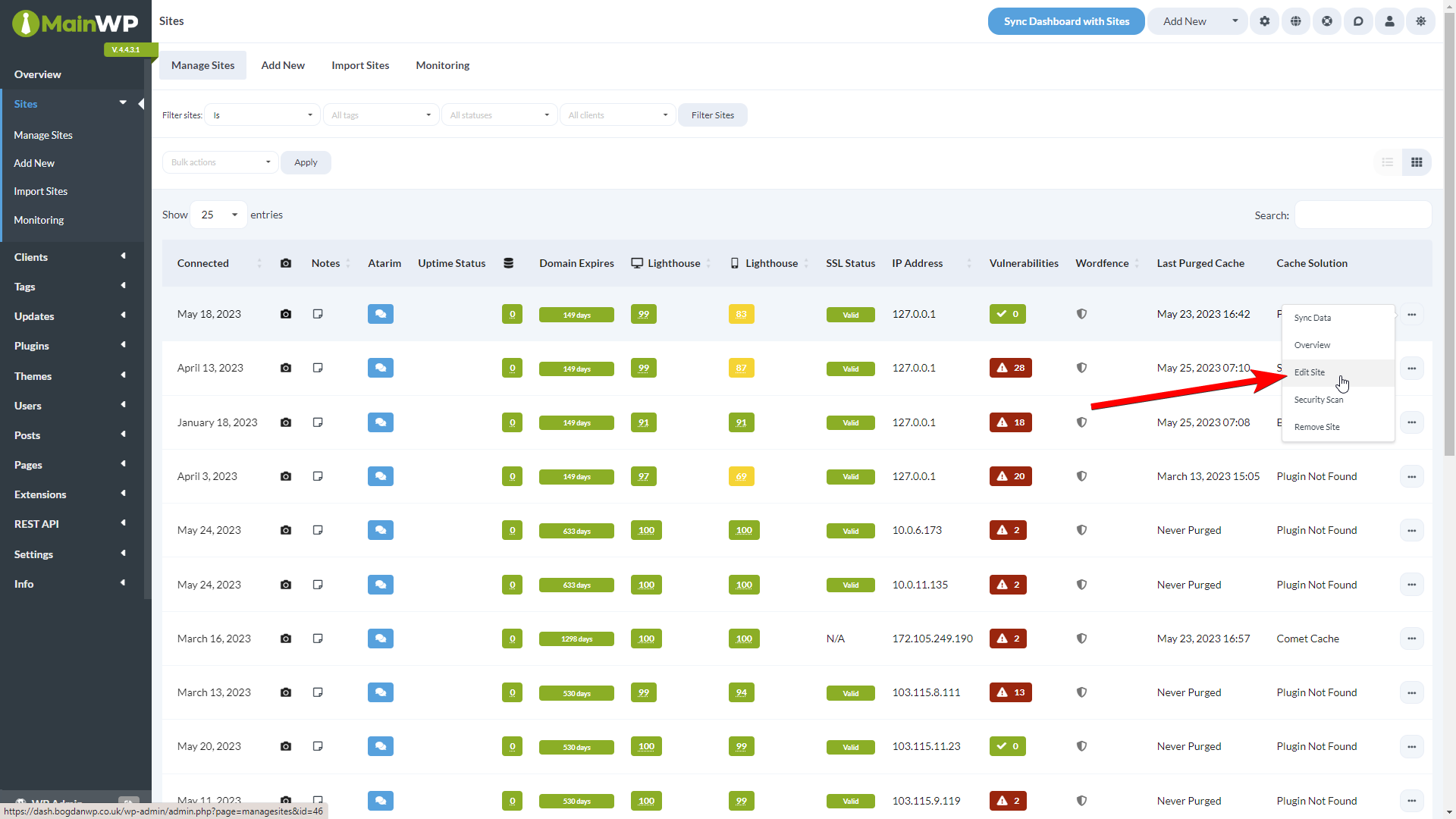 Locate the **Site from your Piwik account** option and select the corresponding website
 ## Team Control permissions
If you use the [Team Control Extension](/add-ons/agency/team-control-extension), the Matomo property selection on the **Manage Sites > Edit Site** page is gated by the `mainwp-piwik-extension` permission.
* Team Control users **with** access to the Matomo add-on can view and save the **Site from your Piwik account** selection when editing a child site.
* Team Control users **without** access to the Matomo add-on do not see the Matomo property selection on the edit site page and cannot change or save it.
This prevents unauthorized team members from viewing or modifying which Matomo property is mapped to a child site. To grant a role access, enable the Matomo extension permission when editing the role in **MainWP > Add-ons > Agency > Team Control**.
## How to enable Unique Visitors in the extension
## Team Control permissions
If you use the [Team Control Extension](/add-ons/agency/team-control-extension), the Matomo property selection on the **Manage Sites > Edit Site** page is gated by the `mainwp-piwik-extension` permission.
* Team Control users **with** access to the Matomo add-on can view and save the **Site from your Piwik account** selection when editing a child site.
* Team Control users **without** access to the Matomo add-on do not see the Matomo property selection on the edit site page and cannot change or save it.
This prevents unauthorized team members from viewing or modifying which Matomo property is mapped to a child site. To grant a role access, enable the Matomo extension permission when editing the role in **MainWP > Add-ons > Agency > Team Control**.
## How to enable Unique Visitors in the extension
 MainWP Matomo extension fetches data via API about the last 7 or last 30 days from the Matomo Dashboard. Those date ranges are considered to be "custom date ranges" by Matomo. Out of the box, Matomo calculates Unique Visitors for the Period of Day, Week, and Month. It does not calculate it for the Year or custom ranges such as last 7 or 30 days. To enable this calculation, please follow the instructions in this Matomo help document: [https://matomo.org/faq/how-to/faq\_113/](https://matomo.org/faq/how-to/faq_113/)
***
## Related Resources
* [Analytics Add-ons](/add-ons/analytics) - Browse all analytics integrations
* [Pro Reports Extension](/add-ons/agency/pro-reports-extension-overview) - Include analytics data in reports
* [Available Pro Reports Tokens](/add-ons/agency/available-pro-reports-tokens) - Matomo tokens
MainWP Matomo extension fetches data via API about the last 7 or last 30 days from the Matomo Dashboard. Those date ranges are considered to be "custom date ranges" by Matomo. Out of the box, Matomo calculates Unique Visitors for the Period of Day, Week, and Month. It does not calculate it for the Year or custom ranges such as last 7 or 30 days. To enable this calculation, please follow the instructions in this Matomo help document: [https://matomo.org/faq/how-to/faq\_113/](https://matomo.org/faq/how-to/faq_113/)
***
## Related Resources
* [Analytics Add-ons](/add-ons/analytics) - Browse all analytics integrations
* [Pro Reports Extension](/add-ons/agency/pro-reports-extension-overview) - Include analytics data in reports
* [Available Pro Reports Tokens](/add-ons/agency/available-pro-reports-tokens) - Matomo tokens