> ## Documentation Index
> Fetch the complete documentation index at: https://docs.mainwp.com/llms.txt
> Use this file to discover all available pages before exploring further.
# Google Analytics
> The MainWP Google Analytics Extension gives you the ability to view your Google Analytics data for your child sites in your MainWP Dashboard. It adds a widget to your main dashboard where you can monitor Google Analytics data from.
## What You'll Learn
* Connecting Google Analytics via Sign In with Google or Service Account JSON
* Assigning GA4 properties to child sites
* Viewing visitor data across all child sites
* Managing account refresh and reconnection
***
**Integration Add-on** - This add-on extends MainWP to work with Google Analytics. Requires Google Analytics to be installed on your child sites.
The [MainWP Google Analytics Extension](https://mainwp.com/extension/google-analytics/) gives you valuable insights into your visitors' traffic patterns and campaign performance so you can optimize your strategy and user experience.
## Use this Extension To Track:
* Views
* Views by Page
* Users
* Users by Device
* Users by Country
* New Users
* Average Engagement Time
* Sessions by Source
**Requirements**
* PHP 8.2 or higher on the MainWP Dashboard
* Google Analytics (GA4) installed on your child sites
* For JSON import: Google Analytics Admin API, Google Analytics API, and Google Analytics Data API
## Connect your Google Analytics Account
You can connect Google Analytics in two ways. Use whichever fits your setup (you can use both):
### Option A: Sign In with Google
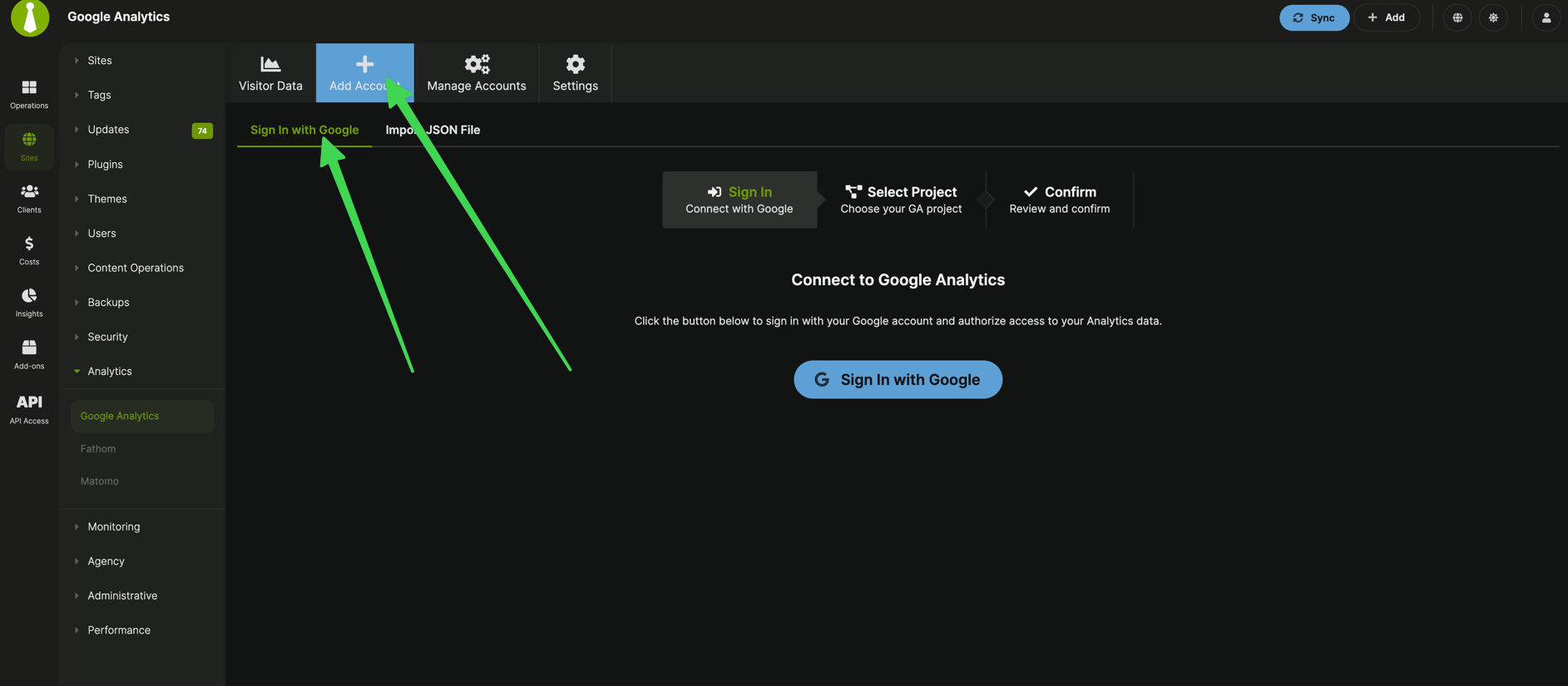
1. In your MainWP Dashboard, go to **MainWP > Add-ons > Google Analytics > Add Account**.
2. Keep the **Sign In with Google** tab selected, then click **Sign In with Google**.
3. Complete Google authorization in the popup window.
4. In **Select Google Analytics Project**, choose the account(s) you want to connect, then click **Continue**.
5. In **Confirm Google Analytics Connection**, review the summary and click **Confirm**.
6. Your account will appear under **Manage Accounts** in **Accounts by Sign In**.
**Notes**
* If your MainWP Dashboard server does not meet the required PHP version, the **Sign In with Google** tab is disabled and you can use **Import JSON File**.
* This flow uses MainWP Bridge (`bridge.mainwp.com`) for secure authentication. See [MainWP Bridge](/advanced/miscellaneous/mainwp-bridge) and the [MainWP Bridge Privacy Policy](https://mainwp.com/mainwp-bridge-privacy-policy).
* Before any OAuth action, the extension checks that your Dashboard's WordPress REST API root (`/wp-json/`) is reachable. If it isn't, the **Sign In with Google**, **Continue**, **Confirm**, **Reconnect Account**, and refresh buttons are disabled and an in-page notice links to [WordPress REST API does not respond](/troubleshooting/wordpress-rest-api-does-not-respond). Use **Import JSON File** to connect in the meantime.
If HTTP basic auth protects your MainWP Dashboard before it has paired with MainWP Bridge, **Sign In with Google** can fail because MainWP Bridge must be able to reach your Dashboard. If you need to keep HTTP basic auth enabled, use **Import JSON File** instead.
### Option B: Connect a Service Account (JSON file)
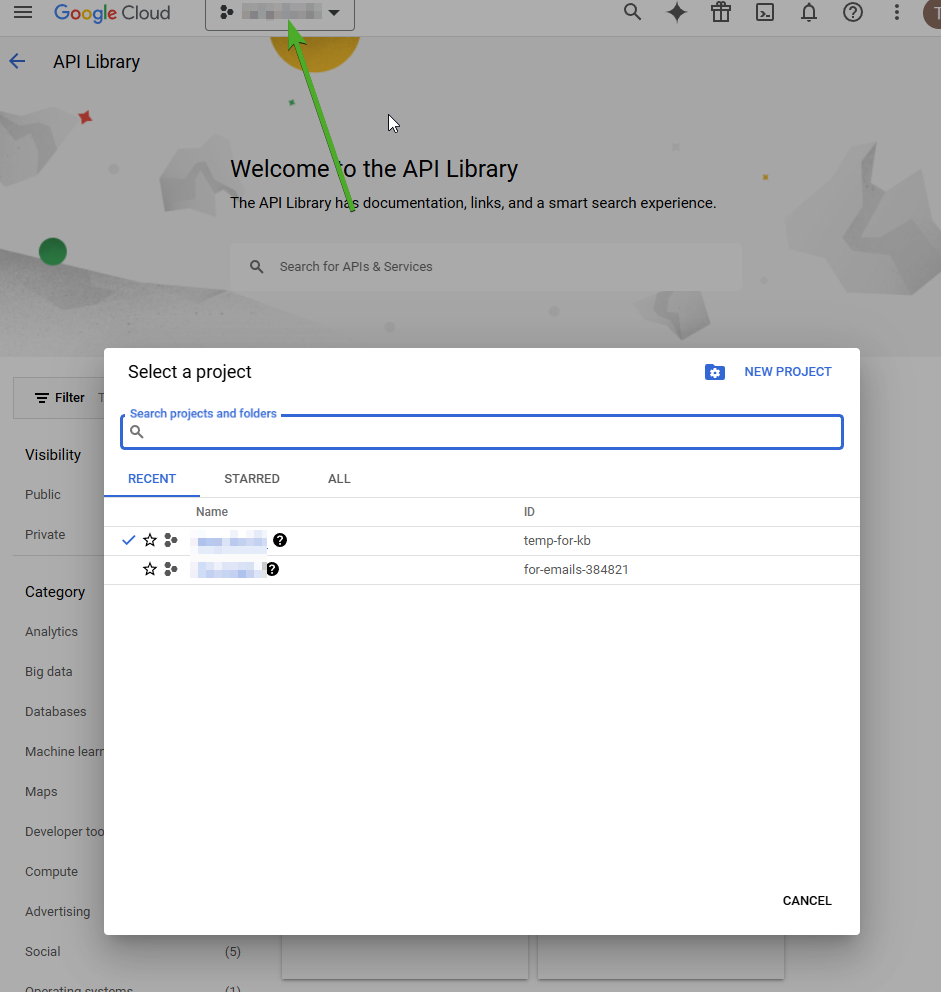
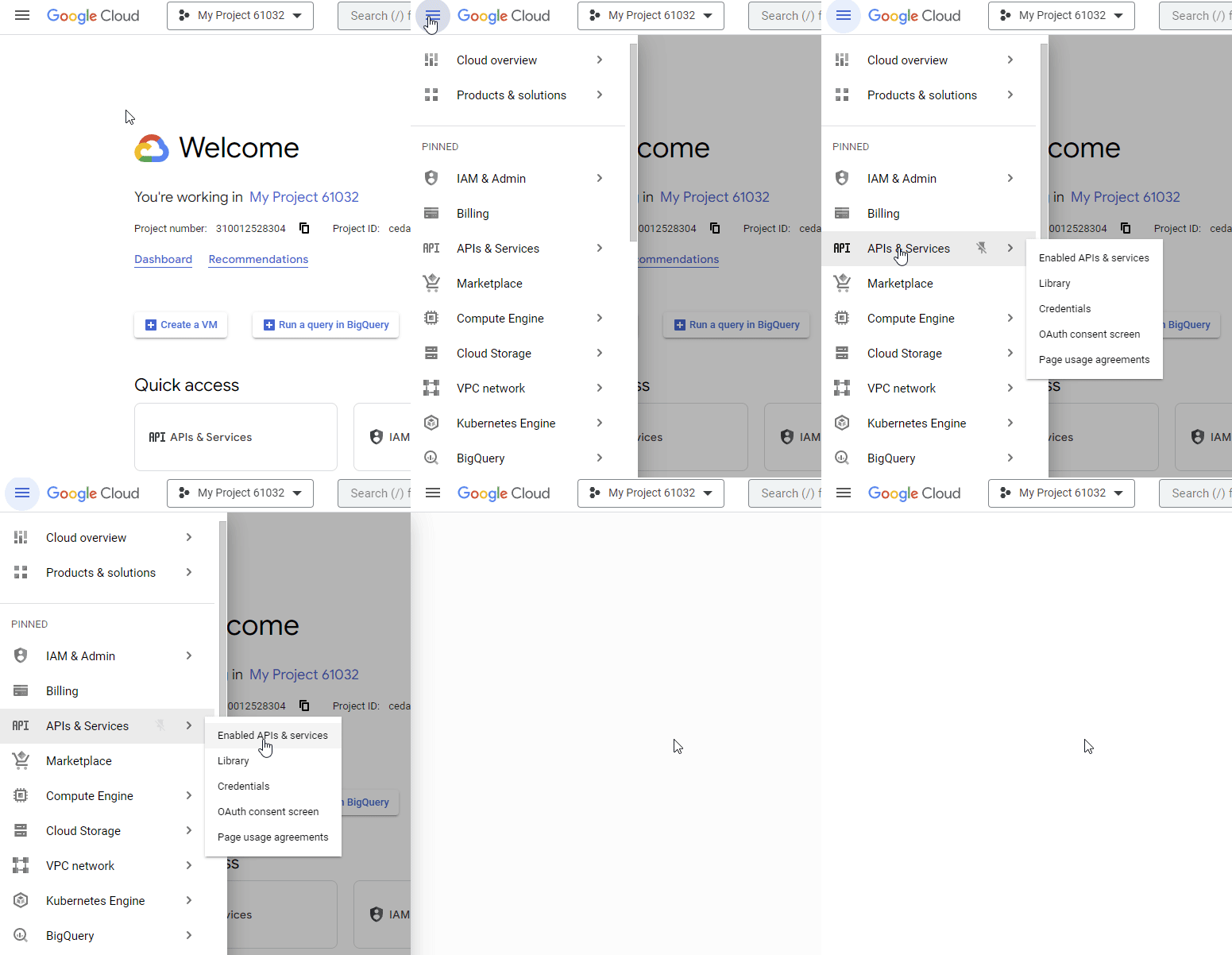
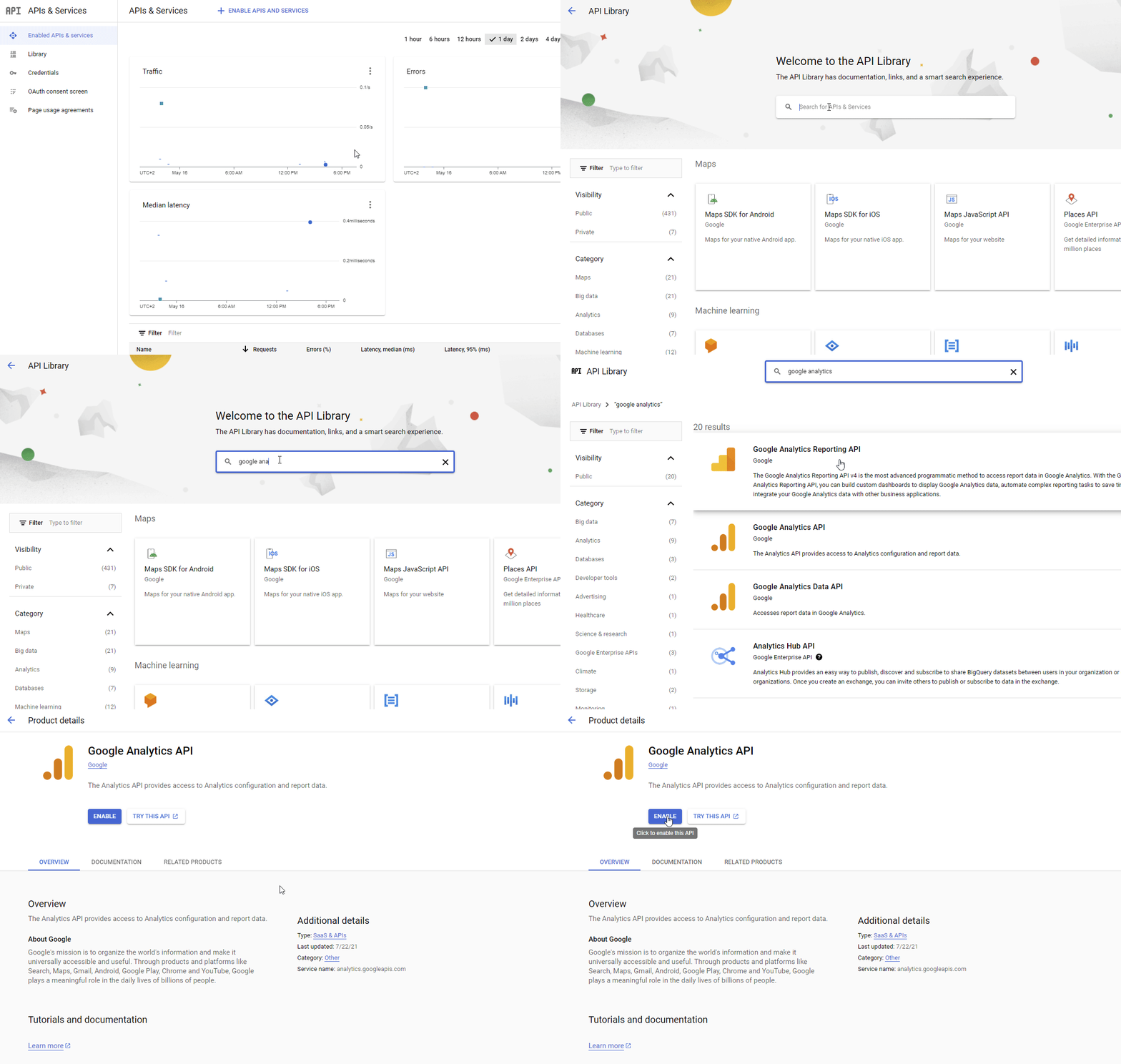
**Step 1 - Enable required APIs in Google Cloud Console**
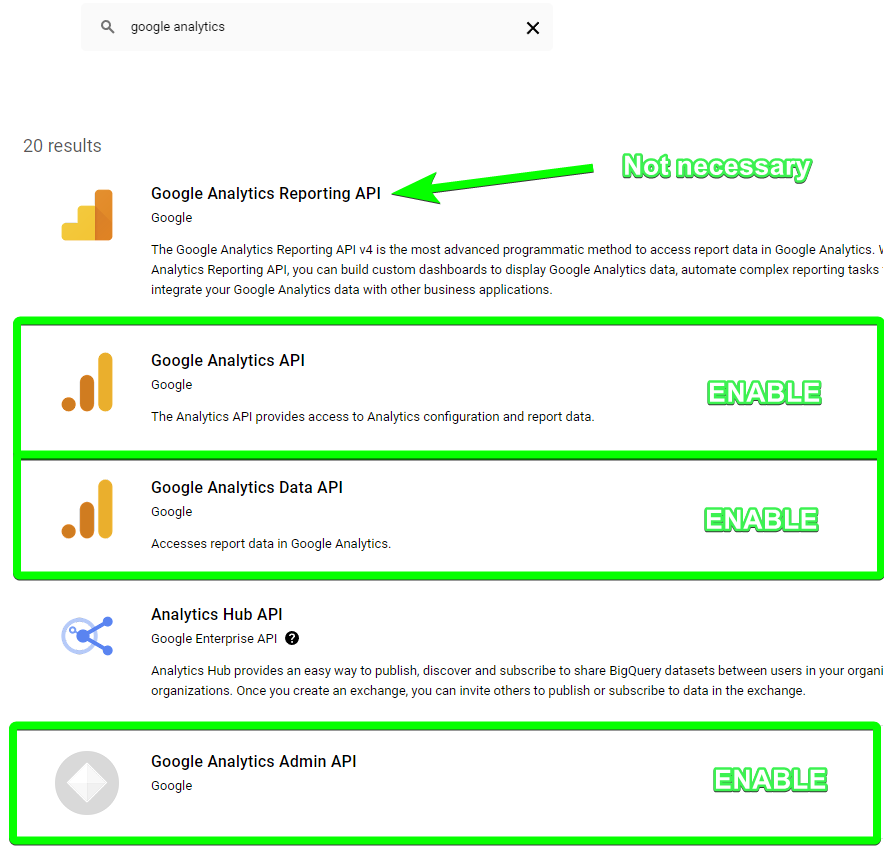
Enable:
1. **Google Analytics Admin API**
2. **Google Analytics API**
3. **Google Analytics Data API**
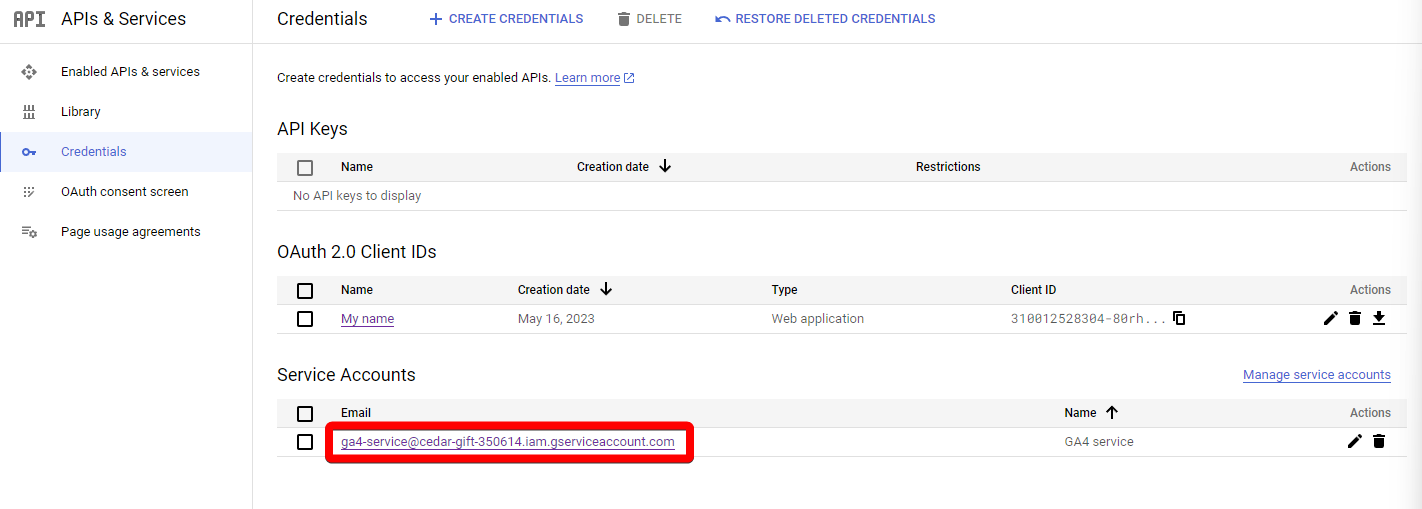
**Step 2 - Create a Service Account and JSON key**
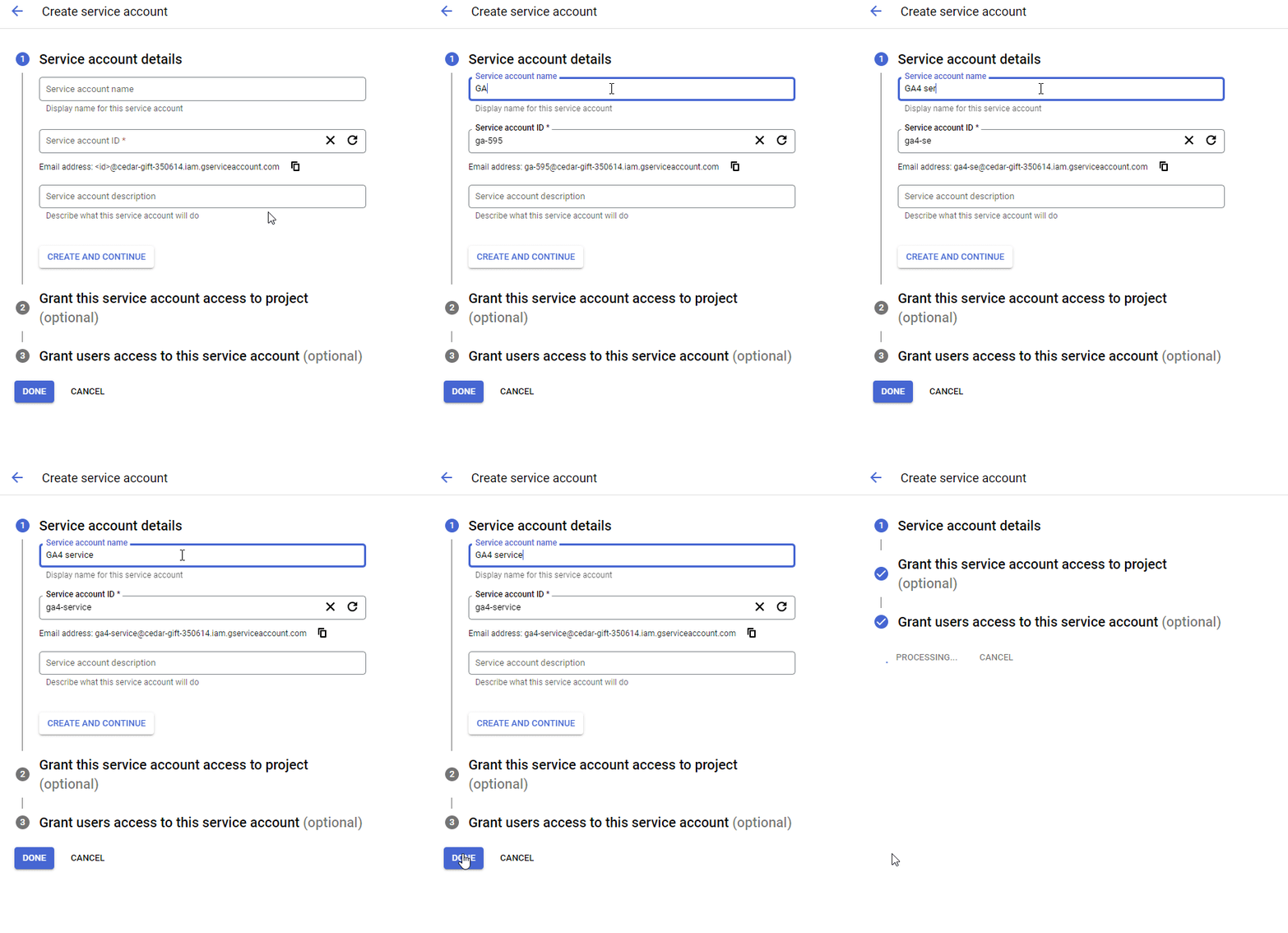
1. In **APIs & Services**, click **+ Create credentials** and select **Service Account**.
2. Give it a name and click **Done**.
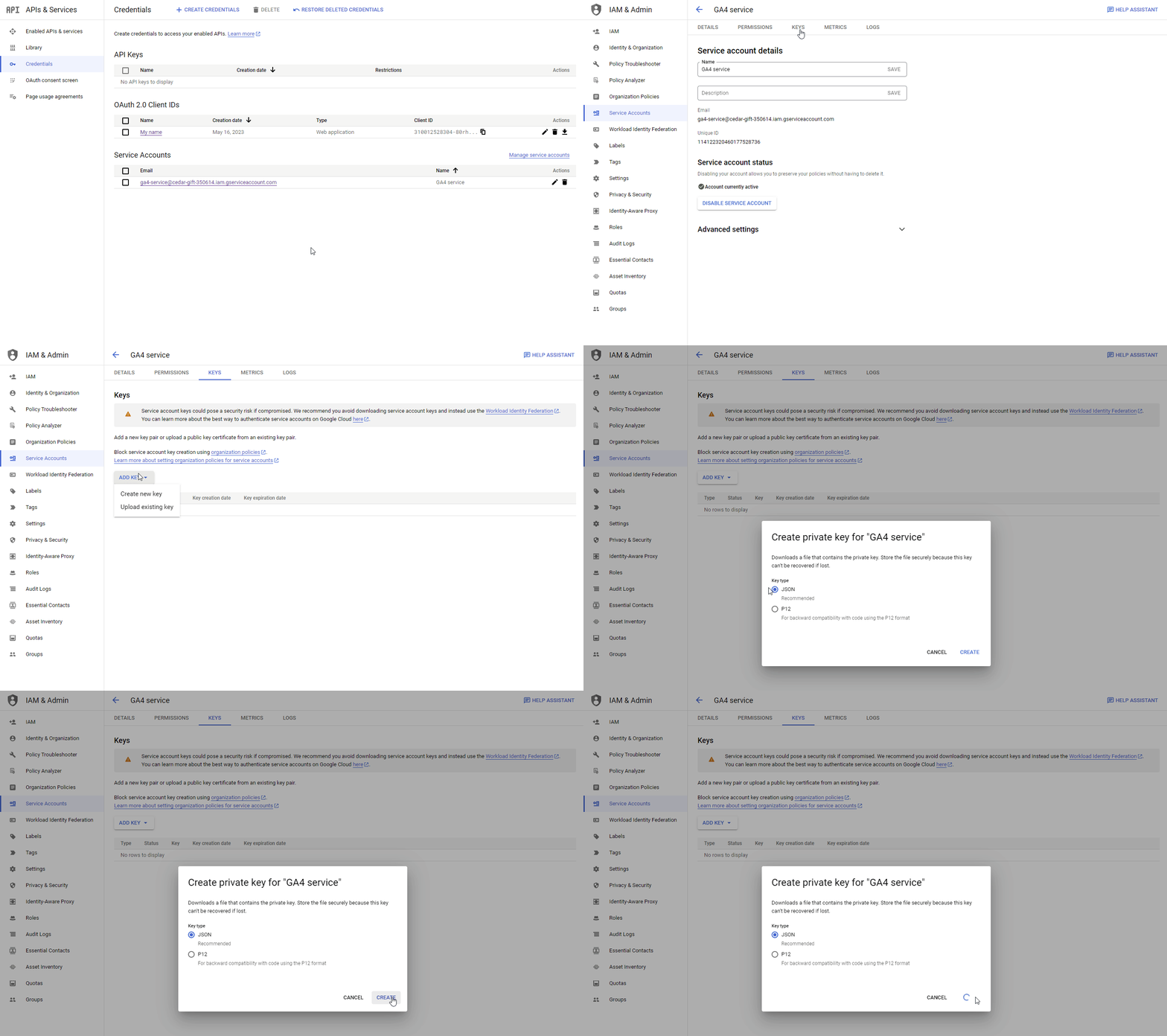
3. Open the new Service Account, then go to the **KEYS** tab.
4. Click **Add Key > Create new key > JSON > Create**.
5. A JSON file will download automatically.
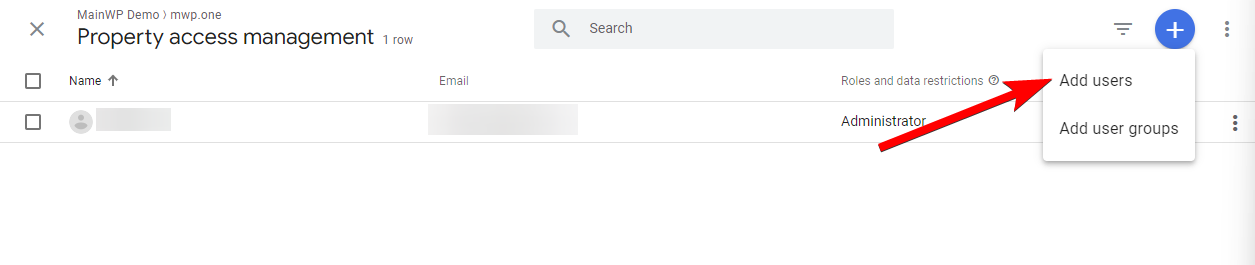
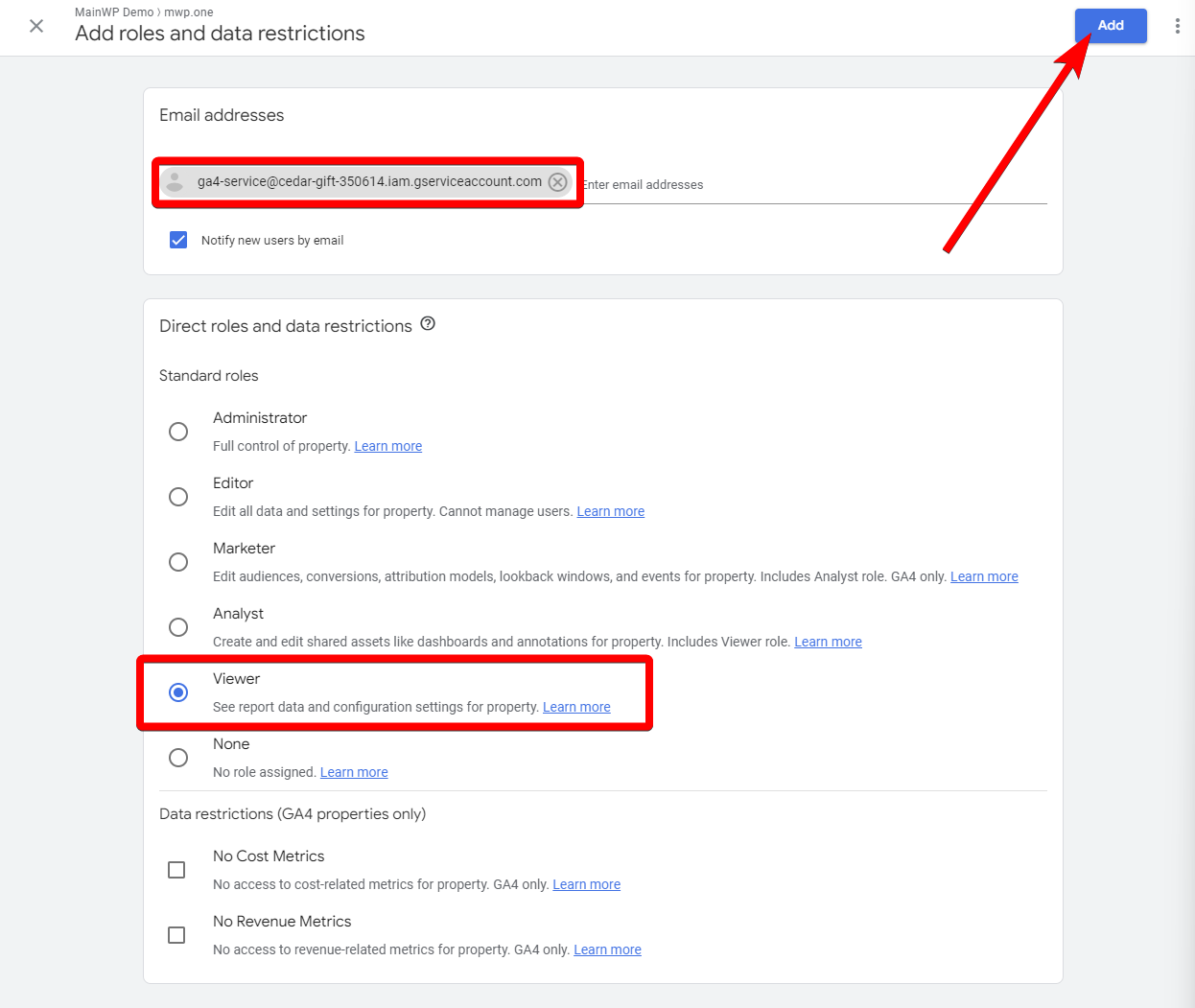
**Step 3 - Add the Service Account as Viewer in Google Analytics**
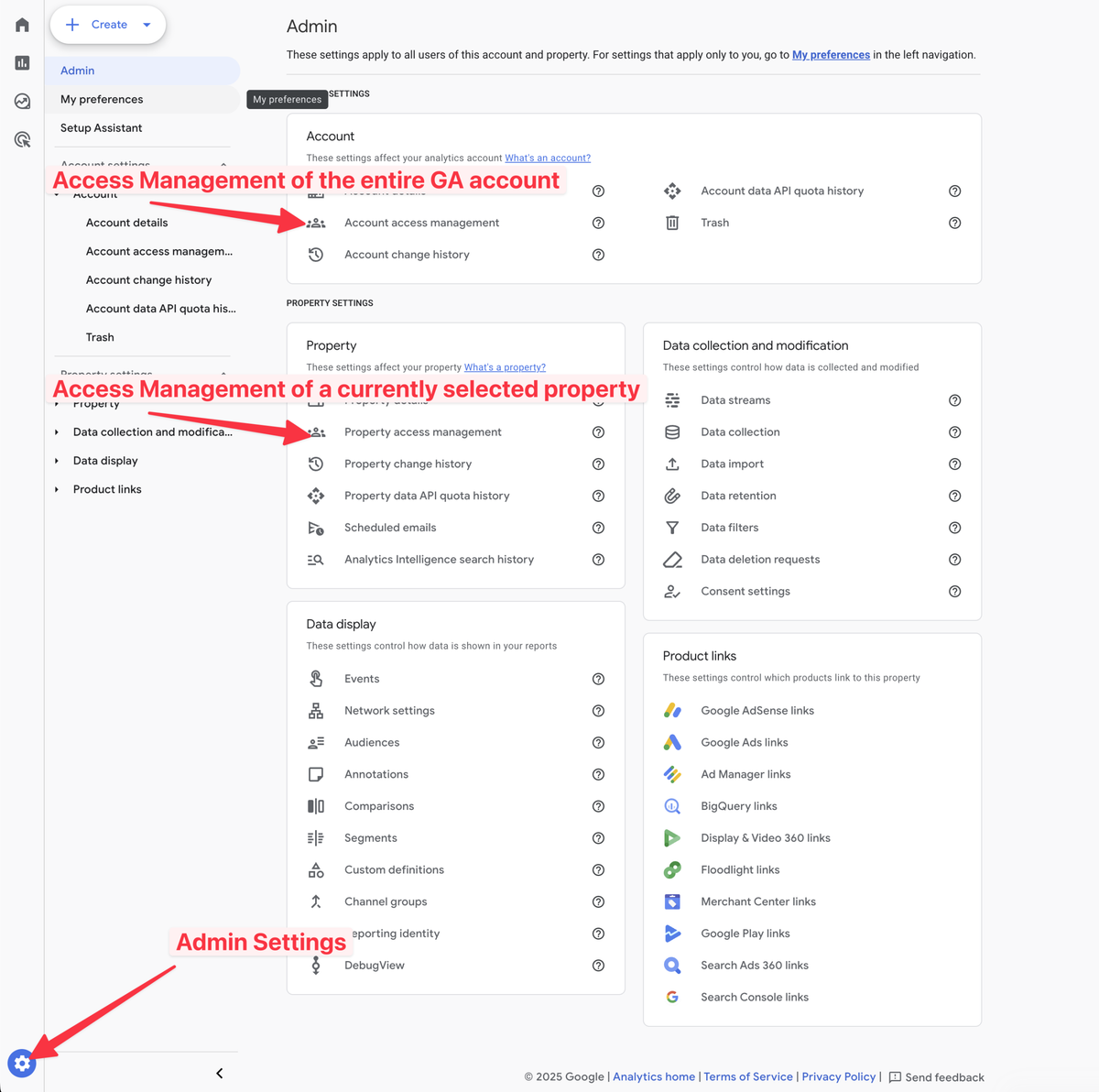
The Service Account can be added as a Viewer to the entire Google Analytics account (all properties) or to specific GA4 properties.
Go to [Google Analytics Dashboard](https://analytics.google.com/) and open Admin settings.
If you added property-level access, repeat for each GA4 property you want to use.
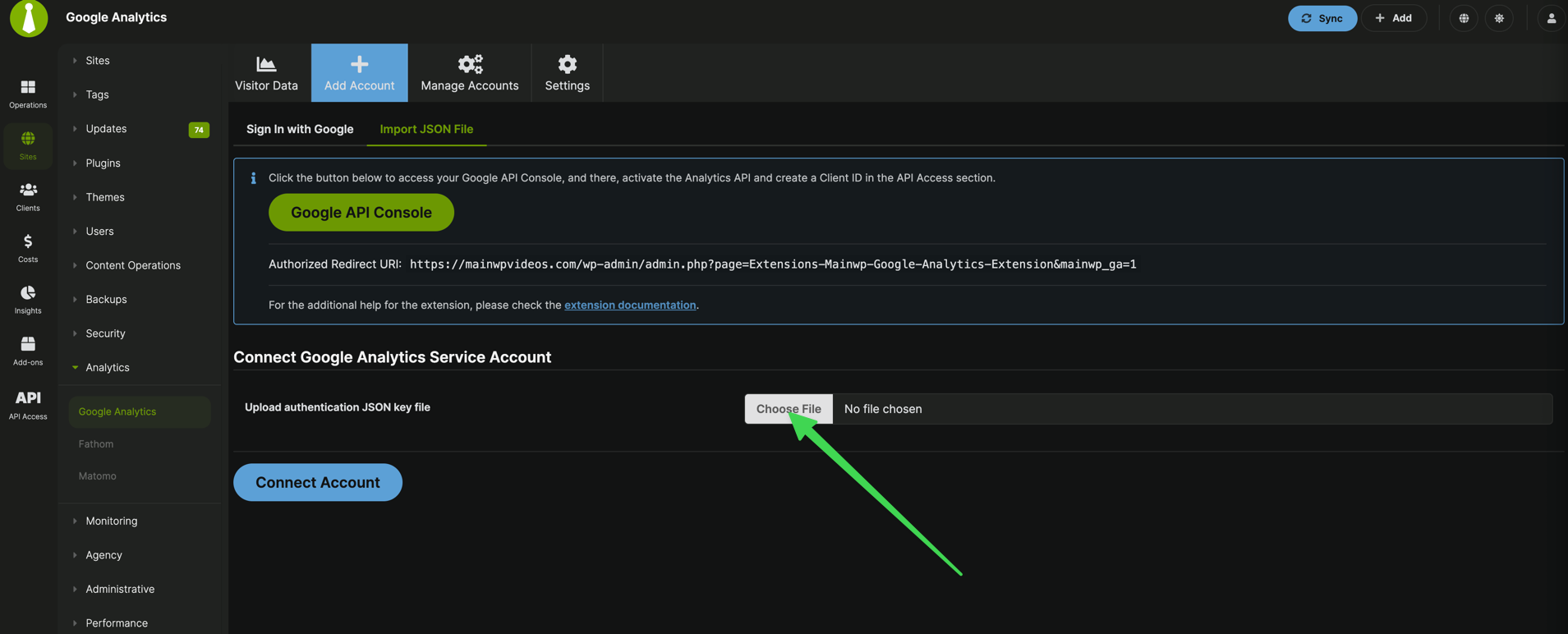
**Step 4 - Connect the JSON key in MainWP**
1. In your MainWP Dashboard, go to **MainWP > Add-ons > Google Analytics > Add Account > Import JSON File**.
2. Upload the JSON key file and click **Connect Account**.
3. The account will appear under **Manage Accounts** in **Accounts by JSON**.
**Important Notes**
* The Google Analytics Extension does not insert Google Analytics tracking code on child sites.
* Add the tracking code manually or by using a third-party plugin.
## Assigning sites from your Google Account to Child Sites in your MainWP Dashboard
The add-on automatically assigns properties to child sites based on URL matching. You can also assign properties manually:
Locate the site and click its name to open Settings.
Find the **Google Analytics** section and choose the **Google Analytics property**.
## Google Analytics Visitor Data
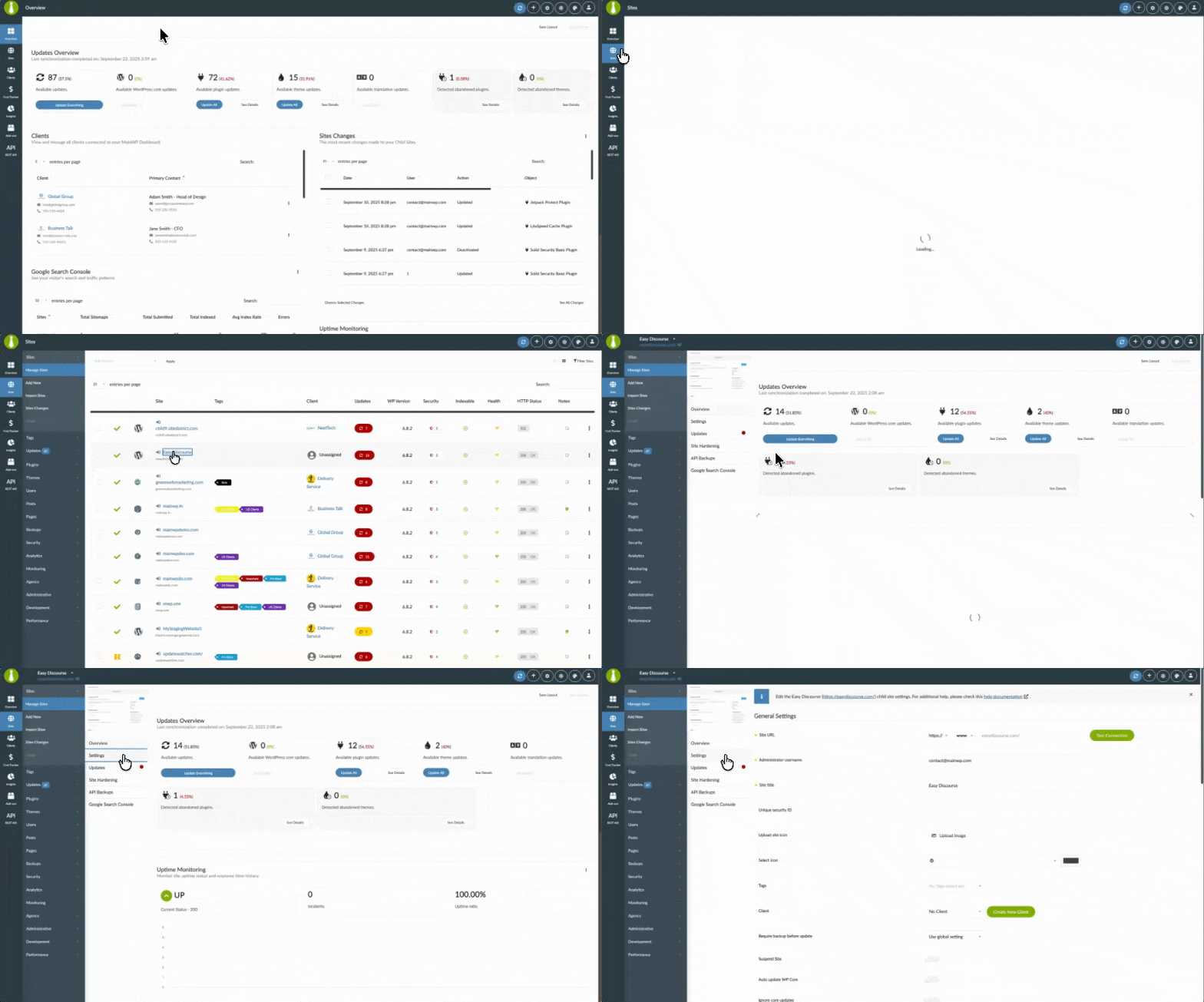
After you connect your Google Analytics account and assign GA4 properties to child sites, you can view data on **MainWP > Add-ons > Google Analytics > Visitor Data**.
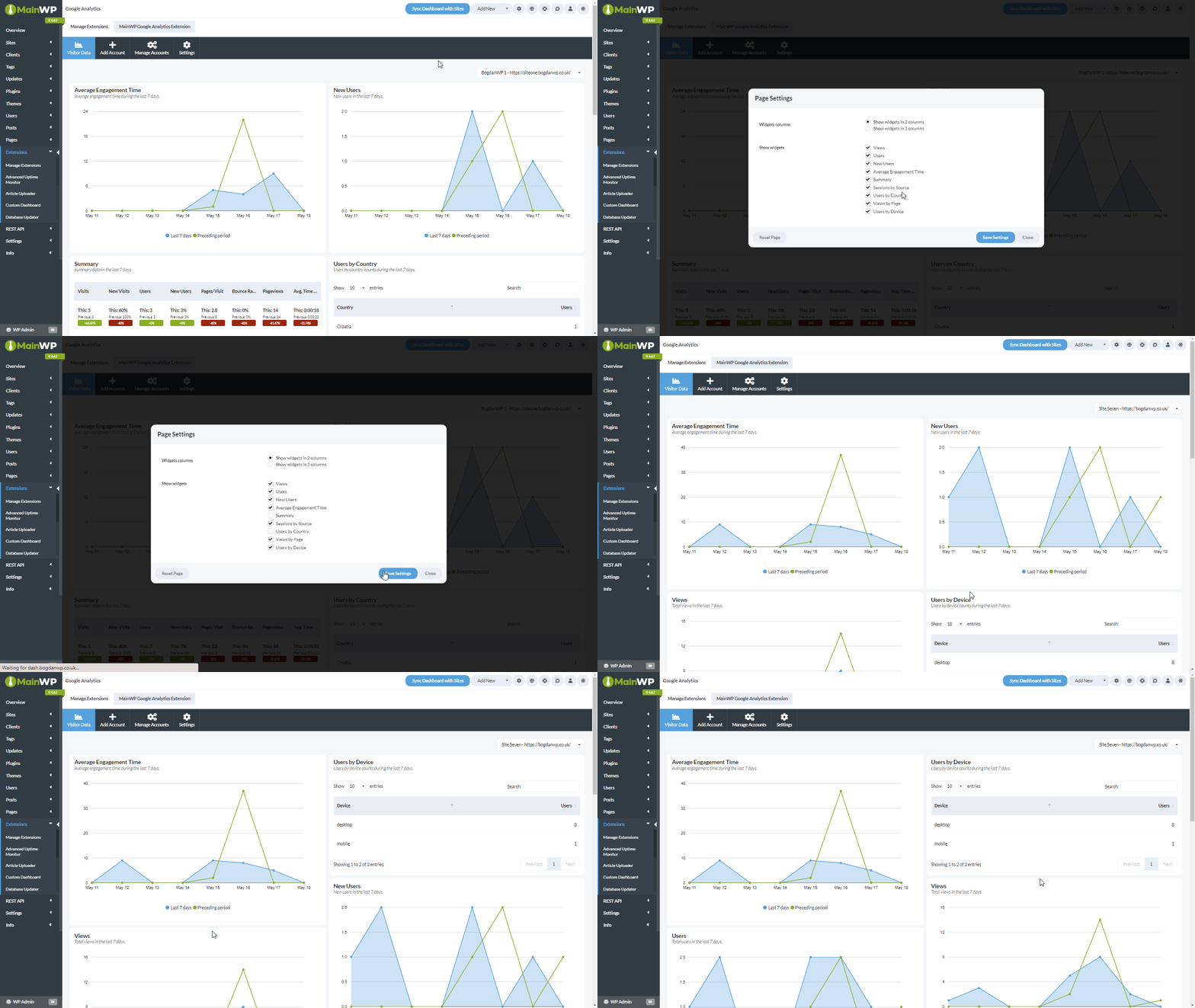
You can enable or disable widgets in [Page Settings](/getting-started/mainwp-user-interface), and rearrange them as needed.
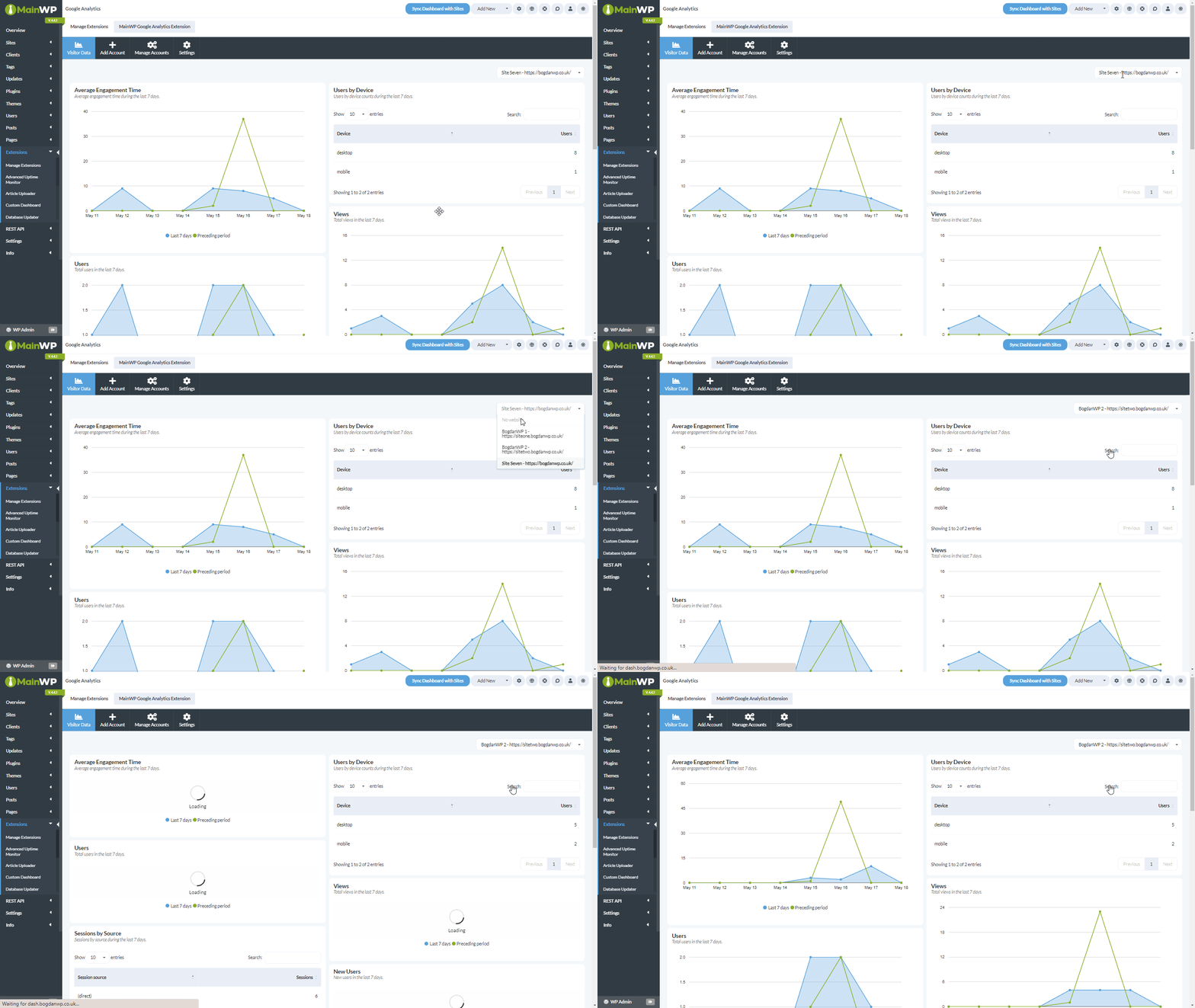
To change the child site, select it from the site dropdown.
## Widgets
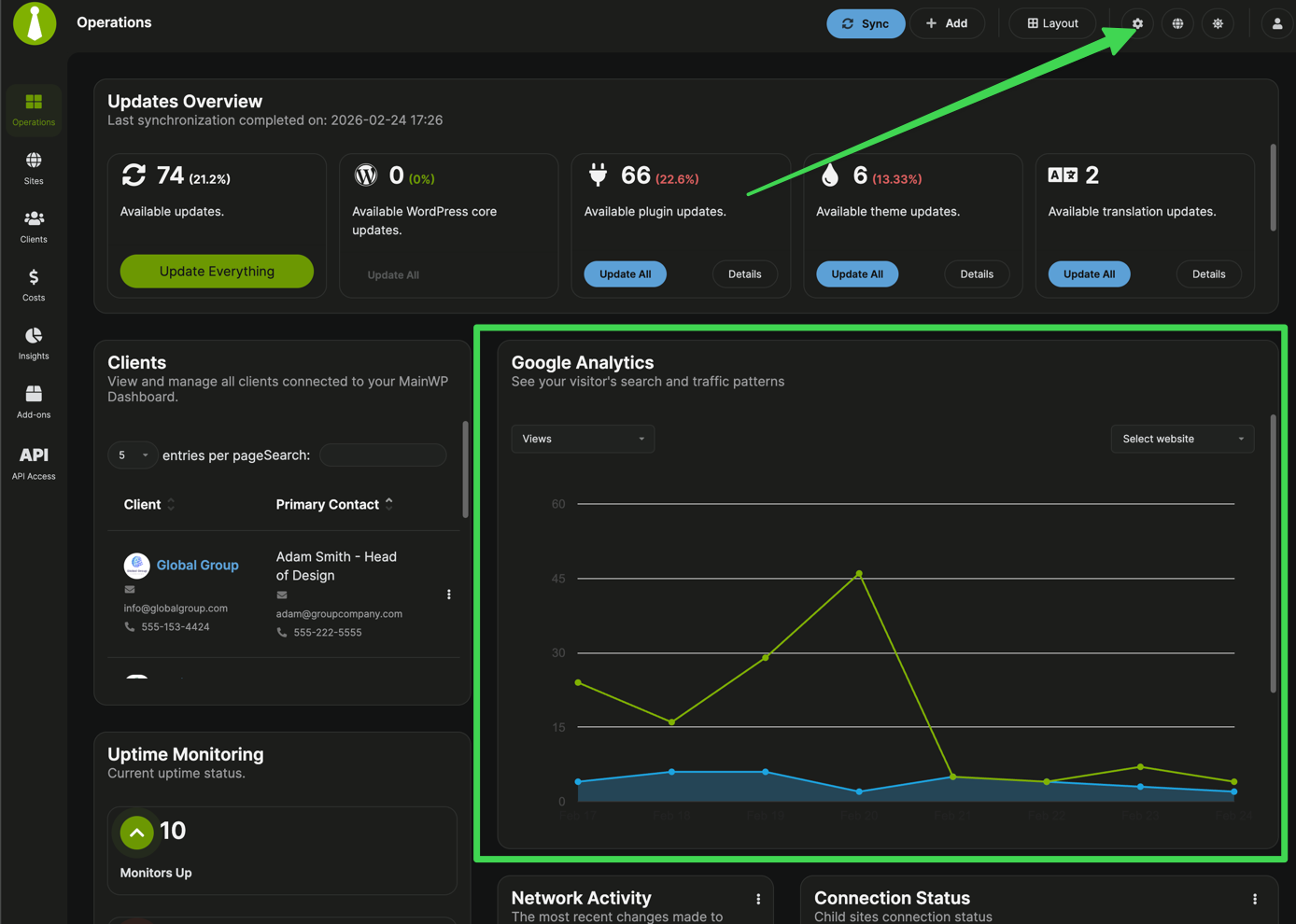
A Google Analytics widget is available on the MainWP Overview page and on each individual child site Overview page.
As always, widgets can be enabled or disabled in [Page Settings](/getting-started/mainwp-user-interface), and they can be rearranged as needed.
## Settings & Data Refresh
* **Graphs display interval**: Choose **Week** or **Month**
* **Fetch Google Analytics data automatically**: Enable scheduled data refresh
* **Auto fetch GA data frequency**: Set how often automatic refresh runs
* **Save Settings**: Save your interval and schedule preferences
* **Refresh Data**: Trigger an immediate data refresh
## Troubleshooting
### Sign In with Google buttons are disabled / "Google OAuth requires the WordPress REST API" notice
The extension performs a pre-flight check on your Dashboard's WordPress REST API root (`/wp-json/`) before any Google OAuth action. When the REST API is unreachable, the **Sign In with Google**, **Continue**, **Confirm**, **Reconnect Account**, and refresh buttons are disabled, and a red notice appears on the Add Account and Manage Accounts pages.
* See [WordPress REST API does not respond](/troubleshooting/wordpress-rest-api-does-not-respond) for steps to restore access (permalinks, security plugins, server rules).
* If HTTP basic auth protects your MainWP Dashboard, **Sign In with Google** can fail because MainWP Bridge cannot complete the initial pairing or re-registration check.
* If you need to keep the REST API restricted, use **Import JSON File** instead — the Service Account flow does not require `/wp-json/` to be public.
### Sign In with Google shows `site secret not found`
* This error usually means the default WordPress REST API endpoint at `/wp-json/` is blocked, disabled, filtered, or behind authentication.
* Make sure your MainWP Dashboard allows access to `/wp-json/`.
### Corrupted or missing site secret (Reset Now)
If the site secret used to authenticate with MainWP Bridge becomes corrupted or goes missing, the extension shows the following notice on its pages:
> The lost secret for the MainWP Google Analytics Extension is corrupted. You need to recover it to be able to use the extension.
Click **Reset Now** in the notice to regenerate the site secret. After the reset completes, reconnect any affected Sign In accounts from **MainWP > Add-ons > Google Analytics > Manage Accounts** using **Reconnect Account**.
### Sign-in account needs verification/reconnection
* Go to **MainWP > Add-ons > Google Analytics > Manage Accounts**
* For disconnected Sign In accounts, click **Reconnect Account**
* Use **Refresh Data** after reconnecting
### OAuth accounts repeatedly require re-verification or Pro Reports miss Google Analytics data
Sign In with Google accounts use OAuth tokens that must be refreshed regularly. The MainWP Google Analytics Extension includes a token refresh cron job that runs hourly and a data refresh cron job that runs every 5 minutes. If WP-Cron does not run for an extended period, the token refresh can be missed. When token refresh fails, the account can be marked as needing re-verification, and Pro Reports may generate scheduled reports without Google Analytics data.
This can happen on low-traffic MainWP Dashboard sites, cached sites, or hosting environments where loopback requests are blocked. An uptime monitor that only pings the homepage may not trigger WP-Cron if the homepage is served from cache.
To keep OAuth accounts connected:
1. Update the MainWP Google Analytics Extension to the latest version.
2. Make sure scheduled tasks are running on the MainWP Dashboard site.
3. Make sure WP-Cron is triggered reliably every 5 to 15 minutes.
The simplest fix is to keep WP-Cron enabled and trigger it directly. If you can add one server cron job, use:
```bash theme={null}
*/5 * * * * wget -O /dev/null https://yourdashboard.com/wp-cron.php?doing_wp_cron > /dev/null 2>&1
```
If you cannot configure a server cron job, configure your uptime monitor to ping the WP-Cron URL directly instead of the homepage:
```text theme={null}
https://yourdashboard.com/wp-cron.php?doing_wp_cron
```
Advanced users can disable WP-Cron and configure individual cron jobs manually, but that is usually not necessary for this issue. See [Disable WP-Cron](/customization/disable-wp-cron) only if you intentionally manage MainWP schedules through server-side cron jobs.
After cron is running reliably, reconnect any affected accounts once from **MainWP > Add-ons > Google Analytics > Manage Accounts** using **Reconnect Account**, then click **Refresh Data** and generate a test Pro Report.
If accounts still require re-verification after cron is stable, check for a corrupted or missing site secret, a changed Dashboard domain after migration, token data corruption, network/API errors reaching MainWP Bridge, or a temporary MainWP Bridge service issue.
### Service Account key disabled or rotated
* Re-enable the Service Account in Google Cloud Console
* Create and download a new JSON key from **Keys > Add Key > Create new key**
* Upload the new key in **MainWP > Add-ons > Google Analytics > Add Account > Import JSON File**
### Required PHP functions missing
* Google Analytics requires `bccomp`, `putenv`, and `getmypid`.
* If Google Analytics data is unavailable, review [Required PHP Functions for MainWP](/advanced/miscellaneous/required-php-functions-for-mainwp) to check whether these functions are disabled on your server.
***
## Related Resources
* [Analytics Add-ons](/add-ons/analytics) - Browse all analytics integrations
* [Pro Reports Extension](/add-ons/agency/pro-reports-extension-overview) - Include analytics data in reports
* [Available Pro Reports Tokens](/add-ons/agency/available-pro-reports-tokens) - Google Analytics tokens
* [MainWP Bridge Privacy Policy](https://mainwp.com/mainwp-bridge-privacy-policy) - Privacy details for Bridge-based sign in
 ### Option A: Sign In with Google
1. In your MainWP Dashboard, go to **MainWP > Add-ons > Google Analytics > Add Account**.
2. Keep the **Sign In with Google** tab selected, then click **Sign In with Google**.
3. Complete Google authorization in the popup window.
4. In **Select Google Analytics Project**, choose the account(s) you want to connect, then click **Continue**.
5. In **Confirm Google Analytics Connection**, review the summary and click **Confirm**.
6. Your account will appear under **Manage Accounts** in **Accounts by Sign In**.
**Notes**
* If your MainWP Dashboard server does not meet the required PHP version, the **Sign In with Google** tab is disabled and you can use **Import JSON File**.
* This flow uses MainWP Bridge (`bridge.mainwp.com`) for secure authentication. See [MainWP Bridge](/advanced/miscellaneous/mainwp-bridge) and the [MainWP Bridge Privacy Policy](https://mainwp.com/mainwp-bridge-privacy-policy).
* Before any OAuth action, the extension checks that your Dashboard's WordPress REST API root (`/wp-json/`) is reachable. If it isn't, the **Sign In with Google**, **Continue**, **Confirm**, **Reconnect Account**, and refresh buttons are disabled and an in-page notice links to [WordPress REST API does not respond](/troubleshooting/wordpress-rest-api-does-not-respond). Use **Import JSON File** to connect in the meantime.
### Option A: Sign In with Google
1. In your MainWP Dashboard, go to **MainWP > Add-ons > Google Analytics > Add Account**.
2. Keep the **Sign In with Google** tab selected, then click **Sign In with Google**.
3. Complete Google authorization in the popup window.
4. In **Select Google Analytics Project**, choose the account(s) you want to connect, then click **Continue**.
5. In **Confirm Google Analytics Connection**, review the summary and click **Confirm**.
6. Your account will appear under **Manage Accounts** in **Accounts by Sign In**.
**Notes**
* If your MainWP Dashboard server does not meet the required PHP version, the **Sign In with Google** tab is disabled and you can use **Import JSON File**.
* This flow uses MainWP Bridge (`bridge.mainwp.com`) for secure authentication. See [MainWP Bridge](/advanced/miscellaneous/mainwp-bridge) and the [MainWP Bridge Privacy Policy](https://mainwp.com/mainwp-bridge-privacy-policy).
* Before any OAuth action, the extension checks that your Dashboard's WordPress REST API root (`/wp-json/`) is reachable. If it isn't, the **Sign In with Google**, **Continue**, **Confirm**, **Reconnect Account**, and refresh buttons are disabled and an in-page notice links to [WordPress REST API does not respond](/troubleshooting/wordpress-rest-api-does-not-respond). Use **Import JSON File** to connect in the meantime.
 **Step 3 - Add the Service Account as Viewer in Google Analytics**
The Service Account can be added as a Viewer to the entire Google Analytics account (all properties) or to specific GA4 properties.
**Step 3 - Add the Service Account as Viewer in Google Analytics**
The Service Account can be added as a Viewer to the entire Google Analytics account (all properties) or to specific GA4 properties.
 **Important Notes**
* The Google Analytics Extension does not insert Google Analytics tracking code on child sites.
* Add the tracking code manually or by using a third-party plugin.
## Assigning sites from your Google Account to Child Sites in your MainWP Dashboard
The add-on automatically assigns properties to child sites based on URL matching. You can also assign properties manually:
**Important Notes**
* The Google Analytics Extension does not insert Google Analytics tracking code on child sites.
* Add the tracking code manually or by using a third-party plugin.
## Assigning sites from your Google Account to Child Sites in your MainWP Dashboard
The add-on automatically assigns properties to child sites based on URL matching. You can also assign properties manually:
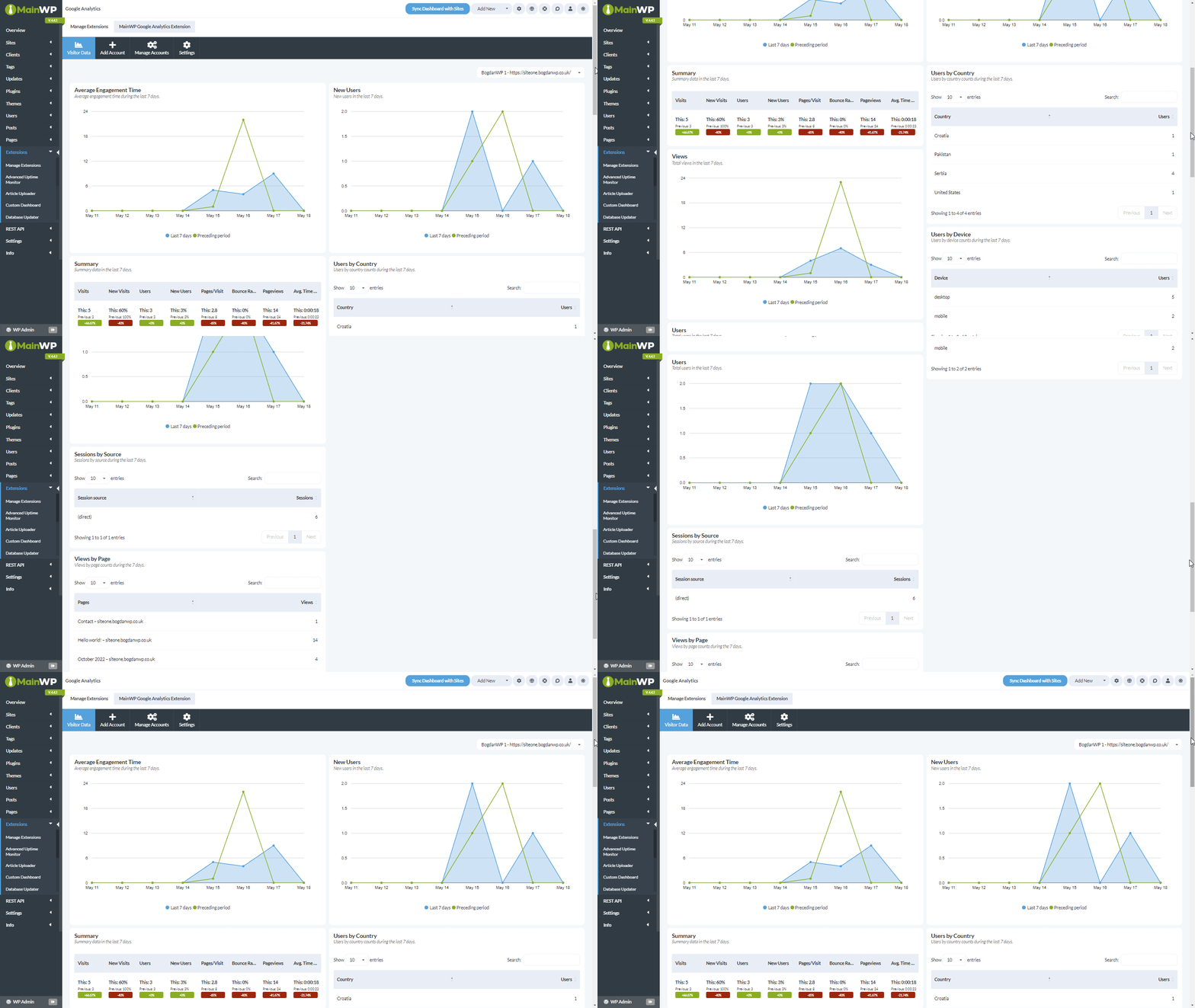 You can enable or disable widgets in [Page Settings](/getting-started/mainwp-user-interface), and rearrange them as needed.
 To change the child site, select it from the site dropdown.
 ## Widgets
A Google Analytics widget is available on the MainWP Overview page and on each individual child site Overview page.
As always, widgets can be enabled or disabled in [Page Settings](/getting-started/mainwp-user-interface), and they can be rearranged as needed.
## Widgets
A Google Analytics widget is available on the MainWP Overview page and on each individual child site Overview page.
As always, widgets can be enabled or disabled in [Page Settings](/getting-started/mainwp-user-interface), and they can be rearranged as needed.
 ## Settings & Data Refresh
* **Graphs display interval**: Choose **Week** or **Month**
* **Fetch Google Analytics data automatically**: Enable scheduled data refresh
* **Auto fetch GA data frequency**: Set how often automatic refresh runs
* **Save Settings**: Save your interval and schedule preferences
* **Refresh Data**: Trigger an immediate data refresh
## Troubleshooting
### Sign In with Google buttons are disabled / "Google OAuth requires the WordPress REST API" notice
The extension performs a pre-flight check on your Dashboard's WordPress REST API root (`/wp-json/`) before any Google OAuth action. When the REST API is unreachable, the **Sign In with Google**, **Continue**, **Confirm**, **Reconnect Account**, and refresh buttons are disabled, and a red notice appears on the Add Account and Manage Accounts pages.
* See [WordPress REST API does not respond](/troubleshooting/wordpress-rest-api-does-not-respond) for steps to restore access (permalinks, security plugins, server rules).
* If HTTP basic auth protects your MainWP Dashboard, **Sign In with Google** can fail because MainWP Bridge cannot complete the initial pairing or re-registration check.
* If you need to keep the REST API restricted, use **Import JSON File** instead — the Service Account flow does not require `/wp-json/` to be public.
### Sign In with Google shows `site secret not found`
* This error usually means the default WordPress REST API endpoint at `/wp-json/` is blocked, disabled, filtered, or behind authentication.
* Make sure your MainWP Dashboard allows access to `/wp-json/`.
### Corrupted or missing site secret (Reset Now)
If the site secret used to authenticate with MainWP Bridge becomes corrupted or goes missing, the extension shows the following notice on its pages:
> The lost secret for the MainWP Google Analytics Extension is corrupted. You need to recover it to be able to use the extension.
Click **Reset Now** in the notice to regenerate the site secret. After the reset completes, reconnect any affected Sign In accounts from **MainWP > Add-ons > Google Analytics > Manage Accounts** using **Reconnect Account**.
### Sign-in account needs verification/reconnection
* Go to **MainWP > Add-ons > Google Analytics > Manage Accounts**
* For disconnected Sign In accounts, click **Reconnect Account**
* Use **Refresh Data** after reconnecting
### OAuth accounts repeatedly require re-verification or Pro Reports miss Google Analytics data
Sign In with Google accounts use OAuth tokens that must be refreshed regularly. The MainWP Google Analytics Extension includes a token refresh cron job that runs hourly and a data refresh cron job that runs every 5 minutes. If WP-Cron does not run for an extended period, the token refresh can be missed. When token refresh fails, the account can be marked as needing re-verification, and Pro Reports may generate scheduled reports without Google Analytics data.
This can happen on low-traffic MainWP Dashboard sites, cached sites, or hosting environments where loopback requests are blocked. An uptime monitor that only pings the homepage may not trigger WP-Cron if the homepage is served from cache.
To keep OAuth accounts connected:
1. Update the MainWP Google Analytics Extension to the latest version.
2. Make sure scheduled tasks are running on the MainWP Dashboard site.
3. Make sure WP-Cron is triggered reliably every 5 to 15 minutes.
The simplest fix is to keep WP-Cron enabled and trigger it directly. If you can add one server cron job, use:
```bash theme={null}
*/5 * * * * wget -O /dev/null https://yourdashboard.com/wp-cron.php?doing_wp_cron > /dev/null 2>&1
```
If you cannot configure a server cron job, configure your uptime monitor to ping the WP-Cron URL directly instead of the homepage:
```text theme={null}
https://yourdashboard.com/wp-cron.php?doing_wp_cron
```
Advanced users can disable WP-Cron and configure individual cron jobs manually, but that is usually not necessary for this issue. See [Disable WP-Cron](/customization/disable-wp-cron) only if you intentionally manage MainWP schedules through server-side cron jobs.
After cron is running reliably, reconnect any affected accounts once from **MainWP > Add-ons > Google Analytics > Manage Accounts** using **Reconnect Account**, then click **Refresh Data** and generate a test Pro Report.
If accounts still require re-verification after cron is stable, check for a corrupted or missing site secret, a changed Dashboard domain after migration, token data corruption, network/API errors reaching MainWP Bridge, or a temporary MainWP Bridge service issue.
### Service Account key disabled or rotated
* Re-enable the Service Account in Google Cloud Console
* Create and download a new JSON key from **Keys > Add Key > Create new key**
* Upload the new key in **MainWP > Add-ons > Google Analytics > Add Account > Import JSON File**
### Required PHP functions missing
* Google Analytics requires `bccomp`, `putenv`, and `getmypid`.
* If Google Analytics data is unavailable, review [Required PHP Functions for MainWP](/advanced/miscellaneous/required-php-functions-for-mainwp) to check whether these functions are disabled on your server.
## Settings & Data Refresh
* **Graphs display interval**: Choose **Week** or **Month**
* **Fetch Google Analytics data automatically**: Enable scheduled data refresh
* **Auto fetch GA data frequency**: Set how often automatic refresh runs
* **Save Settings**: Save your interval and schedule preferences
* **Refresh Data**: Trigger an immediate data refresh
## Troubleshooting
### Sign In with Google buttons are disabled / "Google OAuth requires the WordPress REST API" notice
The extension performs a pre-flight check on your Dashboard's WordPress REST API root (`/wp-json/`) before any Google OAuth action. When the REST API is unreachable, the **Sign In with Google**, **Continue**, **Confirm**, **Reconnect Account**, and refresh buttons are disabled, and a red notice appears on the Add Account and Manage Accounts pages.
* See [WordPress REST API does not respond](/troubleshooting/wordpress-rest-api-does-not-respond) for steps to restore access (permalinks, security plugins, server rules).
* If HTTP basic auth protects your MainWP Dashboard, **Sign In with Google** can fail because MainWP Bridge cannot complete the initial pairing or re-registration check.
* If you need to keep the REST API restricted, use **Import JSON File** instead — the Service Account flow does not require `/wp-json/` to be public.
### Sign In with Google shows `site secret not found`
* This error usually means the default WordPress REST API endpoint at `/wp-json/` is blocked, disabled, filtered, or behind authentication.
* Make sure your MainWP Dashboard allows access to `/wp-json/`.
### Corrupted or missing site secret (Reset Now)
If the site secret used to authenticate with MainWP Bridge becomes corrupted or goes missing, the extension shows the following notice on its pages:
> The lost secret for the MainWP Google Analytics Extension is corrupted. You need to recover it to be able to use the extension.
Click **Reset Now** in the notice to regenerate the site secret. After the reset completes, reconnect any affected Sign In accounts from **MainWP > Add-ons > Google Analytics > Manage Accounts** using **Reconnect Account**.
### Sign-in account needs verification/reconnection
* Go to **MainWP > Add-ons > Google Analytics > Manage Accounts**
* For disconnected Sign In accounts, click **Reconnect Account**
* Use **Refresh Data** after reconnecting
### OAuth accounts repeatedly require re-verification or Pro Reports miss Google Analytics data
Sign In with Google accounts use OAuth tokens that must be refreshed regularly. The MainWP Google Analytics Extension includes a token refresh cron job that runs hourly and a data refresh cron job that runs every 5 minutes. If WP-Cron does not run for an extended period, the token refresh can be missed. When token refresh fails, the account can be marked as needing re-verification, and Pro Reports may generate scheduled reports without Google Analytics data.
This can happen on low-traffic MainWP Dashboard sites, cached sites, or hosting environments where loopback requests are blocked. An uptime monitor that only pings the homepage may not trigger WP-Cron if the homepage is served from cache.
To keep OAuth accounts connected:
1. Update the MainWP Google Analytics Extension to the latest version.
2. Make sure scheduled tasks are running on the MainWP Dashboard site.
3. Make sure WP-Cron is triggered reliably every 5 to 15 minutes.
The simplest fix is to keep WP-Cron enabled and trigger it directly. If you can add one server cron job, use:
```bash theme={null}
*/5 * * * * wget -O /dev/null https://yourdashboard.com/wp-cron.php?doing_wp_cron > /dev/null 2>&1
```
If you cannot configure a server cron job, configure your uptime monitor to ping the WP-Cron URL directly instead of the homepage:
```text theme={null}
https://yourdashboard.com/wp-cron.php?doing_wp_cron
```
Advanced users can disable WP-Cron and configure individual cron jobs manually, but that is usually not necessary for this issue. See [Disable WP-Cron](/customization/disable-wp-cron) only if you intentionally manage MainWP schedules through server-side cron jobs.
After cron is running reliably, reconnect any affected accounts once from **MainWP > Add-ons > Google Analytics > Manage Accounts** using **Reconnect Account**, then click **Refresh Data** and generate a test Pro Report.
If accounts still require re-verification after cron is stable, check for a corrupted or missing site secret, a changed Dashboard domain after migration, token data corruption, network/API errors reaching MainWP Bridge, or a temporary MainWP Bridge service issue.
### Service Account key disabled or rotated
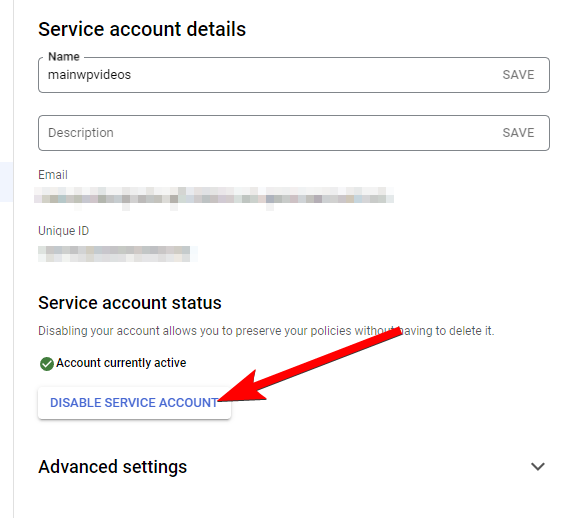
* Re-enable the Service Account in Google Cloud Console
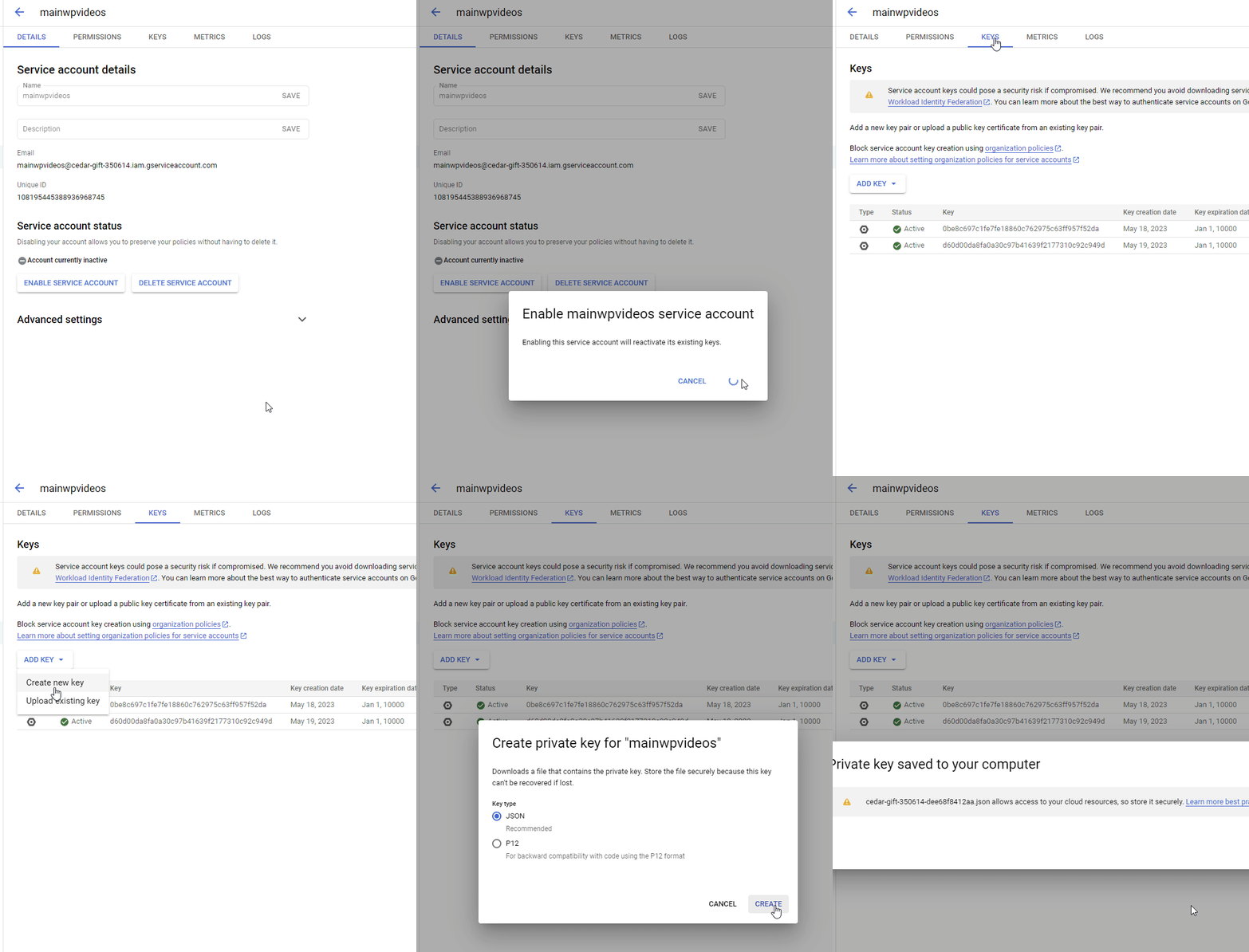
* Create and download a new JSON key from **Keys > Add Key > Create new key**
* Upload the new key in **MainWP > Add-ons > Google Analytics > Add Account > Import JSON File**
### Required PHP functions missing
* Google Analytics requires `bccomp`, `putenv`, and `getmypid`.
* If Google Analytics data is unavailable, review [Required PHP Functions for MainWP](/advanced/miscellaneous/required-php-functions-for-mainwp) to check whether these functions are disabled on your server.
 ***
## Related Resources
* [Analytics Add-ons](/add-ons/analytics) - Browse all analytics integrations
* [Pro Reports Extension](/add-ons/agency/pro-reports-extension-overview) - Include analytics data in reports
* [Available Pro Reports Tokens](/add-ons/agency/available-pro-reports-tokens) - Google Analytics tokens
* [MainWP Bridge Privacy Policy](https://mainwp.com/mainwp-bridge-privacy-policy) - Privacy details for Bridge-based sign in
***
## Related Resources
* [Analytics Add-ons](/add-ons/analytics) - Browse all analytics integrations
* [Pro Reports Extension](/add-ons/agency/pro-reports-extension-overview) - Include analytics data in reports
* [Available Pro Reports Tokens](/add-ons/agency/available-pro-reports-tokens) - Google Analytics tokens
* [MainWP Bridge Privacy Policy](https://mainwp.com/mainwp-bridge-privacy-policy) - Privacy details for Bridge-based sign in