> ## Documentation Index
> Fetch the complete documentation index at: https://docs.mainwp.com/llms.txt
> Use this file to discover all available pages before exploring further.
# Google Search Console
> The MainWP Google Search Console Add-on brings your Google Search Console (GSC) data into your MainWP Dashboard so you can review search performance and technical SEO issues across all your child sites from one central location.
## What You'll Learn
* Connecting Google Search Console via OAuth or Service Account
* Assigning GSC properties to child sites
* Viewing search performance and sitemap data
* Troubleshooting common connection issues
***
**Integration Add-on** - This add-on extends MainWP Dashboard to work with Google Search Console. Your child sites must already have matching Google Search Console properties available in the connected Google account or service account.
The MainWP Google Search Console Add‑on brings your Google Search Console (GSC) data into your MainWP Dashboard so you can review search performance and technical SEO health for all managed WordPress sites in one place.
## Use this Add‑on to Monitor
**Search Performance**
* Clicks, Impressions, CTR, Avg. Position
* Top Queries & Pages; breakdowns by Country, Device, and Search Appearance
* Daily trend chart
**Technical SEO Health (Sitemaps)**
* Submitted vs. Indexed per sitemap
* Status & last processed dates
* Errors (when reported)
**Multi‑Site Management**
* Centralized properties with per‑site drill‑down
* Integrates with MainWP widgets and Pro Reports
**Requirements**
* PHP 8.1 or higher on the MainWP Dashboard (required by Google libraries)
* PHP **BCMath** extension enabled on the MainWP Dashboard (used by the report generator)
* The default WordPress REST API endpoint (`/wp-json/`) on the MainWP Dashboard must be reachable. The **Sign in with Google** OAuth flow uses it to pair with the add-on.
* Your sites must be verified in **Google Search Console**
* For JSON Import: Google Search Console API
## Connect your Google Search Console Account
You can connect GSC in two ways. Use whichever fits your setup (you can use both):
### Option A: Sign in with Google (OAuth)
1. In your MainWP Dashboard, go to **MainWP > Add-ons > Analytics > Google Search Console**, then open the **Add Property** tab.
2. Click **Sign in with Google** and follow the on-screen prompts to complete authorization.
3. Next, select the GSC properties you want to connect, then click **Continue** and then **Confirm**.
4. Selected properties will appear under **Manage Properties** and will be available to assign to child sites.
If HTTP basic auth protects your MainWP Dashboard before it has paired with [MainWP Bridge](/advanced/miscellaneous/mainwp-bridge), **Sign in with Google** can fail because MainWP Bridge must be able to reach your Dashboard. If you need to keep HTTP basic auth enabled, use **Import JSON File** instead.
### Option B: Connect a Service Account (JSON file)
**Step 1 — Enable the required API (Google Cloud Console)**
Go to [**https://console.cloud.google.com**](https://console.cloud.google.com) and (optionally) **create a new Project**.
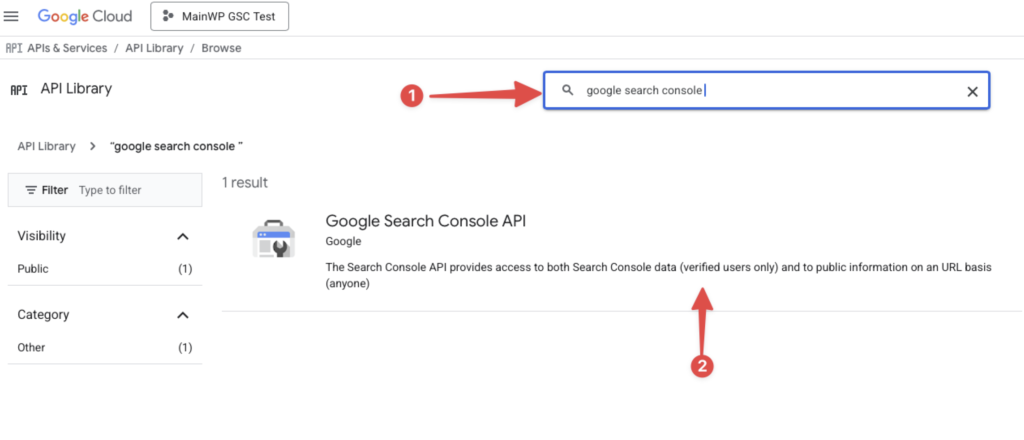
Click **+ Enable APIs and Services**, search for and **enable the only required API**:
* **Google Search Console API**\\
**Step 2 — Create a Service Account and JSON key**
Next, we will **create a Service Account,** which will be added later on to the desired GSC properties.
1. In **APIs & Services**, click **+ Create credentials** and select **Service Account**.
2. Give it a name then click **Done**.
3. Open the new Service Account, go to the **KEYS** tab.
4. Click **Add Key > Create new key > JSON > Create**.
5. A **JSON file** will download automatically; you’ll upload it to the add-on later on.
**Step 3 — Grant the Service Account access in Google Search Console**
Copy the **Service Account email** from your Google Cloud Console (Service Accounts list / Credentials page).
**Step 4 — Connect the JSON key in MainWP**
1. In your MainWP Dashboard, go to **MainWP > Add-ons > Analytics > Google Search Console > Add Property > Import JSON File**.
2. Upload the **JSON key** and click **Connect Account**.
3. Discovered properties will appear under **Manage Properties** and will be available to assign to child sites.
**Notes**
* The account (Google or Service Account) must have access to each property you want to see in MainWP.
* If you rotate keys or disable the Service Account, you’ll need to upload a new JSON key to re‑establish the connection.
* This add‑on **does not** verify sites in GSC or submit sitemaps; it reads your existing data.
## Assigning a GSC Property to Each Child Site
The add-on can automatically match a property to a child site when the connected property URL or domain matches the child site's URL.\
You can also manually assign a property to a child site by doing the following:
If you use the [Team Control](/add-ons/agency/team-control-extension) add-on, the Google Search Console property selection is only shown on a site's Settings page to users whose role grants access to the Google Search Console add-on. Users without that permission won't see the property selector and can't change the assigned property.
## Where to View Data
### Dashboard Widget
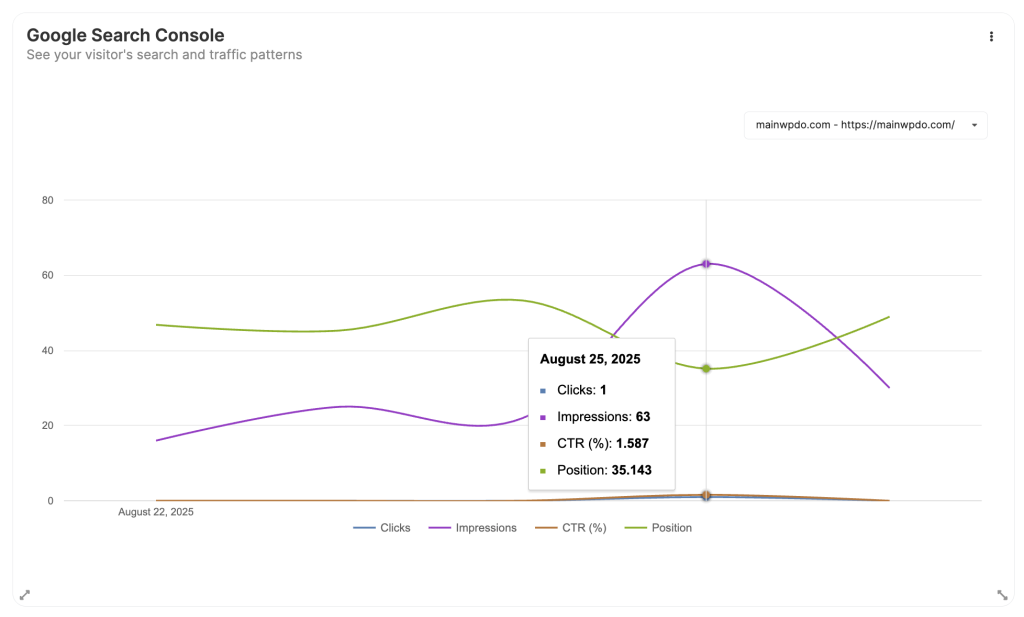
A **Google Search Console** widget can be enabled on the **MainWP Operations** page. Use the site selector there to switch sites. When you open the add-on from an individual child site, it loads that site's Google Search Console data directly.
* KPIs: **Total Clicks**, **Total Impressions**, **Average CTR**, **Average Position**
* Interactive performance chart (Clicks, Impressions, CTR, Position)
* Quick shortcuts to **Search Performance** and **Sitemaps** sections
### Add-on Pages
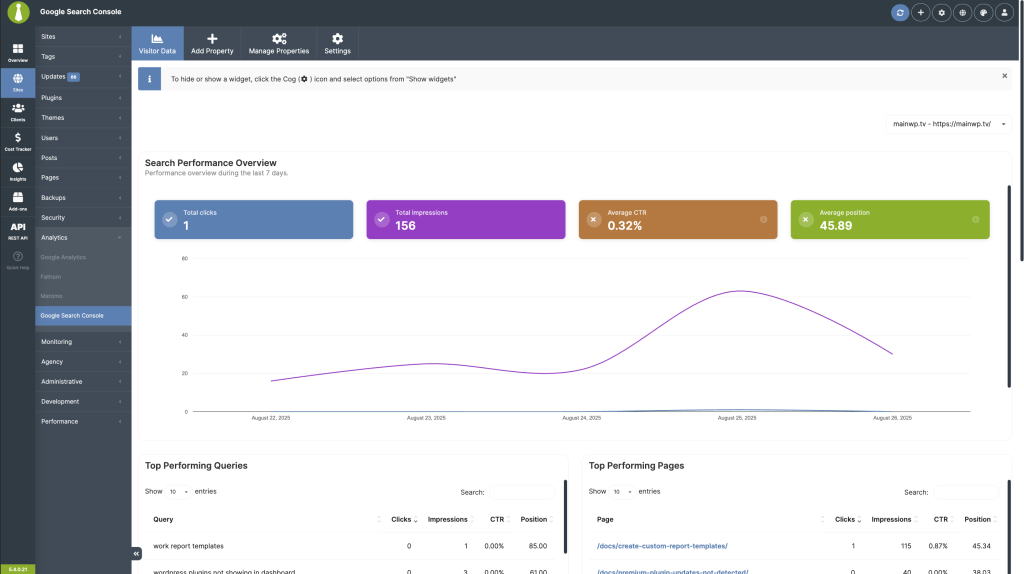
Go to **MainWP > Add-ons > Analytics > Google Search Console** and use these tabs:
* **Visitor Data** (per‑site):
* KPI tiles: Total Clicks, Total Impressions, Avg. CTR, Avg. Position
* Chart with series for Clicks, Impressions, CTR, Position
* Widgets: Top Queries, Top Pages, Top Performing Countries, Devices, Search Appearance, Dates
* **Sitemaps**: Submitted vs. indexed counts by sitemap, indexing rate, last processed dates, error totals
* **Add Property**: Connect properties by **Sign In with Google** or **Import JSON File**.
* **Manage Properties**: Review properties added by **Sign In with Google** or **JSON**; actions include **Refresh Data**, **Reconnect Property** for disconnected OAuth properties, and **Remove Property**.
* **Settings**: Configure **Graphs display interval**, **Fetch Google Search Console data automatically**, **Auto fetch GSC data frequency**, and on-demand **Refresh Data**.
## Settings & Data Refresh
* **Graphs display interval**: Pick **Week** or **Month**
* **Fetch Google Search Console data automatically**: Enable scheduling and choose how often MainWP should pull fresh data.
* **Refresh Data**: Click to fetch the latest stats immediately (Data is cached to reduce API calls; refreshing clears and updates the cache.)
## GSC data in Pro Reports
If you use **MainWP Pro Reports**, you can include Google Search Console data in your client reports. For the full list of available tokens, see the [Available Pro Reports Tokens](/add-ons/agency/available-pro-reports-tokens) article.
## Troubleshooting
**"Google OAuth requires the WordPress REST API to be enabled and reachable"**
* The add-on checks whether `/wp-json/` on your MainWP Dashboard returns the expected REST API metadata. When the check fails, the add-on shows a red notice on the **Add Property**, **Manage Properties**, and **Overview** screens, and disables the OAuth buttons (**Sign in with Google**, **Continue**, **Confirm**, **Verify Now**, **Reset Now**, and **Reconnect Property**). The **Import JSON File** flow is unaffected and can still be used.
* Make sure the default WordPress REST API endpoint at `/wp-json/` is not blocked, disabled, filtered, or behind HTTP basic auth on your MainWP Dashboard.
* See the [WordPress REST API troubleshooting guide](https://docs.mainwp.com/troubleshooting/wordpress-rest-api-does-not-respond) for steps to restore REST API access.
* If you need to keep HTTP basic auth or REST API restrictions enabled, use **Import JSON File** instead.
**Sign in with Google shows `site secret not found`**
* This error has the same root cause as above: the default WordPress REST API endpoint at `/wp-json/` is blocked, disabled, filtered, or behind authentication.
* Make sure your MainWP Dashboard allows access to `/wp-json/`.
* If HTTP basic auth protects your MainWP Dashboard, **Sign in with Google** can fail because MainWP Bridge cannot complete the initial pairing or re-registration check.
* If you need to keep HTTP basic auth enabled, use **Import JSON File** instead.
**"Your server does not have the PHP BCMath extension enabled"**
* The MainWP Google Search Console add-on requires the PHP **BCMath** extension on the MainWP Dashboard server to run the background processes used for Pro Reports.
* Ask your host to enable the `bcmath` PHP extension. After it is enabled, refresh the add-on page and the notice will clear.
**No data available**
* Confirm the site has a **GSC property assigned** in its Settings page
* Ensure the **Google account or Service Account** has access to the property in GSC.
* Try **Refresh Data** from the add‑on **Settings** or **Manage Properties** tab.
**Re-authentication required**
* If you see a red notice about authentication, click **Verify Now** and sign in again.
**Service Account key disabled/rotated**
* Create a new JSON key for the Service Account, then upload it on **Add Property** to reconnect.
***
## Related Resources
* [Analytics Add-ons](/add-ons/analytics) - Browse all analytics integrations
* [Pro Reports Extension](/add-ons/agency/pro-reports-extension-overview) - Include GSC data in reports
* [Available Pro Reports Tokens](/add-ons/agency/available-pro-reports-tokens) - Google Search Console tokens
 ## Use this Add‑on to Monitor
**Search Performance**
* Clicks, Impressions, CTR, Avg. Position
* Top Queries & Pages; breakdowns by Country, Device, and Search Appearance
* Daily trend chart
**Technical SEO Health (Sitemaps)**
* Submitted vs. Indexed per sitemap
* Status & last processed dates
* Errors (when reported)
**Multi‑Site Management**
* Centralized properties with per‑site drill‑down
* Integrates with MainWP widgets and Pro Reports
**Requirements**
* PHP 8.1 or higher on the MainWP Dashboard (required by Google libraries)
* PHP **BCMath** extension enabled on the MainWP Dashboard (used by the report generator)
* The default WordPress REST API endpoint (`/wp-json/`) on the MainWP Dashboard must be reachable. The **Sign in with Google** OAuth flow uses it to pair with the add-on.
* Your sites must be verified in **Google Search Console**
* For JSON Import: Google Search Console API
## Connect your Google Search Console Account
You can connect GSC in two ways. Use whichever fits your setup (you can use both):
### Option A: Sign in with Google (OAuth)
1. In your MainWP Dashboard, go to **MainWP > Add-ons > Analytics > Google Search Console**, then open the **Add Property** tab.
2. Click **Sign in with Google** and follow the on-screen prompts to complete authorization.
3. Next, select the GSC properties you want to connect, then click **Continue** and then **Confirm**.
4. Selected properties will appear under **Manage Properties** and will be available to assign to child sites.
## Use this Add‑on to Monitor
**Search Performance**
* Clicks, Impressions, CTR, Avg. Position
* Top Queries & Pages; breakdowns by Country, Device, and Search Appearance
* Daily trend chart
**Technical SEO Health (Sitemaps)**
* Submitted vs. Indexed per sitemap
* Status & last processed dates
* Errors (when reported)
**Multi‑Site Management**
* Centralized properties with per‑site drill‑down
* Integrates with MainWP widgets and Pro Reports
**Requirements**
* PHP 8.1 or higher on the MainWP Dashboard (required by Google libraries)
* PHP **BCMath** extension enabled on the MainWP Dashboard (used by the report generator)
* The default WordPress REST API endpoint (`/wp-json/`) on the MainWP Dashboard must be reachable. The **Sign in with Google** OAuth flow uses it to pair with the add-on.
* Your sites must be verified in **Google Search Console**
* For JSON Import: Google Search Console API
## Connect your Google Search Console Account
You can connect GSC in two ways. Use whichever fits your setup (you can use both):
### Option A: Sign in with Google (OAuth)
1. In your MainWP Dashboard, go to **MainWP > Add-ons > Analytics > Google Search Console**, then open the **Add Property** tab.
2. Click **Sign in with Google** and follow the on-screen prompts to complete authorization.
3. Next, select the GSC properties you want to connect, then click **Continue** and then **Confirm**.
4. Selected properties will appear under **Manage Properties** and will be available to assign to child sites.
 A **Google Search Console** widget can be enabled on the **MainWP Operations** page. Use the site selector there to switch sites. When you open the add-on from an individual child site, it loads that site's Google Search Console data directly.
* KPIs: **Total Clicks**, **Total Impressions**, **Average CTR**, **Average Position**
* Interactive performance chart (Clicks, Impressions, CTR, Position)
* Quick shortcuts to **Search Performance** and **Sitemaps** sections
### Add-on Pages
Go to **MainWP > Add-ons > Analytics > Google Search Console** and use these tabs:
* **Visitor Data** (per‑site):
* KPI tiles: Total Clicks, Total Impressions, Avg. CTR, Avg. Position
* Chart with series for Clicks, Impressions, CTR, Position
* Widgets: Top Queries, Top Pages, Top Performing Countries, Devices, Search Appearance, Dates
* **Sitemaps**: Submitted vs. indexed counts by sitemap, indexing rate, last processed dates, error totals
* **Add Property**: Connect properties by **Sign In with Google** or **Import JSON File**.
* **Manage Properties**: Review properties added by **Sign In with Google** or **JSON**; actions include **Refresh Data**, **Reconnect Property** for disconnected OAuth properties, and **Remove Property**.
* **Settings**: Configure **Graphs display interval**, **Fetch Google Search Console data automatically**, **Auto fetch GSC data frequency**, and on-demand **Refresh Data**.
## Settings & Data Refresh
* **Graphs display interval**: Pick **Week** or **Month**
* **Fetch Google Search Console data automatically**: Enable scheduling and choose how often MainWP should pull fresh data.
* **Refresh Data**: Click to fetch the latest stats immediately (Data is cached to reduce API calls; refreshing clears and updates the cache.)
## GSC data in Pro Reports
If you use **MainWP Pro Reports**, you can include Google Search Console data in your client reports. For the full list of available tokens, see the [Available Pro Reports Tokens](/add-ons/agency/available-pro-reports-tokens) article.
## Troubleshooting
**"Google OAuth requires the WordPress REST API to be enabled and reachable"**
* The add-on checks whether `/wp-json/` on your MainWP Dashboard returns the expected REST API metadata. When the check fails, the add-on shows a red notice on the **Add Property**, **Manage Properties**, and **Overview** screens, and disables the OAuth buttons (**Sign in with Google**, **Continue**, **Confirm**, **Verify Now**, **Reset Now**, and **Reconnect Property**). The **Import JSON File** flow is unaffected and can still be used.
* Make sure the default WordPress REST API endpoint at `/wp-json/` is not blocked, disabled, filtered, or behind HTTP basic auth on your MainWP Dashboard.
* See the [WordPress REST API troubleshooting guide](https://docs.mainwp.com/troubleshooting/wordpress-rest-api-does-not-respond) for steps to restore REST API access.
* If you need to keep HTTP basic auth or REST API restrictions enabled, use **Import JSON File** instead.
**Sign in with Google shows `site secret not found`**
* This error has the same root cause as above: the default WordPress REST API endpoint at `/wp-json/` is blocked, disabled, filtered, or behind authentication.
* Make sure your MainWP Dashboard allows access to `/wp-json/`.
* If HTTP basic auth protects your MainWP Dashboard, **Sign in with Google** can fail because MainWP Bridge cannot complete the initial pairing or re-registration check.
* If you need to keep HTTP basic auth enabled, use **Import JSON File** instead.
**"Your server does not have the PHP BCMath extension enabled"**
* The MainWP Google Search Console add-on requires the PHP **BCMath** extension on the MainWP Dashboard server to run the background processes used for Pro Reports.
* Ask your host to enable the `bcmath` PHP extension. After it is enabled, refresh the add-on page and the notice will clear.
**No data available**
* Confirm the site has a **GSC property assigned** in its Settings page
* Ensure the **Google account or Service Account** has access to the property in GSC.
* Try **Refresh Data** from the add‑on **Settings** or **Manage Properties** tab.
**Re-authentication required**
* If you see a red notice about authentication, click **Verify Now** and sign in again.
**Service Account key disabled/rotated**
* Create a new JSON key for the Service Account, then upload it on **Add Property** to reconnect.
***
## Related Resources
* [Analytics Add-ons](/add-ons/analytics) - Browse all analytics integrations
* [Pro Reports Extension](/add-ons/agency/pro-reports-extension-overview) - Include GSC data in reports
* [Available Pro Reports Tokens](/add-ons/agency/available-pro-reports-tokens) - Google Search Console tokens
A **Google Search Console** widget can be enabled on the **MainWP Operations** page. Use the site selector there to switch sites. When you open the add-on from an individual child site, it loads that site's Google Search Console data directly.
* KPIs: **Total Clicks**, **Total Impressions**, **Average CTR**, **Average Position**
* Interactive performance chart (Clicks, Impressions, CTR, Position)
* Quick shortcuts to **Search Performance** and **Sitemaps** sections
### Add-on Pages
Go to **MainWP > Add-ons > Analytics > Google Search Console** and use these tabs:
* **Visitor Data** (per‑site):
* KPI tiles: Total Clicks, Total Impressions, Avg. CTR, Avg. Position
* Chart with series for Clicks, Impressions, CTR, Position
* Widgets: Top Queries, Top Pages, Top Performing Countries, Devices, Search Appearance, Dates
* **Sitemaps**: Submitted vs. indexed counts by sitemap, indexing rate, last processed dates, error totals
* **Add Property**: Connect properties by **Sign In with Google** or **Import JSON File**.
* **Manage Properties**: Review properties added by **Sign In with Google** or **JSON**; actions include **Refresh Data**, **Reconnect Property** for disconnected OAuth properties, and **Remove Property**.
* **Settings**: Configure **Graphs display interval**, **Fetch Google Search Console data automatically**, **Auto fetch GSC data frequency**, and on-demand **Refresh Data**.
## Settings & Data Refresh
* **Graphs display interval**: Pick **Week** or **Month**
* **Fetch Google Search Console data automatically**: Enable scheduling and choose how often MainWP should pull fresh data.
* **Refresh Data**: Click to fetch the latest stats immediately (Data is cached to reduce API calls; refreshing clears and updates the cache.)
## GSC data in Pro Reports
If you use **MainWP Pro Reports**, you can include Google Search Console data in your client reports. For the full list of available tokens, see the [Available Pro Reports Tokens](/add-ons/agency/available-pro-reports-tokens) article.
## Troubleshooting
**"Google OAuth requires the WordPress REST API to be enabled and reachable"**
* The add-on checks whether `/wp-json/` on your MainWP Dashboard returns the expected REST API metadata. When the check fails, the add-on shows a red notice on the **Add Property**, **Manage Properties**, and **Overview** screens, and disables the OAuth buttons (**Sign in with Google**, **Continue**, **Confirm**, **Verify Now**, **Reset Now**, and **Reconnect Property**). The **Import JSON File** flow is unaffected and can still be used.
* Make sure the default WordPress REST API endpoint at `/wp-json/` is not blocked, disabled, filtered, or behind HTTP basic auth on your MainWP Dashboard.
* See the [WordPress REST API troubleshooting guide](https://docs.mainwp.com/troubleshooting/wordpress-rest-api-does-not-respond) for steps to restore REST API access.
* If you need to keep HTTP basic auth or REST API restrictions enabled, use **Import JSON File** instead.
**Sign in with Google shows `site secret not found`**
* This error has the same root cause as above: the default WordPress REST API endpoint at `/wp-json/` is blocked, disabled, filtered, or behind authentication.
* Make sure your MainWP Dashboard allows access to `/wp-json/`.
* If HTTP basic auth protects your MainWP Dashboard, **Sign in with Google** can fail because MainWP Bridge cannot complete the initial pairing or re-registration check.
* If you need to keep HTTP basic auth enabled, use **Import JSON File** instead.
**"Your server does not have the PHP BCMath extension enabled"**
* The MainWP Google Search Console add-on requires the PHP **BCMath** extension on the MainWP Dashboard server to run the background processes used for Pro Reports.
* Ask your host to enable the `bcmath` PHP extension. After it is enabled, refresh the add-on page and the notice will clear.
**No data available**
* Confirm the site has a **GSC property assigned** in its Settings page
* Ensure the **Google account or Service Account** has access to the property in GSC.
* Try **Refresh Data** from the add‑on **Settings** or **Manage Properties** tab.
**Re-authentication required**
* If you see a red notice about authentication, click **Verify Now** and sign in again.
**Service Account key disabled/rotated**
* Create a new JSON key for the Service Account, then upload it on **Add Property** to reconnect.
***
## Related Resources
* [Analytics Add-ons](/add-ons/analytics) - Browse all analytics integrations
* [Pro Reports Extension](/add-ons/agency/pro-reports-extension-overview) - Include GSC data in reports
* [Available Pro Reports Tokens](/add-ons/agency/available-pro-reports-tokens) - Google Search Console tokens