> ## Documentation Index
> Fetch the complete documentation index at: https://docs.mainwp.com/llms.txt
> Use this file to discover all available pages before exploring further.
# Fathom
> The MainWP Fathom Extension enables you to view Fathom stats for all your Child Sites in your MainWP Dashboard. It adds widgets to both the MainWP overview and individual site overview pages, making it simple to monitor your visitors' data.
## What You'll Learn
* Creating a Fathom API token
* Connecting Fathom to MainWP Dashboard
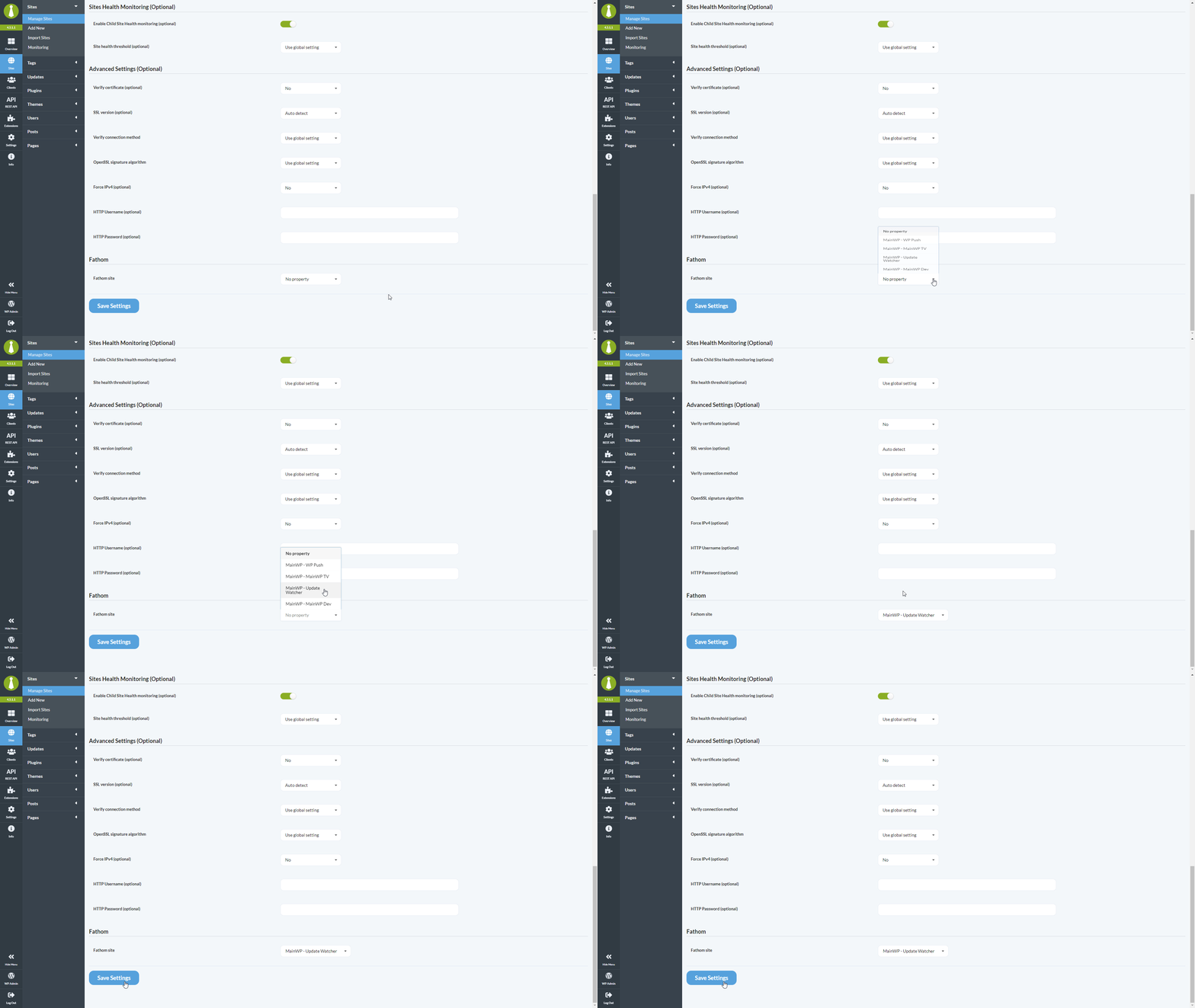
* Assigning Fathom sites to child sites
* Viewing visitor data and widgets
* Including Fathom data in Pro Reports
***
**Integration Add-on** - This add-on extends MainWP to work with Fathom Analytics. It requires a connected Fathom account with sites available to assign in MainWP.
The Fathom Extension for MainWP simplifies accessing Fathom data for all Child Sites within your MainWP Dashboard. It adds global and individual widgets that display visitor counts and valuable insights, empowering you to make informed decisions for your Child Sites.
## Use this Extension To Track:
* Views
* Users
* Unique pages view
* Average Engagement time
* Visitors by Country
* Visitors by Page
* Visitors by Device
* Views by Referrers
* Visitors by Browsers
## Establishing a connection with a Fathom Account
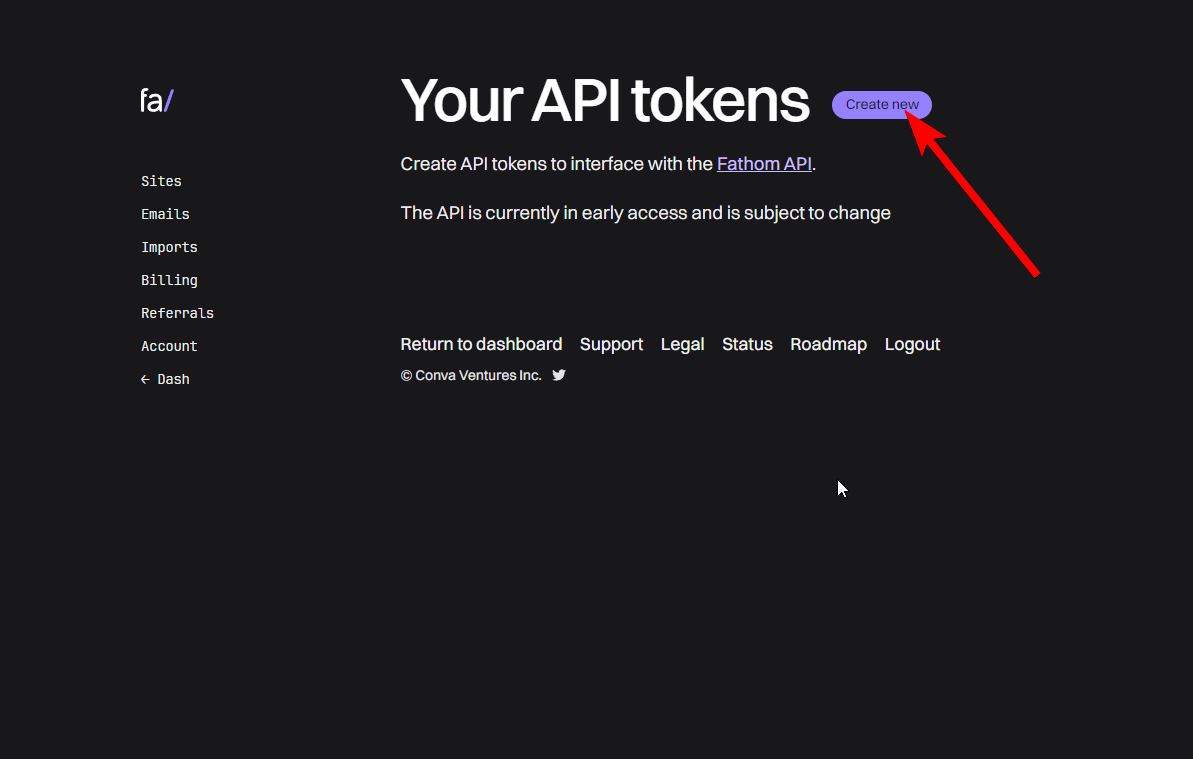
Navigate to [https://app.usefathom.com/api](https://app.usefathom.com/api)
Click the **Create New** button to create an API token\\
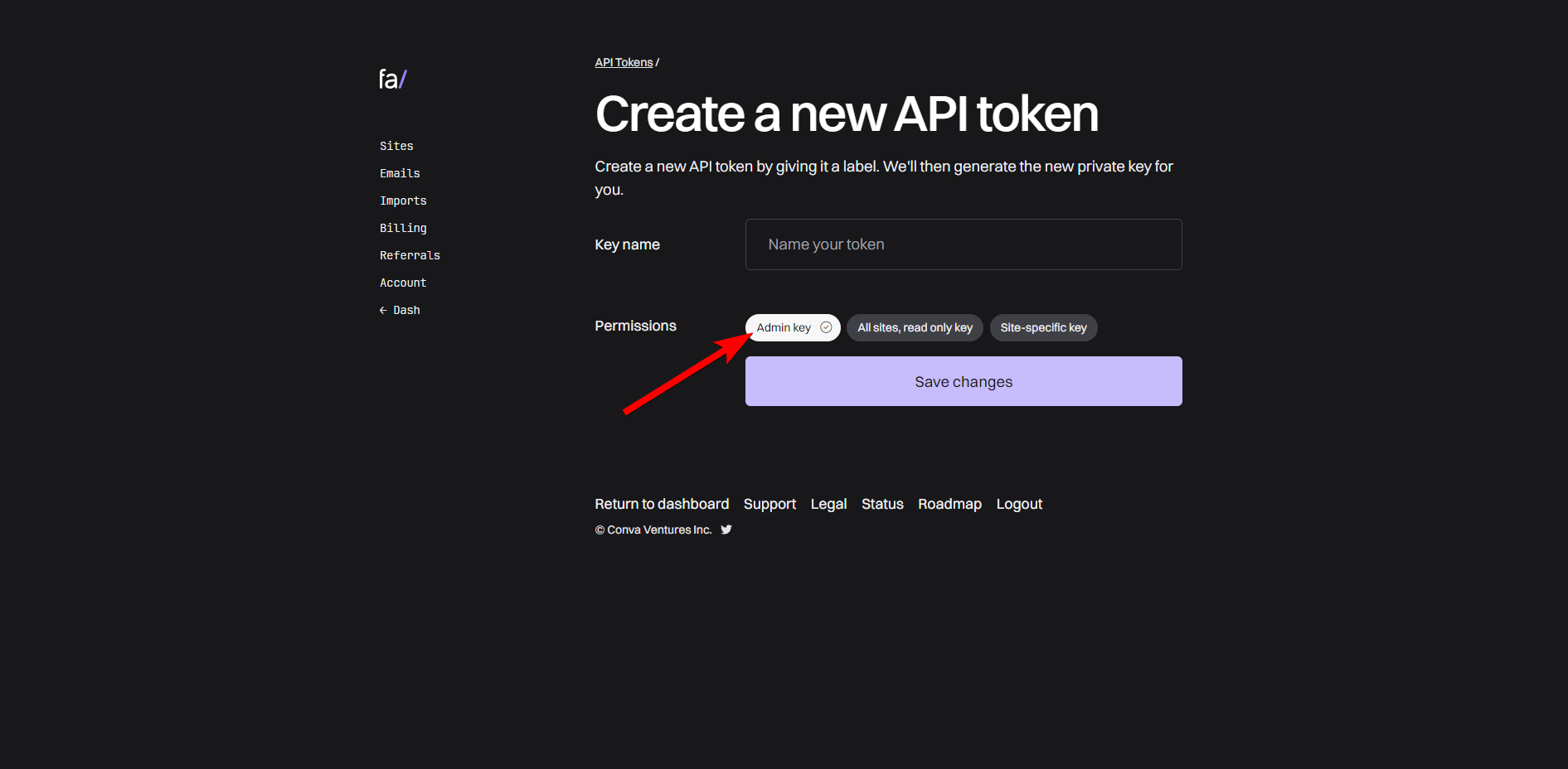
Give the key a name, set **Permissions** to **Admin key,** and click the **Save change** button\\
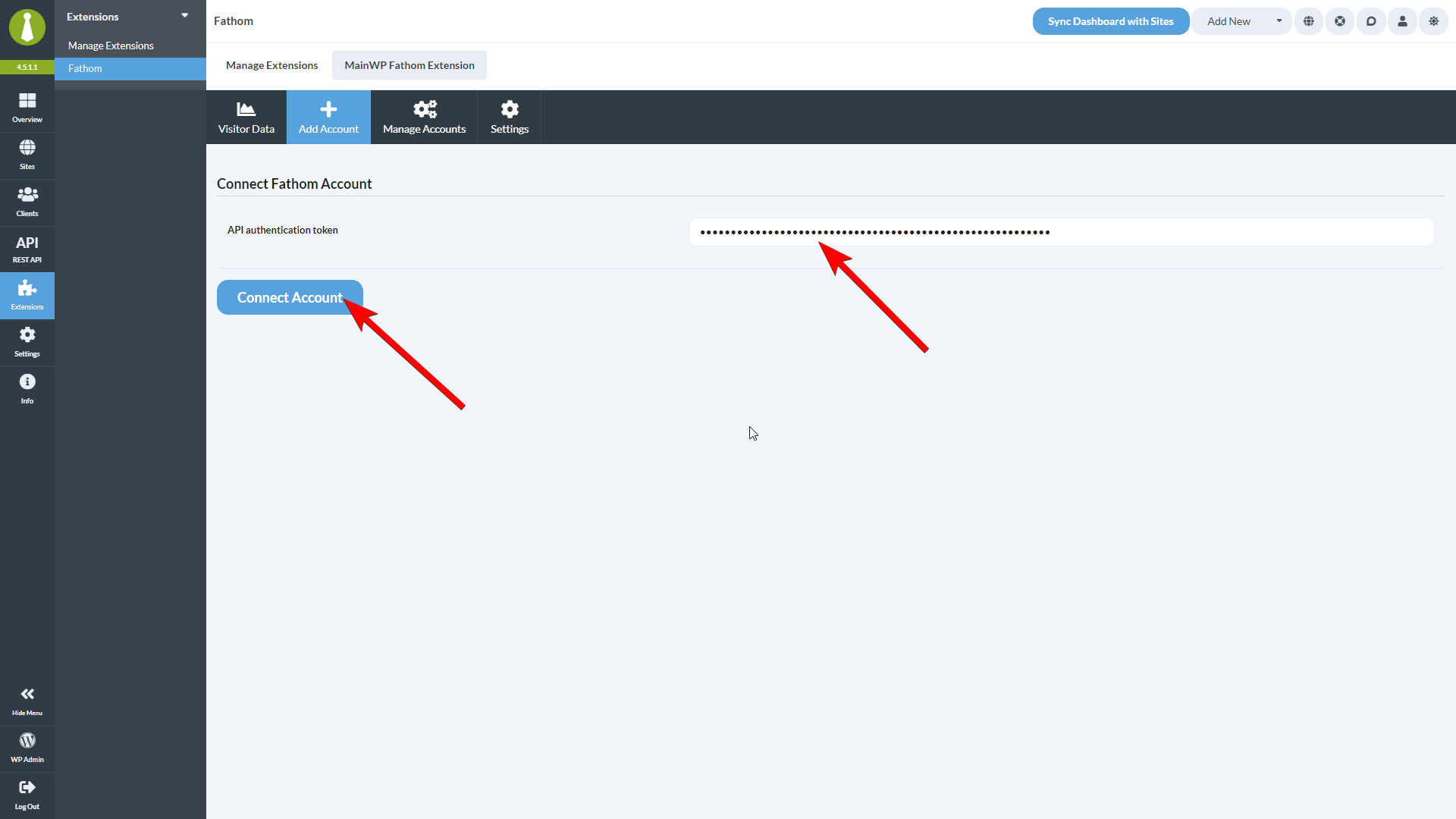
Paste in the API token and click the **Connect Account** button\\
The Fathom Extension doesn't allow you to insert the Fathom Analytics tracking code on your child sites. To do that, you will need to add the code manually or use a third-party plugin.
## Assigning sites from your Fathom Account to Child Sites in your MainWP Dashboard
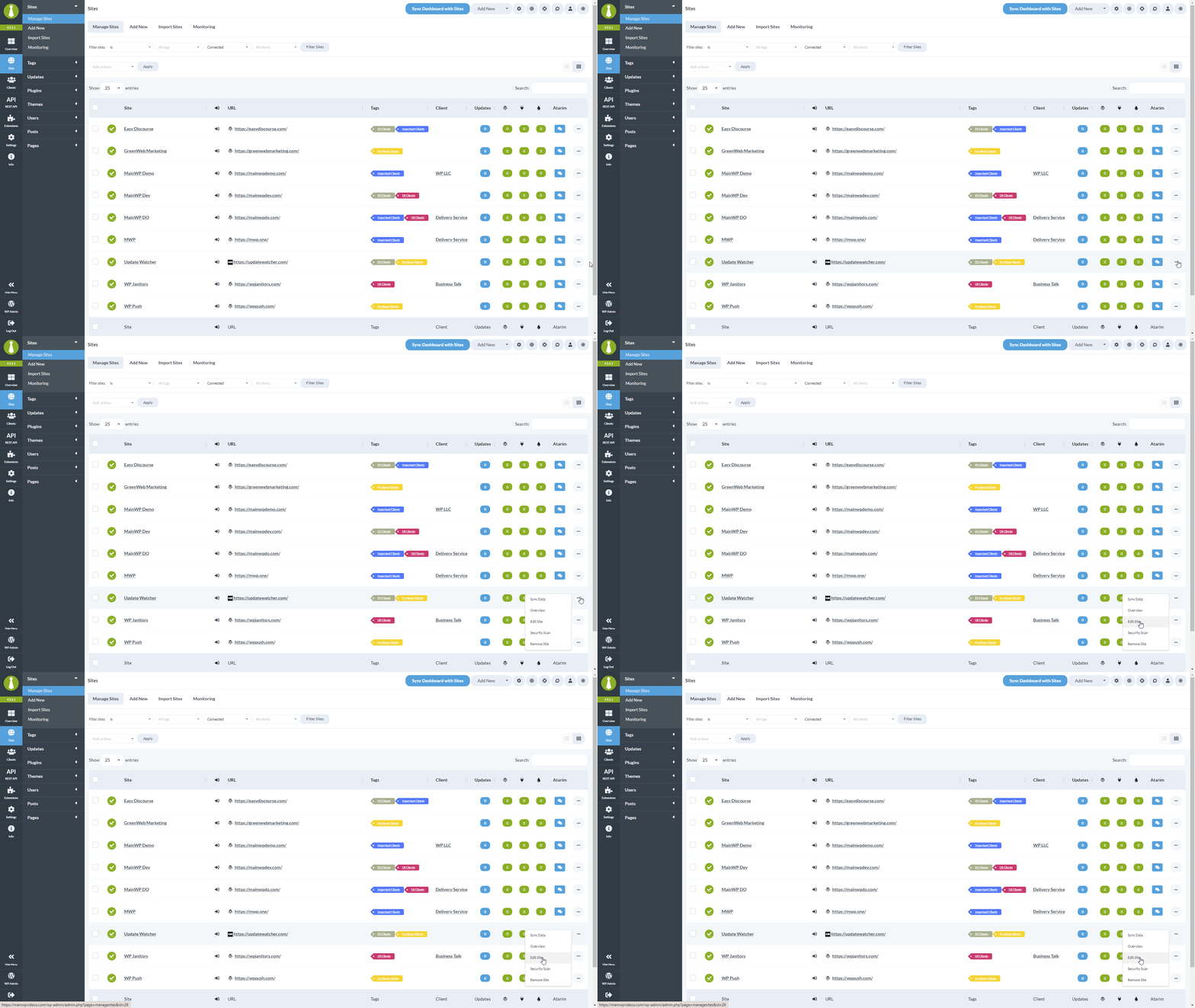
Locate the desired child site and click the **Edit** action\\
Click the **Save Settings** button\\
When you are done, you will see those sites in the dropdown on the **Add-ons > Analytics > Fathom > Visitor Data** page
## Fathom Visitor Data
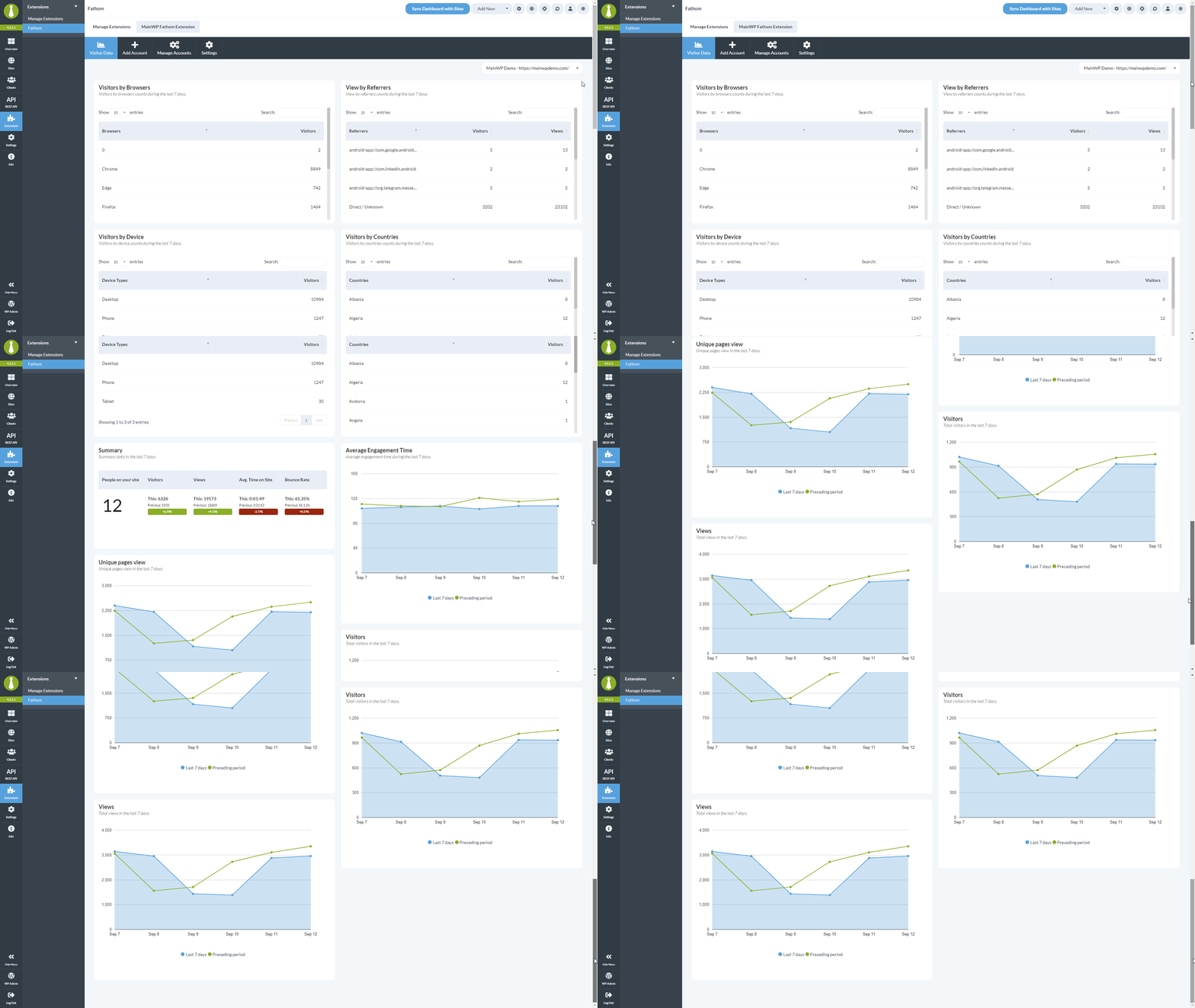
After you connect your Fathom Analytics account and assign Fathom sites to your child sites, you will be able to see all Fathom Analytics data on the **Add-ons > Analytics > Fathom > Visitor Data** page.
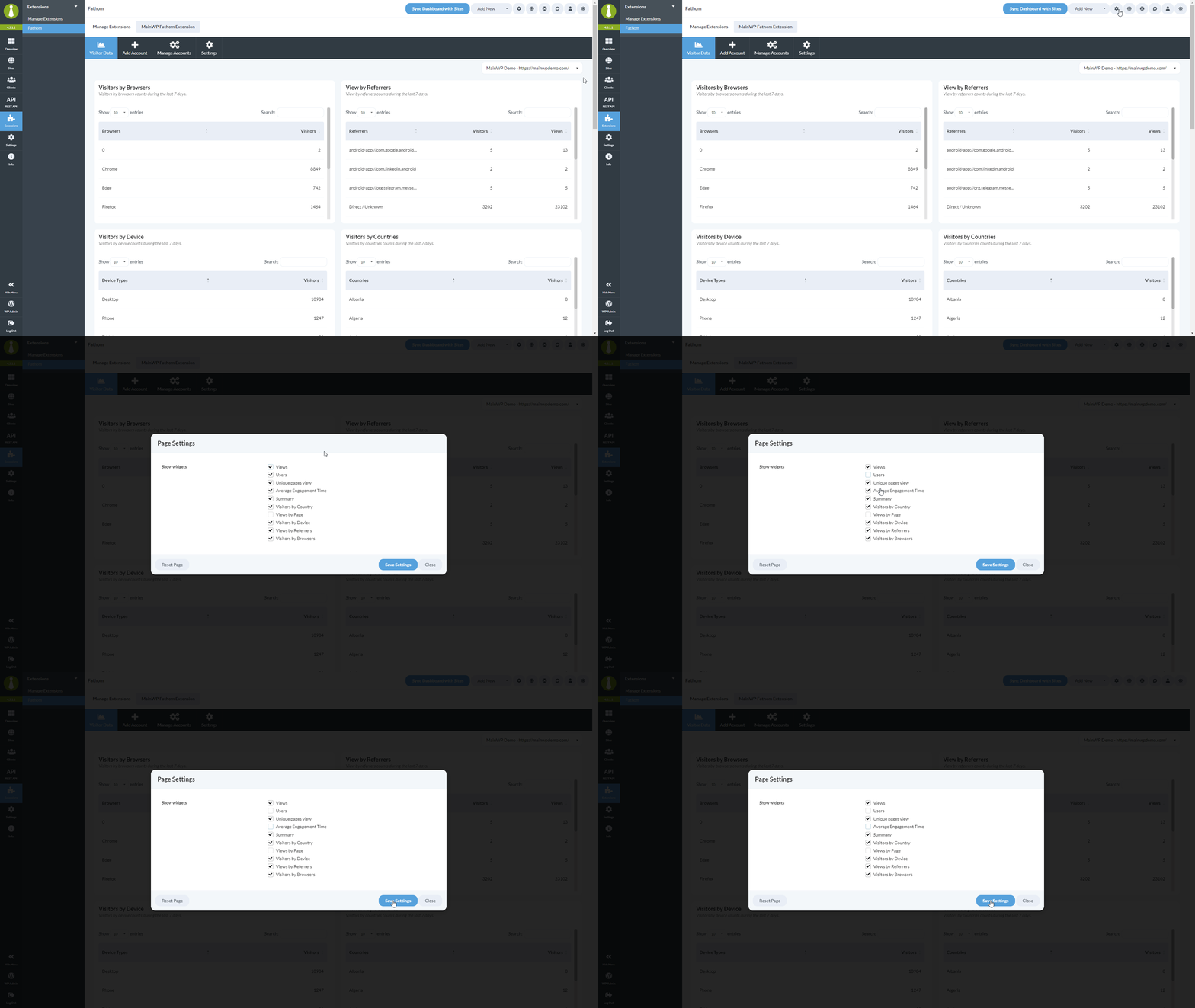
You can disable and enable widgets in [Page Settings](/getting-started/mainwp-user-interface), and you can re-arrange them in any way you wish.
## Refreshing Fathom data
Fathom data is cached in your MainWP Dashboard so that pages load quickly and so the Fathom Aggregation API isn't called on every page view. The cache is refreshed automatically based on the **Data refresh frequency** setting, and you can also refresh it on demand.
### Data refresh frequency
Set how often MainWP fetches fresh stats from your Fathom account:
Available options are **Every hour**, **Every 3 hours**, **Every 9 hours**, **Every 15 hours**, **Every 18 hours**, and **Every 24 hours**.
If you have many connected child sites or are close to your Fathom API rate limit, choose a longer interval. The default cadence is suitable for most installs.
### Refresh Data button
Use the **Refresh Data** button to force an immediate update outside of the configured refresh frequency. It clears the Fathom stats cache and re-fetches data from Fathom for all assigned sites.
* On the **Settings** tab, click the **Refresh Data** button next to **Save Settings**.
* On the **Visitor Data** tab, click the **Refresh Data** button to reload the page with fresh stats.
Use this after assigning new Fathom sites to child sites, or whenever you want to see the latest numbers without waiting for the next scheduled refresh.
## Display interval
The **Display interval** setting on the Settings tab controls the time range shown in Fathom widgets and on the Visitor Data page. Choose **Week** or **Month** depending on the reporting window you want to see by default.
## Removing a connected Fathom account
When you remove a connected Fathom account from MainWP, the extension automatically clears the Fathom site assignments from your child sites and removes the related cached stats. You don't need to manually clean up child site settings after disconnecting an account.
## Widgets
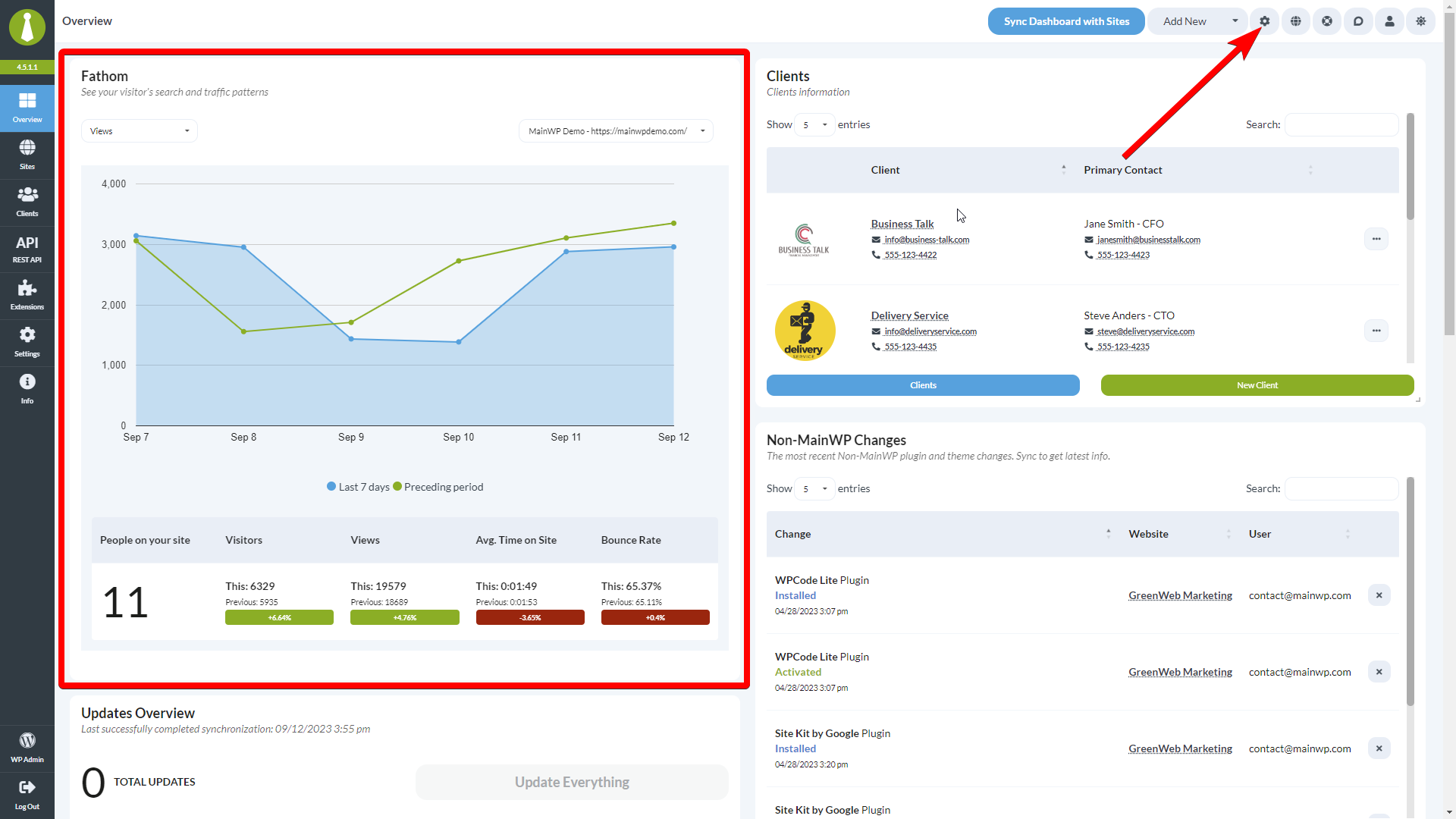
The Fathom widget will be added to the Overview page and on the Individual Child site Overview page.
As always, the widgets can be enabled or disabled in [Page Settings](/getting-started/mainwp-user-interface), and they can be re-arranged however you wish.
## Fathom data in Pro Reports
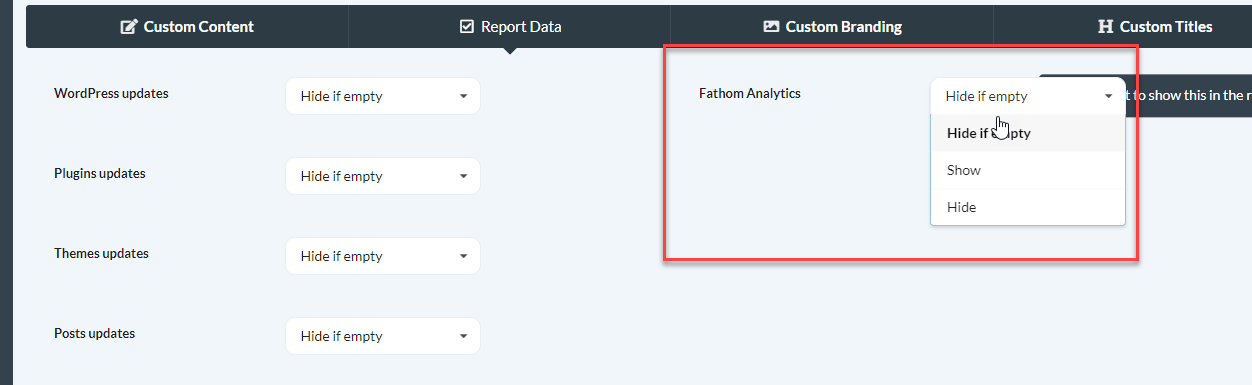
Fathom data can be easily included in Pro Reports by selecting it from the Report Data section of the Pro Reports.\\
Fathom data can also be included using tokens. You can find a list of all available tokens here: [Available Pro Reports Tokens](/add-ons/agency/available-pro-reports-tokens)
For more information about Pro Reports and the use of tokens please refer to this KB: [Pro Reports Extension Overview](/add-ons/agency/pro-reports-extension-overview)
***
## Related Resources
* [Analytics Add-ons](/add-ons/analytics) - Browse all analytics integrations
* [Pro Reports Extension](/add-ons/agency/pro-reports-extension-overview) - Include analytics data in reports
* [Available Pro Reports Tokens](/add-ons/agency/available-pro-reports-tokens) - Fathom tokens
 You can disable and enable widgets in [Page Settings](/getting-started/mainwp-user-interface), and you can re-arrange them in any way you wish.
 ## Refreshing Fathom data
Fathom data is cached in your MainWP Dashboard so that pages load quickly and so the Fathom Aggregation API isn't called on every page view. The cache is refreshed automatically based on the **Data refresh frequency** setting, and you can also refresh it on demand.
### Data refresh frequency
Set how often MainWP fetches fresh stats from your Fathom account:
## Refreshing Fathom data
Fathom data is cached in your MainWP Dashboard so that pages load quickly and so the Fathom Aggregation API isn't called on every page view. The cache is refreshed automatically based on the **Data refresh frequency** setting, and you can also refresh it on demand.
### Data refresh frequency
Set how often MainWP fetches fresh stats from your Fathom account:
 ## Fathom data in Pro Reports
Fathom data can be easily included in Pro Reports by selecting it from the Report Data section of the Pro Reports.\\
## Fathom data in Pro Reports
Fathom data can be easily included in Pro Reports by selecting it from the Report Data section of the Pro Reports.\\
 Fathom data can also be included using tokens. You can find a list of all available tokens here: [Available Pro Reports Tokens](/add-ons/agency/available-pro-reports-tokens)
For more information about Pro Reports and the use of tokens please refer to this KB: [Pro Reports Extension Overview](/add-ons/agency/pro-reports-extension-overview)
***
## Related Resources
* [Analytics Add-ons](/add-ons/analytics) - Browse all analytics integrations
* [Pro Reports Extension](/add-ons/agency/pro-reports-extension-overview) - Include analytics data in reports
* [Available Pro Reports Tokens](/add-ons/agency/available-pro-reports-tokens) - Fathom tokens
Fathom data can also be included using tokens. You can find a list of all available tokens here: [Available Pro Reports Tokens](/add-ons/agency/available-pro-reports-tokens)
For more information about Pro Reports and the use of tokens please refer to this KB: [Pro Reports Extension Overview](/add-ons/agency/pro-reports-extension-overview)
***
## Related Resources
* [Analytics Add-ons](/add-ons/analytics) - Browse all analytics integrations
* [Pro Reports Extension](/add-ons/agency/pro-reports-extension-overview) - Include analytics data in reports
* [Available Pro Reports Tokens](/add-ons/agency/available-pro-reports-tokens) - Fathom tokens