> ## Documentation Index
> Fetch the complete documentation index at: https://docs.mainwp.com/llms.txt
> Use this file to discover all available pages before exploring further.
# Comments
> The MainWP Comments Extension lets you approve, unapprove, mark comments as spam, move them to Trash, restore them, edit them, and permanently delete them across multiple Child Sites with bulk or individual actions.
## What You'll Learn
* How to manage comments across multiple sites
* Using bulk actions for comment moderation
* Approving, unapproving, spam marking, and deleting comments
* Customizing comment display settings
***
**Extension Add-on** - This add-on provides standalone functionality within MainWP Dashboard. No third-party plugins required.
The [MainWP Comments Extension](https://mainwp.com/add-on/comments/) lets you approve, unapprove, mark comments as spam, move them to Trash, restore them, edit them, and permanently delete them across your child sites from one place. You can use bulk actions to handle multiple comments at once or moderate them one by one.
## The Recent Comments Widget
A great addition to this extension is the **Recent Comments** widget. It shows the latest Approved and Pending comments from your sites and provides quick links to moderate them or open the full comments page.
## Manage Comments
The MainWP Comments Extension allows you to manage comments on your websites. It lets you remotely
* Approve
* Unapprove
* Mark as Spam
* Not Spam
* Move to Trash
* Restore
* Edit
* Delete Permanently
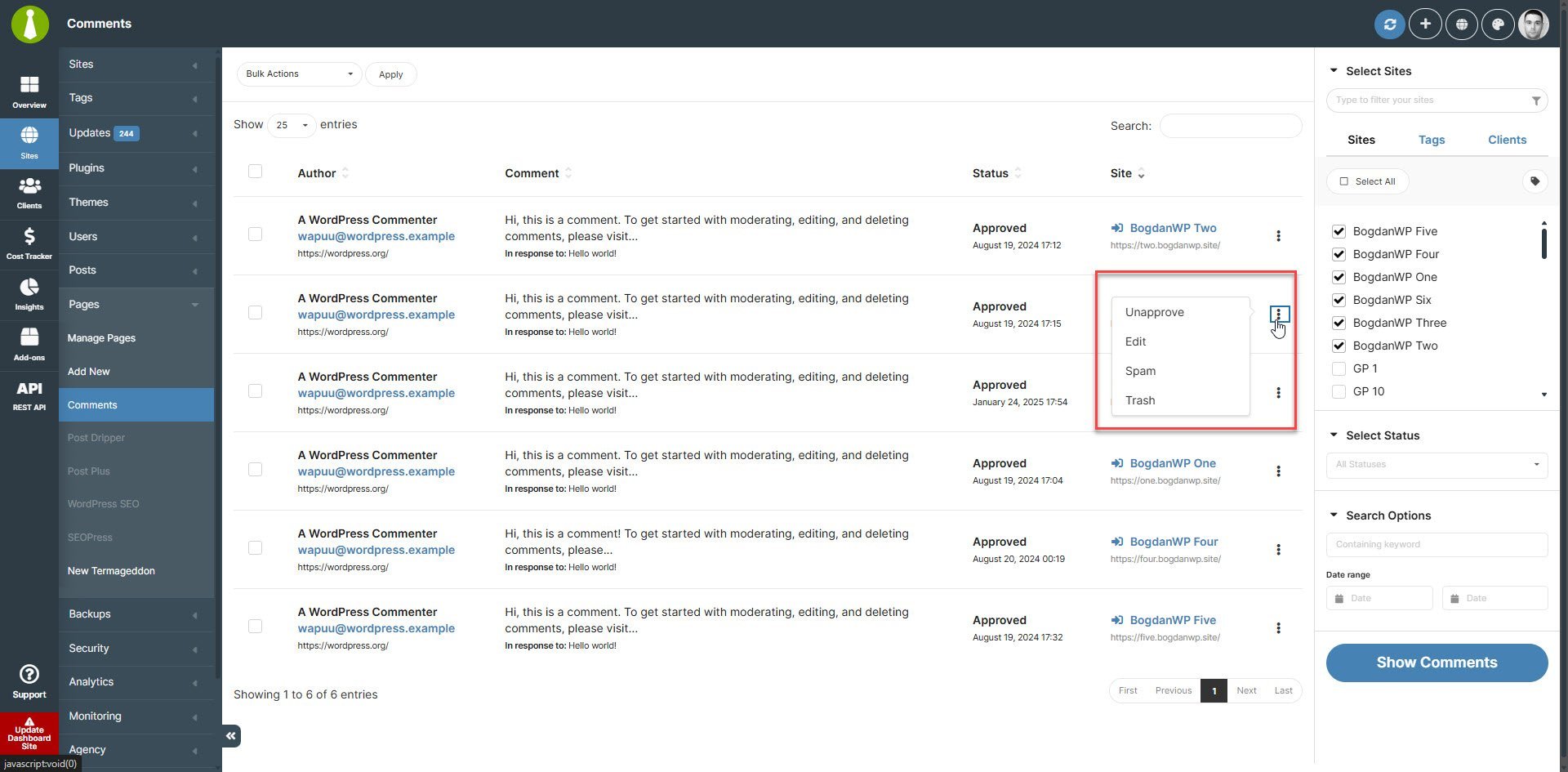
On the **MainWP > Sites > Content Operations > Comments** page, you can find comments across your child sites and manage them without logging in to each site separately.
Use the sidebar filters to narrow your results:
1. **Select Status** lets you filter comments by Approved, Pending, Spam, or Trash
2. **Containing keyword** lets you find comments containing a specific word
3. **Date range** narrows comments by the selected dates
By default, the MainWP Dashboard plugin is set to return (show) a maximum of 50 comments from one Child Site.
## Unapprove Comment
Once the list of found comments appears
1. Locate the Comment you want to update
2. Click the **Unapprove** action in the Actions menu
The Unapprove action will appear only for comments that are already approved.
## Approve Comment
Once the list of found comments appears
1. Locate the Comment you want to update
2. Click the **Approve** action in the actions menu
The Approve action will appear only for comments that are waiting for approval.
## Mark Comment as Spam
Once the list of found comments appears
1. Locate the Comment you want to update
2. Click the **Spam** action in the actions menu
## Edit Comment
Once the list of found comments appears
1. Locate the Comment you want to edit
2. Click the **Edit** action in the actions menu
## Move Comment to Trash
Once the list of found comments appears
1. Locate the Comment you want to trash
2. Click the **Trash** action in the actions menu
### Delete Comment Permanently
In the comments list, the **Delete Permanently** action is available for comments that are already in **Trash** or marked as **Spam**.
The comments table also includes **Restore** and **Not Spam** bulk actions. When a comment is in **Trash**, its row actions include **Restore** and **Not Spam**.
## Set Custom Comment Display Length
To set the custom comment length, please [see this gist.](https://gist.github.com/bogdan-mainwp/8fab61ca689f24aae74565f714ef00b6)
## Network Activity Logging
Comment moderation actions performed through the extension (approve, unapprove, spam, unspam, trash, restore, delete) are recorded in [Network Activity](/sites/network-activity) under the **Comments** connector. Use this to audit who moderated which comment and when, alongside the rest of your Dashboard activity.
Network Activity logging must be enabled in **MainWP > Settings > Network Activity Settings** for these events to be stored.
## Manage Comments via the REST API
The Comments Extension exposes REST API v2 routes so you can list and moderate comments programmatically across your child sites.
| Method | Path | Purpose |
| ---------- | -------------------------------------------------------- | -------------------------------------- |
| GET | `/mainwp/v2/comments` | List comments across selected sites |
| GET | `/mainwp/v2/comments/{id_or_domain}` | List comments for one site |
| PUT, PATCH | `/mainwp/v2/comments/{id_or_domain}/{id_comment}/action` | Perform an action on one comment |
| PUT, PATCH | `/mainwp/v2/comments/{id_or_domain}/bulk-action` | Perform an action on multiple comments |
Supported actions: `approve`, `unapprove`, `spam`, `unspam`, `trash`, `restore`, `delete`.
Example — approve a comment on site `12`:
```bash theme={null}
curl -X PUT \
-H "Authorization: Bearer YOUR_API_KEY" \
-H "Content-Type: application/json" \
-d '{ "action": "approve" }' \
"https://your-dashboard.com/wp-json/mainwp/v2/comments/12/482/action"
```
See [Extensions Endpoints](/api-reference/rest-api/extensions#comments) for the full parameter reference and additional examples.
***
## Related Resources
* [Administrative Add-ons](/add-ons/administrative) - Browse administrative add-ons
* [Add-ons Overview](/add-ons/overview) - All add-on categories
* [Extensions Endpoints](/api-reference/rest-api/extensions#comments) - Comments REST API reference
* [Network Activity](/sites/network-activity) - Review and configure activity logging
 By default, the MainWP Dashboard plugin is set to return (show) a maximum of 50 comments from one Child Site.
## Unapprove Comment
By default, the MainWP Dashboard plugin is set to return (show) a maximum of 50 comments from one Child Site.
## Unapprove Comment